

How to copy a message or go to a reply on Windows
Quick answer
In a conversation:
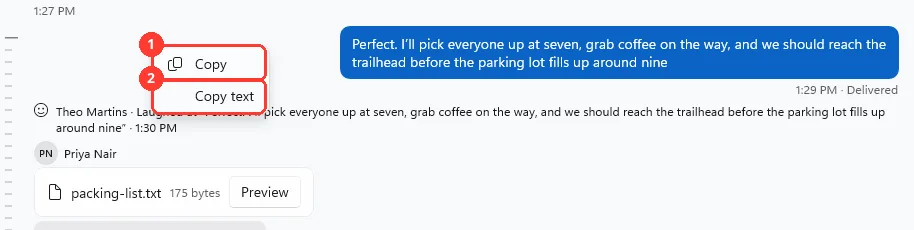
- To copy, right-click the empty space next to a message. Click Copy or Copy text.
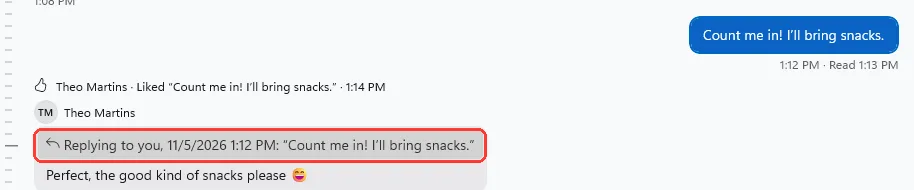
- To go to the original, click the gray quote at the top of a reply.
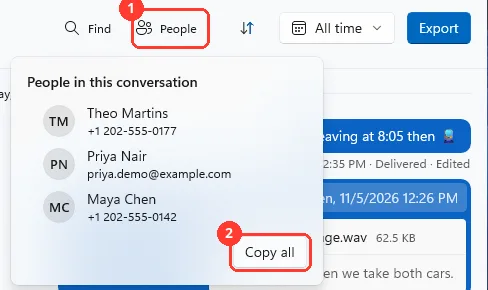
- To see who is in a group, click People at the top.
What you need
- ✓TextPort for Windows, with a conversation open
Steps
Copy a message
-
Right-click next to the message
Right-click the empty space in its row, not the text. A menu opens.
You can also click next to a text message and press Ctrl+C.
-
Click Copy or Copy text
Copy (1) adds the date, time, and sender. Copy text (2) copies only the words.
Go to a reply's original
See people
-
Click People, then Copy all
Click People in a group conversation (1). Names and numbers show. Click Copy all to copy them (2).
Done
You copied the text, found the original message, or saw who is in the group.
Problems
You only see Select All.
You right-clicked the words. Right-click the empty space next to the message.
Replying to a message that isn’t in this view
The dates you picked leave out the original. Click the dates next to Export, then All time.
A photo or file opens when you click the quote.
This can happen on a reply with its own photo or file. Press Esc. The original message is already on screen.
There is no People button.
People shows only in group conversations. In a one-to-one conversation the number or email is under the name.
None of these match.
Email [email protected]. Say which step you were on. Say what you saw. We usually reply within a day.
Questions
-
Preview, Open and Save original… on a message with a photo or file. Go to original message on a reply.
-
Yes. Select the words with the mouse. Press Ctrl+C.
-
It uses the same line as a text file export: the date and time, the sender, then the words.



Start exporting your messages
Available for iPhone, Mac, and Windows. No computer required.
