

How to find and open a chat on Mac
You will have the chat you want open on the right side of TextPort.
What you need
- ✓TextPort for Mac, set up with Messages access
Every chat saved in Messages on your Mac is in the list on the left. Search it to find one fast.
Steps
-
1
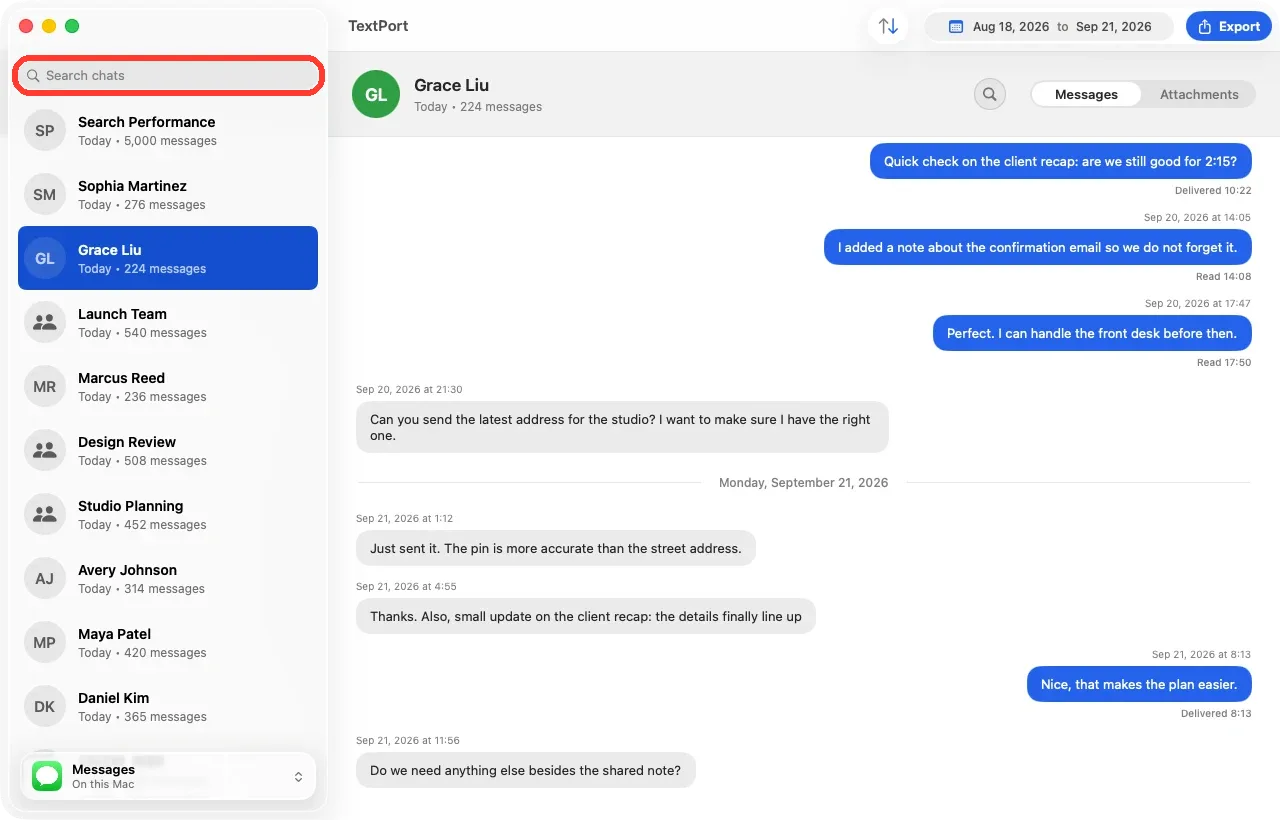
Click Search chats
Open TextPort. Click Search chats at the top of the list on the left.
-
2
Type a name or number
Type the person's name or phone number. You can also type a word from their last message. The list shows only chats that match.
-
3
Click the chat
Click the chat in the list. Its messages show on the right.
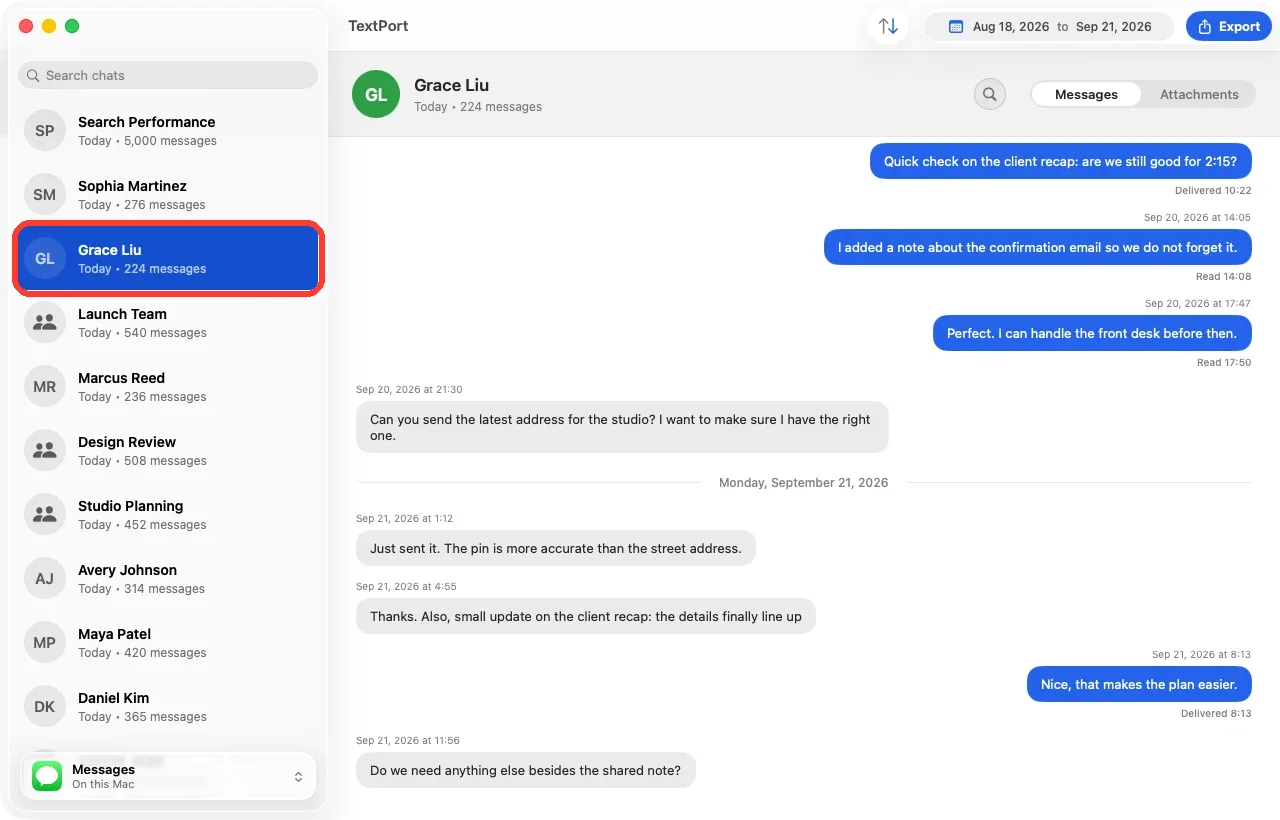
Done
The chat is open. Scroll up and down to read it.
Tips
-
Chats with the newest messages are at the top of the list.
-
Clear the search box to see every chat again.
-
Want two chats side by side? Press Command-N for a new window.
Questions
-
TextPort shows the chats saved in Messages on this Mac. If a chat is only on your iPhone, turn on Messages in iCloud on both devices and wait for sync. See the fix guide.
-
TextPort needs Contacts access to show names. Open TextPort, then Settings, then General, and click Allow Access under Contacts Access.
-
No. It checks the chat name, the phone number or email, and the last message. To find words inside one chat, open it and press Command-F.
Next guides
-
 How to search inside a chat on Mac
You will find a message in a chat and jump right to it.
How to search inside a chat on Mac
You will find a message in a chat and jump right to it.
-
 How to install TextPort for Mac and give it Messages access
You will have TextPort for Mac open, showing every chat saved in Messages on that Mac.
How to install TextPort for Mac and give it Messages access
You will have TextPort for Mac open, showing every chat saved in Messages on that Mac.
-
 How to export one chat to PDF, CSV, or TXT on Mac
You will get a file of one chat on your Mac, as a PDF, a spreadsheet, or plain text.
How to export one chat to PDF, CSV, or TXT on Mac
You will get a file of one chat on your Mac, as a PDF, a spreadsheet, or plain text.

Start exporting your messages
Available for iPhone, Mac, and Windows. No computer required.
