

How to search inside a chat on Mac
You will find a message in a chat and jump right to it.
What you need
- ✓TextPort for Mac, set up with Messages access
- ✓A chat open in TextPort
Looking for one message in a long chat? Search finds it in seconds.
Steps
-
1
Open the chat
Click the chat in the list on the left. Its messages show on the right.
-
2
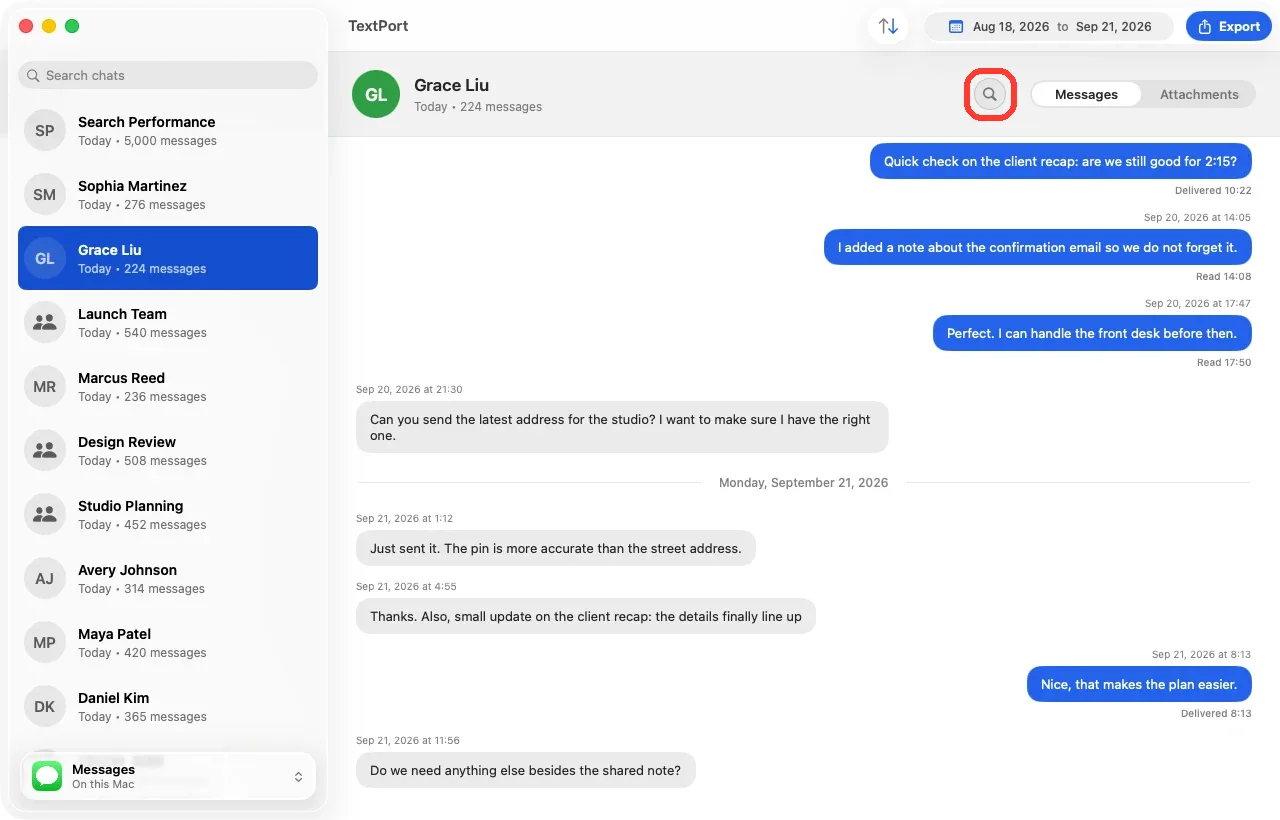
Click the search button
Click the round magnifying glass at the top of the chat. Or press Command-F. A Search Messages box opens.
-
3
Type a word
Type a word or a few words from the message. A list called Results shows every message that has them.
-
4
Click a result
Click the message you want. The chat jumps to it. The message glows for a moment so you can spot it.
Done
You are at the message you were looking for.
Tips
-
Press Return to jump to the first result.
-
Press Esc or click the x in the box to close search.
-
See No Results? Check the spelling. Or try a shorter word.
-
Search looks at message text only. It does not look at photo or file names.
Questions
-
Yes. It checks every message in the chat, even outside the date filter. When you click a result, the date filter is cleared so you can see the message.
-
No. Searching for maya also finds Maya.
-
Pick a chat first, and wait for its messages to load. A chat with no messages cannot be searched.
-
Use the Search chats box at the top of the chat list. See how to find a chat.



Start exporting your messages
Available for iPhone, Mac, and Windows. No computer required.
