

How to search inside a chat
Quick answer
In the chat:
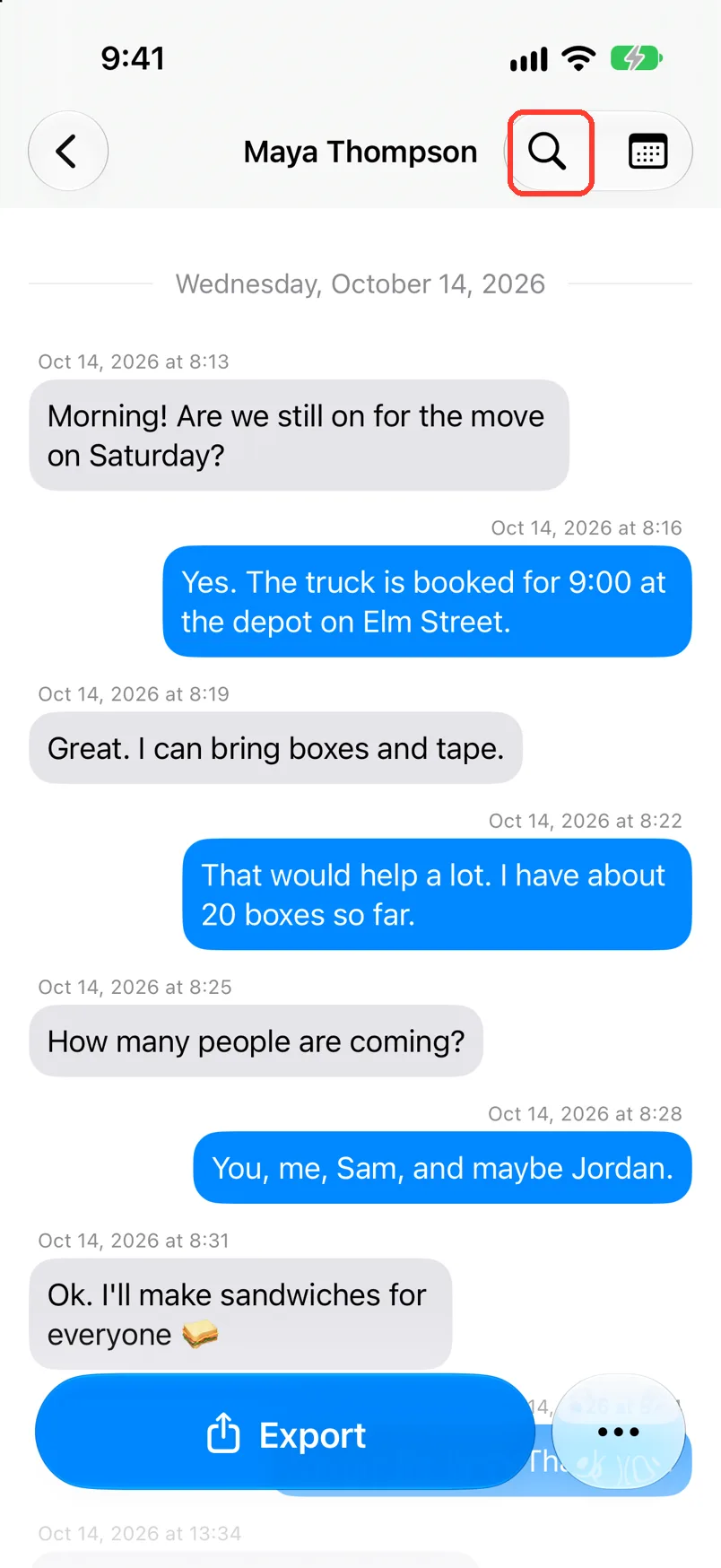
- Tap the magnifying glass at the top.
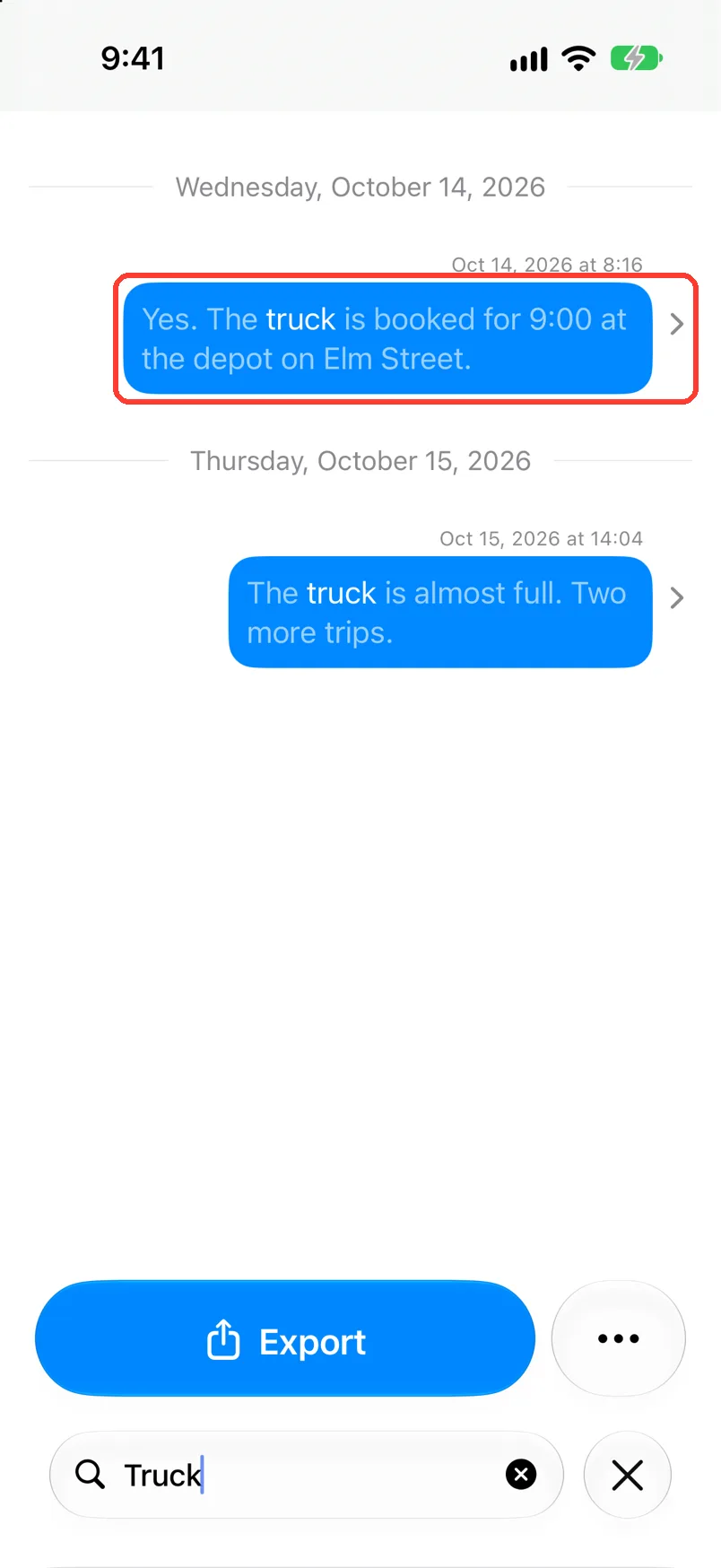
- Type the word.
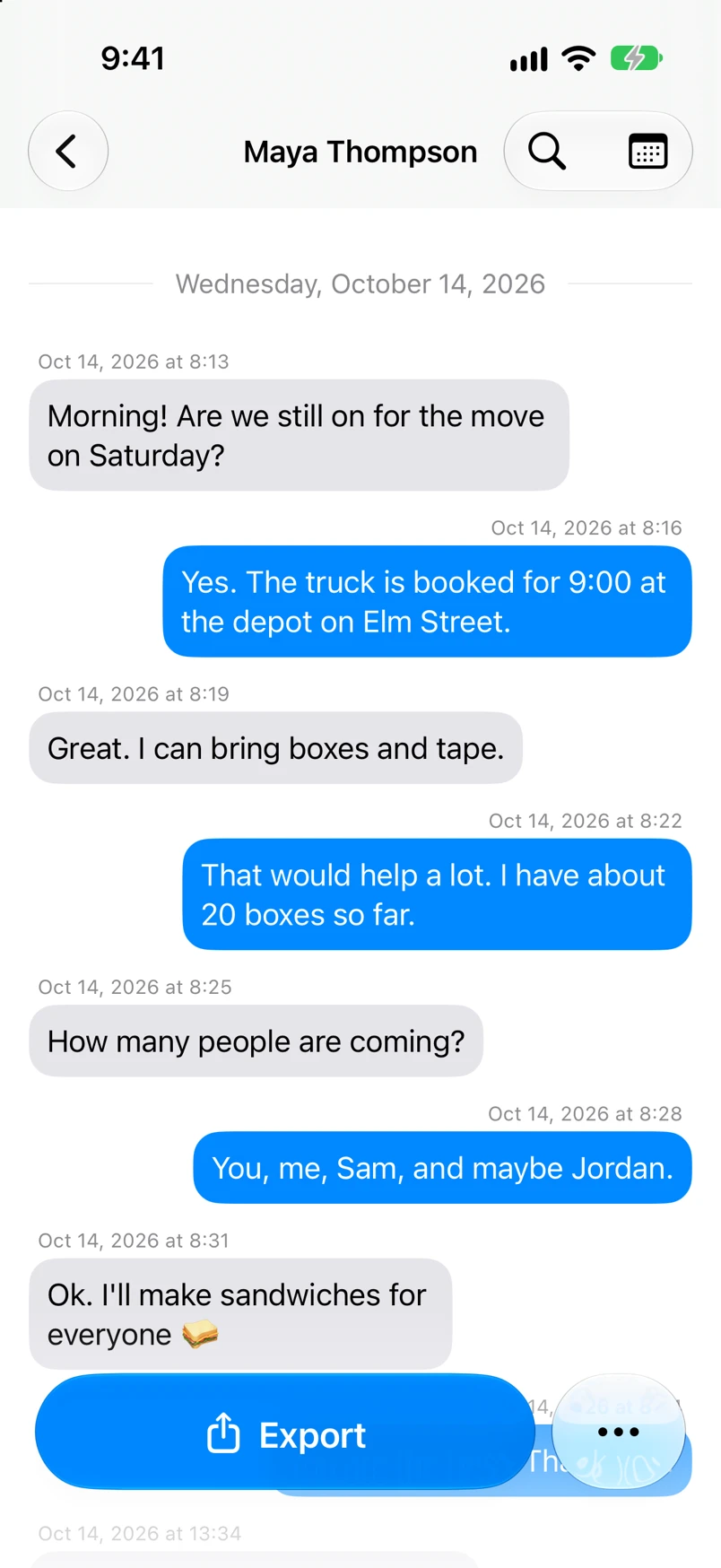
- Tap a message to see it in the chat.
Search looks in this chat only.
- On Mac: How to search inside a chat on Mac
- On Windows: How to search all your messages on Windows
What you need
- ✓TextPort on your iPhone
- ✓A chat saved in TextPort
Steps
-
Tap the magnifying glass
Open the chat. It is at the top right. Search Messages opens.
-
Type the word
The box is at the bottom. The keyboard opens by itself.

-
Tap a message
Only messages with the word show. The word is bright.
-
Read around it
Search closes. The chat shows that message with the ones around it.
Done
You found the message and can read what came before and after it.
Problems
No Results
Check the spelling. Try a shorter word.
You want to leave search.
Tap the X next to the search box.
You want to search all chats.
Search looks in one chat at a time. Open the other chat and search there.
You know the day, not the word.
None of these match.
Email [email protected]. Say which step you were on. Say what you saw. We usually reply within a day.
Questions
-
No. It only shows you the matching messages. The chat stays the same.
Next guides




Start exporting your messages
Available for iPhone, Mac, and Windows. No computer required.
