

How to copy a message
Quick answer
In the chat:
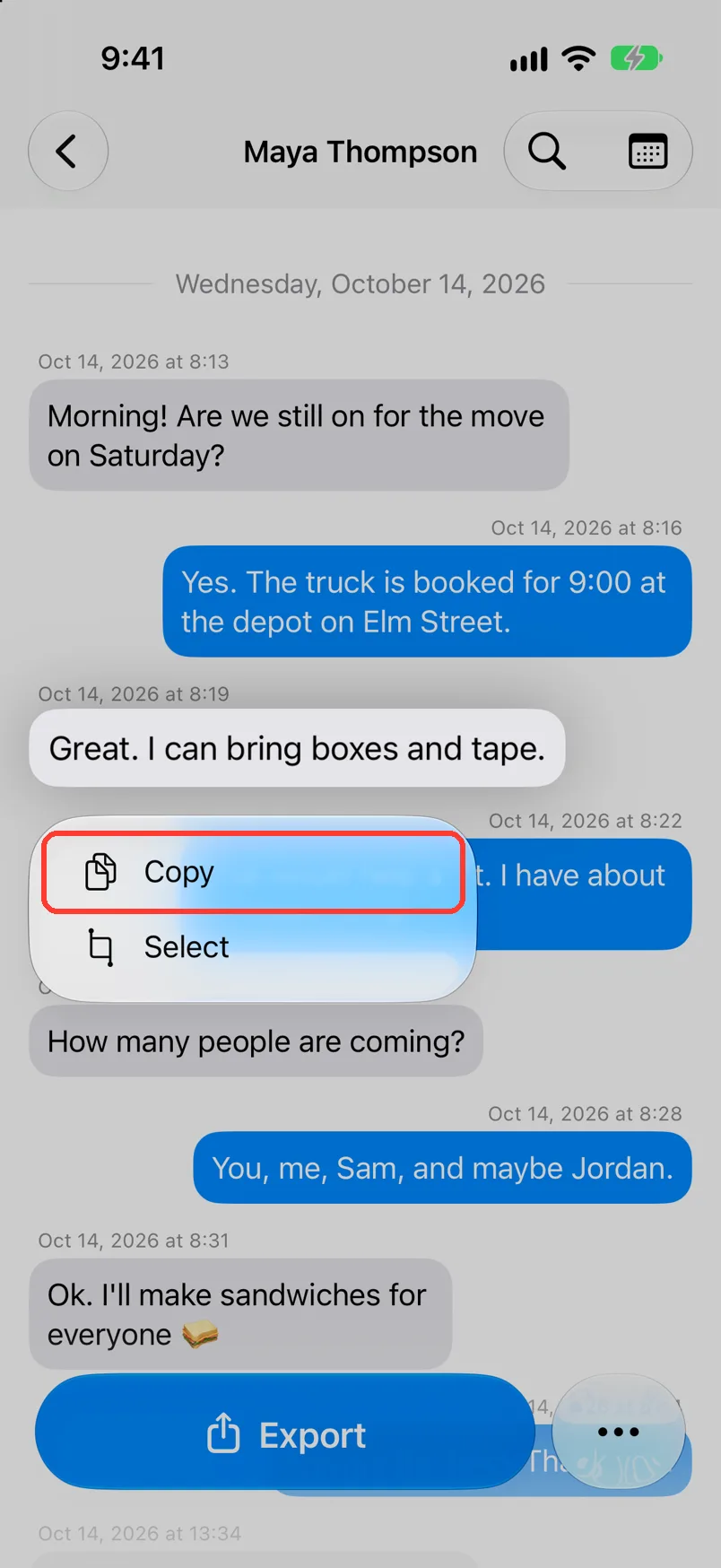
- Long press the message.
- Tap Copy for the whole message.
- Or tap Select, drag the blue dots, then tap Copy.
Paste it in any app.
What you need
- ✓TextPort on your iPhone
- ✓A chat saved in TextPort
Steps
-
Long press the message
Press and hold the bubble. A menu opens.
-
Tap Copy
It is the top row. The whole message is copied.
-
Or tap Select for a few words
All the words start selected. Drag the blue dots to pick fewer. Then tap Copy above them.
To stop, tap the bubble or anywhere outside it.
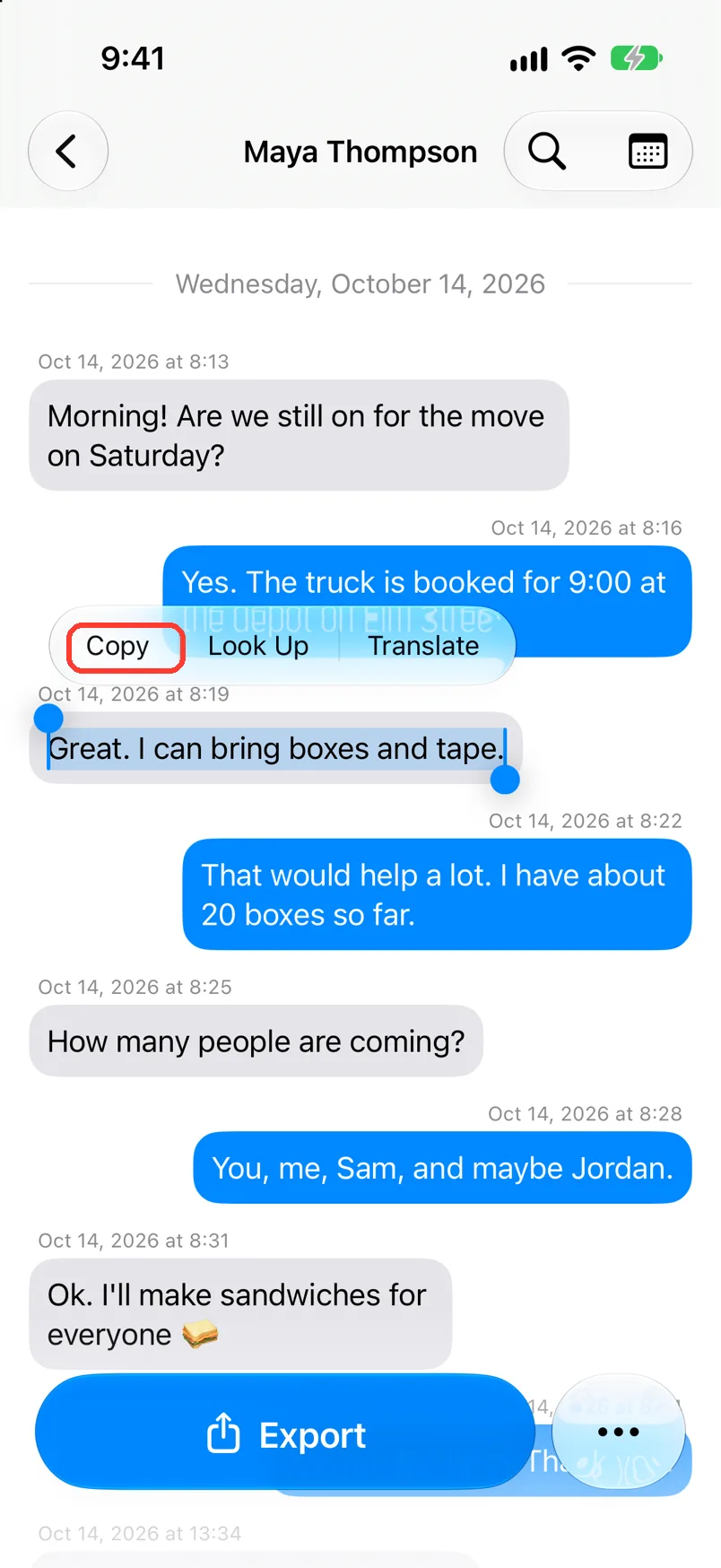
Done
The words are copied. Long press in another app and tap Paste.
Problems
There is no Select in the menu.
The message has no text you can pick, or search is open. Tap the X to close search. Or use Copy.
You want to copy the whole chat.
Tap Export, then Text. In Text Preview, tap the copy button. See Export a chat to a text file.
You want to save a photo or file.
Long press it. Tap Share. See See all photos, videos, and files in a chat.
None of these match.
Email [email protected]. Say which step you were on. Say what you saw. We usually reply within a day.
Questions
-
Yes. Copy works in chats from Messages, WhatsApp, LINE, screenshots, and Scroll Capture.
Next guides
-
 How to search inside a chat
You will find every message in a chat with the word you need.
-
 How to export a chat to a text file
You will have a plain text file of the chat, with one line for each message.
-
 How to read a chat in TextPort
You will know who sent each message and when, and how to hide or show the times.

Start exporting your messages
Available for iPhone, Mac, and Windows. No computer required.
