
How to export a chat to a text file
Quick answer
In TextPort:
- Open the chat in Saved Chats.
- Tap Export at the bottom.
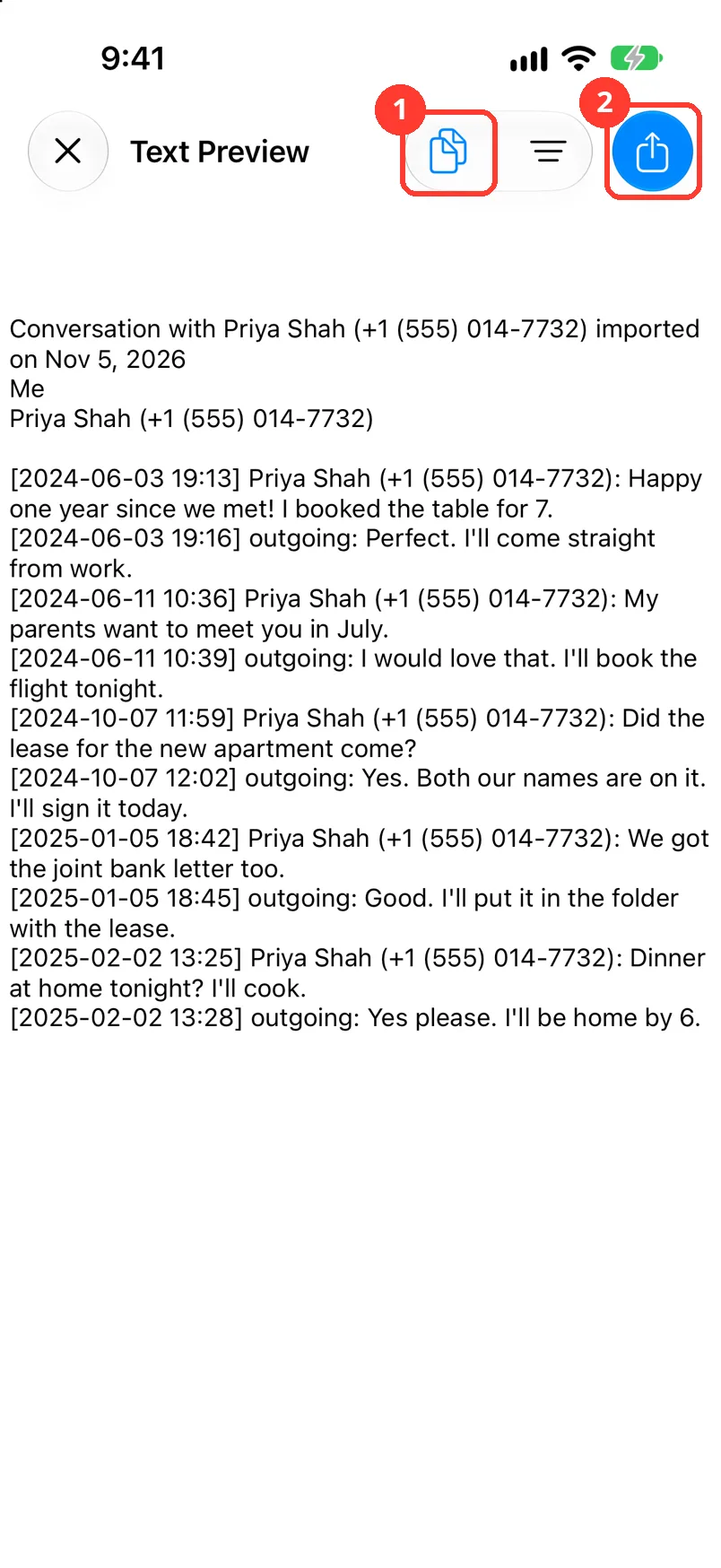
- Tap Text. Text Preview opens.
- Tap the share button in the top right.
- Tap Share to send it, or Files to save it.
- On Mac: How to export one chat to PDF, CSV, or TXT on Mac
- On Windows: How to export a conversation to PDF, CSV, or TXT on Windows
What you need
- ✓TextPort on your iPhone
- ✓A chat saved in TextPort
Steps
-
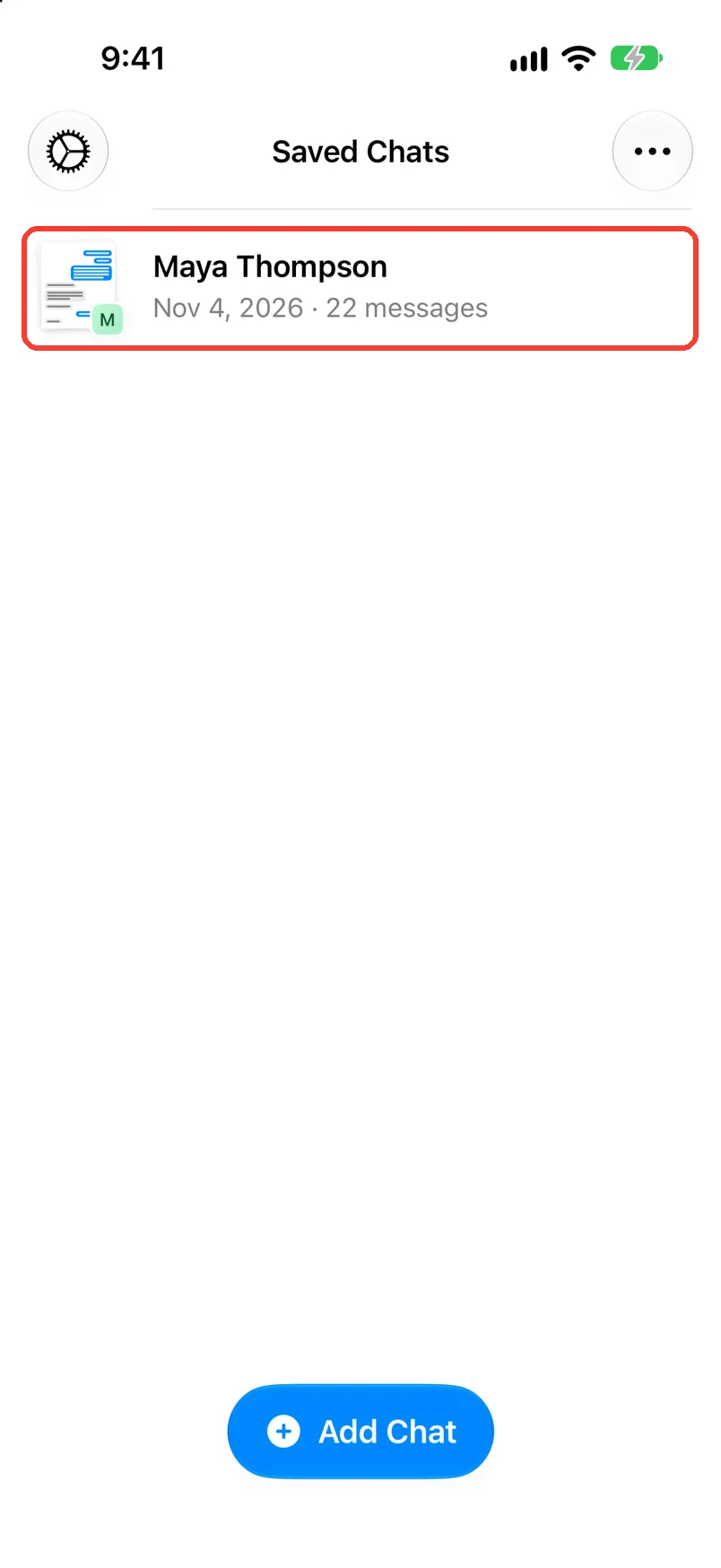
Tap the chat in Saved Chats
Open TextPort. The chat opens.
-
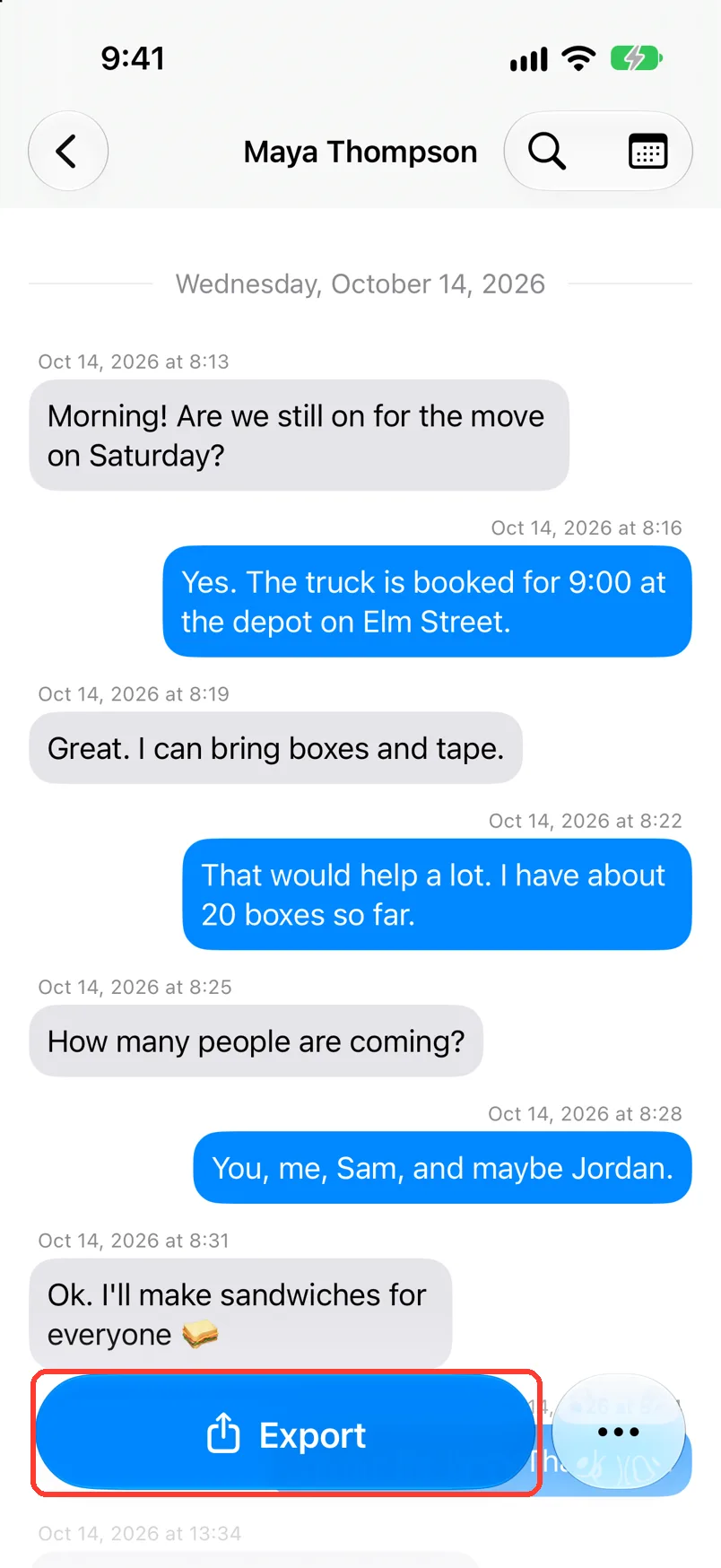
Tap Export
It is the blue button at the bottom. Export Chat opens.
-
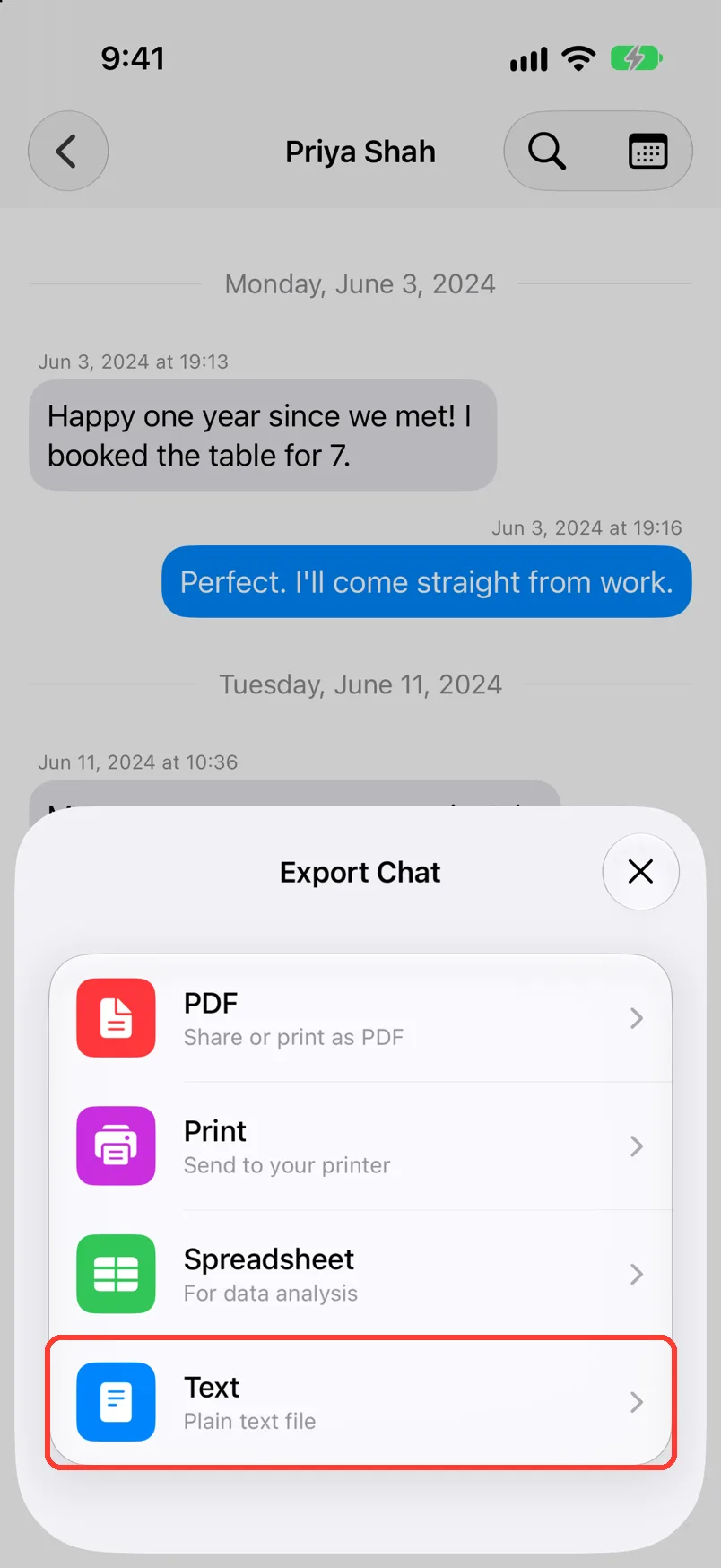
Tap Text
It is the last row. Text Preview opens.
TextPort may ask you to unlock this.
-
Tap the share button
It is the blue button in the top right (2). A card opens.
To paste the chat in another app, tap the copy button (1) instead.
-
Tap Share or Files
Share (1) sends the file to an app. Files (2) saves it on your iPhone or in iCloud Drive.

Done
You have a text file. Each line has the date and time, the sender, and the message.
Problems
Export Failed
Tap Try Again. If it fails again, close the chat and open it once more.
Your messages say outgoing, not your name.
Your name is not saved for this chat. Add it in Chat Details. See Edit the chat name and people's names. Then export again.
There are no dates or times.
The chat has its times hidden. In the chat, tap …, then Show Timestamps. Export again.
You need only some dates.
None of these match.
Email [email protected]. Say which step you were on. Say what you saw. We usually reply within a day.
Questions
-
No. The line for a photo or file shows its name, not the picture.
Next guides
-
 How to export a chat to PDF
You will get a PDF of one chat, with names, dates, and times, ready to share or print.
-
 How to export a chat to a CSV spreadsheet
You will have a CSV file of the chat, with one row for each message.
-
 How to export only a date range
Your export will hold only the messages between the dates you pick.
-
 How to save an export to Files or iCloud Drive
Your exported file will be saved in the Files app or in iCloud Drive.

Start exporting your messages
Available for iPhone, Mac, and Windows. No computer required.
