

How to save an export to Files or iCloud Drive
Quick answer
In PDF Preview, Spreadsheet Preview, or Text Preview:
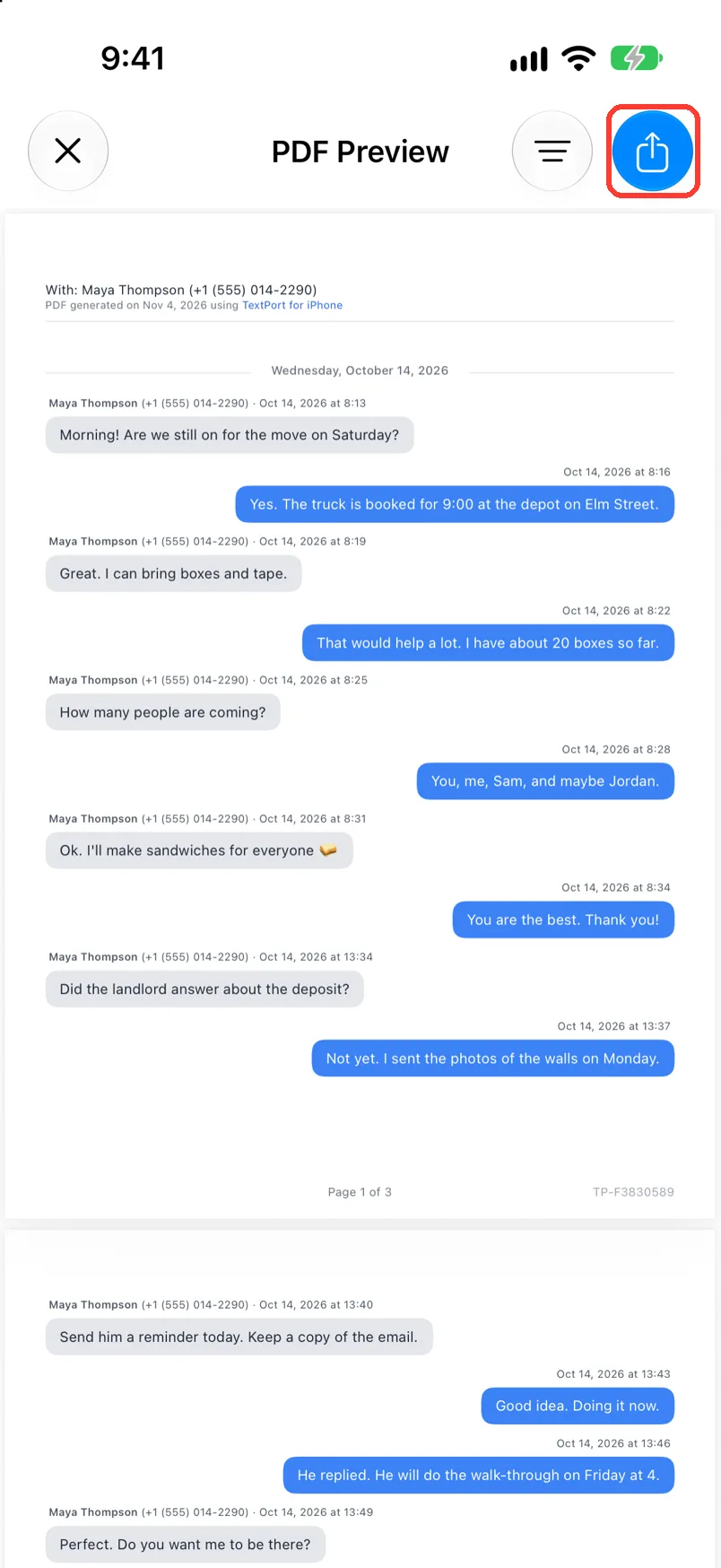
- Tap the share button in the top right.
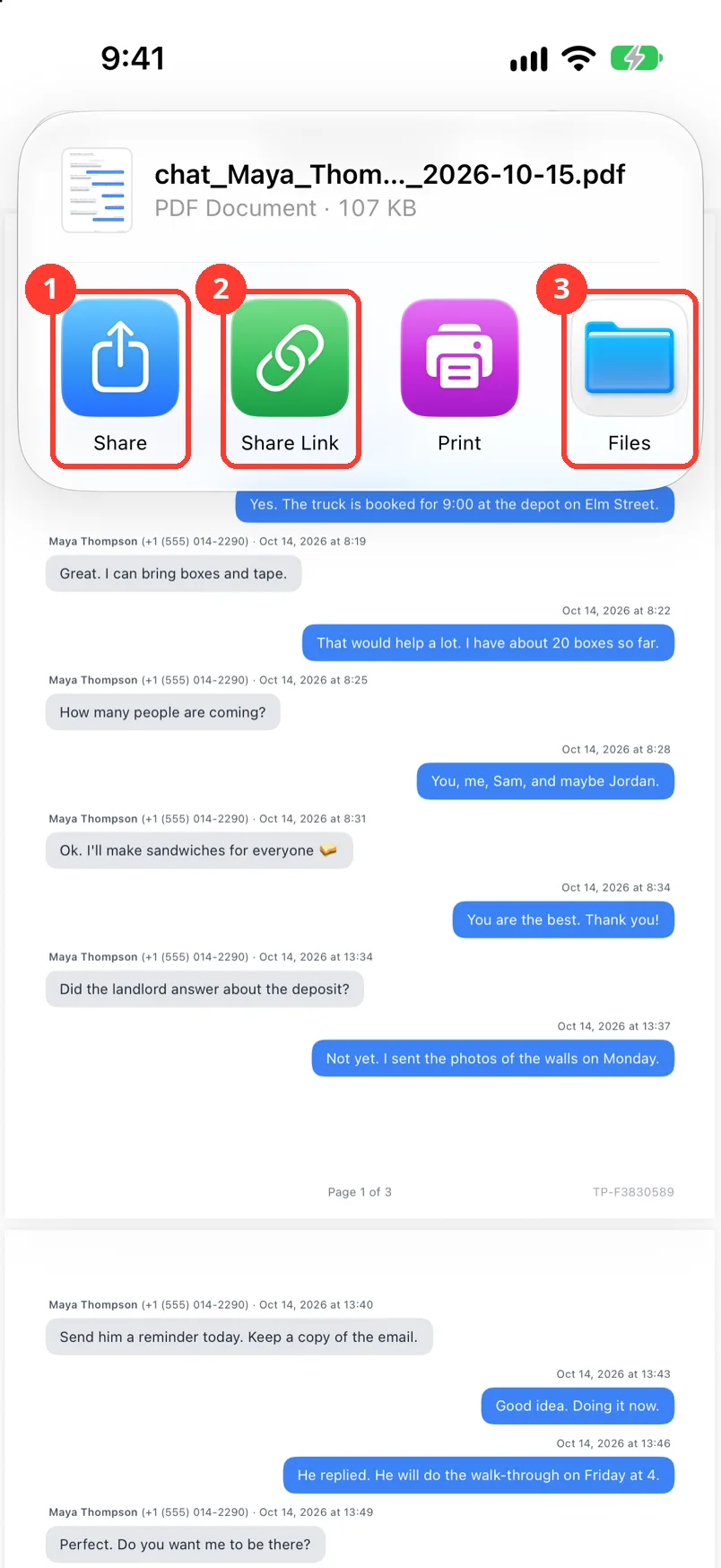
- Tap Files.
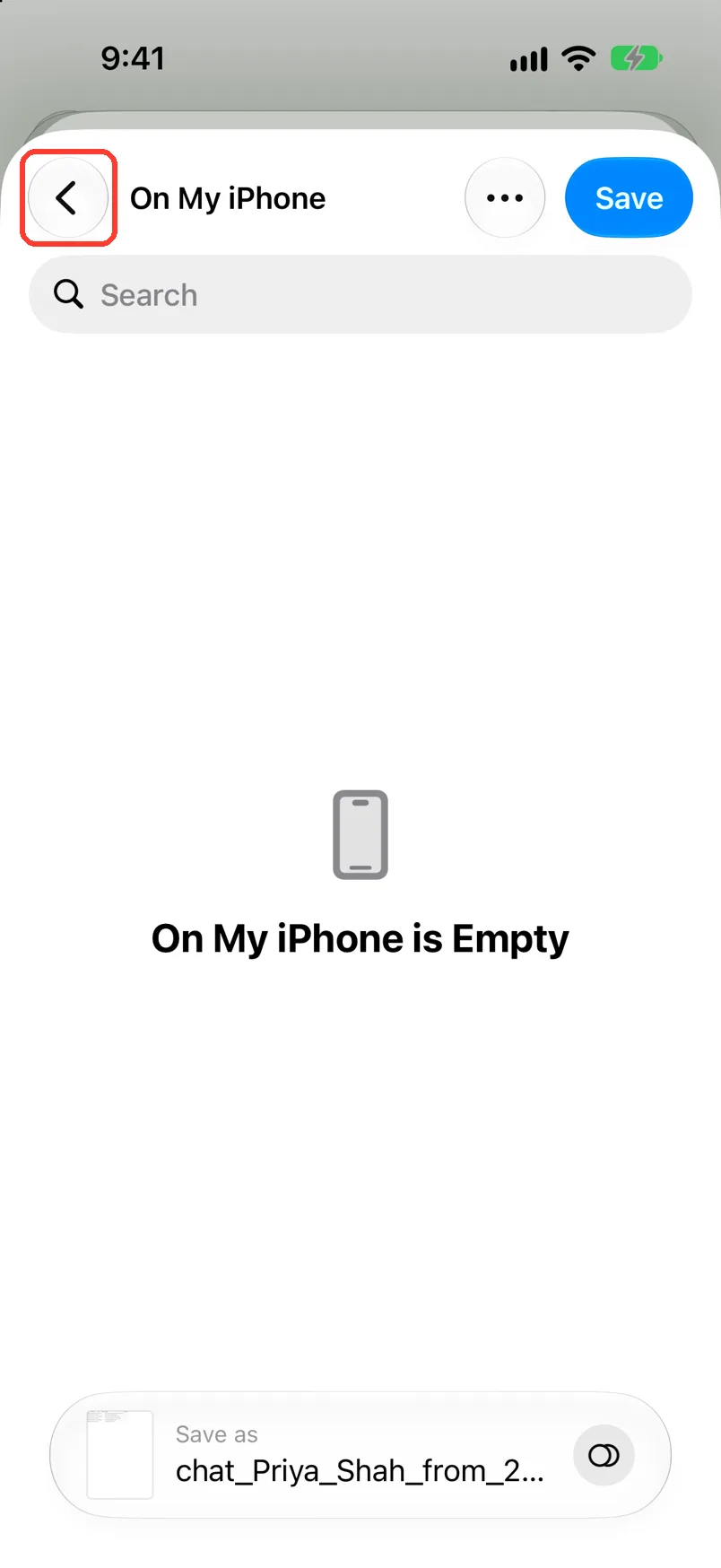
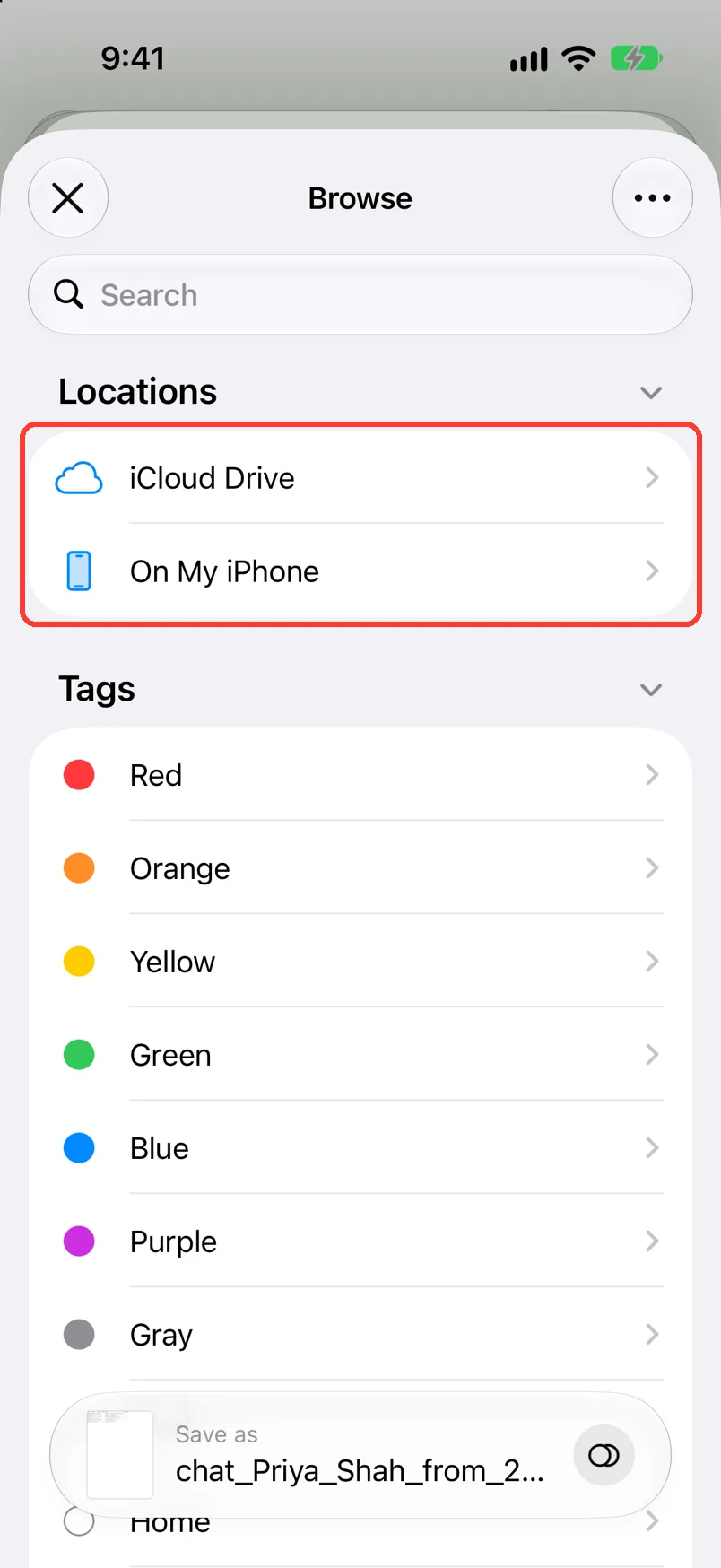
- Tap the back button to see all places. Tap iCloud Drive or On My iPhone.
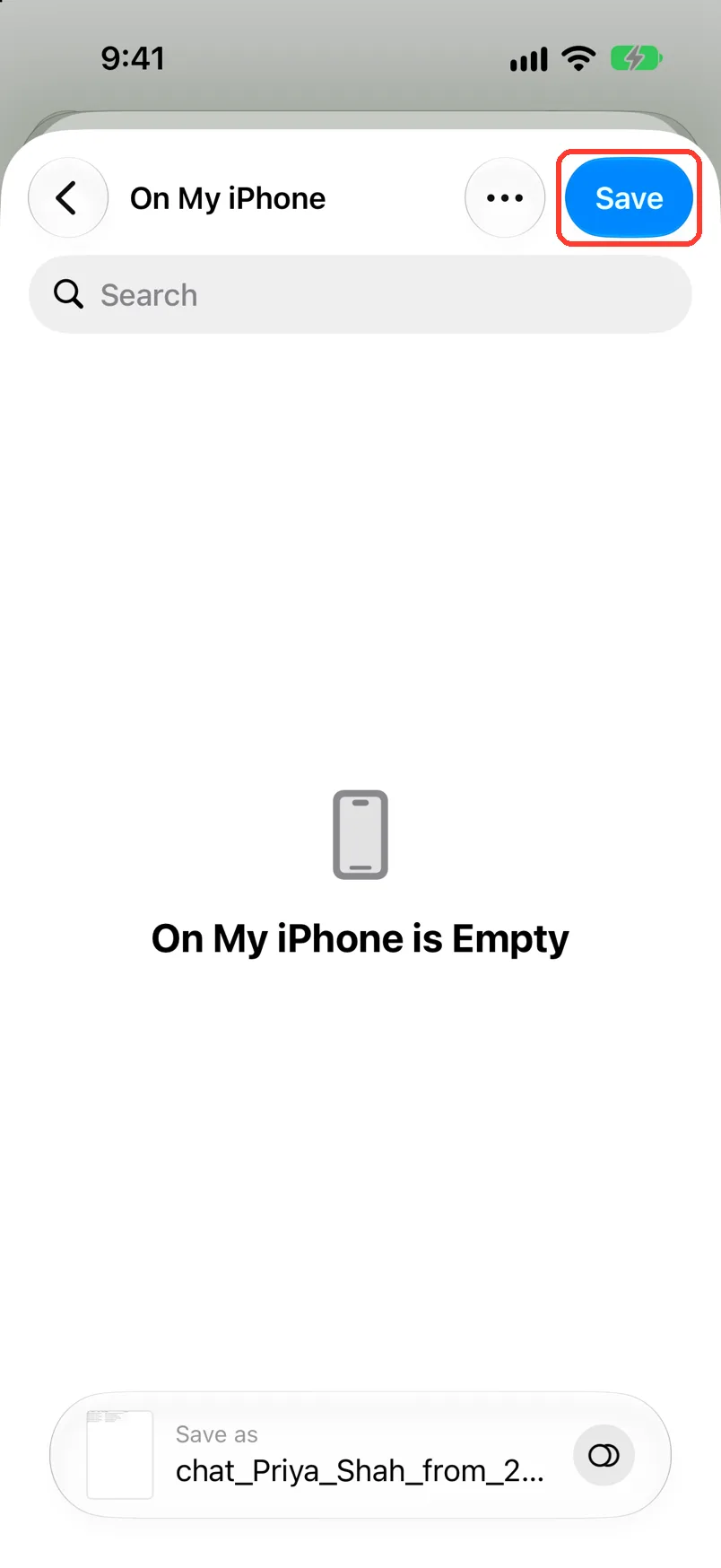
- Tap Save.
The file is then in the Files app.
What you need
- ✓TextPort on your iPhone
- ✓A chat open in an export preview
Steps
-
Tap the share button
It is the blue button in the top right of the preview. A card opens.
-
Tap Files
It is the folder tile (3). A save window opens.
-
Tap the back button
It is in the top left of the save window. Browse opens.
If the title at the top is the place you want, skip to Save.
-
Tap iCloud Drive or On My iPhone
Tap a folder if you want one. It opens.
Pick iCloud Drive to see the file on your other devices.
-
Tap Save
It is the blue button in the top right. The save window closes.
Done
The file is saved. Open the Files app to see it.
Problems
iCloud Drive is not in the list.
Turn on iCloud Drive in the Settings app. Tap your name, then iCloud. Or pick On My iPhone.
iCloud Drive is full.
Pick On My iPhone. Or tap Share instead of Files and email it to yourself. See Share an export by email, Gmail, or AirDrop.
You can not find the file.
Open the Files app. Tap Recents. The name starts with chat_ and the name of the chat.
None of these match.
Email [email protected]. Say which step you were on. Say what you saw. We usually reply within a day.
Questions
-
Yes. The file in Files stays when you delete the chat in TextPort.
Next guides
-
 How to export a chat to PDF
You will get a PDF of one chat, with names, dates, and times, ready to share or print.
-
 How to back up a chat before you delete it or switch phones
You will have a PDF copy of the chat saved in iCloud Drive or another safe place.
-
 How to share an export by email, Gmail, or AirDrop
The person you pick will get your exported file or a link to it.

Start exporting your messages
Available for iPhone, Mac, and Windows. No computer required.
