

How to search all your messages on Windows
Quick answer
In TextPort:
- Click Search conversations and messages at the top.
- Type a word.
- Click Messages on the left.
- Click a result.
The conversation opens at that message, with the word marked.
What you need
- ✓TextPort for Windows, with a backup open
Steps
-
Type a word and click Messages
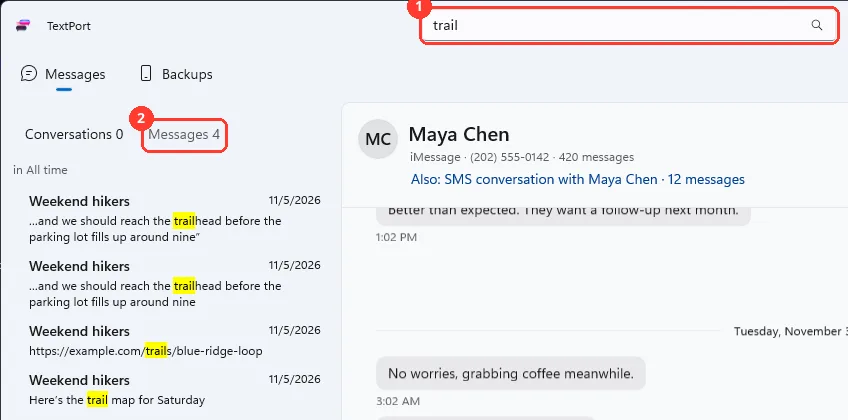
Type in Search conversations and messages (1). Click Messages on the left (2). The messages found show.
You can also press Ctrl+Shift+F to go to the search box.
-
Click a result
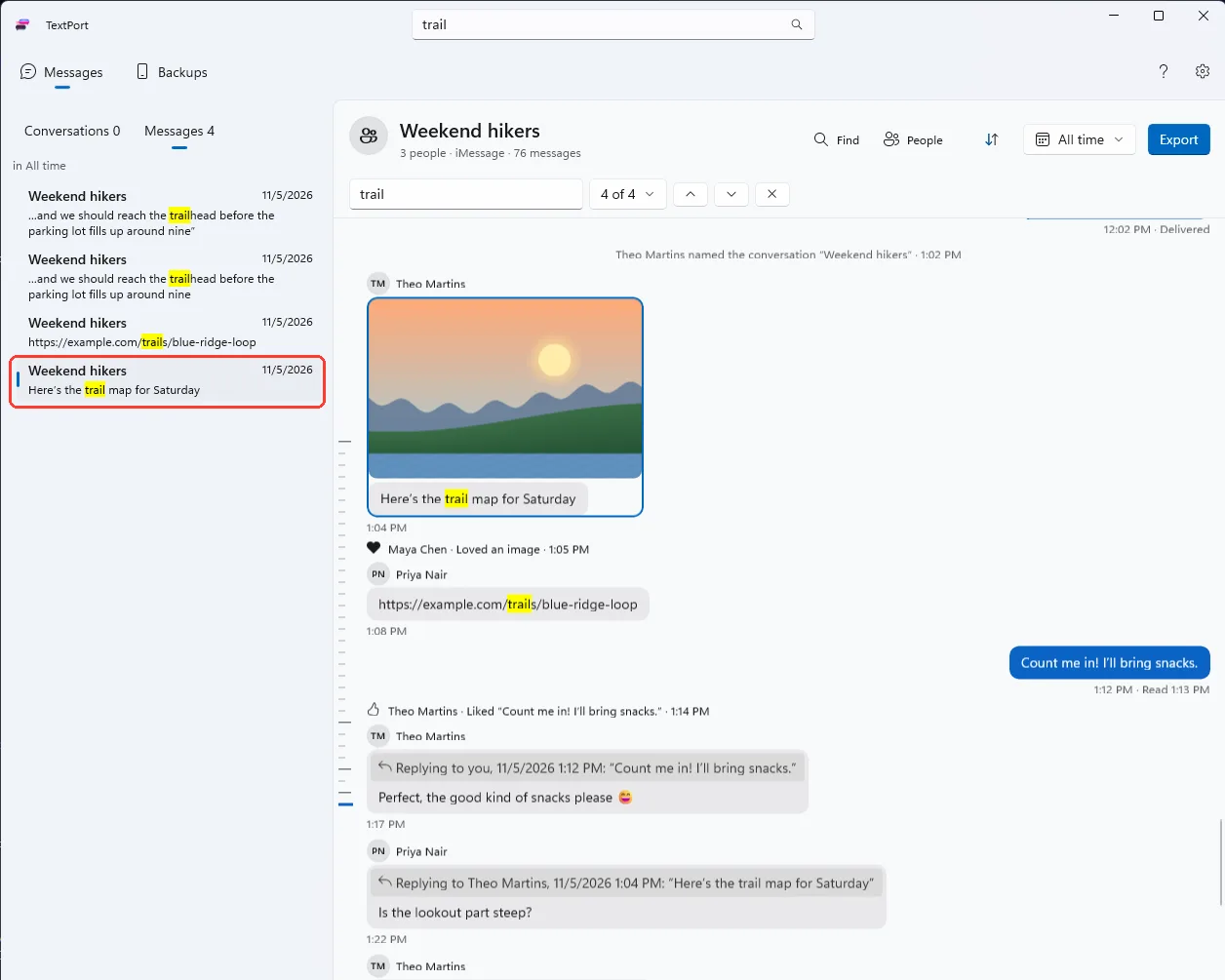
The conversation opens at that message. The word is marked in yellow.
-
Click the arrows to see other matches
They are under the conversation name. They go to the next match in this conversation.
-
Delete the word to close the search
Delete it from the search box. The conversation list comes back.
You can also press Esc when the cursor is in the search box.
Done
You are at the message you were looking for.
Problems
Open a backup to search
Click Messages. Click Choose a backup. Pick a backup.
Type at least 2 characters to search messages.
Type one more letter or number.
No messages contain “trail”.
Try a shorter word, or another word from the message. TextPort searches only the backup that is open.
No messages in Last 30 days contain “trail”.
The date button above the list limits the search. Click Search all dates.
No conversations match “trail”, and Messages is already picked.
This can happen on your next search. Click Conversations. Then click Messages.
Still preparing search. Some older messages may be missing.
Wait a moment. Then search again.
Couldn’t search this backup
Click Try again.
None of these match.
Email [email protected]. Say which step you were on. Say what you saw. We usually reply within a day.
Questions
-
Conversations whose name, number, or email match your word. Click Messages to search the text of the messages.
-
Yes. Open it and click Find. See Find words in a conversation.
-
Yes. Open that backup first. Search covers only the backup that is open.
Next guides
-
 How to find words in a conversation on Windows
You will find a word in one conversation and step through each place it shows.
-
 How to find and read a conversation on Windows
You will have the right conversation open on your PC, at the days you want.
-
 How to export only some dates on Windows
You will get a file with only the days you picked from one conversation.

Start exporting your messages
Available for iPhone, Mac, and Windows. No computer required.
