

How to find words in a conversation on Windows
Quick answer
In a conversation:
- Click Find at the top. Or press Ctrl+F.
- Type a word.
- Click the arrows to go to each match.
- Click the x after the arrows to close.
The word is marked in yellow.
What you need
- ✓TextPort for Windows, with a conversation open
Steps
-
Click Find and type a word
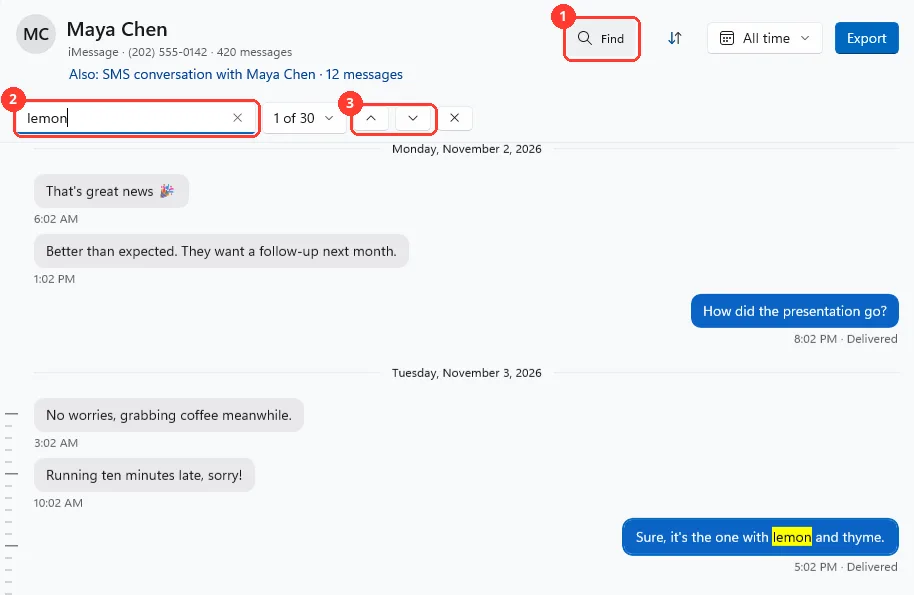
Click Find (1). Type in Find in conversation (2). The nearest match shows. Click the arrows to go to the others (3).
You can also press Enter for an older match, or Shift+Enter for a newer one.
-
Click the count to see all matches
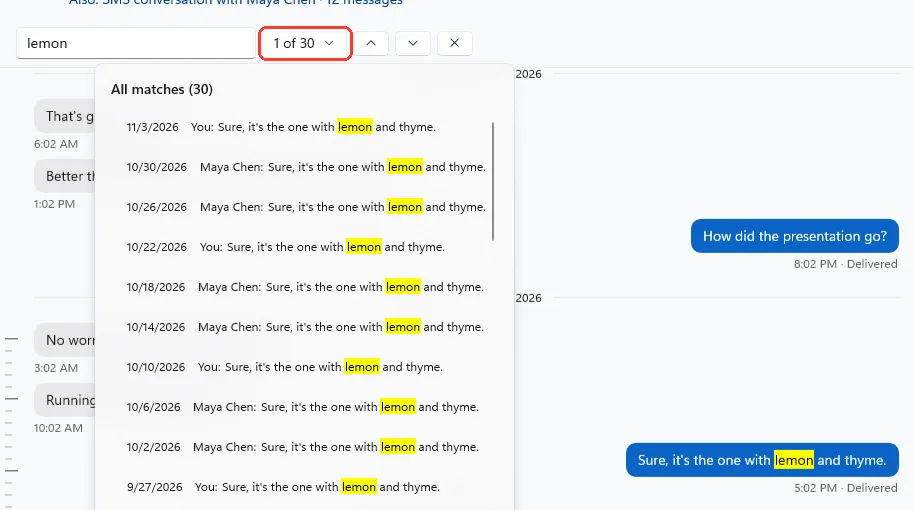
It says how many, like 1 of 30. All matches opens. Click one to go there.
-
Click the x to close
It is after the arrows. The marks go away, and you stay at the last match.
You can also press Esc when the cursor is in the box.
Done
You are at the message you were looking for.
Problems
No matches
Try a shorter word, or another word from the message. The dates you picked next to Export can limit it too. To look in every conversation, see Search all your messages.
Still preparing search. Some matches may be missing.
Wait a moment. Then type the word again.
Couldn’t search this conversation.
Click Try again.
None of these match.
Email [email protected]. Say which step you were on. Say what you saw. We usually reply within a day.
Questions
-
No. TextPort finds both.
-
No. iMessage and SMS are two conversations. Open the other one, or use Search all your messages.



Start exporting your messages
Available for iPhone, Mac, and Windows. No computer required.
