

How to search all your chats in TextPort for Mac
Quick answer
In TextPort for Mac:
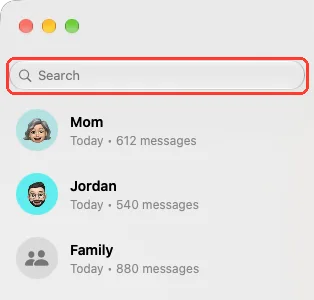
- Click Search at the top of the chat list.
- Type a word. Two letters are enough.
- Click When or Chats to narrow it, if you need.
- Click a message under Messages.
The chat opens at that message.
- On iPhone: How to search all your chats with TextPort
- On Windows: How to search all your messages in TextPort for Windows
What you need
- ✓TextPort for Mac, set up with Messages access
Steps
-
Click Search
It is at the top of the chat list on the left.
-
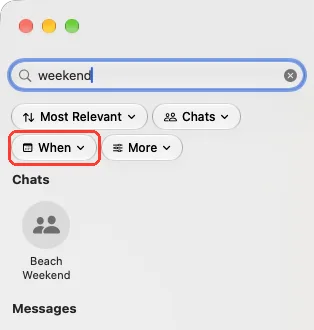
Type a word
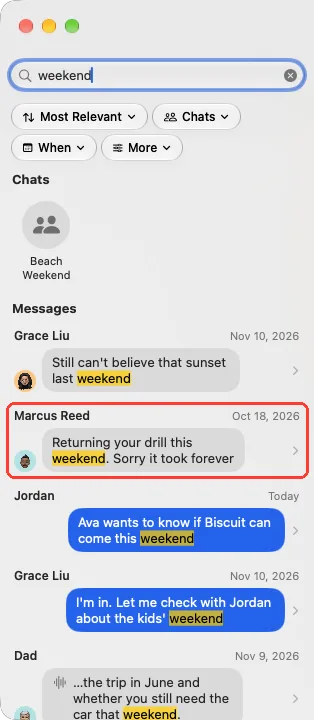
Type two letters or more. Messages with the word show under Messages. The word is marked in yellow.
Type a name to find a chat. It shows under Chats.

-
Click When to pick dates
This step is optional. Pick a time, like Last 30 Days. Only those messages stay.
Chats picks the chats. More picks who sent it, or group chats only.
-
Click a message
Each result shows the chat name and the date. The chat opens on the right.
-
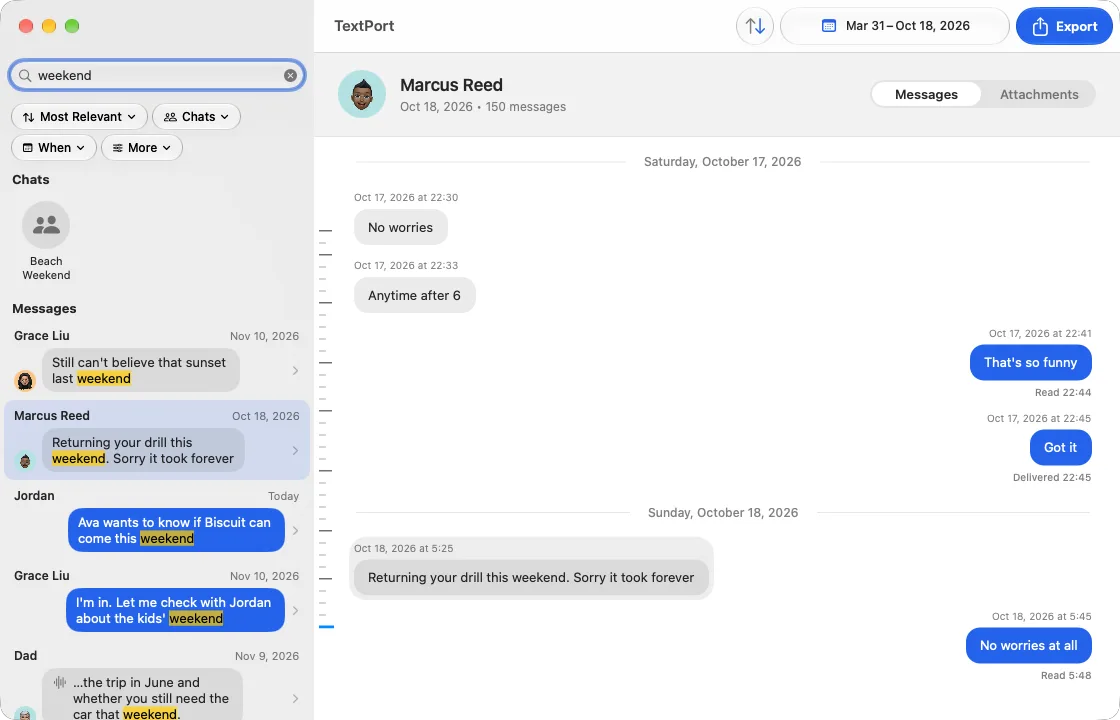
Read around it
The chat is at that message. It glows for a moment. The results stay on the left.
Done
You found the message and can read the chat around it.
Problems
No results
Check the spelling, or try a new word. Type the start of the word. If filters are on, click Clear Filters.
No messages match.
A chat has that name, but no message has the word. Click the chat under Chats, or try another word.
No results yet
TextPort is still getting your chats ready to search. Wait a moment. The results show by themselves.
More results may appear
Some chats are not ready yet. Wait a moment. The list fills in by itself.
Some chats aren’t ready
TextPort could not read every chat this time. Results may miss some chats. Quit TextPort and open it again. Then search again.
Couldn’t search
Click Try Again.
The date range in the toolbar changed.
A result opens the whole chat, so your dates went back. Pick your dates again.
The chat list is gone.
Search is still on. Click the x in Search. Every chat shows again.
None of these match.
Email [email protected]. Say which step you were on. Say what you saw. We usually reply within a day.
Tips
-
To see the newest messages first, click Most Relevant. Click Newest.
Questions
-
Yes. It looks in every chat saved in Messages on this Mac. It also reads the transcripts that Messages made for voice messages.
-
It finds words that start with what you type. week finds weekend. It does not find words that only end with it.
-
No. They go back when you clear the Search box.
-
No. TextPort keeps its search list on this Mac and searches it there.
-
Yes. Open the chat and press Command-F. See how to search inside a chat.
Next guides
-
 How to search inside a chat in TextPort for Mac
You will find a word in a chat and go to each place it shows.
-
 How to find and open a chat in TextPort for Mac
You will have the chat you want open on the right side of TextPort.
-
 How to filter a chat by date in TextPort for Mac
You will see, export, or print only the messages from the days you pick.

Start exporting your messages
Available for iPhone, Mac, and Windows. No computer required.