

How to pick which app the chat came from
Quick answer
In TextPort:
- Tap Add Chat.
- Tap the app name at the top. Select Chat App opens.
- Tap the app the chat is in. You can search for it at the top.
The sheet then shows only the ways that work for that app.
What you need
- ✓TextPort on your iPhone
Steps
-
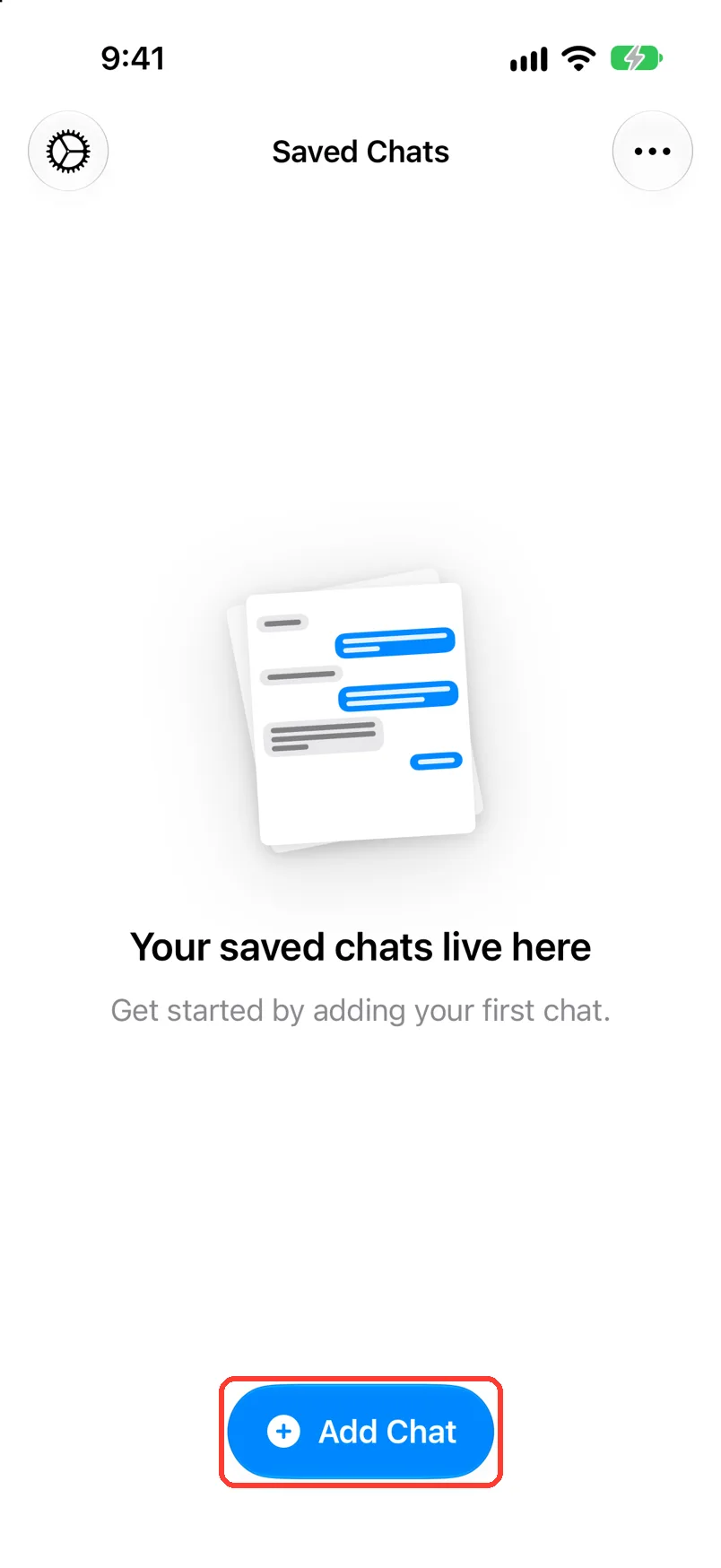
Tap Add Chat
Open TextPort. It is at the bottom of Saved Chats.
-
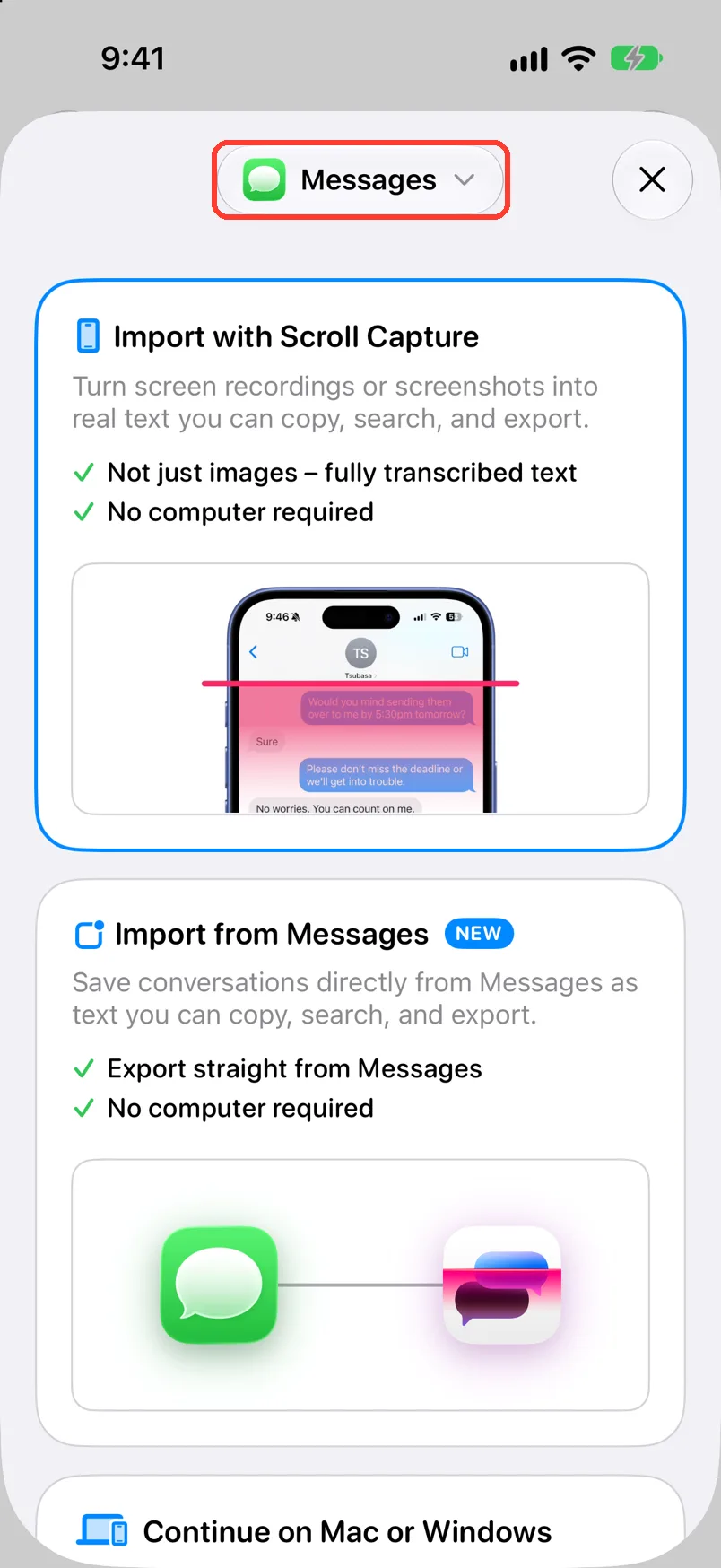
Tap the app name at the top
It has a small arrow next to it. Select Chat App opens.
-
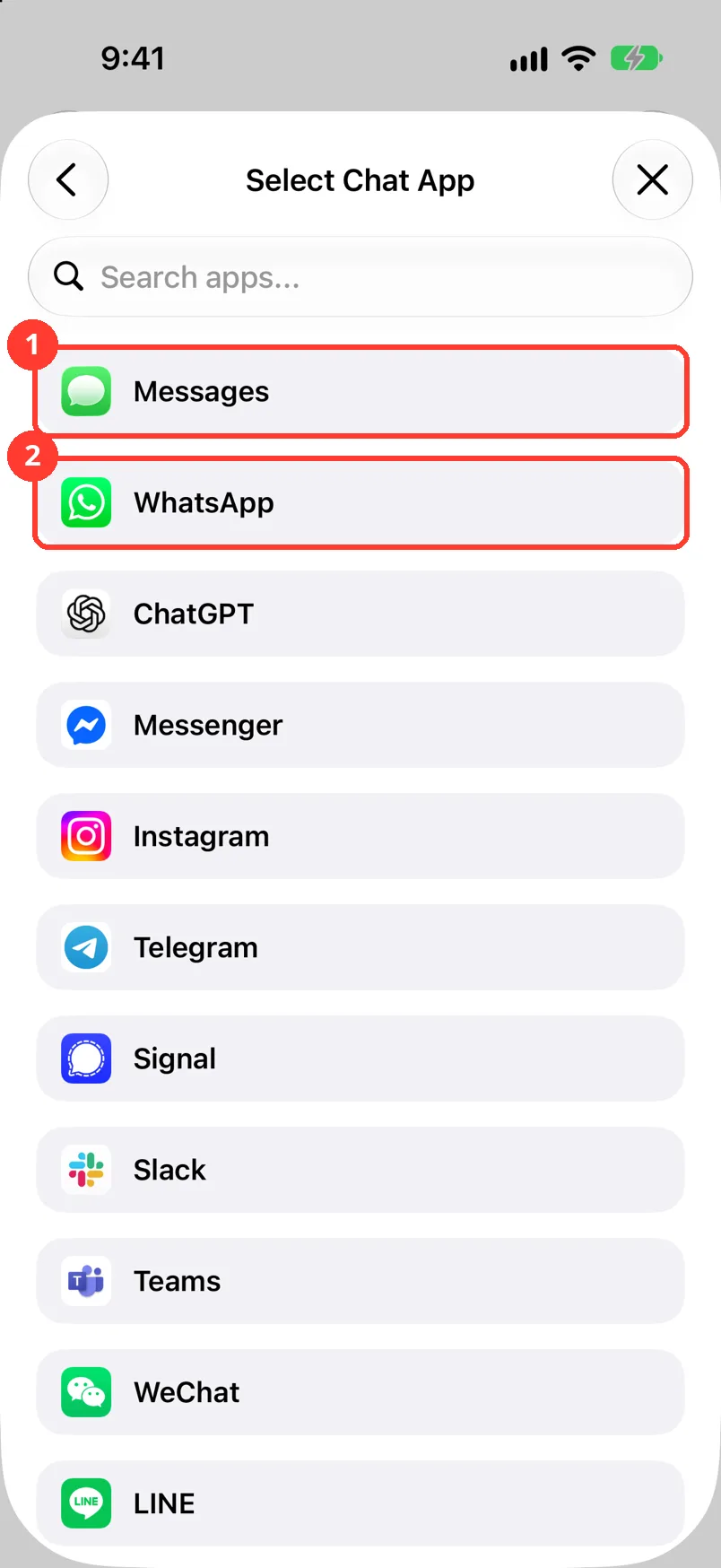
Tap the app the chat is in
Tap Messages (1), WhatsApp (2), or any other app. The sheet shows the ways for that app.
If your app is not in the list, scroll to the end. Tap Other.
-
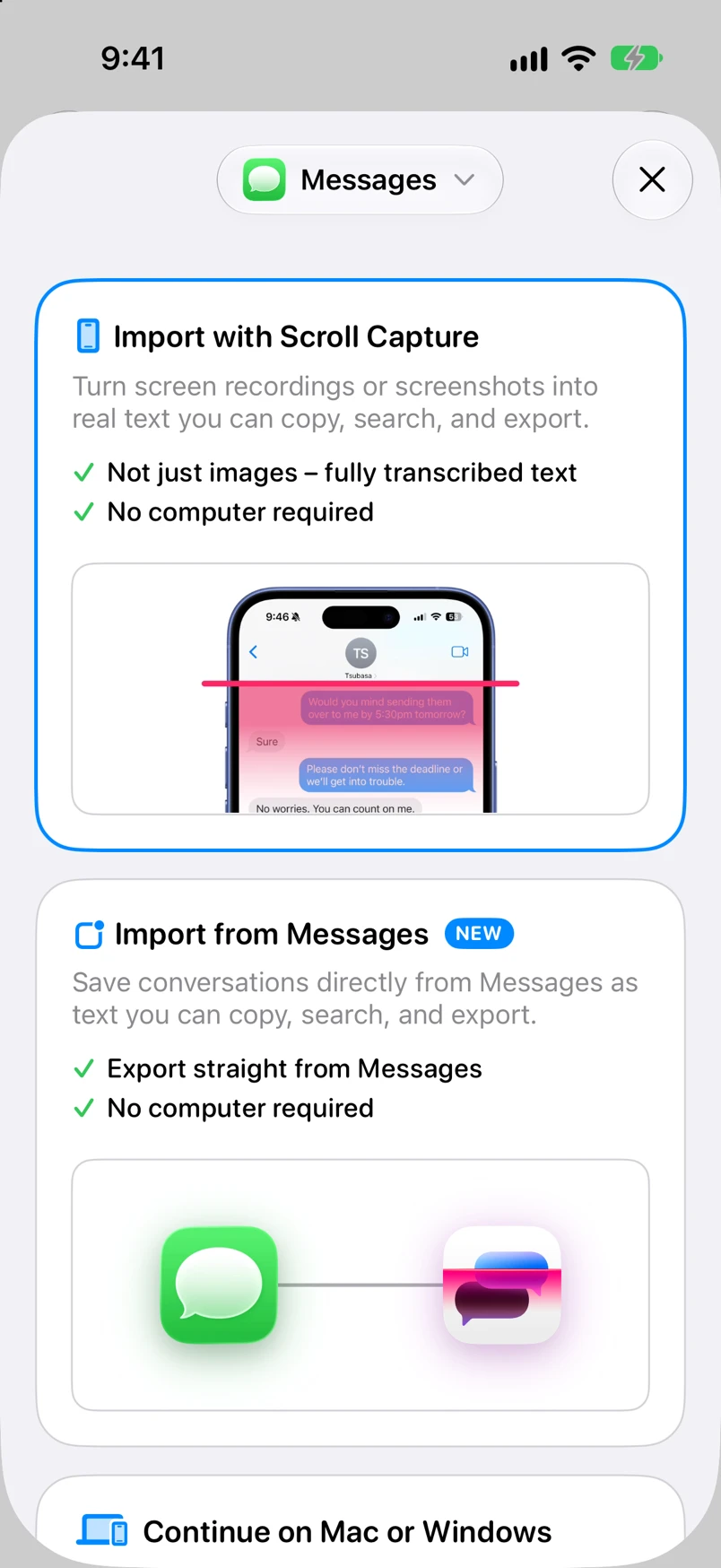
Check the cards
For Messages you see Import with Scroll Capture, Import from Messages, and Continue on Mac or Windows.
Done
TextPort knows the chat's app. It shows the ways that work for it, and remembers it for next time.
Problems
You cannot find your app.
Type its name in Search apps.... If it is not there, tap Other. Screenshots and Scroll Capture work for any app.
You picked the wrong app.
Tap the app name at the top again. Pick the right app.
You picked Messages, but the first card says On Your iPhone.
Your iPhone does not offer Import from Messages. It needs iOS 26 or newer. Tap On Your iPhone to use Scroll Capture.
Your chat is in Facebook Messenger, but there is no Facebook.
Tap Messenger. It is the same app.
None of these match.
Email [email protected]. Say which step you were on. Say what you saw. We usually reply within a day.
Questions
-
The cards you see. Messages shows Import with Scroll Capture, Import from Messages, and Continue on Mac or Windows. WhatsApp shows Import from WhatsApp. LINE shows Import from LINE and On Your iPhone. Every other app shows On Your iPhone. During Scroll Capture, a button opens that app for you.
-
Yes. Next time you tap Add Chat, the same app is picked.
Next guides
-
 How to pick a way to import a chat
You will know which way to import your chat, and where to tap to start it.
How to pick a way to import a chat
You will know which way to import your chat, and where to tap to start it.
-
 How to import a chat from screenshots
You will get a saved chat in TextPort, made from screenshots you already took.
How to import a chat from screenshots
You will get a saved chat in TextPort, made from screenshots you already took.
-
 How to import a chat with Scroll Capture
You will get a chat from any app saved in TextPort, made from a screen recording of you scrolling.
How to import a chat with Scroll Capture
You will get a chat from any app saved in TextPort, made from a screen recording of you scrolling.

Start exporting your messages
Available for iPhone, Mac, and Windows. No computer required.
