
How to Export or Print a ChatGPT Conversation on iPhone
To print one ChatGPT conversation on an iPhone, use its share link: tap Share in the chat, copy the link, open it in Safari and save the page as a PDF. On a computer, open the chat in your browser and print it to PDF. Skip ChatGPT's data export unless you want a copy of your whole chat history.
For a copy of an answer for school or work, that free route is all you need. When the chat is a record you'll hand to HR, a lawyer or anyone else, use TextPort. It turns a screen recording of the chat into a PDF with the sender's name above every message, and you don't have to make a ChatGPT share link first.
What ChatGPT lets you export
OpenAI's help center describes two ways to get a conversation out of ChatGPT: a share link for one chat, and a data export of your whole account. It doesn't describe a print button or a Save as PDF option for a single chat. Printing happens in your browser, using one of those two.
| Way | What you get | On an iPhone alone? |
|---|---|---|
| Share link, saved as a PDF in Safari | One chat as a PDF file | Yes |
| Chat or share link, printed to PDF on a computer | One chat as a PDF file | No |
| Data export | Every chat in one ZIP file. It can take up to 7 days to arrive | Yes, at chatgpt.com in Safari |
Only need an answer or two, say for Word or Google Docs? The copy button under each reply beats all three. Paste it into a document. Your own messages have to be selected and copied by hand.
Share one conversation as a link
The share link is OpenAI's documented way to pull out a single chat. OpenAI's steps:
- Open the conversation.
- Tap Share.
- Check the conversation and any sharing options.
- Tap Create link or Copy link, whichever you see.
On an iPhone, ChatGPT may open the iPhone's Share menu instead. Then you can send the link from there.
Know what you're handing out before you send it to a lawyer, HR or anyone else:
- Anyone who has the link can open it. A link made from a personal account isn't tied to the person you send it to, and they can forward it. OpenAI says share pages aren't meant to show up in search engines, "but this does not make a link private."
- A personal link is a snapshot. Messages you add later aren't in it. To include them, open the chat, tap Share, then Update link.
- It has no end date you can set. To take it down, go to Settings > Data controls, tap Manage next to Shared links, and delete it.
- It lives with the chat. Deleting the conversation deletes its link. Deleting the link doesn't delete the chat, and it doesn't remove a copy someone else already saved to their own account.
Save or print a ChatGPT chat as a PDF for free
Both routes print the chat as a web page. Before you save, scroll through the whole conversation so every message has loaded, then check the finished PDF from top to bottom.
On an iPhone, with Safari
This needs no computer and no extra app. It uses the share link from the section above.
- Copy the chat's share link in ChatGPT.
- Paste it into Safari's address bar and open it.
- Open Safari's Share menu and tap Markup.
- Tap Done, then Save File To.
- Name the file and tap Save. It lands in the Files app.
Those are Apple's steps for saving a webpage as a PDF. To print on paper instead, tap Print in the same Share menu and pick an AirPrint printer. Apple's AirPrint guide covers the printer side, including that your iPhone and printer must be on the same Wi-Fi network.
On a computer
Open the conversation in your browser, or open its share link. Press Ctrl+P on Windows or Cmd+P on a Mac, set the destination or printer to Save as PDF, and save.
Download all your ChatGPT data
This is ChatGPT's real export. It's built to back up everything, which makes it a clumsy way to print one conversation: you wait for a ZIP of your whole chat history, then dig your one chat out. No PDF in sight.
On a computer or in Safari on your iPhone, at chatgpt.com (OpenAI's steps):
- Sign in to ChatGPT.
- Open your profile menu and choose Settings.
- Choose Data controls.
- Next to Export data, choose Export.
- Choose Confirm export.
The ChatGPT iOS app FAQ points iPhone users to the web for this: "You can export your data from ChatGPT web."
What happens next, in OpenAI's words:
- ChatGPT sends an email or a text message when the export is ready. It "can take up to 7 days to arrive."
- "The download link expires 24 hours after you receive it." Download it while signed in to the same account that asked for it. If the link runs out, you request a new export.
- "The downloaded ZIP file includes your chat history and other relevant account data."
Self-service export works for ChatGPT Free, Go, Plus and Pro, and for some Edu workspaces, not for work accounts (see the FAQ below) or while you're logged out. If you can't sign in, OpenAI's Privacy Portal takes the same request: Make a Privacy Request, then I have a consumer ChatGPT account, then Download my data.
Turn one ChatGPT chat into a PDF on your iPhone with TextPort
TextPort is an iPhone app that turns a conversation from almost any chat app into a PDF, CSV or TXT file. ChatGPT is one of the apps on its list. You record your screen while you scroll the chat, and TextPort does the rest.
Record the chat with Scroll Capture:
- Open TextPort and tap Add Chat.
- Tap the app name at the top and pick ChatGPT from the list. Picking the app decides which import options you see.
- Tap On Your iPhone.
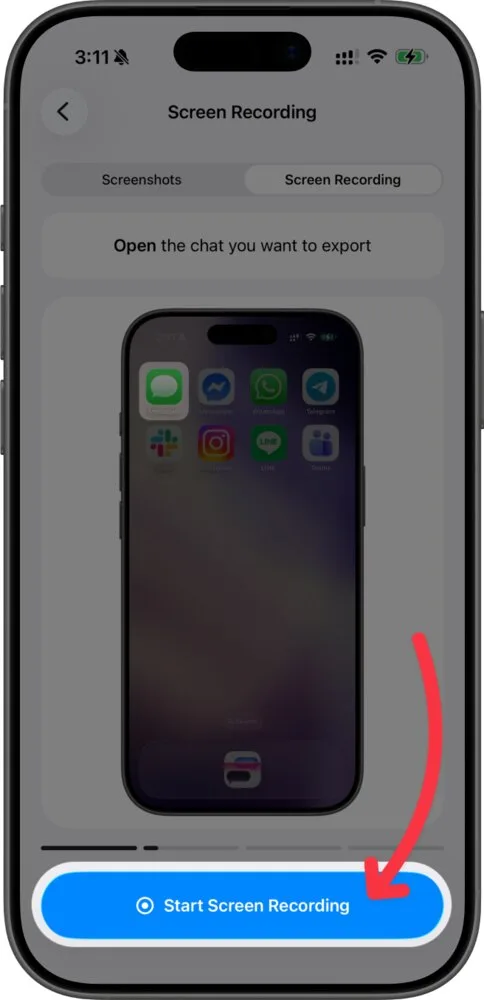
- On the Scroll Capture tab, tap Start Screen Recording, then Start Broadcast in the iOS sheet.
- Tap Open to jump to ChatGPT, open the conversation and go to where you want to start.
- Scroll down slowly, from oldest to newest. TextPort's guide says to keep each message on screen for about one second.
- Go back to TextPort and tap Stop Recording. Drag the yellow handles so the video starts and ends on the chat, then tap Start Processing.
The recorder stops by itself after 15 minutes, so split a very long chat into two recordings. Already recorded your screen? Long press Start Screen Recording to pick the video from Photos. The full steps are in the Scroll Capture guide. If you have screenshots instead, use the Screenshots tab and pick them in order, overlapping each one with the last. The screenshots guide shows how. The same recording works for other chat apps too, like Microsoft Teams and Discord.
When the chat shows up in Saved Chats, compare it with the original chat in ChatGPT before you export. Long press a message to fix its text or time, delete it, or mark it as Outgoing or Incoming if it landed on the wrong side. The guide to reading a chat shows where each part is. TextPort uses the dates and times your recording shows.
Then tap Export and pick PDF, Print, Spreadsheet (CSV) or Text. The PDF puts the sender's name above every message, with the date and time wherever the chat has one, and numbers every page. You can share it, save it to Files or print it from the preview. The PDF guide has each step. You can import your first three conversations for free.
If you need the chat as a record
When a ChatGPT conversation is part of a dispute or a complaint, a PDF is your copy, not a replacement. Keep the chat itself in ChatGPT, and keep any recording or screenshots you made.
For how courts look at text evidence, read Can Text Messages Be Used in Court?. If you're keeping a record of harassment, see documenting harassment.
Frequently asked questions
-
Not by yourself. OpenAI says self-service export isn't available in ChatGPT Business, Enterprise or ChatGPT for Healthcare workspaces, so you ask your workspace owner. A share link made in one of those workspaces opens only for members of the same workspace, so it won't work for someone outside it either.
-
Not the deleted ones. OpenAI says an export can't restore chats that have already been deleted, and a temporary chat stays out of your chat history unless you save it. If you need a chat later, keep it in your history and don't delete it until you have your copy.

Start exporting your messages
Available for iPhone, Mac, and Windows. No computer required.
