
How to Export an iMessage Conversation (iPhone, Mac or PC)
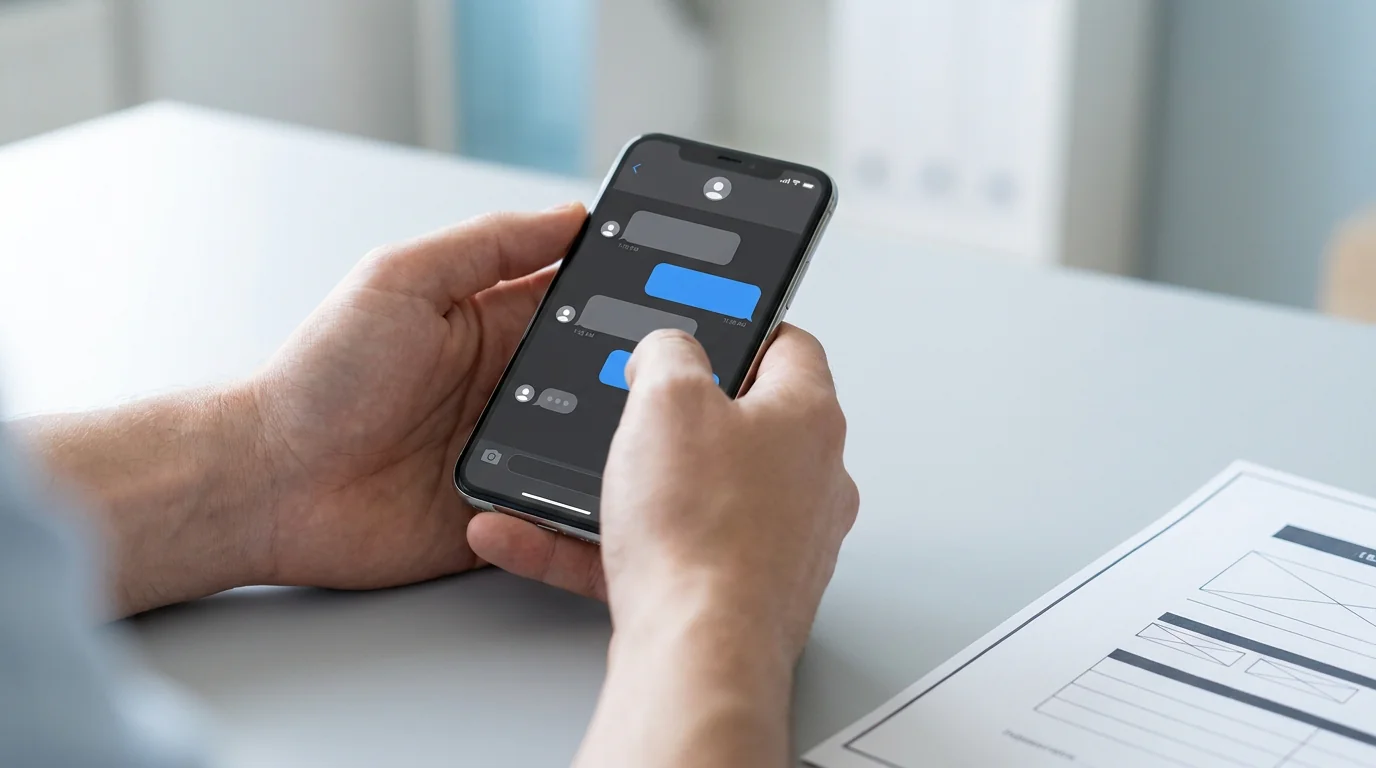
Apple's Messages app has no Export button, on iPhone or on Mac. You can still export an iMessage conversation, and the best way depends on the device you have:
- Only an iPhone: the TextPort app imports the conversation from Messages word for word through an Apple Shortcut, then exports it as a PDF, a spreadsheet or plain text, with no computer or cable. Your first 3 conversations import for free, and after that you need a subscription (Method 1).
- A Mac: the free TextPort for Mac app exports long threads and whole histories, and Messages can print a short conversation to PDF (Method 2).
- A Windows PC: the free TextPort for Windows app reads an iPhone backup and exports the same files (Method 3).
- Comfortable with a command line: the free, open-source imessage-exporter saves conversations as TXT or HTML files (Method 4).
- Just a few messages: forward them to your email, or take screenshots (Method 5).
Method 1: Export an iMessage conversation on iPhone (no computer)
If you don't have a Mac, or you need the conversation now, export it on the iPhone itself. TextPort imports Messages conversations through a TextPort Shortcut in Apple's Shortcuts app, so you get the real message text, not a picture of it. The Shortcut import needs iOS 26.4 or later (your version is in Settings > General > About). On an older version, record your screen while you scroll the conversation and TextPort reads the messages from the recording.
- Open TextPort. Tap Add Chat, then Import from Messages.
- The first time, tap Add Shortcut. Apple's Shortcuts app opens. Tap Add Shortcut there too, then go back to TextPort.
- Tap Find chats, pick the conversation (you can search by name), then tap Choose dates.
- Pick 1 Week, 1 Month, or your own start and end dates, then tap Continue. Pick a range that covers the whole thread if you need all of it.
- Tap Start import. Keep Shortcuts open on screen and don't lock your phone while it collects the messages.
- Open the chat in Saved Chats, tap Export, and pick PDF, Spreadsheet (CSV) or Text (TXT). Then share it, save it to Files, or print it.
Every message comes in word for word, in order, with its sender and timestamp, for iMessage and SMS alike. The full walkthrough, with screenshots, is in the guide to importing iMessage and SMS with the TextPort Shortcut.
Method 2: Save an iMessage conversation as a PDF on a Mac (free)
A Mac can print any Messages conversation to PDF at no cost. It only sees what has synced to the Mac, so turn on Messages in iCloud first:
- On your iPhone: go to Settings > [your name] > iCloud, tap See All (or Show All), tap Messages in iCloud, and turn on Use on this iPhone.
- On your Mac: in Messages, choose Messages > Settings, click iMessage, and select Enable Messages in iCloud.
Then export the conversation:
- Open the Messages app on your Mac.
- Click on the conversation you want to export.
- Scroll to the beginning of the chat to load the full history.
- Press Cmd + P (File > Print).
- In the print dialog, click the dropdown in the bottom-left corner and select Save as PDF.
The PDF keeps the message bubbles and who sent each one, but it may leave out when each message was sent, so check the dates before you rely on it. For a long thread, scrolling back to the start can take a long time.
For long threads, or a time on every message: TextPort for Mac is a free app from the Mac App Store (macOS 14.6 or later). It reads the same Messages history that's already on your Mac and exports the whole thread at once, or a date range you pick, as PDF, CSV or TXT, with the attachments in a ZIP. Its PDF shows the date, time and sender of every message. Like Print to PDF, it covers iMessage and SMS only.
Method 3: Export iMessages on a Windows PC, or from an iPhone backup
Windows can't open Apple's Messages app, so PC tools read your iPhone's local backup instead. TextPort for Windows is free. It backs up your iPhone over USB through the Apple Devices app (or iTunes), or opens a backup that's already on the PC, then exports conversations to PDF, CSV or TXT, with photos and files in a ZIP. The guide to exporting a conversation on Windows walks through it.
Paid apps such as iMazing and Decipher TextMessage also read an iPhone backup, on a Mac or a PC. Both read iMessage, SMS and RCS (the chats you have with Android phones). iMazing exports WhatsApp chats from the same backup, and Decipher sells WhatsApp support as a separate app. iMazing is a yearly subscription, and Decipher is a one-time purchase. The Decipher TextMessage comparison goes into the details.
Method 4: imessage-exporter (free, open source, command line)
If you're comfortable in Terminal, imessage-exporter is free, open-source software that exports iMessage data to TXT or HTML files. It runs on macOS, Linux and Windows.
It suits technical users who want every conversation as plain files. It is a command-line app with no buttons, and it doesn't make a paginated PDF, so for a printable record of one conversation, TextPort on your iPhone or Mac is quicker.
Method 5: Built-in iOS workarounds (small batches only)
For a few messages, the iPhone has two options of its own:
Forward to email: Press and hold a message bubble, tap More, select the messages you want, then tap the forward arrow and send them to your own email address. The forwarded copy loses the original sender and time, and if that address is also your iMessage address, it lands in Messages instead of your inbox. The guide to emailing text messages from iPhone covers the other email options.
Screenshot to PDF: Take screenshots of the conversation, open the Photos app, select the screenshots, tap Share > Save to Files, then long-press the images in the Files app and select Create PDF. The PDF is made of pictures, so you can't search or copy the text.
PDF, CSV or a text transcript
- PDF is for printing, sharing and anything legal.
- CSV opens in a spreadsheet. Each message is a row, with the date, time, sender and text in separate columns, so you can sort and search.
- TXT is a plain-text transcript, good for pasting into another document.
If the export is for court, a custody dispute or a workplace complaint, export the whole thread as a PDF from TextPort on your iPhone, Mac or PC, which puts the date, time and sender on every message, in the original order. A few cropped screenshots raise the question of what's missing. The guide to printing text messages for court covers what to bring with the printout, and the best apps to export text messages from iPhone compares the tools side by side.

Start exporting your messages
Available for iPhone, Mac, and Windows. No computer required.
