
How to Export Google Voice Text Messages (and Save a PDF)
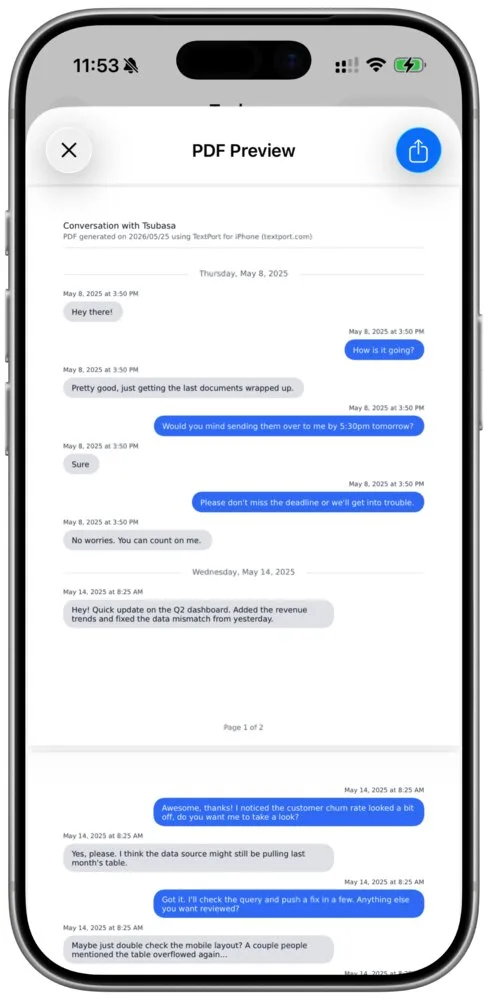
To export your Google Voice texts, start before you delete anything, because Voice can't show a deleted text again. Google's own export, called Google Takeout, downloads your whole Voice account in one go. If you need one conversation as a PDF on your iPhone, screen-record it with TextPort instead.
Which route you take depends on what you need the texts for:
| Your situation | What to do |
|---|---|
| You want a backup of everything, or you're leaving Voice | Request a Google Takeout export and open it on a computer |
| You need one conversation as a PDF on your iPhone | Record it with TextPort, then export a PDF |
| Your Voice number comes through work or school | Ask HR or a lawyer how to request the full record |
| You already deleted the text | Ask the other person: their phone may still have it |
A deleted Google Voice text is gone from Voice
This is the part to know before you clean anything up. Google's help page is blunt: "After you delete a text message from Google Voice, you can't see it again. It may be stored on your devices or the devices you messaged." Takeout won't bring it back either. It only downloads data that hasn't been deleted.
If you want a cleaner inbox while a dispute is going on, archive instead of deleting. Archiving hides a conversation without deleting it. If the other person replies, it comes back to your inbox on its own, and you can restore it yourself from the Archive menu.
How to export Google Voice text messages with Google Takeout
Takeout is Google's tool for downloading your data, and it's the route Google's Voice help points to. The export covers call logs, text messages, voicemails and their transcripts, voicemail greetings, billing history, your Voice number and your service address.
- Sign in to your Google Account and go to the Google Takeout page.
- The Google products you use are already ticked. Untick the ones you don't want, and keep Voice ticked.
- Select Next step.
- Choose how to get it: a download link by email, or added to Drive, Dropbox, OneDrive or Box.
- Pick a one-time export, or one every 2 months for a year, and a .zip or .tgz file. If you're not sure, pick .zip.
- Select Create export.
Google may ask for your password again. The Takeout help page says the export can take "from a few minutes to a few days," and "Most people get the link to their archive the same day that they request it." A big export arrives as several files.
What you get from Takeout, and what you don't
Takeout is a good backup. It's a clumsy way to get one conversation, and here's why:
- It's all at once. You can't pick a date range. Google says: "At this time, we do not currently support exporting data for certain time frames." You get your whole Voice history, not just one month.
- It's made for a computer. Google recommends downloading and opening Takeout exports on a computer, not a phone. No computer? Use the iPhone route below. Inside the export is a file called archive_browser.html that explains the files and how to open them.
- It isn't one tidy chat. Google doesn't document how Voice texts are laid out in the export. People who have written tools to read it describe many separate HTML files, not one conversation per person, so expect some digging to find the thread you need.
The link doesn't last, either. Google says the archive expires in about 7 days, and each archive can be downloaded only 5 times. So download it as soon as it arrives, open the Voice folder, and check that your texts are in there. If the link runs out first, request a fresh export. Downloading doesn't remove anything from Google: your texts stay in Voice.
Save one Google Voice conversation as a PDF on iPhone
If you need one conversation you can read, print or hand to someone, the iPhone route is shorter. You record your screen while you scroll through the conversation in the Google Voice app, and TextPort does the rest. Google Voice isn't in TextPort's list of apps, so you'll pick Other.
- Open TextPort and tap Add Chat.
- Tap the app name at the top, scroll to the end of the list and tap Other.
- Tap On Your iPhone. Make sure the Scroll Capture tab is selected, then tap Start Screen Recording.
- Make sure TextPort is selected and tap Start Broadcast.
- Open the Google Voice app yourself. TextPort can't open it for you when the app is set to Other.
- Find the conversation. Search by typing with: and then the person's name or number. To skip older messages, add after:YYYY-MM-DD. Go to the oldest message you want.
- Scroll down, from oldest to newest. Keep each message on screen for about one second.
- Go back to TextPort and tap Stop Recording. Drag the yellow handles so the video starts and ends on the chat, then tap Start Processing.
The recorder stops by itself after 15 minutes, so split a long conversation into two recordings. Already have a screen recording of the chat in Photos? Long press Start Screen Recording to pick it instead. The Scroll Capture guide shows every screen. Prefer screenshots? Use the Screenshots tab and overlap your screenshots, so the last message in one is the first in the next. Either way, keep dates and times on screen when you can, because TextPort uses them.
Then open the chat in TextPort and read it side by side with Google Voice, especially the names, dates and times. Long press a message to fix its text or time, or to delete it. If a lot is missing, record the chat again and import it again. When it matches, tap Export and pick PDF, Print, Spreadsheet or Text.
That PDF is the one conversation, laid out as pages like the preview at the top of this article, with real text you can search. No zip file, no digging. The PDF guide shows how to share it or save it to Files. Keep the conversation in Google Voice too: it's the original your copy came from. You can import your first three conversations for free.
If these texts are for a custody case or a landlord dispute, those pages cover how to put the record together, and Can Text Messages Be Used in Court? explains how messages are used as evidence. Regular iPhone texts have their own route: see how to export text messages from iPhone.
How to print Google Voice text messages
On a computer, open the Takeout export, find the conversation's files and print from your browser. On an iPhone, bring the conversation into TextPort as above, tap Export, then Print, and send it to a printer that works with iPhone (AirPrint). Or save the PDF and print it anywhere. The printing guide has each step.
Google Voice through work or school: what you can and can't download
If your Voice number comes through work or school, Google says "some data might not be available for download." Your employer's administrator controls the full export, and with Google Vault (a Google tool employers use to keep records) set up, can keep Voice texts even after you delete them. If you're in a dispute with your employer, HR or a lawyer can tell you how to request that record.
If Google warns it will reclaim your number
Google Voice takes back a number that hasn't been used for a long time. You get a warning first, with a reclaim date. Making a call, sending a text from your Voice number or listening to voicemail counts as use. If the number does go, Google says your messages stay in your Voice account, but you can't get calls or texts, and you have 45 days to get the number back. Treat the warning as your cue to save the conversations you need, especially if you're leaving Voice anyway.
Frequently asked questions
-
Open the Messages tab on voice.google.com, or in the Google Voice app on your iPhone. Then search. Type with: and a name or number to see everything you swapped with that person, and add before:YYYY-MM-DD or after:YYYY-MM-DD to narrow it to a date.
-
TextPort can't tell you what a court will accept, and this isn't legal advice. A lawyer can tell you what your case needs.

Start exporting your messages
Available for iPhone, Mac, and Windows. No computer required.
