
How to Email Text Messages from iPhone: 4 Methods That Work
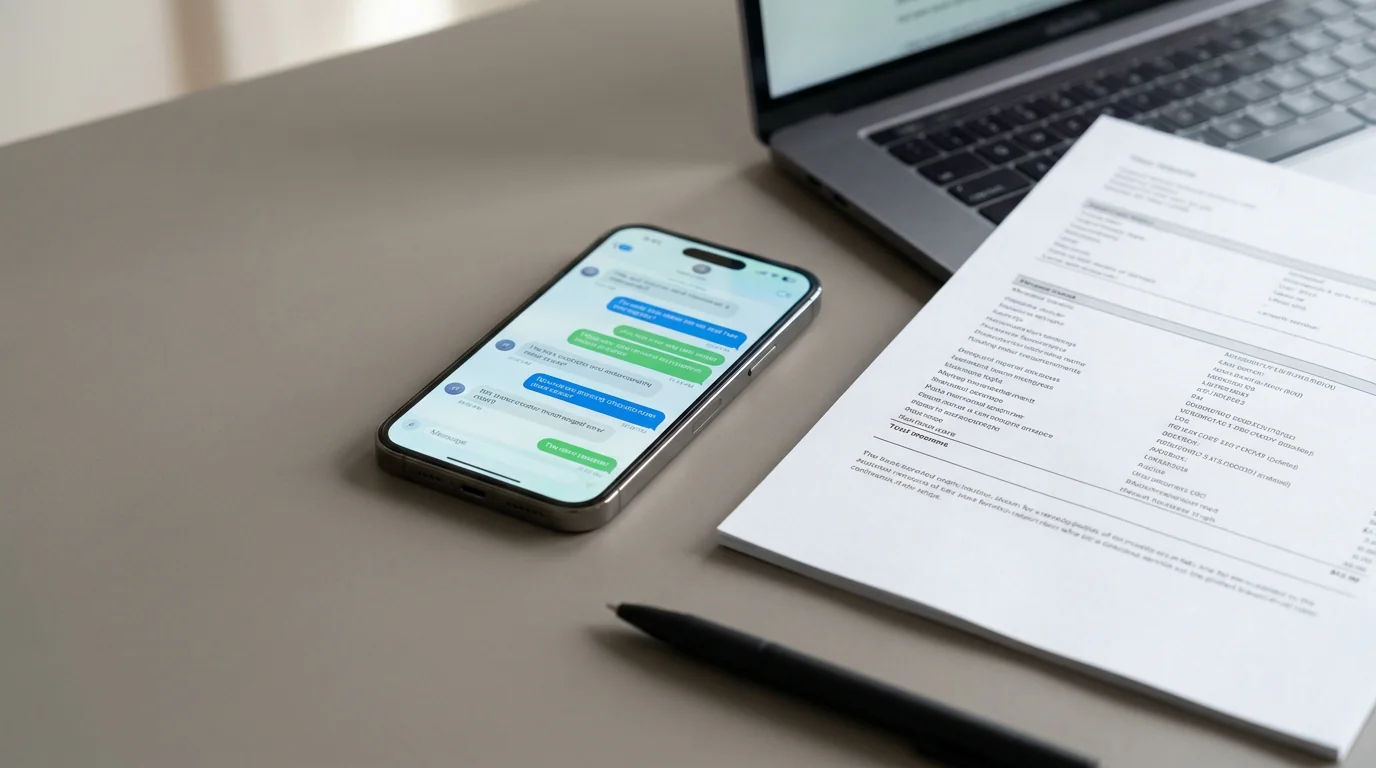
To email a text from your iPhone, touch and hold the message in Messages, tap More, tap any others, tap the Forward arrow, type an email address in the To field, and tap Send. A forward doesn't show the bubbles and times the way the chat does, so for a whole conversation with its dates, email a PDF instead.
Apple's Messages app does not have an "Export" button, so the right method depends on how much you need to send. Here are four, from the quickest to the most complete: forwarding or copying a message, screenshots, print-to-PDF on a Mac, and a PDF export with TextPort.
Method 1: Forward or copy a message to an email address
This is the fastest way to send one message or a few. You can forward message bubbles to an email address, not just a phone number.
- Open the Messages app and find the conversation.
- Touch and hold the message bubble you want to send, then tap More.
- Tap any other messages you want to include, so each one is selected.
- Tap the Forward arrow.
- In the To field, type an email address instead of a phone number.
- Tap Send.
How do you copy a text into an email?
To put a message into an email you're already writing, copy it instead. Touch and hold the bubble, tap Copy, then touch and hold in the body of your email and tap Paste. To copy only part of a message, tap Select instead of Copy, pick the words you want, then tap Copy.
Either way, the email gets the words, not the conversation as you see it. To show the bubbles and times, Apple's own tip is to send a screenshot instead (Method 2). Forwarding also only covers iMessage and SMS. It does not help with WhatsApp, Instagram DMs, or Signal.
Can your iPhone forward texts to email automatically?
Not with Text Message Forwarding (Settings > Apps > Messages). The setting sounds like it, but it doesn't send texts to email. It only shows the SMS, MMS and RCS texts you send and receive on your Mac, iPad and Apple Vision Pro. If you need new incoming text messages forwarded to an email address as they arrive, ForwardSMS can route them there. That is useful for monitoring messages away from your phone or sharing them automatically with colleagues or family members.
Method 2: Screenshot the conversation and email the images
For a quick visual record, screenshots are the simplest no-setup option.
- Open the conversation in any messaging app.
- Press the Side button + Volume Up at the same time to take a screenshot. On an iPhone with a Home button, press the Home button + Side button.
- Open the screenshot in Photos, tap the Share icon, and select Mail.
- Address the email and send it.
For longer threads, you can take multiple screenshots and attach all of them to one email. The downside is obvious: the text is not searchable, the flow is clumsy for long conversations, and screenshots are easy to question if you need them for something formal.
Method 3: Print to PDF on your Mac, then email the PDF
If your iMessages are synced to a Mac through iCloud, you can turn an entire conversation into a proper PDF without extra software.
- Open Messages on your Mac.
- Select the conversation in the sidebar.
- Click File > Print in the menu bar.
- In the print dialog, click the dropdown in the bottom-left corner and choose Save as PDF.
- Save the file, then attach it to an email in Mail or another email app.
This produces a cleaner, scrollable PDF with sender names and timestamps. The limitation is straightforward: you need a Mac with Messages synced, and it only works for iMessage and SMS, not third-party messaging apps. If you'd rather not scroll a long thread back before printing, the TextPort for Mac app reads the same synced Messages and exports the whole conversation to a PDF you can attach. Our iMessage chat history export guide compares this method against the phone-only routes in more detail.
Method 4: Email a whole conversation as a PDF with TextPort
When you need the whole conversation with every date and time, for a lawyer, a mediator, HR or your own records, send it as a PDF. TextPort makes that PDF from your iPhone, no computer needed, with names, dates and times on every page. It works for WhatsApp, Instagram and Signal too, not just Messages. Import the whole chat, not just the bad parts. Whoever reads it needs the full story.
How you get the chat into TextPort depends on the app:
- iMessage and SMS: TextPort imports the conversation word for word through a TextPort Shortcut in Apple's Shortcuts app, with each sender and timestamp. It needs iOS 26.4 or later. The Shortcut import guide has the steps.
- WhatsApp: use WhatsApp's own Export chat and send it to TextPort (steps). The WhatsApp export guide covers WhatsApp's side in more detail.
- Instagram, Messenger, Signal and other apps: record your screen while you scroll through the chat, and TextPort turns the video into text (Scroll Capture).
Then email it:
- Open the chat in Saved Chats and tap Export.
- Tap PDF, then scroll the preview to check the names, dates and times.
- Tap the blue Share button in the top right, tap Share again, and pick Mail.
- Address the email and send it.
Your first 3 conversations import for free. After that you need a subscription.
What if the PDF is too big to email?
Long chats make long PDFs: a 1,000-message chat comes to about 40 pages. If the PDF is too big for your email provider, Mail offers to send it with Mail Drop instead. Mail Drop handles files up to 5 GB, and the recipient has 30 days to download it. Or tap Share Link instead of Share in step 3, and TextPort gives you a web link to the PDF that works for 7 days.
TextPort can also export the chat as a spreadsheet (CSV) or plain text (TXT). For whole iMessage and SMS histories, the free Mac and Windows apps export everything at once.
Which method should you use?
| Your situation | Best method |
|---|---|
| One or two messages, sent quickly | Forward or copy to email |
| A short exchange, exactly as it looks on screen | Screenshot and email |
| iMessage conversation synced to a Mac | Print to PDF on Mac |
| A whole conversation with dates, from any app | PDF export with TextPort |
A note on emailing messages as evidence
If you are emailing text messages for legal purposes, format matters. A forwarded plain-text message or a cropped screenshot is easy to challenge. A more credible record preserves timestamps, sender names, and the full flow of the conversation without gaps.
That is why structured PDF exports usually hold up better than native iPhone forwarding. If you are dealing with a custody dispute, harassment complaint, workplace issue, or business disagreement, spending a few extra minutes on a cleaner export can save real trouble later.
The TextPort articles library covers related scenarios as well, including printing, archiving, and formatting conversations for legal or business use.
The right method depends on what you are trying to do. For casual sharing, forwarding or screenshots are often enough. For anything that needs to look complete and stand up to scrutiny, a proper export is the safer route.
Frequently asked questions
-
Yes. Touch and hold the message, tap More, tap the Forward arrow, and type the email address in the To field instead of a phone number. Then tap Send.
-
Yes, but you have to select each message. After you tap More, you tap every message you want, which is slow in a long thread. To send the whole conversation with its dates, export it as a PDF with TextPort and email the file.

Start exporting your messages
Available for iPhone, Mac, and Windows. No computer required.
