
7 Best Apps to Convert Text Messages to PDF in 2026

Saving a text conversation as a PDF sounds like it should be simple, but Apple gives you no built-in button to do it. Whether you need a formatted document for a legal filing, a custody dispute, a workplace complaint, or just your own records, you will need a third-party tool to get the job done properly.
The apps below cover every realistic scenario: phone-only workflows, desktop software, and tools that handle third-party messengers beyond plain iMessage. Each has real trade-offs, so read past the name before you download.
1. TextPort: best for iPhone users who want no-computer export
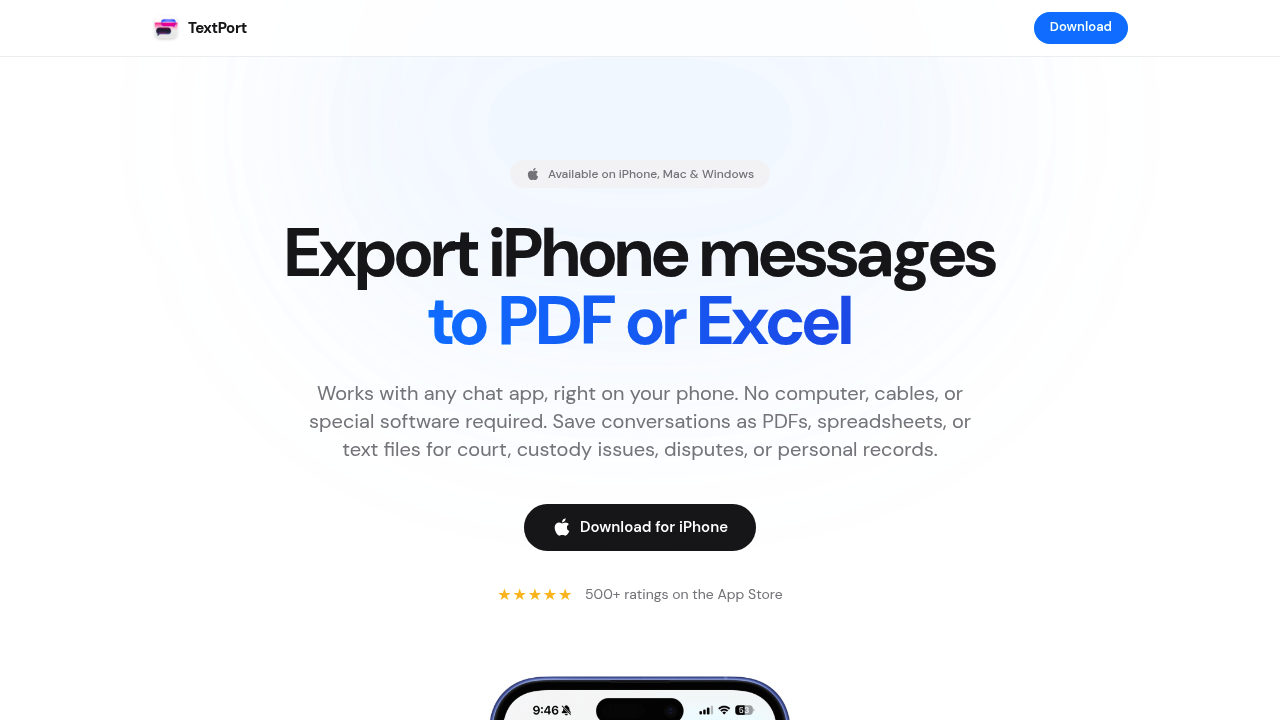
TextPort is the strongest option if you want to stay on your iPhone from start to finish. You open TextPort, tap Import, choose the iMessage conversation and the date range you need, and TextPort pulls every message straight out of iMessage, preserving sender names, timestamps, and order, and packages it as a clean PDF, CSV, or plain text file. No screenshots, no scrolling.
It supports iMessage, SMS, WhatsApp, Instagram DMs, Facebook Messenger, Telegram, Signal, and essentially any other messenger. There is no cable required, no iTunes backup to create first, and no limit on the number of conversations you can export. For time-sensitive situations like legal filings or harassment claims, that speed matters.
Best for: iPhone and iPad users who need quick, print-ready PDFs without connecting to a computer.
On a computer instead: TextPort's desktop apps turn iMessage and SMS into PDFs in bulk. TextPort for Mac reads the Messages already on your Mac (turn on Messages in iCloud to get your iPhone's full history), with no cable and no backup. TextPort for Windows backs up your iPhone over USB through Apple's Apple Devices app or iTunes, or opens a backup already on the PC. Both export many conversations at once, with a date range, to PDF, CSV, or TXT, plus a ZIP of attachments. No account, and nothing is uploaded. They don't read WhatsApp or other third-party apps; use the iPhone app for those.
2. iMazing: best desktop tool for iMessage and SMS bulk export
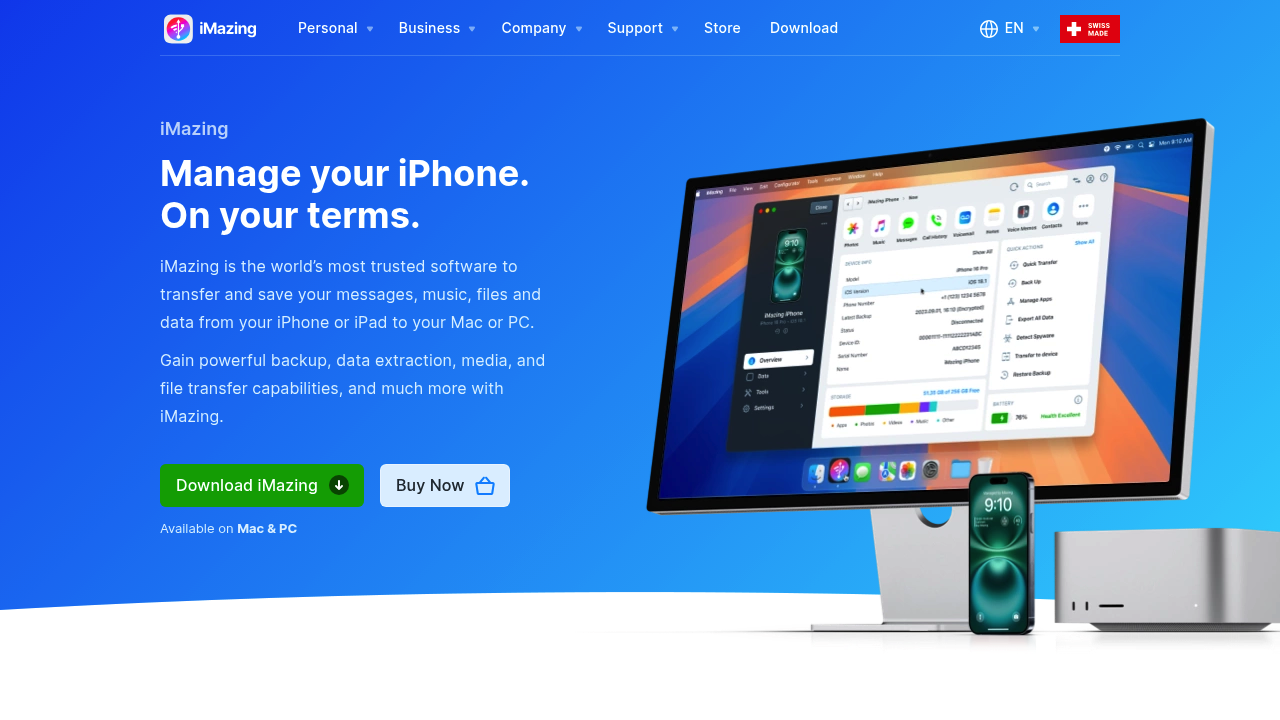
iMazing is a well-regarded Mac/Windows desktop app that reads iPhone backups and lets you browse and export iMessage and SMS threads to PDF, Excel, or plain text. The interface is clean, exports include timestamps and contact names, and the free version lets you evaluate before buying.
The catch is that it requires a desktop computer and primarily handles iMessage and SMS from Apple's native app. WhatsApp and third-party messenger exports are more limited compared to a dedicated tool like TextPort.
Best for: Mac or Windows users doing a large iMessage or SMS backup and comfortable working at a desktop.
3. Decipher TextMessage: straightforward desktop PDF export
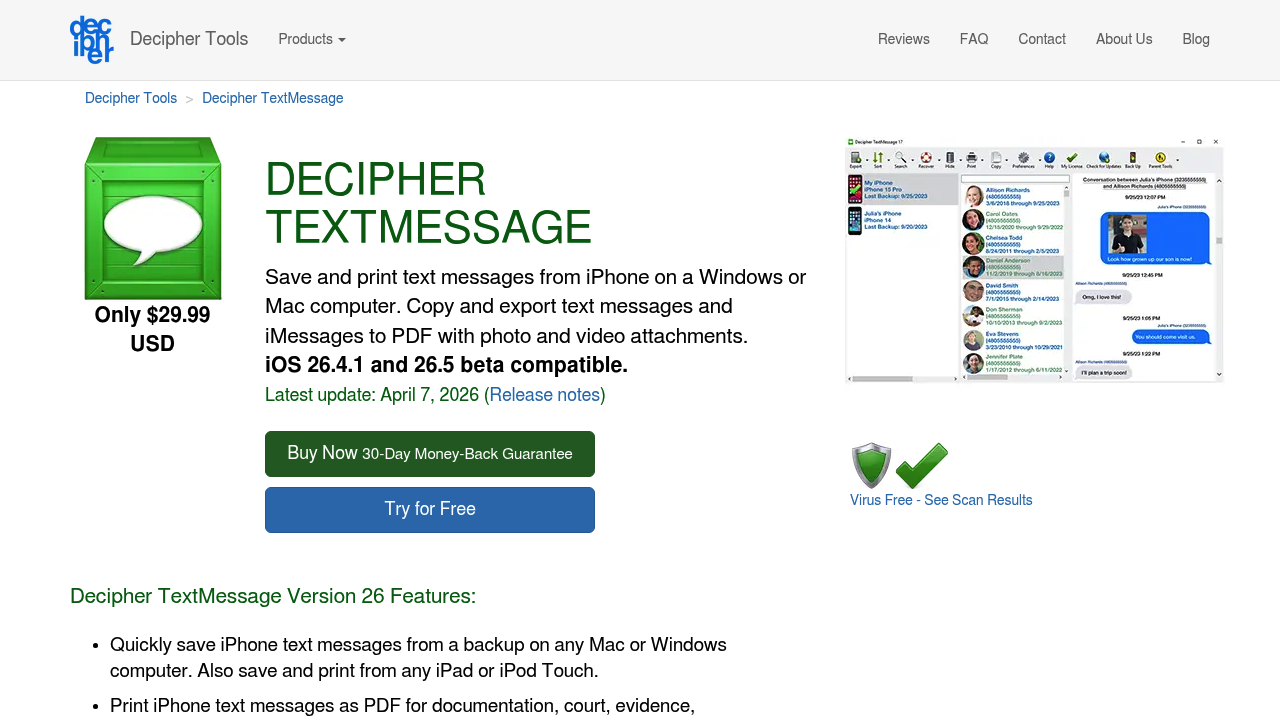
Decipher TextMessage reads your iPhone backup on a Mac or PC and exports conversations to PDF, HTML, or CSV. It has been around a long time, the output is clean, and it includes photo attachments inline with the conversation thread.
It is a single-purpose tool. It does one thing and does it reliably. The downside is the same as any desktop-dependent solution: you must have a backup on your computer first, and setup takes more steps than a phone-only workflow.
Best for: Users who already have an iTunes or Finder backup and want a simple, proven tool to turn iMessage threads into PDFs.
4. iExplorer: file-level access with message export
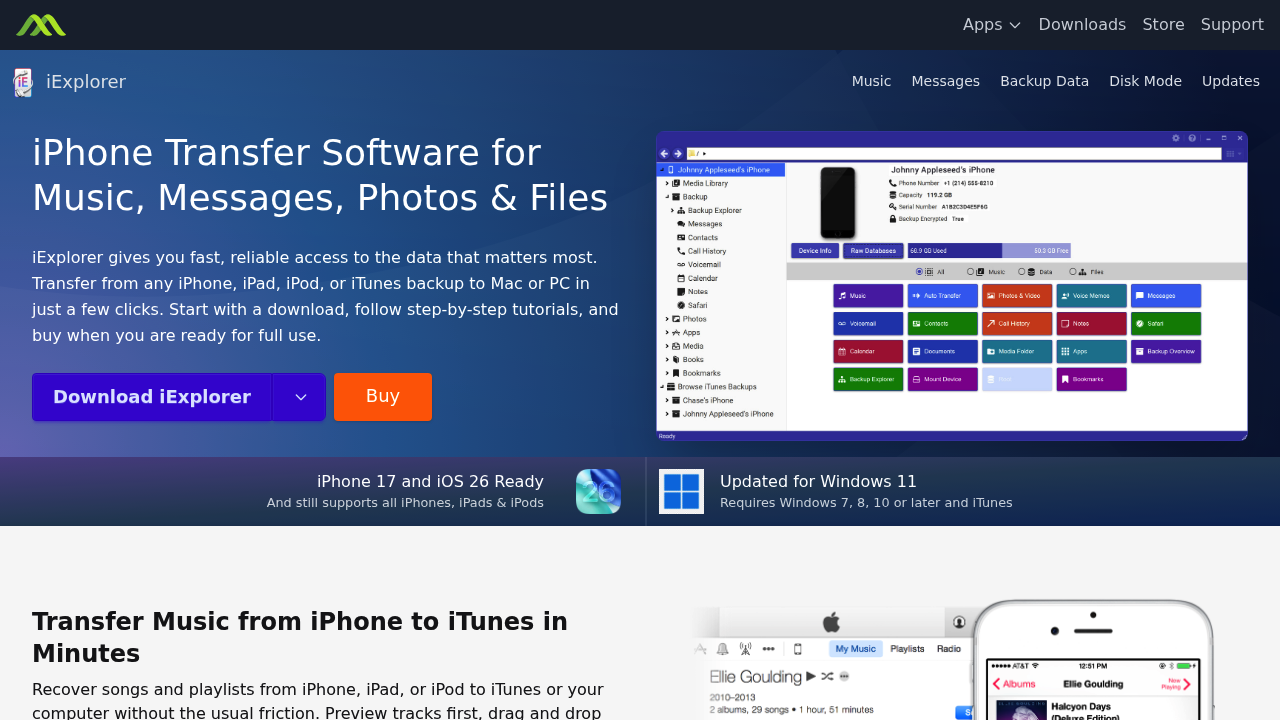
iExplorer gives you deep file-system access to your iPhone from a Mac or PC. It can browse and export iMessage and SMS threads, and it supports the latest iOS versions. Beyond messages, it handles music, photos, and app data, which makes it useful for broader device management.
As a PDF converter specifically, it is more of a secondary use case. The tool is built as a general iPhone transfer utility, and message export is one feature among many rather than the core focus.
Best for: Power users who want an all-in-one iPhone file manager and are okay trading PDF-export simplicity for broader device access.
5. AnyTrans: all-in-one iOS manager with message export
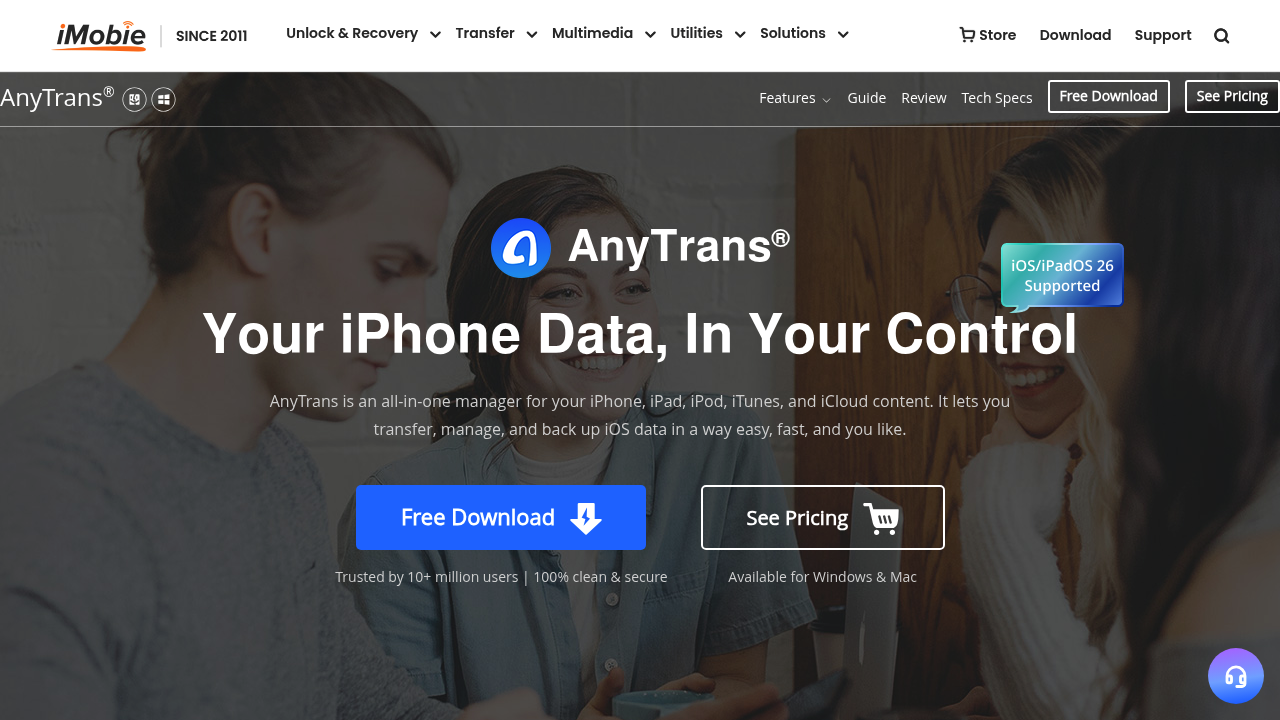
AnyTrans from iMobie supports 27 data types and positions itself as a comprehensive iPhone-to-computer transfer solution. Message export is available, and it handles iMessage, SMS, and WhatsApp backups through its desktop app.
It is a capable program, but the interface can feel overwhelming if all you need is a PDF of one conversation. Pricing and plan tiers are also not immediately clear from the main page, which means a bit of digging before you commit.
Best for: Users who already need a full iPhone data migration or backup tool and want message PDF export as part of that package.
6. iPhone screenshots and manual stitching: free but painful
The built-in screenshot method still works for very short conversations. Scroll through the thread, take a screenshot on each screen, then use the iOS Share sheet or a free tool like Google Photos to print them or combine them into a PDF.
Reality check: for anything beyond 15 to 20 messages, this becomes tedious fast. Screenshots do not produce a formatted document. They are just images. There is no searchable text, no timestamps in a clean layout, and definitely not something you would hand to a lawyer or HR department.
Best for: Quick grabs of two or three messages when you do not need a professional format.
7. TouchCopy: desktop export with a long track record
TouchCopy is another desktop tool for Mac and Windows that reads iTunes or Finder backups and exports iMessage, SMS, and MMS conversations to PDF. It has been available for years and has a loyal user base. Exported PDFs include contact names and timestamps, and the software supports photo and video attachments.
Like the other desktop options, it requires a computer and a wired or wireless iPhone connection. There is no phone-only option, and third-party messenger support such as WhatsApp or Signal is limited.
Best for: Windows users who want a desktop alternative to iMazing with a familiar, no-frills interface.
How to pick the right tool
The right choice comes down to three things:
- Do you need to stay on your phone? TextPort is the only option here that works fully from iPhone without a computer.
- Which messaging apps do you need to export? If you need WhatsApp, Instagram DMs, or Telegram alongside iMessage, you need a tool that covers those apps too, which TextPort does.
- What format does the recipient need? For court filings, a clean PDF with timestamps is standard. For data analysis, CSV or Excel format is more useful. Most tools in this list produce PDF. Fewer produce clean CSV.
For most iPhone users who want a fast, cable-free path from chat to PDF, especially for third-party messengers, TextPort is the most practical starting point. If you are already working at a computer and dealing strictly with iMessage or SMS, TextPort for Mac and TextPort for Windows export every conversation at once, and iMazing and Decipher TextMessage are solid options.
Whatever you choose, export sooner rather than later. Messages can be deleted, devices get replaced, and having a documented copy is always easier before you need it urgently.

Start exporting your messages
Available for iPhone, Mac, and Windows. No computer required.
