
4 Best Apps to Export WhatsApp Chat Messages From iPhone in 2026
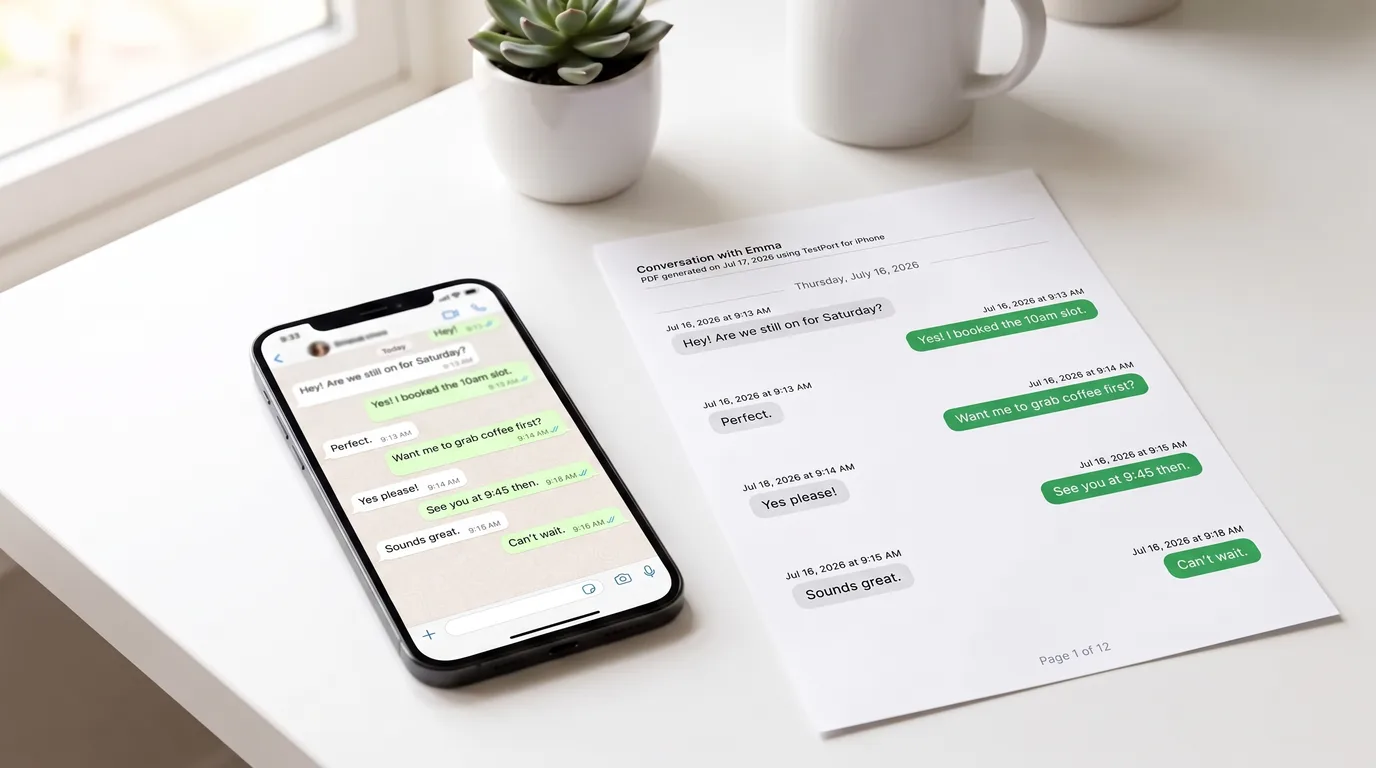
WhatsApp doesn't have a "Save as PDF" button. When you tap Export chat on an iPhone, you get either a plain .txt file (without media) or a .zip containing that .txt plus your photos, videos, and audio files (with media), according to the WhatsApp Help Center. Getting from that raw file to a clean, print-ready PDF takes at least one more step, and which step you take depends entirely on which app you use.
The four options below cover every realistic workflow, from staying entirely on your iPhone to using a full desktop suite.
1. TextPort (best for iPhone-only, PDF/CSV/TXT output)
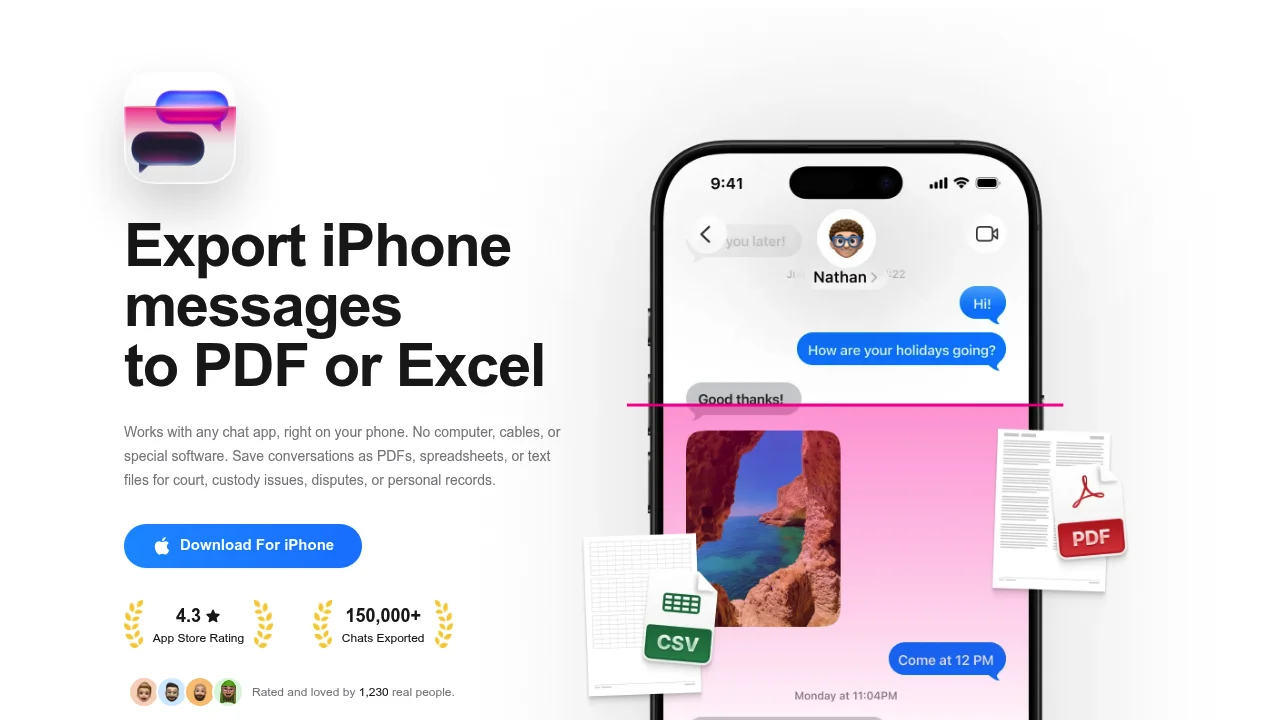
TextPort is an iPhone/iPad-first tool built around the iOS share sheet. You export the chat inside WhatsApp, share the file directly to TextPort, and the app reconstructs the full conversation, sender names, timestamps, and message order intact, before exporting to PDF, CSV, or TXT.
No computer, no USB cable, no backup required.
How to export a WhatsApp chat to PDF using TextPort:
- Open WhatsApp and navigate to the chat you want to export.
- Tap the contact or group name at the top.
- Scroll down and tap Export chat.
- Choose Without media (text only, smaller file) or Attach media (includes photos, videos, voice notes).
- On the iOS share sheet, select TextPort.
- TextPort reconstructs the conversation with sender names and timestamps. Tap Export and choose PDF, Print, CSV, or TXT.
If the reconstructed conversation looks off, check that you shared the correct file (the .txt or .zip) rather than a screenshot. For very long chats, you can split them into segments and run separate exports, since TextPort places no limits on the number of conversations or messages you can process.
For a detailed walkthrough, see how to print WhatsApp messages from iPhone.
Best for: Anyone who wants to export WhatsApp messages to PDF from iPhone without touching a computer. Also outputs CSV for spreadsheet-compatible exports and TXT for plain-text backup.
2. iMazing (best desktop option, multiple formats)
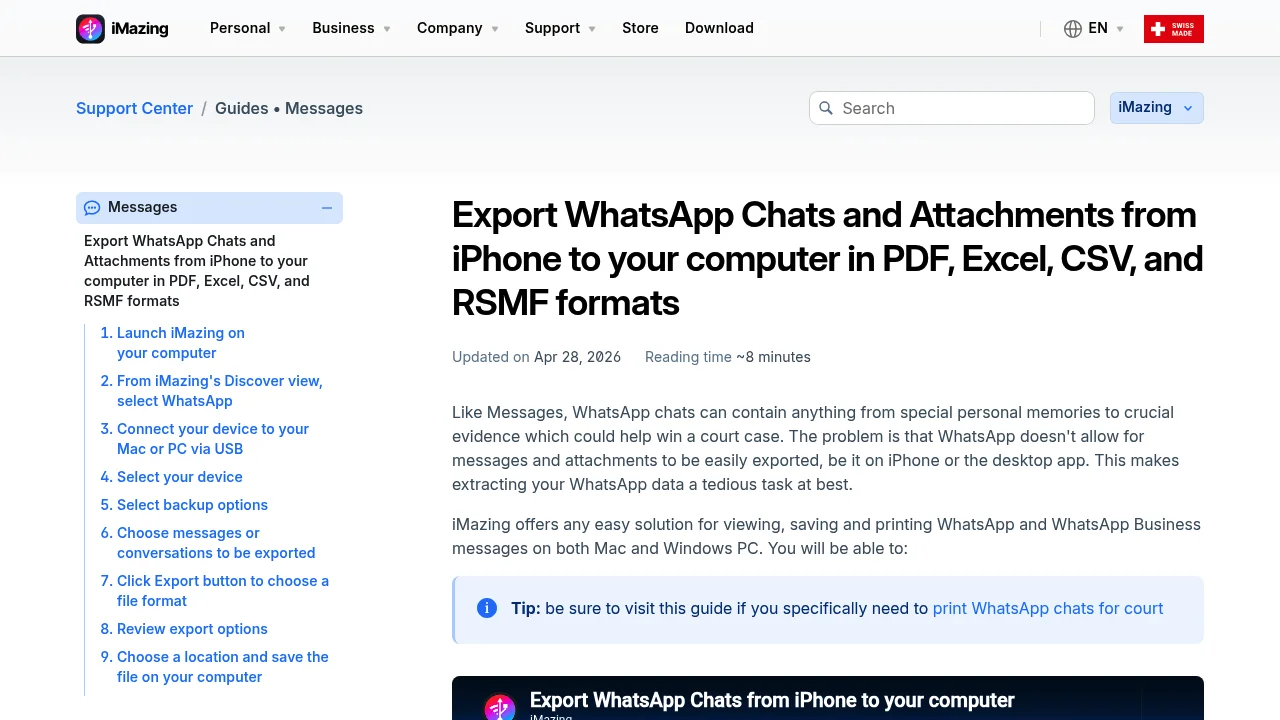
iMazing is a Mac and Windows desktop application that reads iPhone backups and exports WhatsApp chats to PDF, Excel, CSV, and RSMF (Relativity Short Message Format, a standardized format used in legal review workflows). Its export guide covers each format in detail, including e-discovery use cases.
The tradeoff: you need a Mac or PC, a USB or Wi-Fi connection, and time to create a full iPhone backup before you can export anything. That process can take up to two hours depending on your device. For a direct comparison of what iMazing offers vs. what you get on iPhone, see the iMazing alternative breakdown.
Best for: Users who already work on a Mac or PC and need RSMF output for e-discovery, or who want to export iMessage and WhatsApp side-by-side in a single desktop session.
3. Decipher Tools (desktop, strong trust signals)
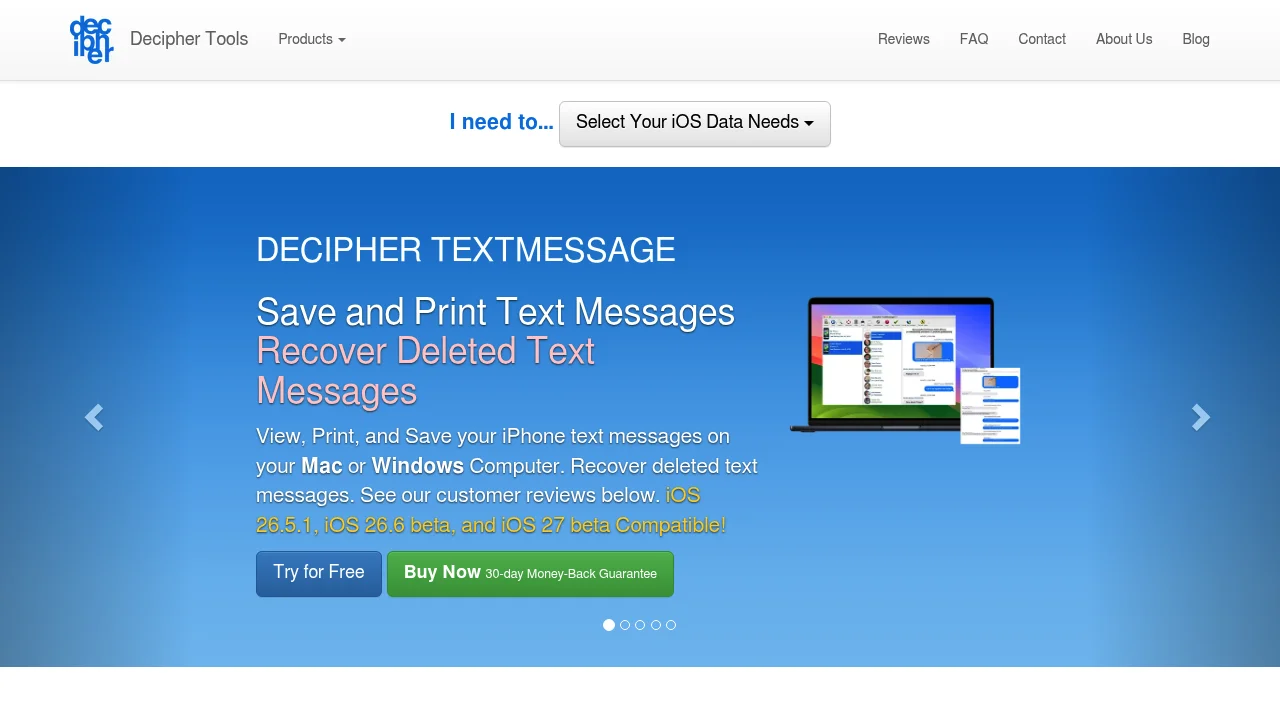
Decipher Tools offers a suite of iOS data utilities for Mac and Windows. The company emphasizes security, customer reviews, and a money-back guarantee. Its products cover iMessage, SMS, and other iOS data needs, with positioning around print and documentation use cases.
For the specific goal of exporting WhatsApp chat to PDF directly on iPhone, the main Decipher Tools site doesn't provide a dedicated end-to-end walkthrough for this workflow, and the tool requires a desktop computer to run. It's a reasonable option if you're already using a desktop-based iOS management workflow, but less direct if you want an iPhone-only path to PDF. You can see how it compares in the Decipher TextMessage alternative guide.
Best for: Desktop users who want strong customer support and a broad iOS utility suite and are comfortable setting up a computer-based backup workflow.
4. WhatsApp native export + iPhone print to PDF
This isn't a separate app, it's the built-in route. According to the WhatsApp Help Center, the steps are: open a chat, tap the contact or group name, tap Export chat, choose Without media (produces a .txt) or Include media (produces a .zip with the .txt plus media files), then share to Mail, Notes, or another app.
From there, you'd need to open the .txt in a notes or document app that can print, then use iOS's built-in Print function (which creates a PDF via AirPrint). The process works, but it produces an unformatted plain-text document with no visual structure. Sender names appear as raw text prefixes, and the result isn't formatted for easy reading or filing.
Best for: A quick, one-off personal backup where formatting doesn't matter. Not ideal when you need a clean document for records, printing, or sharing.
Method comparison at a glance
| TextPort | iMazing | Decipher Tools | Native export + print | |
|---|---|---|---|---|
| Requires computer | No | Yes | Yes | No |
| Requires iPhone Backup? | No | Yes (can take up to 2 hours) | Yes (can take up to 2 hours) | No |
| PDF output | Yes | Yes | Yes | Basic (unformatted) |
| CSV output | Yes | Yes | No (on main page) | No |
| Sender names + timestamps | Yes | Yes | Yes | Raw text only |
| Media handling | Attach or skip | Yes | Yes | .zip file only |
| iPhone-only workflow | Yes | No | No | Partial |
| Effort level | Low | Medium/High | Medium/High | Low |
Text-only vs. include media: which export to choose
The choice between Without media and Attach media affects both file size and document clarity.
Without media exports a single .txt file. It's faster to process and produces a smaller, cleaner document when you convert it to PDF. This is the better option when the goal is a readable, text-forward record, for printing, filing, or sharing with others.
Attach media exports a .zip file containing the .txt plus the original photo, video, and audio files. Useful when the media itself is part of what you need to document, such as when a photo or voice note is the key piece of evidence in a conversation. The resulting PDF will be larger and may require more steps to organize.
For documentation purposes, text-only PDFs tend to be easier to read and share. If context from specific media matters, you can always include the media files as separate attachments alongside the PDF rather than embedding everything in one document. For situations where you're preparing records for official purposes, see the guide on text messages as legal evidence.
Frequently asked questions
Does WhatsApp's native export have a message limit? WhatsApp's built-in export may be limited for very long chats. If a conversation is extremely long, the native export may not include all messages. In that case, exporting segments separately (or using the screen-recording method in TextPort) gives you more control.
Do I need a computer to export WhatsApp to PDF? No. TextPort handles the full workflow on iPhone and iPad, from WhatsApp's Export chat feature through the iOS share sheet to a finished PDF.
Can I export multiple WhatsApp chats at once? WhatsApp's native export is one chat at a time. TextPort processes each chat individually, but places no limits on how many you can export in sequence.
Will my PDF include timestamps and sender names?
With TextPort, yes, the reconstructed conversation preserves sender names and timestamps on every message. The native .txt export includes them as raw text, but without any visual formatting.
What if my chat is very long? For very long chats, exporting in date-range segments keeps each export manageable.
Is the exported PDF suitable for printing or official records? A PDF produced through TextPort includes structured formatting with sender names and timestamps, making it suitable for printing and record-keeping. For specific use cases such as court filings, consult the relevant requirements for your jurisdiction.
If you need a desktop workflow
If an iPhone-only workflow isn't an option, iMazing is the most format-complete desktop tool available. It exports WhatsApp chats to PDF, CSV, Excel, and RSMF from iPhone to Mac or Windows, with detailed documentation for each format. Its RSMF output is specifically designed for legal review platforms like Relativity (per RelativityOne documentation, May 2026).
For third-party "chat to PDF" apps outside the options listed here, verify that the tool explicitly supports WhatsApp (not just iMessage or SMS), preserves sender identity and timestamps, and has a clear privacy policy before sharing your conversation data.
The right choice comes down to two questions: do you have a computer available, and do you need media included? If you want to export WhatsApp messages to PDF from iPhone without a computer, TextPort is the most direct path. If you're on a desktop and need RSMF for e-discovery, iMazing covers that workflow.

Start exporting your messages
Available for iPhone, Mac, and Windows. No computer required.
