
How to Print WhatsApp Messages From iPhone (No Computer Needed)
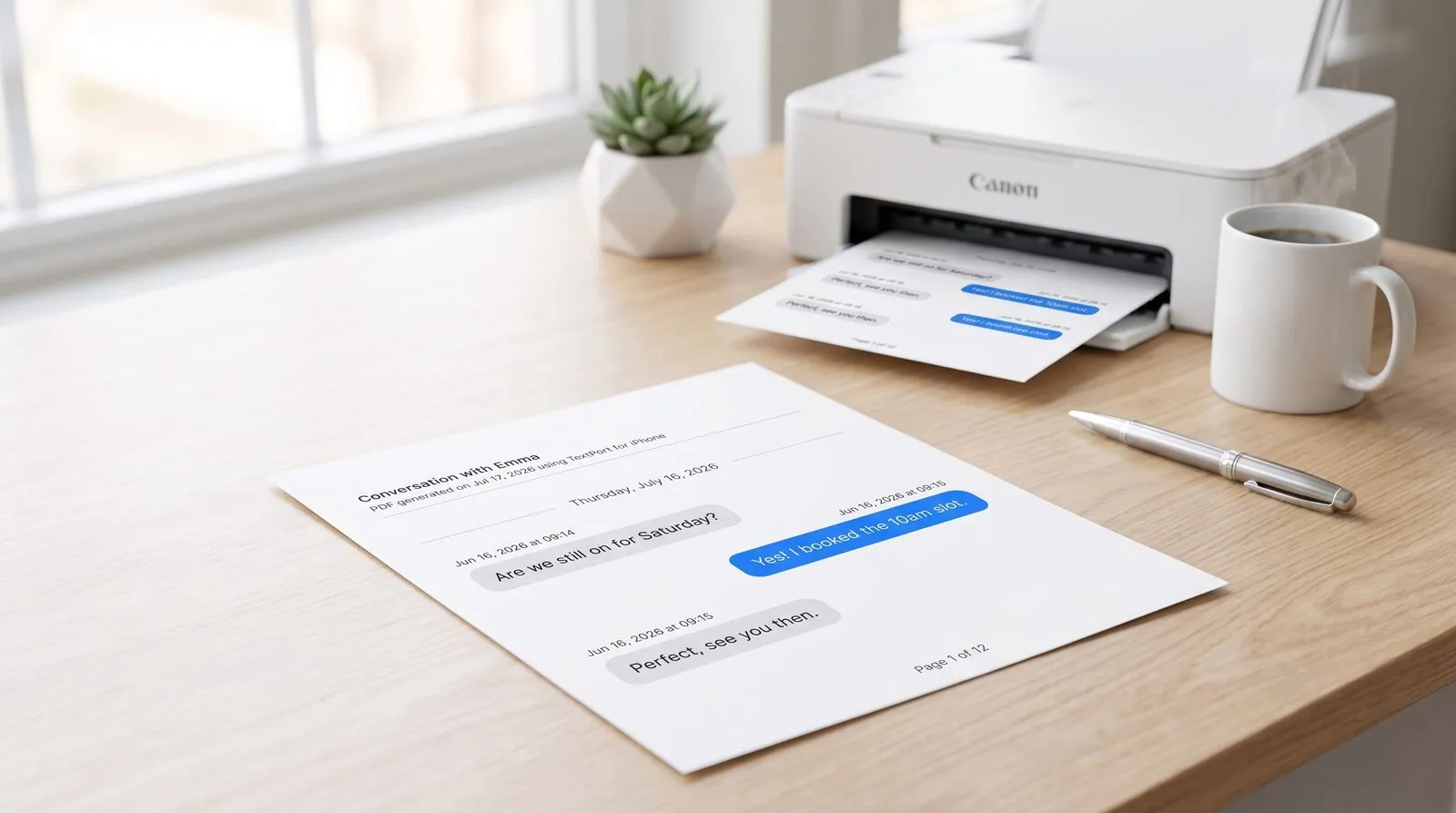
WhatsApp has no print button, but your iPhone can still print a chat three ways. A screenshot covers a message or two. WhatsApp's own export prints the whole chat for free, as plain text. Or open that export in TextPort and print it laid out like the chat, photos included. You won't need a computer for any of it.
Print a few messages with a screenshot
If you only need one or two messages on paper, skip the export:
- Open the chat and scroll so the messages fit on the screen.
- Press the Side button and Volume Up together to take a screenshot. On an iPhone with a Home button, press the Home button and the Side (or Top) button.
- Open the screenshot in Photos, tap the Share button, then tap Print.
- Tap No Printer Selected, pick your printer, and tap Print.
Your iPhone and the printer need to be on the same Wi-Fi network for AirPrint to work. A screenshot prints exactly what was on your screen, so a long chat turns into a stack of pages and anything off screen is left out. Past a screen or two, the export is faster.
Print the whole chat for free, as plain text
WhatsApp's export is already a file you can print, if you don't mind how it looks:
- In the chat, tap the contact's name at the top, scroll down and tap Export chat. Choose Without media, then tap Save to Files and pick a folder.
- Open the Files app and tap the
.zip. Files unpacks it into a folder. - Open the folder, tap
_chat.txt, tap Share, then tap Print.
What comes out is plain text, one line per message, with the date, time and sender's name in front. Photos and voice notes show up as lines that just say they were left out. Here's what two lines look like (made-up chat):
[9/30/26, 6:49:12 PM] Dana: Running late, can you grab her from school?
[9/30/26, 6:50:03 PM] Dana: image omitted
It's all there, but a long back-and-forth is hard to follow on paper. For a short chat you're keeping for yourself, that's fine. For anything a lawyer, judge or caseworker will read, or a chat where the photos matter, it isn't.
Print the chat so it looks like the chat
TextPort turns that same export into a PDF that reads like the chat on your phone: each message sits in a bubble on the side of the person who sent it, with their name, the date and the time above it. If you exported with Attach media, the photos print with the message they came with. Your first three chats are free to import. After that, TextPort is a weekly, monthly or annual subscription through the App Store.
Step 1: Export the WhatsApp chat on your iPhone
Export the chat the same way as above, up to the point where WhatsApp asks you to pick one of two options:
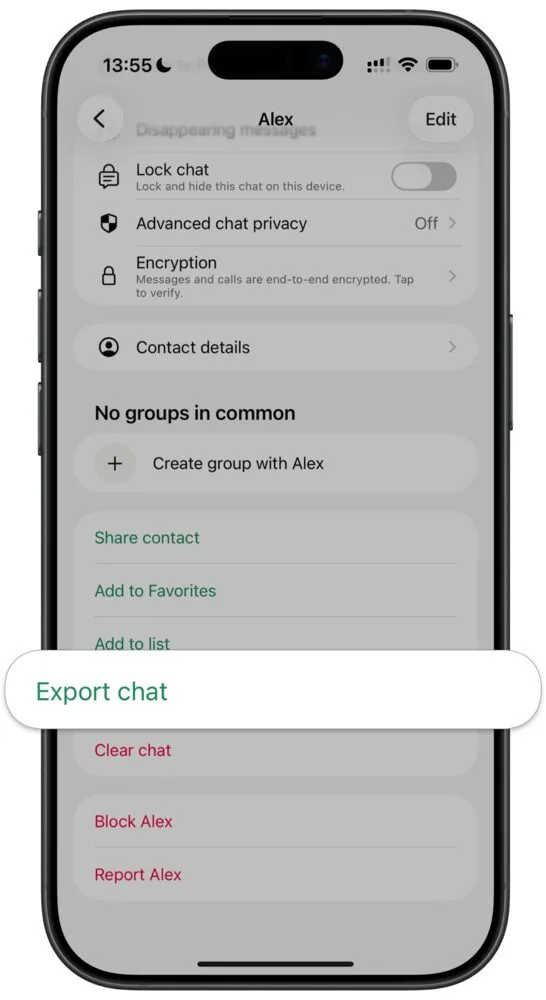
- Attach media if you want the photos in the printout. It also brings the videos and voice notes, so it takes longer for a busy chat.
- Without media for just the words. It's smaller and quicker.
Either way, WhatsApp on iPhone hands you a .zip file, and TextPort opens it as it is.
Step 2: Open the export in TextPort
When WhatsApp has made the export, the Share menu opens. This time, don't tap Save to Files: scroll through the app icons and tap TextPort.
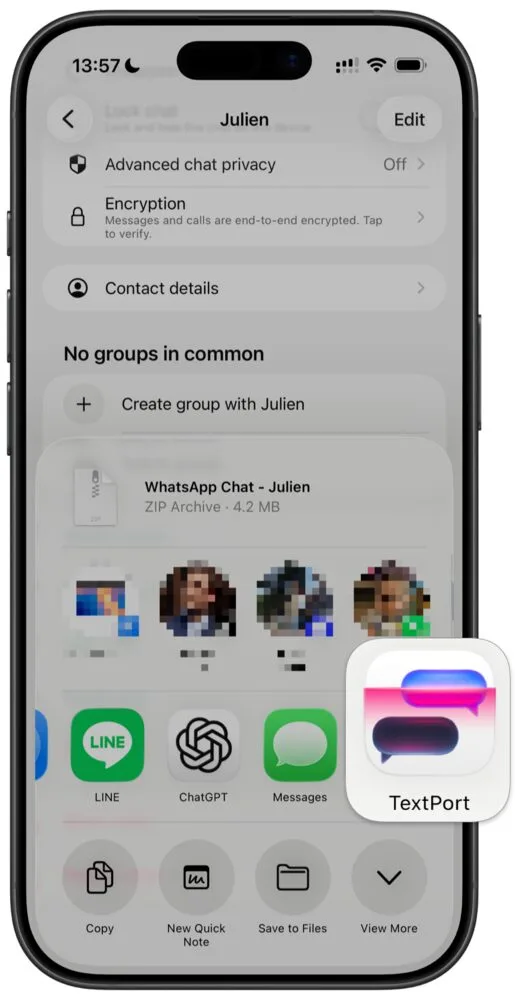
TextPort reads the file and puts the chat back in order, oldest message first. TextPort's full WhatsApp export guide walks through the same import step by step.
Step 3: Print or save as PDF
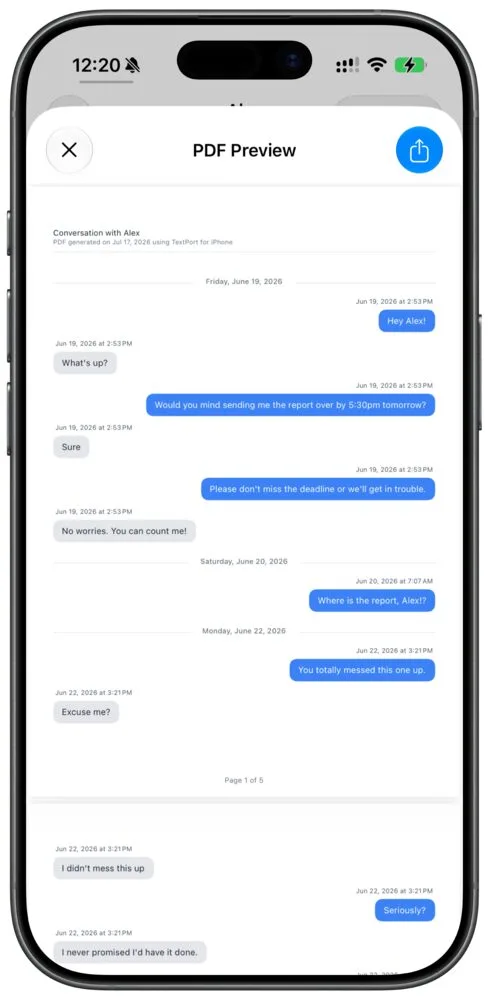
Once the chat is in TextPort, tap Print to send it straight to your printer, or save it as a PDF to email, file or keep. To print only part of a long chat, pick a date range first. For a custody case, an immigration filing or a dispute at work, go with the PDF: you can send the same file to your lawyer or mediator as a link that stops working after 7 days by default.
Printing for a formal process
If your printout is going to a court, a lawyer or an agency, a few habits help. Keep both the original WhatsApp export and the finished PDF, so you can rebuild or extend the record later. And check that names and times show on every page. TextPort shows them unless you turn timestamps off. And if any of the chat is in another language, ask the court or office you're filing with what kind of translation they need.
Printing for a court case? The guide to printing text messages for court lists each way to do it. For an immigration case, the WhatsApp chat history for USCIS documentation guide covers what to include and how much of the chat to print.
Frequently asked questions
-
Make sure TextPort is installed on the same iPhone you're exporting from. After installing, you may need to scroll to the end of the Share menu's app row and tap More to find it, and add it there. After that, TextPort shows up every time you export a chat.
-
No. WhatsApp on iPhone has no print option. To print a whole chat, use Export chat. You can print WhatsApp's own text file for free, or open the export in TextPort and print it laid out like the chat. For one or two messages, take a screenshot and print it from the Photos app.
-
That's how WhatsApp exports a chat on iPhone. With Attach media, the
.zipalso holds the photos, videos and voice notes. You don't need to unzip it yourself. When you pick TextPort in the Share menu, it opens and processes it automatically. -
Long group chats or multi-year conversations can take a few minutes to export, especially with media attached. Exporting Without media is much faster. Once the chat is in TextPort, you can also pick a date range, so you only print the part you need.
-
Yes. You export the chat in WhatsApp, open it in TextPort, and print with AirPrint or save a PDF, all from your iPhone. See the guide on printing text messages without a computer.

Start exporting your messages
Available for iPhone, Mac, and Windows. No computer required.
