
5 Best Apps to Print WhatsApp Chat Messages From iPhone in 2026
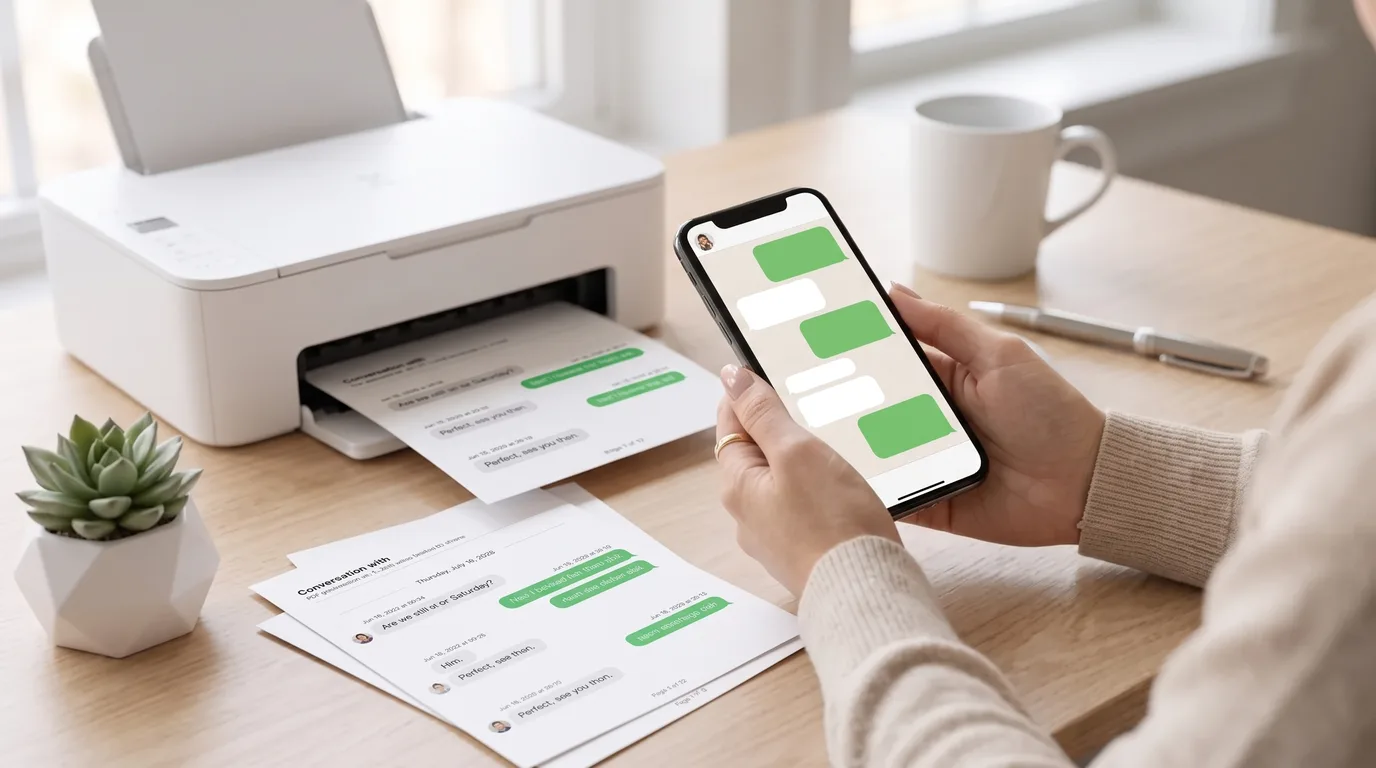
WhatsApp doesn't have a print button. If you want a clean, readable copy of a conversation, you have to get the chat off your phone first, then format it into something a printer can handle. The method you choose affects whether you get a properly structured document with sender names and timestamps, or a pile of cropped screenshots that are hard to read and harder to use as a record.
This guide covers the 5 best apps for printing WhatsApp messages from an iPhone, how to export WhatsApp chats to PDF without a computer, and which option fits your situation.
Quick answer: which method works best?
The fastest iPhone-native path is: WhatsApp's built-in Export Chat + TextPort. You export the chat from inside WhatsApp, share it directly to TextPort via the iOS share sheet, and TextPort rebuilds the conversation with sender names and timestamps into a print-ready PDF. No computer, no cables, no manual transcription.
The comparison below covers all three realistic approaches:
| Method | Requires computer? | Requires an iPhone backup? | Keeps sender names + timestamps? | Best for |
|---|---|---|---|---|
| Screenshots | No | No | Partial (can be cropped) | Very short chats |
| WhatsApp Export Chat + TextPort | No | No | Yes | Long chats, clean output, iPhone-only |
| Desktop tools (iMazing, Decipher Tools) | Yes (Mac/PC) | Yes (can take up to 2 hours) | Yes | Bulk export, advanced workflows |
1. TextPort (best for iPhone-first workflow)
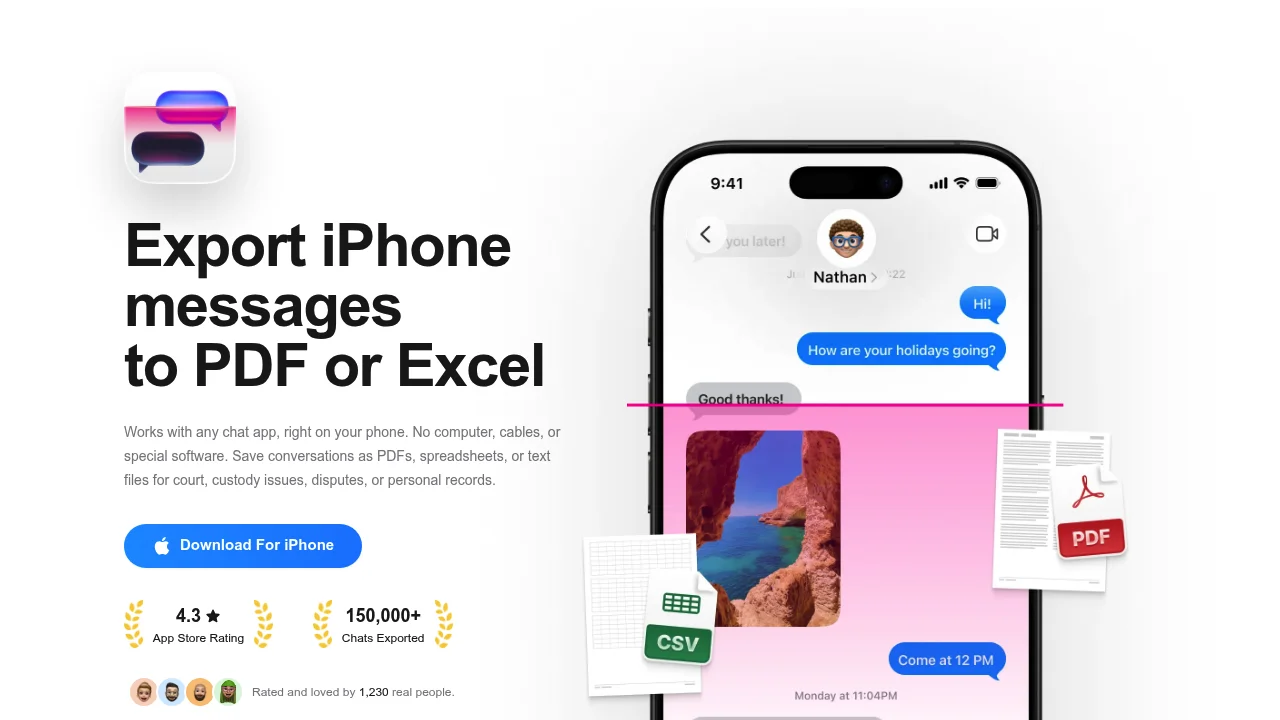
TextPort is built specifically for iPhone and iPad. The workflow uses WhatsApp's own Export Chat feature paired with the iOS share sheet, so you never need a Mac or PC. According to TextPort's knowledge base, the steps are:
- Open WhatsApp and go to the chat you want to print.
- Tap the contact's name (or group name) at the top.
- Scroll down and tap Export chat.
- Choose Attach media (includes photos, videos, and voice notes) or Without media (text only).
- In the iOS share sheet, tap TextPort.
TextPort imports the conversation with sender names and timestamps in the correct order, then lets you export to PDF, Print, CSV, or TXT. PDF is the most useful format for printing since it preserves layout across devices.
For long conversations, this is the most practical iPhone-only path. There's no manual stitching, no screenshotting individual pages, and no computer required. TextPort also supports other messaging apps (iMessage, Instagram DMs, Signal, Telegram, and more), so if you need to print text messages from iPhone across multiple apps, it handles that with a single workflow.
Best for: long or complex WhatsApp threads, users who need clean formatting, anyone who doesn't own a Mac or PC.
2. WhatsApp's built-in Export Chat (free, text only)
The WhatsApp Help Center describes a free native path: open the chat, tap More options > More > Export chat, then choose Without media or Include media, and select a destination (Mail, Messages, Notes, etc.).
This gets you a .txt file (and a .zip if you included media), but it doesn't give you a formatted PDF on its own. You'd need to open the .txt in an app that can print it, and sender names and timestamps won't be laid out in a visually clean way. It's a good starting point, but the output needs a formatting step before it's genuinely print-ready.
Used alone, the built-in export is best treated as Step 1, with TextPort as Step 2.
3. Screenshots (no setup required, limited output)
Screenshots work for short conversations. Take them, AirDrop or share them to a printer app, and print.
The downsides stack up fast with anything longer than a few messages: timestamps can be cut off at the top, you have to scroll and capture each screen manually, the resulting pages don't look like a document, and the content isn't searchable. If you're printing for legal documentation or record-keeping, screenshots are the weakest option because they lack a continuous, verified chain of content.
Best for: 5-10 messages where speed matters more than formatting.
4. iMazing (best desktop option for iPhone)
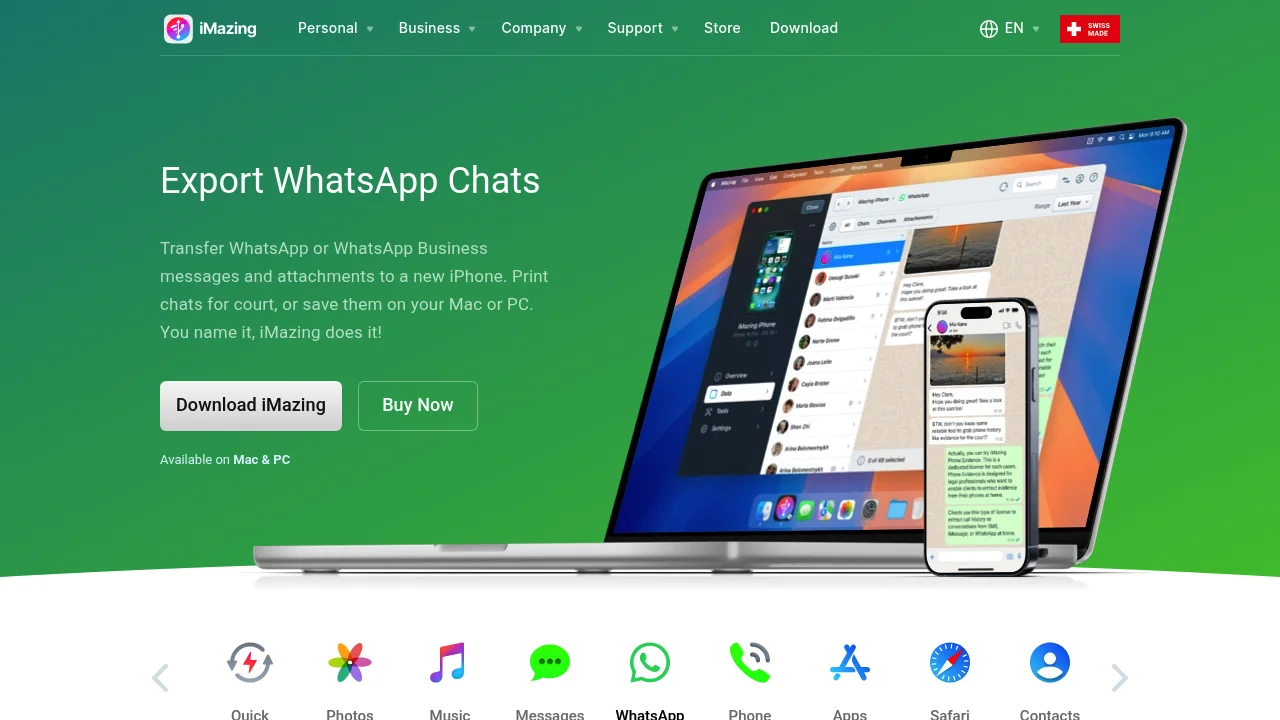
iMazing is a Mac and Windows application that connects to your iPhone over USB or Wi-Fi, creates a local backup, and exports WhatsApp chats as PDF, CSV/Excel, or TXT. It's a full iPhone management tool, so message export is one feature among many. The iMazing product page positions it around backup, export, print, and transfer.
The tradeoff: it requires a computer and an iTunes/Finder backup before you can export anything. Setup time runs from 20 minutes to an hour or more depending on backup size. If you already use iMazing for other iPhone tasks, the WhatsApp export is a natural addition. If printing a WhatsApp chat is the only goal, the setup cost is significant.
For a direct comparison of these desktop options, see iMazing vs TextPort for iPhone.
Best for: users who already run iMazing, bulk export across many conversations, or workflows that need Mac/PC integration.
5. Decipher Tools (Decipher Chat)
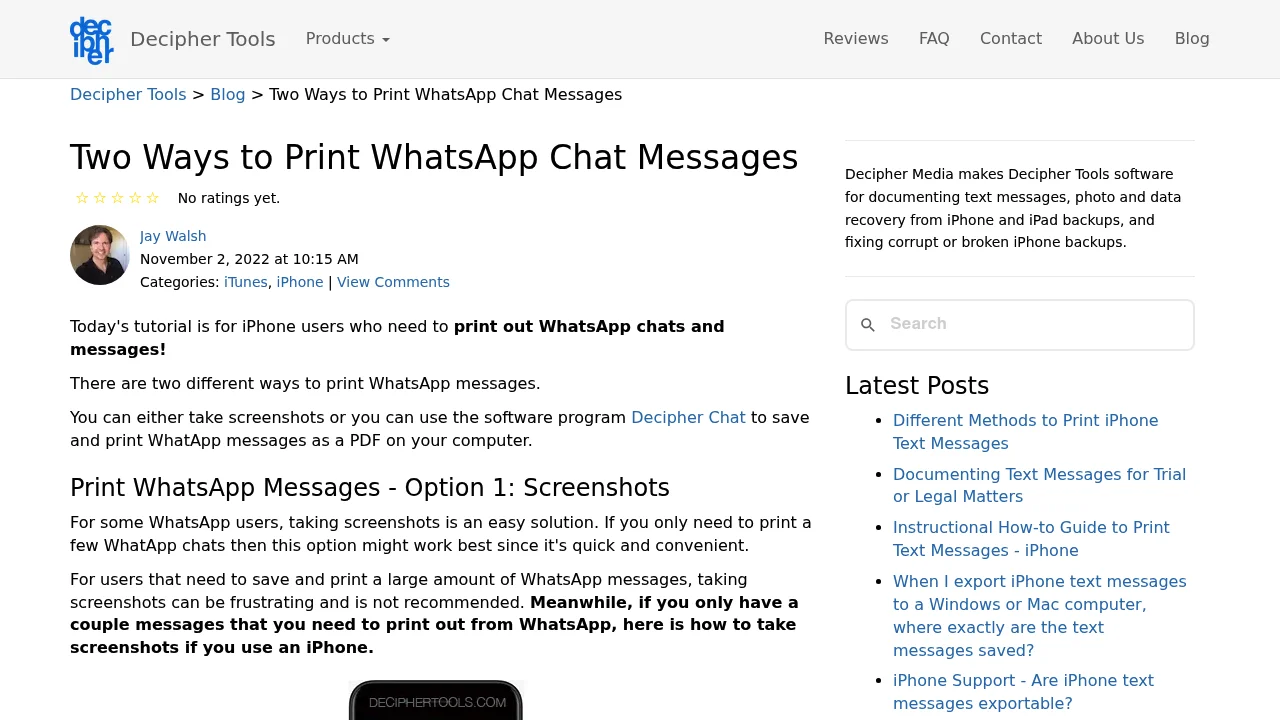
Decipher Tools published a guide (November 2, 2022) describing two methods: taking screenshots and using their desktop app, Decipher Chat, to export WhatsApp conversations to PDF. Decipher Chat runs on Mac and Windows, reads an iPhone backup, and can export chats by date range, which is useful when you only need a specific period of a conversation.
Like iMazing, this is a desktop-centric workflow. You'll need a computer and an iPhone backup to get started. Decipher's approach does mention legal and documentation use cases, which is helpful framing, but the process isn't done from your iPhone. For a detailed comparison of what it covers, the Decipher TextMessage alternative guide breaks it down.
Best for: users who want date-range filtering, or who need a desktop-based export workflow with Decipher's existing setup.
How to print the PDF once you have it
After TextPort generates your PDF:
- Open the PDF and use the system print dialog, or use TextPort's Print export option directly.
- Choose Letter (US) or A4 paper size depending on where you are.
- Check that sender names and dates/times appear in the document before printing. If they don't, confirm you completed the TextPort rebuild step.
- For long conversations, verify page count before sending to the printer. Consider splitting by date range if the print job is very large.
If you're printing for documentation purposes (practical checklist)
If you need a WhatsApp printout for a dispute, HR matter, or formal record, here's a practical list of things to verify before printing:
- The export covers the full conversation, not a partial selection.
- Sender names are visible on each message (not just your own side).
- Dates and timestamps appear on the messages, not just one date for the whole thread.
- No messages appear to be missing from the middle of a thread.
- Keep a copy of the original exported file (the
.txtor.zip) alongside the PDF.
This checklist doesn't address legal admissibility, which varies by jurisdiction and case type. Consult a legal professional for requirements specific to your situation. For more detail on how text messages are treated as evidence, the text messages as legal evidence guide is a useful starting point.
FAQ
Can I print WhatsApp chats with photos and videos from iPhone? Yes. When you export from WhatsApp, choose Attach media instead of Without media. TextPort supports both paths. Keep in mind that including media creates a larger file and may take longer to process.
Does WhatsApp's export include dates and timestamps?
Yes. The exported .txt file from WhatsApp includes per-message timestamps. TextPort preserves these when it rebuilds the conversation and includes them in the formatted PDF output.
What's better for printing: screenshots or Export Chat? Export Chat wins for anything more than a handful of messages. Screenshots don't produce a searchable, structured document and timestamps are often cropped. The screenshots vs Export Chat comparison lays out the full difference.
Do I need a computer to print with TextPort? No. TextPort runs on iPhone and iPad. The entire workflow (export from WhatsApp, share to TextPort, generate PDF, send to printer) happens on your phone.
Can I export to CSV/Excel or TXT as well? Yes. TextPort exports to PDF, CSV (Excel-compatible), and plain text (.txt). CSV is useful if you need to sort or filter messages in a spreadsheet. For a full breakdown of output formats, see export WhatsApp chats securely to PDF, CSV, or TXT.
For most iPhone users, the combination of WhatsApp's built-in Export Chat and TextPort covers every scenario: short chats, long threads, with or without media, and with or without a computer in the picture.

Start exporting your messages
Available for iPhone, Mac, and Windows. No computer required.
