
How to Print Messages from LINE on iPhone (3 Methods)
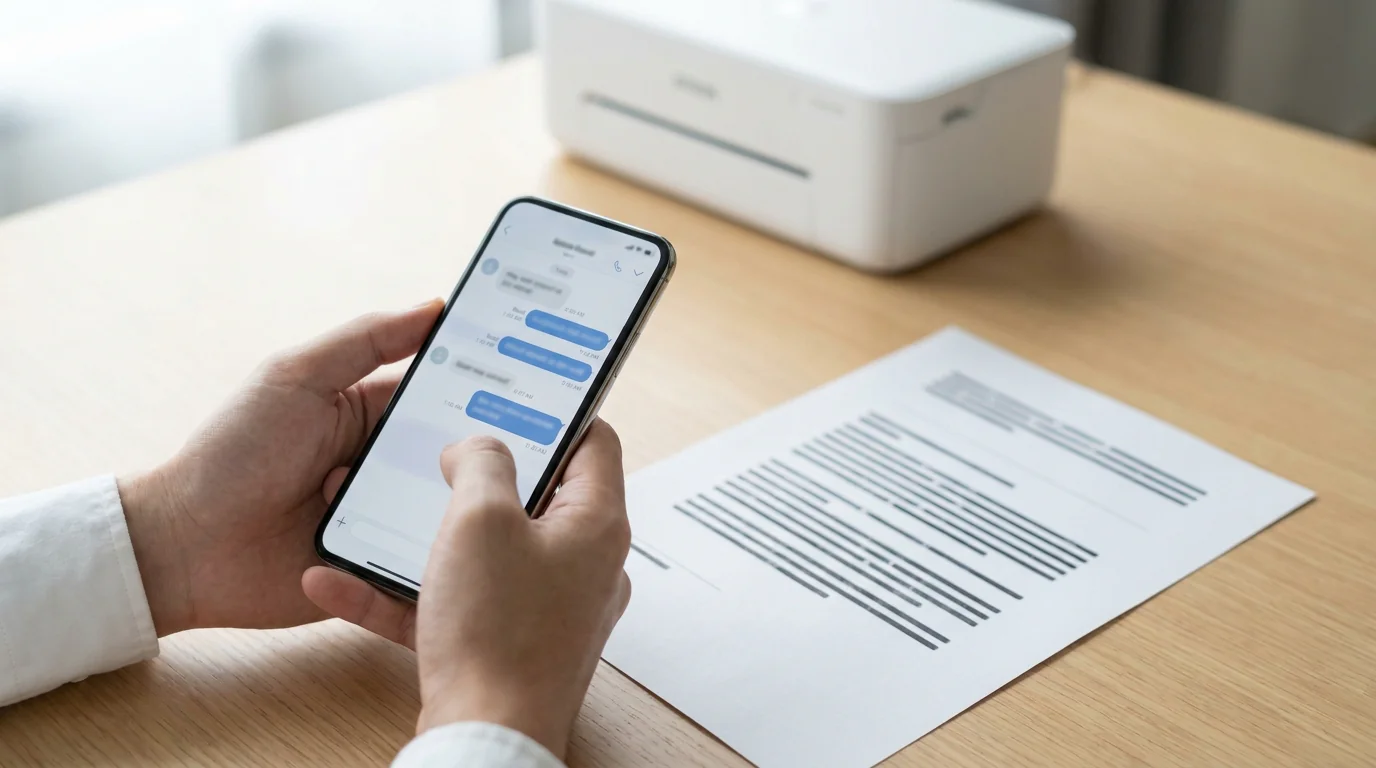
Printing LINE messages from an iPhone isn't as straightforward as it sounds. LINE's built-in export only saves a plain .txt file — one conversation at a time — and media like images, stickers, and voice messages don't come along for the ride. That file then needs to make its way to a computer before you can print anything.
Below are three practical methods, ordered from quickest to most thorough: LINE's built-in Export Chat History, screenshots printed via AirPrint, and a formatted PDF export with TextPort that runs entirely on the phone.
Method 1: Use LINE's built-in "Export Chat History" feature
This is the official route. It works on iPhone and exports the conversation as a plain text file.
Steps:
- Open LINE and go to the chat you want to print.
- Tap the ≡ (menu) icon in the top-right corner.
- Tap Other Settings, then Export Chat History.
- Choose how to send the file — email it to yourself, save it to Files, or share it via AirDrop.
- Open the
.txtfile on a Mac or PC and print it from there.
What you need to know before using this method:
- Only messages currently visible in the chat are exported. If LINE has auto-deleted older messages from your device, those won't be included.
- Images, videos, stickers, voice notes, and other attachments are not included in the text export.
- The
.txtfile cannot be imported back into LINE — it's a one-way archive only. - You must export each chat individually. As confirmed by Stack Exchange users, LINE has no bulk export option that produces a human-readable file.
For a simple conversation you just need on paper, this works fine. For anything requiring timestamps in a clean format, professional presentation, or media included, it falls short.
Method 2: Screenshots (fastest for short chats)
For a handful of messages, screenshots are the quickest path to print.
- Open the LINE conversation on your iPhone.
- Press the side button + volume up (Face ID iPhones) or side button + Home button (Touch ID iPhones) to capture a screenshot.
- Scroll down and repeat until you've covered the full conversation.
- Open the Photos app, select all the screenshots, tap the Share icon, and choose Print.
- Select an AirPrint-enabled printer and print.
Screenshots capture exactly what's on screen — sender names, timestamps, message bubbles. The downside: long conversations mean dozens of screenshots, the output looks like a photo rather than a document, and it won't hold up well for formal use. Courts and legal proceedings increasingly scrutinize screenshot-only evidence because it's easy to edit a photo.
For anything requiring a more credible record — a print-ready PDF with timestamps and sender names — a structured export is worth the extra step.
Method 3: Export to PDF using TextPort (best for formatted, printable output)
If you need LINE messages in a clean, formatted document — not a raw .txt file or a stack of screenshots — TextPort offers a practical alternative that works entirely from your iPhone.
Because LINE is supported as a third-party messaging app (if it's on your screen, it can be captured), the workflow is straightforward:
- Open LINE and navigate to the conversation you want to export.
- Start a screen recording while scrolling through the chat from top to bottom, or take overlapping screenshots covering the full conversation.
- Import the recording or screenshots into TextPort.
- TextPort reconstructs the conversation — extracting each message with sender names, timestamps, and the correct order.
- Export as a PDF (for printing or sharing), CSV (for spreadsheet use), or plain text.
The resulting PDF is formatted cleanly and includes the conversation metadata that raw screenshots lack. There's no computer required, no USB cable, and no limit on the number of messages you can export. This is particularly useful when you need to archive iPhone text messages across multiple apps in a consistent format.
For comparison, LINE's own export gives you a .txt file with no formatting, no media, and no ability to restore. TextPort produces a document you can immediately share, print, or file.
What LINE's export doesn't include
It's worth being specific about the gaps in LINE's native export, since the official help documentation is light on detail:
| Content type | Included in LINE .txt export? |
|---|---|
| Text messages | ✅ Yes |
| Timestamps | ✅ Yes (within the text) |
| Sender names | ✅ Yes |
| Photos/videos | ❌ No |
| Stickers | ❌ No |
| Voice/audio messages | ❌ No |
| Files/documents | ❌ No |
| Messages deleted by LINE auto-cleanup | ❌ No |
If media evidence matters — for a dispute, a business record, or personal documentation — you'll need to capture the conversation visually (screen recording or screenshots) and use a tool that can reconstruct the full thread.
Which method should you use?
- Quick personal reference: LINE's built-in export to
.txtis sufficient. Email it to yourself and open it on your computer. - A few specific messages: Screenshots printed via AirPrint are the fastest option.
- Formal documentation, legal use, or longer conversations: Use TextPort to export a structured PDF with complete metadata. If you need text message records for any situation — custody cases, workplace investigations, or business records — a formatted PDF is the more defensible format.
For users who also need to export from other apps like iMessage, WhatsApp, or Instagram alongside LINE, tools that support exporting messages from multiple platforms in one consistent workflow save significant time compared to handling each app separately.

Start exporting your messages
Available for iPhone, Mac, and Windows. No computer required.
