

How to jump to a date or a quoted message on Mac
Quick answer
In a chat in TextPort for Mac:
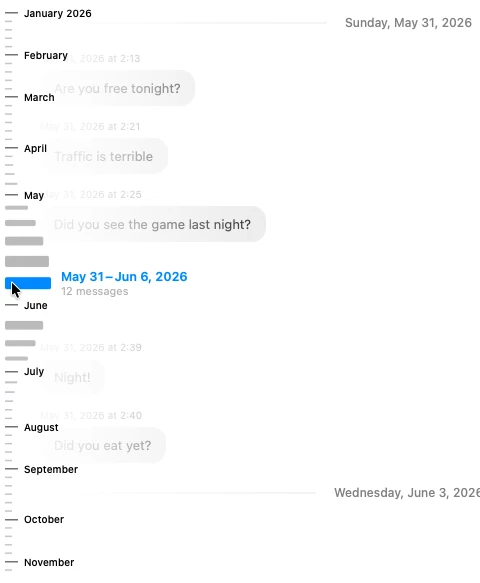
- To a date: move the pointer to the strip of lines at the left of the messages. Click a date.
- To a quoted message: click the Replying to line inside the reply.
What you need
- ✓TextPort for Mac, set up with Messages access
Steps
A date
-
Move the pointer to the date strip
It is the strip of small lines at the left of the messages. Months and dates show as you move.
-
Click a date
The chat moves there. You can also drag up and down the strip.
A quoted message
-
Click the Replying to line
It is at the top of the reply. It names who sent the original and when.

-
Read the original message
The chat moves to it. It glows for a moment.

Done
You are at the date or message you wanted.
Problems
There is no date strip.
The strip shows only in long chats. In a short chat, scroll instead.
The date range in the toolbar changed after you clicked a quote.
The original was outside your dates, so the range opened up. TextPort also went back to Messages. Pick your dates again.
None of these match.
Email [email protected]. Say which step you were on. Say what you saw. We usually reply within a day.
Questions
-
Use the date range in the toolbar. See how to filter a chat by date.
-
Press Command-F. See how to search inside a chat.



Start exporting your messages
Available for iPhone, Mac, and Windows. No computer required.
