

How to contact support and send logs on Windows
Quick answer
In TextPort:
- Click ? at the top right. Or press F1.
- Type your email and what happened.
- Keep Include diagnostic logs checked.
- Click Send.
TextPort says Request sent. We usually reply within 24 hours.
What you need
- ✓TextPort for Windows and an internet connection
Steps
-
Click ?
It is at the top right, next to the gear. Contact support opens.
You can also press F1, or click Contact support on any error.

-
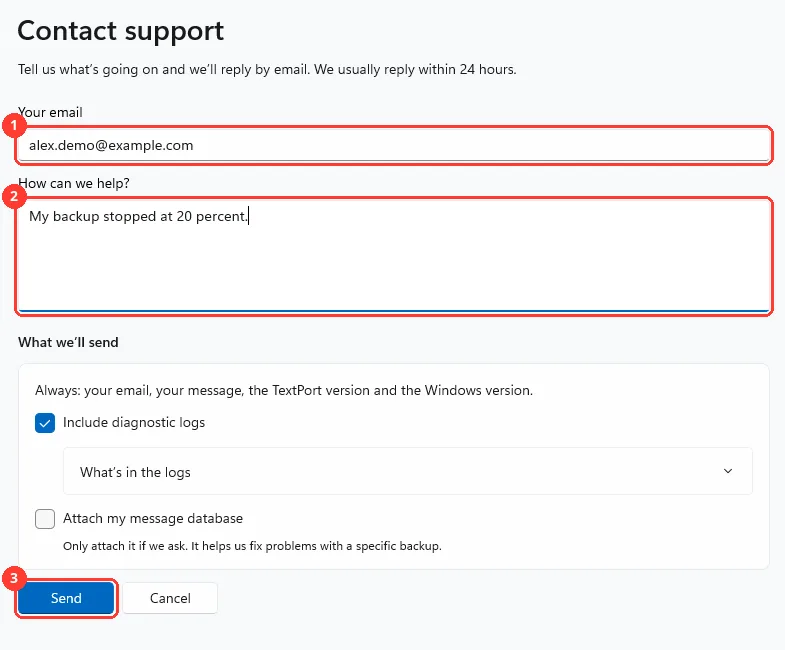
Fill in the form and click Send
Type your email in Your email (1) and what happened in How can we help? (2). Click Send (3).
-
Click Done
TextPort says Request sent. We reply to your email.

Done
Support has your question and your logs. The reply comes by email.
Problems
Enter your email and message
Fill in both boxes. Send then works.
Enter a valid email address, like [email protected].
Check your email for typos.
Confirm the upload to continue
You checked Attach my message database. Check Send my messages and contacts to TextPort support, or uncheck the first box.
Couldn’t send your request
Your text stays in the form. Check your internet. Then click Try again.
Send without your message database?
The database could not upload. Click Send without it. We ask for more if we need it.
No backups can be attached. Only complete, unencrypted TextPort backups can.
Send your request without a database. We tell you if we need one.
None of these match.
Email [email protected]. Say which step you were on. Say what you saw. We usually reply within a day.
Questions
-
TextPort's activity log and the logs of your last 10 backups, up to 20 MB. They hold your iPhone's name, model, serial number and device ID. They also hold file paths on this PC, with your Windows user name. They never hold message text or contacts. Click What’s in the logs in the form to read this.
-
Yes. Uncheck Include diagnostic logs.
-
Only if we ask. Check Attach my message database. Pick the backup. Check Send my messages and contacts to TextPort support. We only use it to look into your problem and delete it within 90 days.
-
Click the gear for Settings, then Open logs folder under Troubleshooting.
-
Click … next to the backup under On this PC, then Save backup log… when you see it. For a backup that is stuck, click Save log… on its card. For one that stopped, open Details first.



Start exporting your messages
Available for iPhone, Mac, and Windows. No computer required.
