

Keyboard shortcuts in TextPort for Windows
Quick answer
The ones most people use:
- Ctrl+Shift+F: search all messages.
- Ctrl+F: find in this conversation.
- Ctrl+K: filter conversations by name.
- Ctrl+E: export.
- Ctrl+N: back up now.
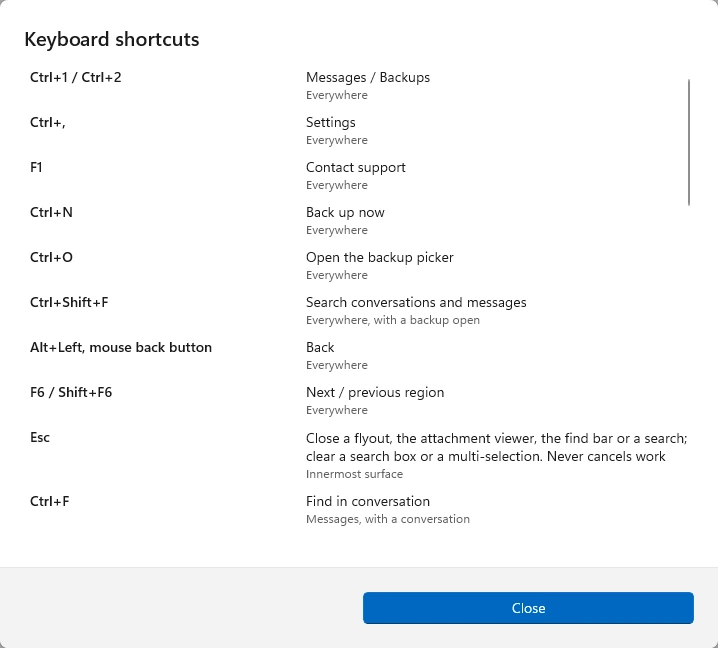
To see them all in TextPort, click the gear, then Keyboard shortcuts.
What you need
- ✓TextPort for Windows
Steps
-
Click the gear
It is at the top right. Settings opens.
-
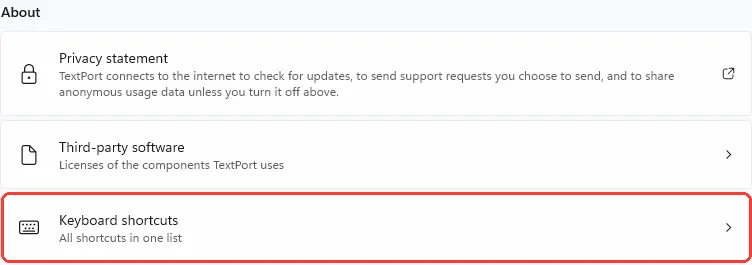
Click Keyboard shortcuts
It is at the bottom, under About. The list opens.
-
Click Close
Scroll to see them all first.
Done
You can see every shortcut, and where each one works.
Problems
A shortcut does nothing.
Some work only with a backup or a conversation open. Open one first. Then press it again.
None of these match.
Email [email protected]. Say which step you were on. Say what you saw. We usually reply within a day.
Questions
-
Ctrl+1 Messages. Ctrl+2 Backups. Ctrl+, Settings. F1 Contact support. Ctrl+N Back up now. Ctrl+O the list of backups. Alt+Left or the mouse back button: Back. F6 and Shift+F6 next and previous region. Esc closes a menu, the viewer, the find bar, or a search. It never cancels work. With a backup open: Ctrl+Shift+F search, Ctrl+Shift+E export all conversations.
-
Ctrl+F find. F3 and Shift+F3 next older and newer match. Ctrl+G pick dates. Ctrl+E export. Ctrl+K filter by name. Ctrl+Plus, Ctrl+Minus, Ctrl+0 message text size.
-
Ctrl+click add or remove one. Shift+click select a range. Ctrl+A select all shown. Shift+Up and Shift+Down extend the selection. Ctrl+Space add or remove the focused one.
-
Ctrl+Home and Ctrl+End first and last message. Ctrl+Up and Ctrl+Down the day above and below. Up and Down previous and next message. Page Up and Page Down one screen. Enter or Space preview the first attachment or open the link. Tab the parts of a message. Shift+F10 or the Menu key: open the menu. Ctrl+C copy.
-
Left and Right previous and next. Ctrl+S save a copy. Ctrl+C copy. Ctrl+Plus, Ctrl+Minus, Ctrl+0 zoom in, out, and fit. Double-click a photo to zoom. Enter on Open opens it in its app. Esc close.
-
F5 check again. Delete on a backup row: Delete… or Remove from list.



Start exporting your messages
Available for iPhone, Mac, and Windows. No computer required.
