

How to change theme, text size, and usage data on Windows
Quick answer
In TextPort:
- Click the gear at the top right.
- Pick a theme under App theme.
- Move the slider under Message text size.
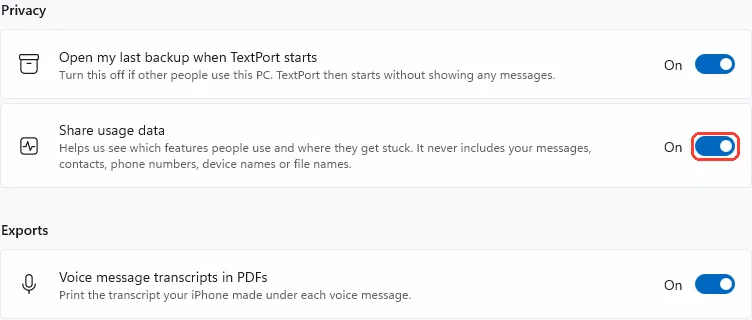
- Turn off Share usage data if you want.
Changes apply right away. There is no Save button.
What you need
- ✓TextPort for Windows
Steps
-
Click the gear
It is at the top right. Settings opens.
You can also press Ctrl+,.
-
Pick a theme and a text size
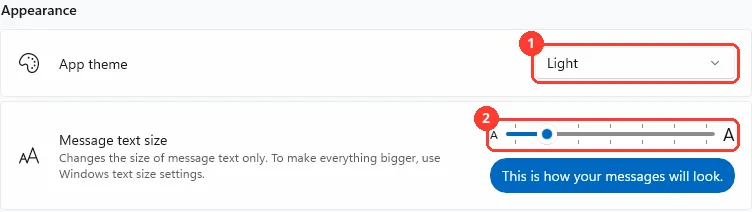
Pick Use system setting, Light, or Dark (1). Move the Message text size slider (2).
You can also press Ctrl+Plus or Ctrl+Minus on Messages.
-
Turn off Share usage data
It is under Privacy. It never includes your messages, contacts, phone numbers, device names or file names.
Done
Your settings are saved. TextPort uses them the next time too.
Problems
Couldn’t save your settings
Your change wasn't saved. Try again.
Couldn’t check for updates
You see this only with the installer. Check your internet. Then click Check for updates again.
Couldn’t install the update
You see this only with the installer. TextPort tries again later. Or click Try again.
Update ready
You see this only with the installer. Click Restart TextPort now. If a backup or export is running, TextPort waits until it is done.
None of these match.
Email [email protected]. Say which step you were on. Say what you saw. We usually reply within a day.
Questions
-
It opens your messages at once. Turn it off under Privacy if other people use this PC. TextPort then starts without showing any messages.
-
It prints the transcript your iPhone made under each voice message. Turn it off under Exports to leave them out. TextPort still shows them on screen.
-
TextPort from the Microsoft Store updates through the Store. Settings says Updates come from the Microsoft Store. With the installer, click Check for updates at the top of Settings.
-
Under Share TextPort in Settings, click Copy link or Email.
-
Save new backups to, Temporary files, Open logs folder, Contact support, Privacy statement, Third-party software, and Keyboard shortcuts.
Next guides
-
 How to change the backup folder or free up space on Windows
New backups will save where you want, or your PC will have more free space.
-
 How to contact support and send logs on Windows
Your question will reach TextPort support, with the logs that help them answer.
-
 Keyboard shortcuts in TextPort for Windows
You will know every keyboard shortcut in TextPort for Windows, and where to see the list.

Start exporting your messages
Available for iPhone, Mac, and Windows. No computer required.
