
5 Best Apps to Backup Text Messages on iPhone (2026)
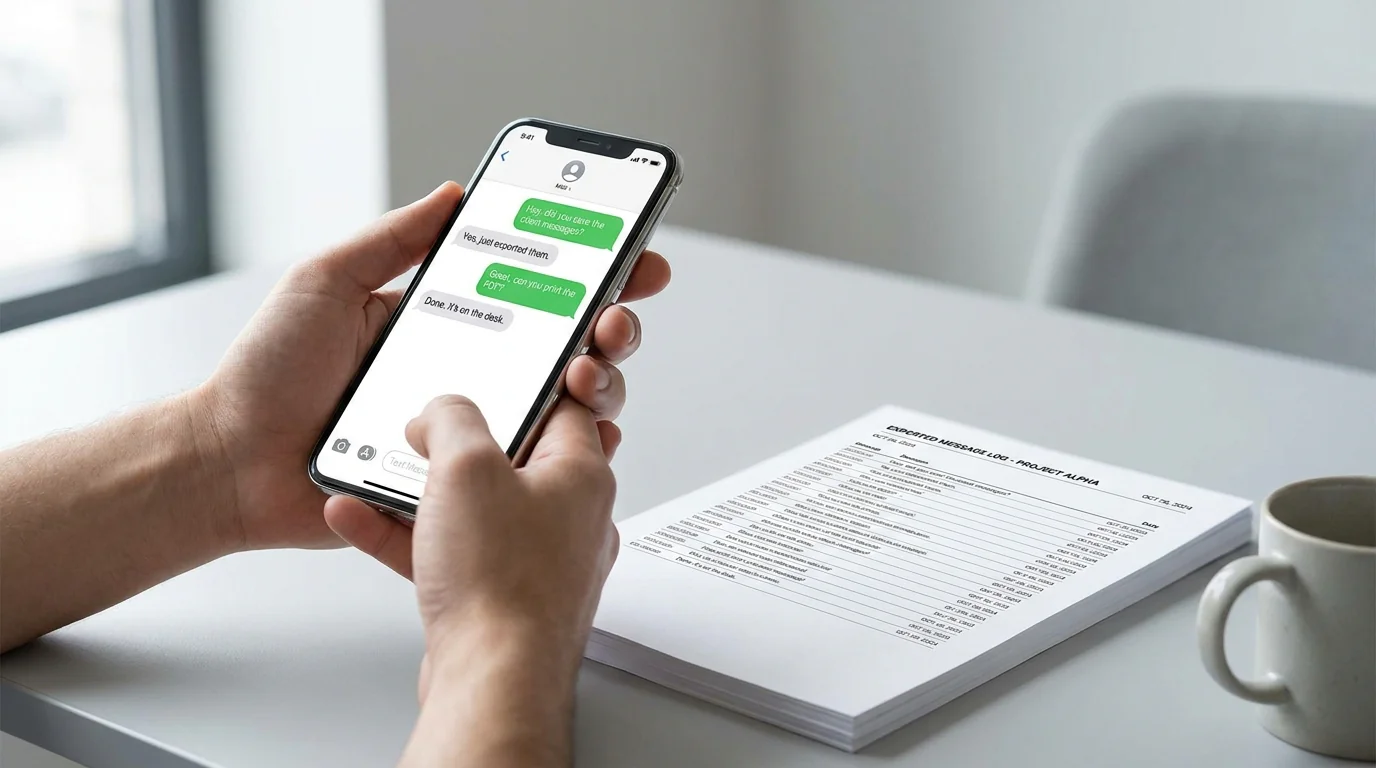
Text messages disappear faster than most people expect because phones break, get reset, or messages simply get deleted. In TextPort's 2026 national survey, 78% of adults said they had deleted or lost messages they later wished they had kept. Whether you need a permanent archive for personal records, a formatted export for a legal filing, or a simple safety net before switching devices, having a reliable backup matters.
The problem is that no single iPhone backup tool is universally right. Some work only on desktop, and some produce human-readable files while others generate sync data you can't open without the original device. This list covers the five most practical options for iPhone — with honest notes on what each one does well and where it falls short.
1. TextPort (iPhone & iPad — best for any messaging app)
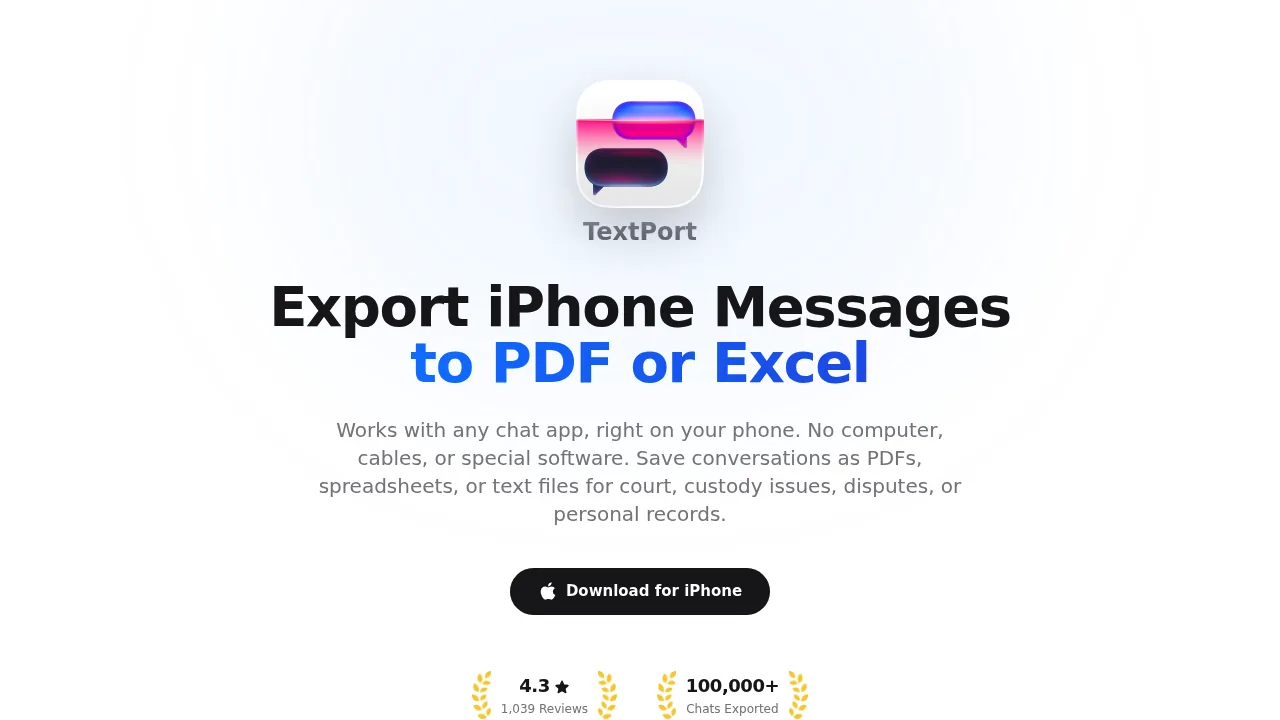
TextPort stands apart because it works directly on your iPhone — no computer, no USB cable, no iTunes backup required. Pick a conversation and TextPort pulls it straight out of iMessage, with sender names, timestamps, and message order intact.
The key advantage here is breadth: it supports iMessage, SMS, WhatsApp, Instagram DMs, Facebook Messenger, Telegram, Signal, and essentially any messaging app. Exports come out as formatted PDF (suitable for court filings), CSV/Excel, or plain text. There's no cap on how many conversations or messages you can export.
Best for: iPhone users who need to back up messages without access to a computer.
Limitation: Designed for iPhone/iPad; not an Android app.
Desktop option: to save a readable copy of your whole iMessage and SMS history on a computer, TextPort has two desktop apps. TextPort for Mac reads the Messages already on your Mac (turn on Messages in iCloud to get your iPhone's full history), with no cable and no backup. TextPort for Windows backs up your iPhone over USB through Apple's Apple Devices app or iTunes and reads the messages from that backup, or opens a backup already on the PC. Both export many conversations at once to PDF, CSV, or TXT, with a ZIP of attachments. No account, and nothing is uploaded. Third-party apps like WhatsApp stay with the iPhone app.
2. iMazing (iPhone — best desktop manager for iMessage export)
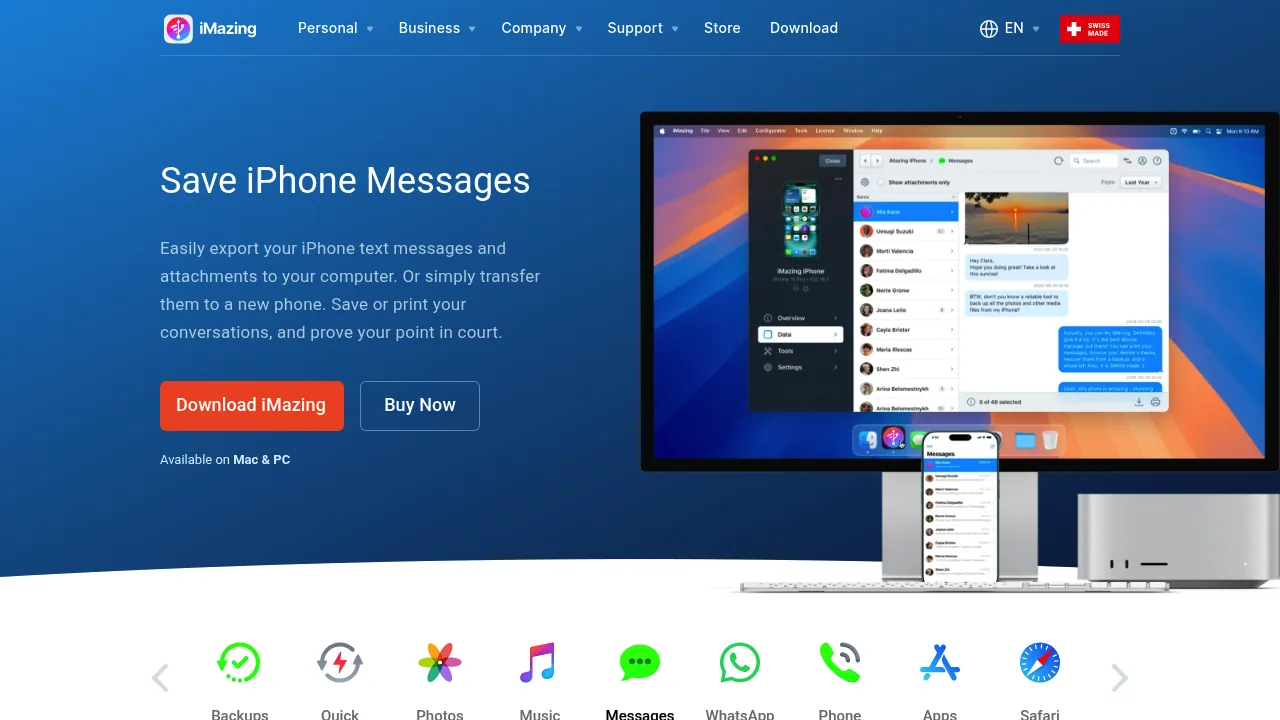
iMazing is a Mac and Windows desktop application that creates local iPhone backups and lets you browse and export message data directly. It exports iMessage, SMS, RCS, and WhatsApp conversations to PDF, Excel/CSV, HTML, or its own RSMF format. Incremental backup snapshots mean you can pull message histories from months or years back without overwriting anything.
One practical note: iMazing moved to a subscription model. A personal plan runs around $39.99/year for up to 5 devices, with a one-time lifetime license at roughly $59.99. There's a free tier that lets you browse data, but you need a paid license for unlimited exports.
Best for: Power users who want full device management alongside message export, or anyone who needs to export iMessage and WhatsApp with rich metadata on a Mac or PC. See how it compares to TextPort as an iMazing alternative.
Limitation: Requires a computer and a USB or Wi-Fi connection; doesn't cover most third-party apps beyond WhatsApp.
3. iCloud Messages (iPhone — best built-in option)
Apple's built-in iCloud Messages sync (Settings > [Your Name] > iCloud > Messages) is the simplest way to ensure your iMessages and SMS threads don't disappear if your phone is lost or damaged. Messages stay in sync across all your Apple devices automatically.
The catch is that this isn't a traditional export — you can't open the data as a PDF or spreadsheet. It's a sync system tied to the Apple ecosystem. If you switch platforms or need a readable, shareable file, iCloud alone won't get you there.
Best for: iPhone users who want automatic protection against device loss and don't need a portable, readable file.
Limitation: Keeps data inside Apple's ecosystem only; uses iCloud storage (free tier is 5 GB); no export to PDF/CSV.
4. Decipher TextMessage (iPhone — best budget desktop tool for iMessage)
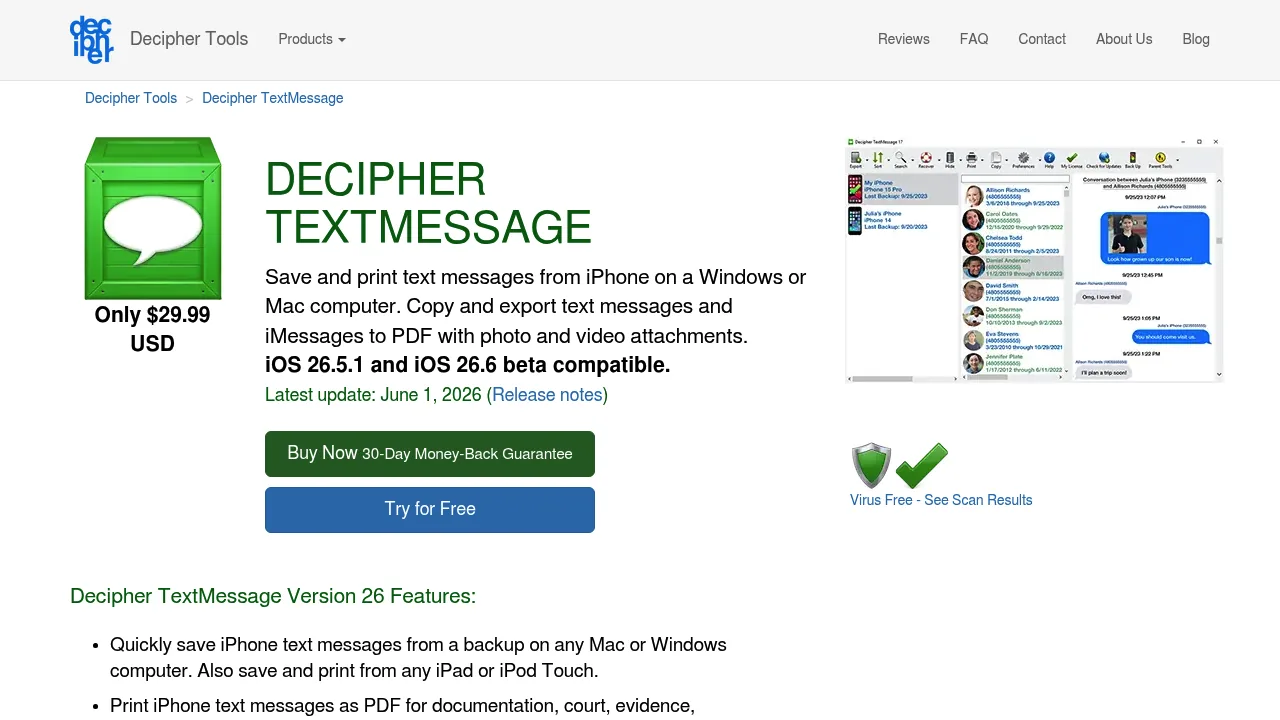
Decipher TextMessage is desktop software (Mac and Windows) that reads your standard iTunes or Finder iPhone backup and extracts iMessage and SMS conversations into clean PDFs, CSV, HTML, or TXT files. It's narrower than iMazing — no full device management — but that also makes it simpler and cheaper for users who only need message exports.
It's widely used by lawyers, individuals preparing for court, and anyone who wants a formatted record of their Apple message history. The tool doesn't support third-party apps; WhatsApp, Signal, and Instagram DMs are outside its scope. See a detailed Decipher TextMessage comparison if you're weighing your options.
Best for: iPhone users on a budget who only need iMessage and SMS exported to PDF, and are comfortable making an iTunes backup first.
Limitation: iMessage and SMS only; requires a desktop computer; no support for third-party messaging apps.
5. TouchCopy (iPhone — veteran desktop option with one-time pricing)
TouchCopy is a long-standing Mac and Windows tool that lets you browse iPhone content including messages, contacts, and media, then save or print what you need. It exports message threads as HTML or PDF and uses a one-time purchase model rather than a subscription — a meaningful distinction now that many competitors have moved to annual billing.
It reads from your iPhone's local backup, which means it covers iMessage and SMS reliably. Third-party app support is limited. If you're comparing desktop options, the TouchCopy alternative page breaks down where the differences matter most.
Best for: iPhone users who prefer a one-time purchase and need a straightforward desktop tool for iMessage/SMS export.
Limitation: Requires a computer; limited support for third-party messaging apps; interface hasn't changed significantly in recent years.
How to choose the right app
The right tool depends on one question: what do you actually need the backup for?
- Any messaging app, no computer: TextPort handles iMessage, SMS, WhatsApp, Instagram DMs, Telegram, Signal, and more — directly on your phone.
- iMessage/SMS only, desktop preferred: TextPort for Mac or TextPort for Windows to export the whole history, iMazing for full-featured management, Decipher TextMessage if you just need exports on a budget, or TouchCopy for a one-time-purchase desktop option.
- Legal or court use: Formatted PDF with timestamps is the standard requirement. TextPort's export workflow for court is designed specifically for that, though iMazing also supports signed PDFs for e-discovery.
- Device-switch safety net: iCloud Messages keeps everything in sync automatically; just remember it never produces a file you can read or share.
On Android? None of the tools in this guide (TextPort included) run on Android. The most widely used free option there is SMS Backup & Restore by SyncTech, which saves SMS, MMS, and call logs as XML files with scheduled uploads to Google Drive, Dropbox, or OneDrive. Google One's built-in backup (Settings > System > Backup) also restores SMS threads automatically when you set up a new Android device, though it never produces a readable file. For WhatsApp, the in-app Google Drive backup covers device switches.
For exporting your complete iMessage chat history or archiving conversations from less common apps like Viber or LINE, the process varies by tool — but the options above cover the most common situations on iPhone.

Start exporting your messages
Available for iPhone, Mac, and Windows. No computer required.
