
How to Save All Photos From Text Messages
A chat with years of photos in it can hold thousands of pictures and videos, and saving them a few at a time doesn't get you far. Save them to Photos and they land in your library with everything else, cut off from the conversation they came from.
Quick answer: On a Mac or a Windows PC, the free TextPort app saves every photo, video and file from one conversation into a single ZIP file. Inside, there's a folder for each day, and each file is named by the time it was sent and who sent it. On the iPhone itself, Messages shows all of a chat's photos in one place, but it has no way to save them all at once.
How do I download pictures from my text messages to my computer?
The usual ways of getting photos onto a computer don't reach the ones in Messages. On Windows, Apple's route is the Apple Devices app with a cable and Microsoft's Photos app, and it imports your iPhone's photo library, not the pictures sitting in your chats. Phone Link doesn't help either: Microsoft says Phone Link for iOS "does not support the sending or receiving of images."
On a Mac, Messages can do it a few photos at a time. Open the chat in the Messages app, click the Info button, and scroll to Photos. Hold Command and click to pick several, then drag them to your desktop. You have to do it again for every chat and every batch.
For a whole conversation, skip the dragging. TextPort's apps for Mac and Windows are free, with no account and nothing to buy, and they take the whole chat in one export.
On a Mac
TextPort for Mac reads the Messages already on your Mac, so turn on Messages in iCloud on your iPhone and your Mac first if your texts aren't there yet. It needs macOS 14.6 or later.
- Open TextPort and click the conversation in the list.
- Click Export in the toolbar, or press Command-E.
- Click Attachments.
- Choose a folder, like Desktop or Downloads, and click Export.
- When it says Attachments exported, click Show in Finder to see the ZIP.
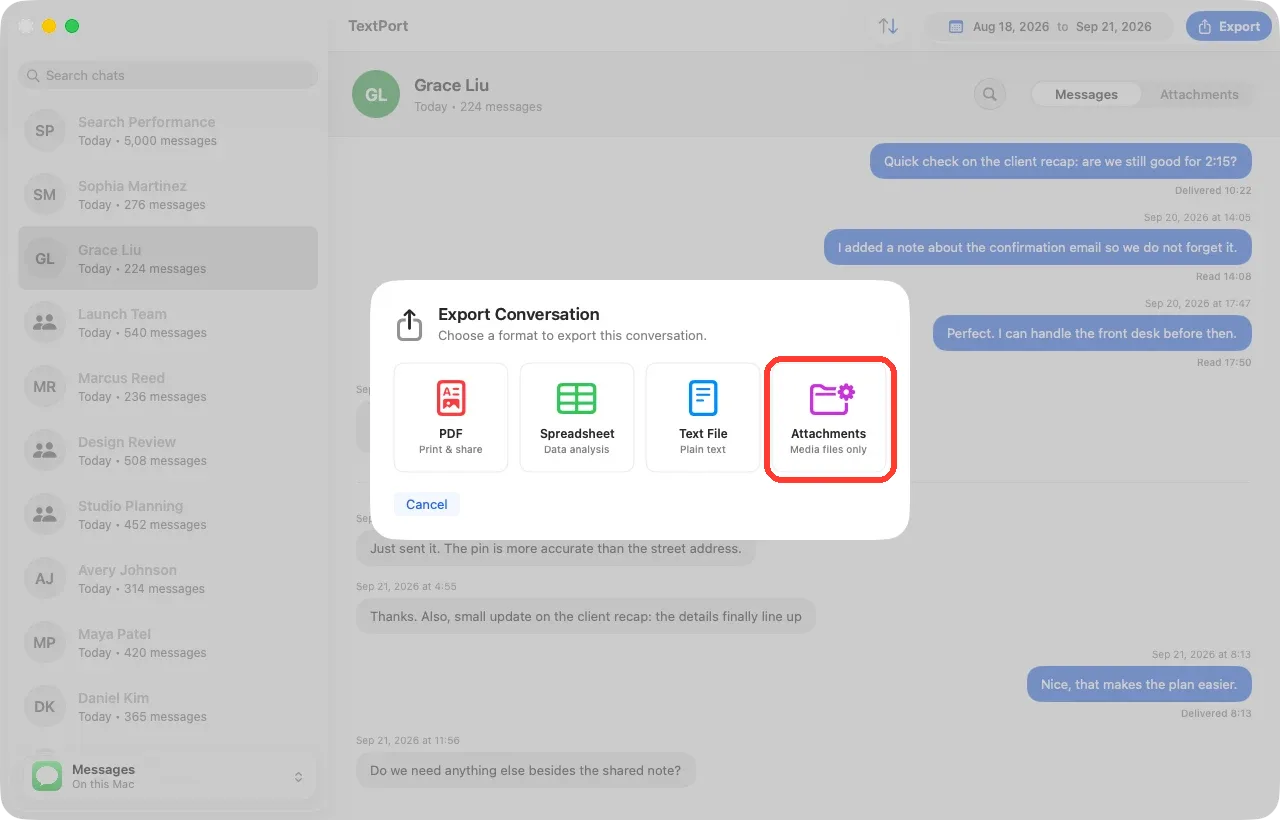
Only need part of the chat? Set the dates at the top of the window before you export, and the ZIP keeps only those days. To do several chats at once, Command-click them in the list and export: you get one ZIP for each chat. For every chat on the Mac, use Export All (Shift-Command-E) and pick Attachments. When it's done, TextPort tells you how many chats it skipped or couldn't export. The step-by-step Mac guide has more detail.
On a Windows PC
TextPort for Windows works from a backup of your iPhone. It can make one over a USB cable, or read a backup you already made with Apple Devices or iTunes. It runs on Windows 10 (version 2004 or later) and Windows 11. The first backup of a big iPhone can take an hour or more, and it needs 5 GB free on the PC to start. If your backups are encrypted, TextPort offers to turn encryption off and asks for the backup password once, without saving it. Follow the backup guide first, then:
- Click Messages at the top, then click the conversation.
- Click Export…, or press Ctrl+E.
- Check Photos and files (ZIP). Keep PDF checked if you want the messages too.
- Click Choose folder and export…, pick a folder, and click Select Folder.
- When it says Export complete, click Open folder.
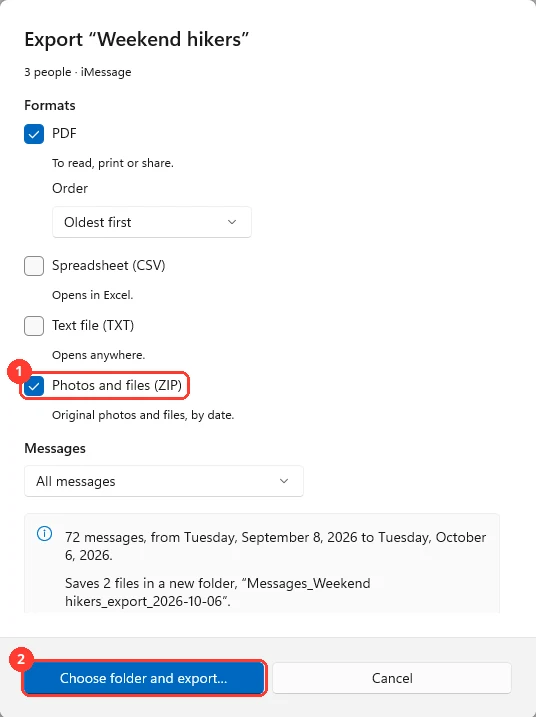
To pick dates, choose Custom range under Messages before you export. To save the photos from every conversation in one go, use Export all conversations… (Ctrl+Shift+E) and check the same ZIP box. Before you start, the window tells you how many files you'll get and how much space they need. A big export can be paused and resumed, and if TextPort closes partway through, it offers to pick up where it stopped next time. The folder it makes includes an Export summary.txt listing every file and anything that couldn't be exported. There's a Windows guide with every click.
What's inside the ZIP
Open the ZIP from either app and you'll see something like this:
2025-12-24/
  18-02-11_Mom.heic
  18-02-40_Mom.heic
  19-15-03_Me.mov
2025-12-25/
  09-30-27_Dad.jpg
Your own photos are marked "Me". The files are the originals at full quality, so iPhone photos stay in HEIC: a Mac opens them as they are, and on Windows, Microsoft's free HEIF Image Extensions shows them. If TextPort can't read a file, it leaves that one out and tells you how many it skipped.
A long chat makes a big ZIP, so save it somewhere with room to spare. And if you're saving the photos so you can delete the chat or free up space on your iPhone, open the ZIP and check that the days you care about are there before you delete anything in Messages.
Why does iMessage not save all photos?
Usually because the photos aren't on the device you're saving from. With Messages in iCloud turned on, your iPhone keeps only your most recently accessed messages on the phone, and older photos and videos wait in iCloud until something downloads them.
- On a Mac: open the chat in Messages and scroll back through it so the older photos download, then export again. If TextPort says No attachment archives exported, none of that chat's photos were on the Mac yet. If a whole chat is missing, TextPort shows a card saying it didn't sync to this Mac, with the iCloud steps and a Check Again button.
- For a Windows backup: photos that are only in iCloud aren't in the backup. On your iPhone, open the chat in Messages, tap the name at the top, scroll down, and tap Download Attachments in iCloud. Wait for the downloads to finish, then back up again.
How do I download multiple photos from text messages on iPhone?
On iOS 26 or later, open the conversation, tap the name at the top, then tap Photos. Every photo from that chat shows up in one place, and it's the quickest way to find a picture from months ago. There's no "save all" button, so you save them a few at a time.
Photos also has a Shared with You section that collects pictures people sent you in Messages, and you can save any of them to your library from there. It only covers people in your Contacts, and only when Automatic Sharing is on in Settings > Messages > Shared with You. Delete the conversation, though, and any photos you haven't saved disappear from it too.
For a handful of pictures, that's enough. For a whole chat, with the dates and senders kept, use your Mac or PC as above.
How do I export text messages with photos?
If the photos matter for a custody case, a landlord dispute or a record you need to keep, export the messages too. The PDF from TextPort for Mac or Windows shows each photo in place in the conversation, with the date and time on every message. Keep it next to the ZIP: the PDF shows what was said around each picture, and the ZIP has the full-size original if someone asks for it. To save your whole message history from a computer, see how to transfer text messages from iPhone to a computer for free.

Start exporting your messages
Available for iPhone, Mac, and Windows. No computer required.
