

What About TextPort, Share App, and Watch Guide do
Quick answer
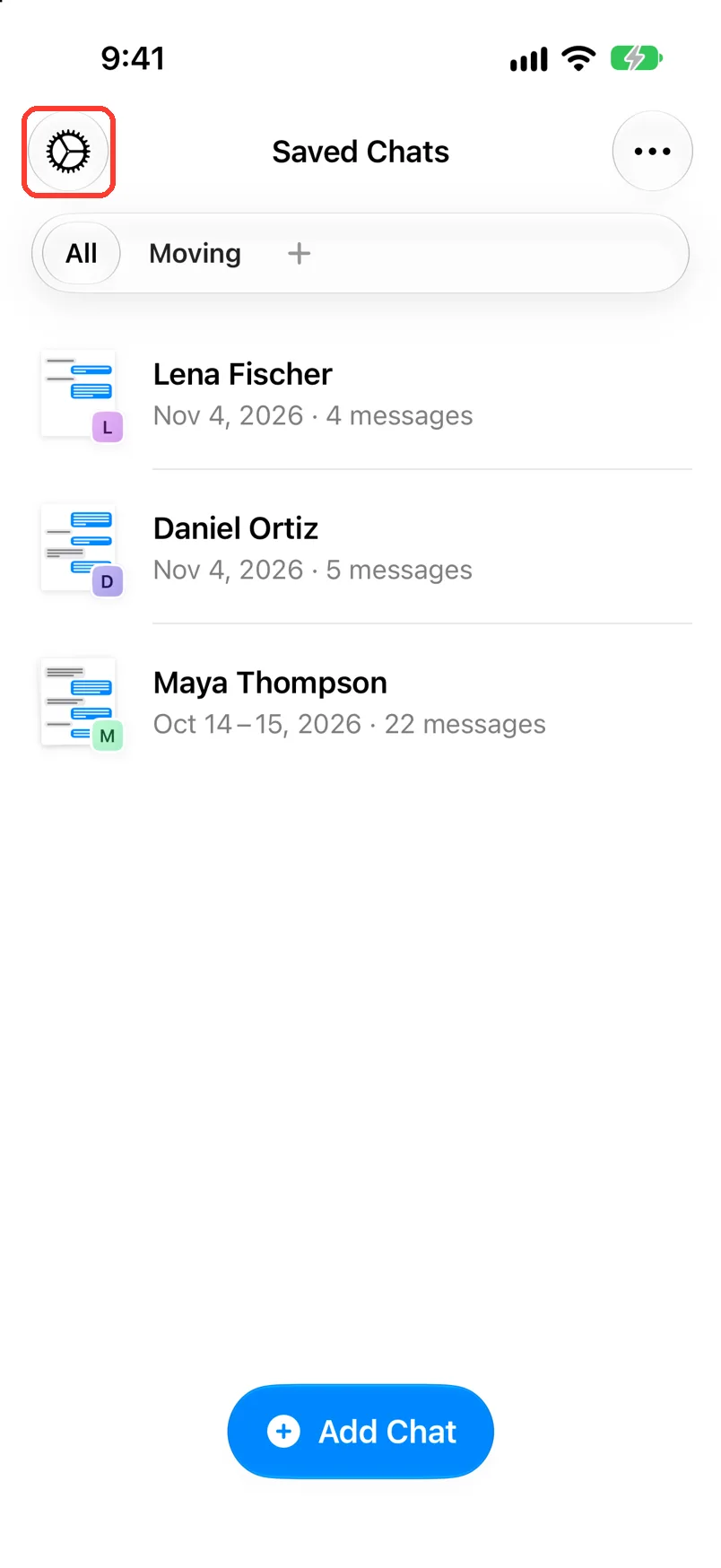
In TextPort, tap the gear in Saved Chats. Then:
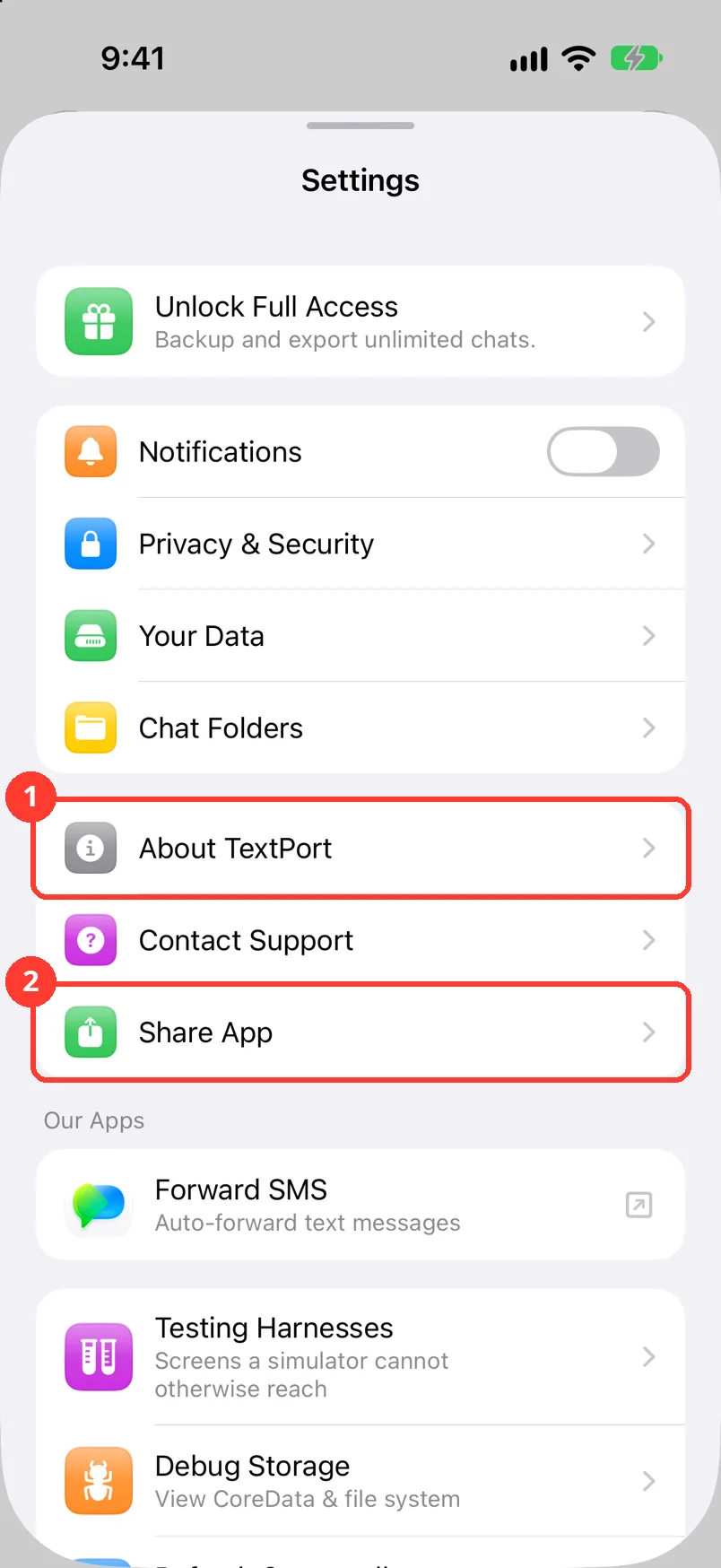
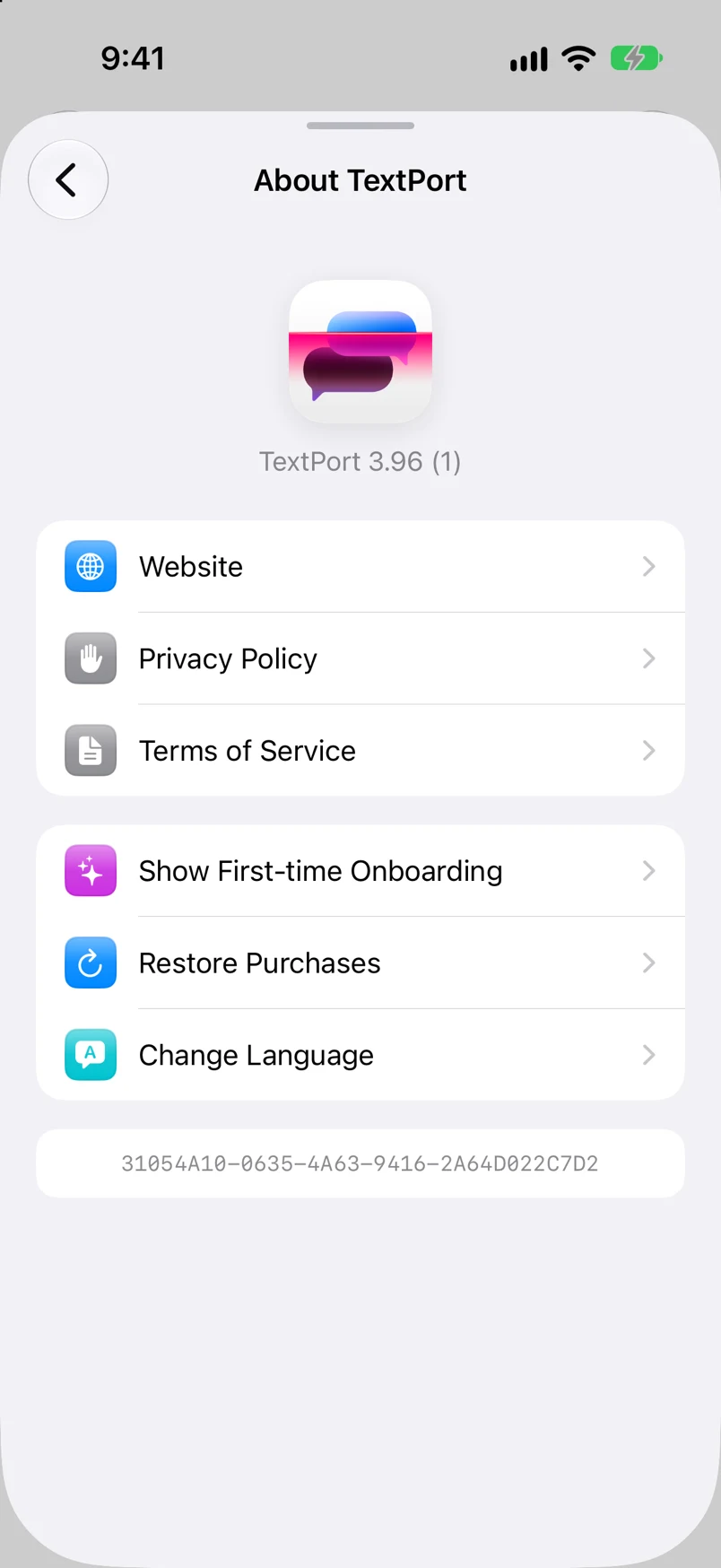
- About TextPort shows your version, links, and user ID.
- Share App sends the App Store link to someone.
- Watch Guide on YouTube plays a video guide. Only some iPhones show it.
What you need
- ✓TextPort on your iPhone
Steps
-
Tap the gear
It is in the top left of Saved Chats. Settings opens.
-
Tap Share App
It is marked (2). The share sheet opens with the App Store link. Pick how to send it.
-
Tap About TextPort
It is marked (1), two rows above Share App. About TextPort opens.
-
Read the top of the screen
It shows TextPort and the version number. Support may ask for it.
Website, Privacy Policy, and Terms of Service open in your browser.
-
Tap your user ID
It is the long code at the bottom. TextPort says User ID Copied. Paste it to support if they ask.
-
Tap Change Language
iOS Settings opens on TextPort.
-
Tap Language
Pick one. If Settings opens on its first page, tap Apps, then TextPort first.
Done
You found what you needed in Settings.
Problems
There is no Watch Guide on YouTube.
This is normal. It shows only on iPhones without Import from Messages. See the guides instead.
You want to see the first pages again.
Tap Show First-time Onboarding in About TextPort.
TextPort asks you to unlock something you already unlocked.
Tap Restore Purchases in About TextPort. If that does not help, contact support.
None of these match.
Email [email protected]. Say which step you were on. Say what you saw. We usually reply within a day.
Questions
-
It only tells support which account is yours. Share it only with TextPort support.
-
No. It sends only the App Store link.
Next guides
-
 How to contact support or report a problem
Your question or problem will reach TextPort support, with your email so they can answer.
-
 How to get Forward SMS from TextPort
You will know what the Forward SMS row is, and how to get that app.
-
 How to see and delete your data
You will see which files TextPort keeps on your iPhone, and you can delete them.

Start exporting your messages
Available for iPhone, Mac, and Windows. No computer required.
