

How to see and delete your data
Quick answer
In TextPort:
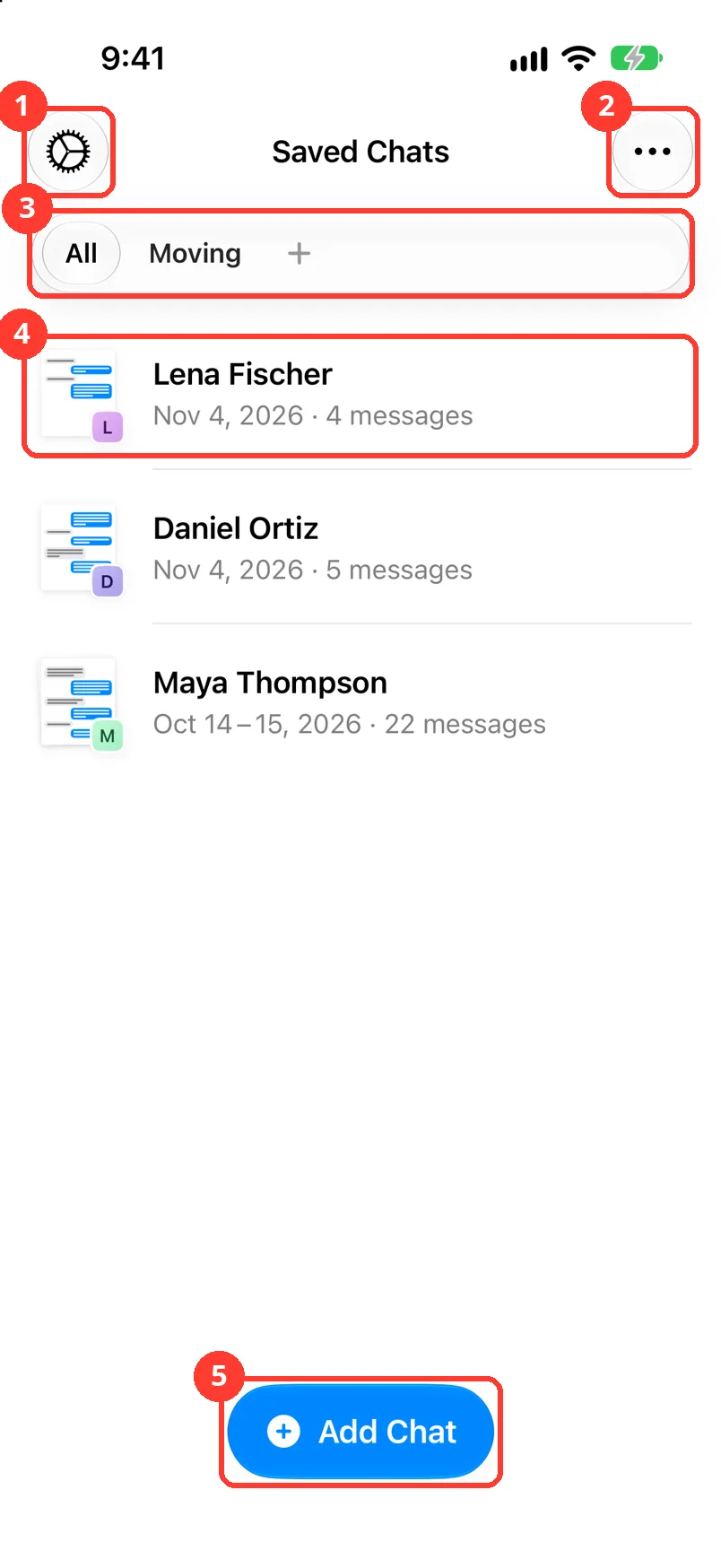
- Tap the gear in the top left of Saved Chats.
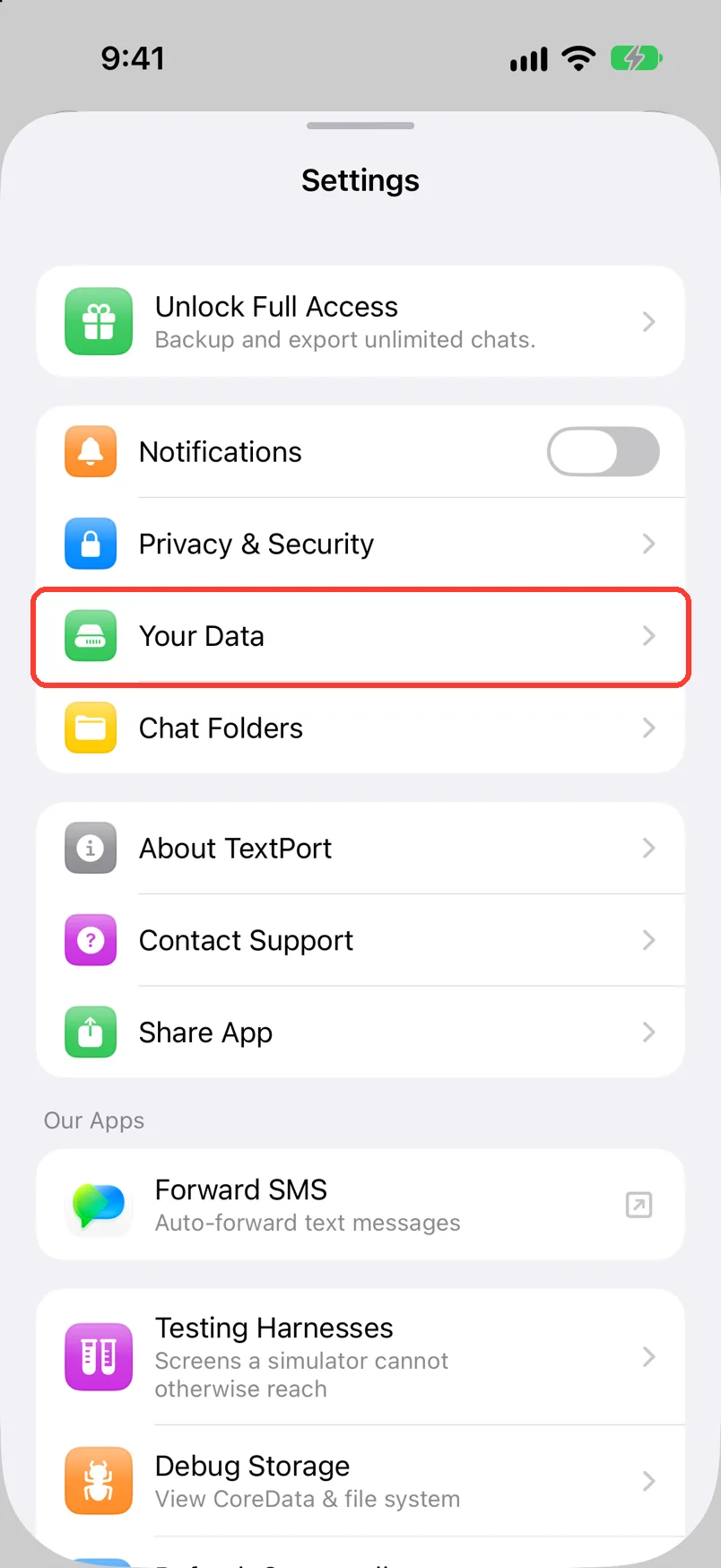
- Tap Your Data.
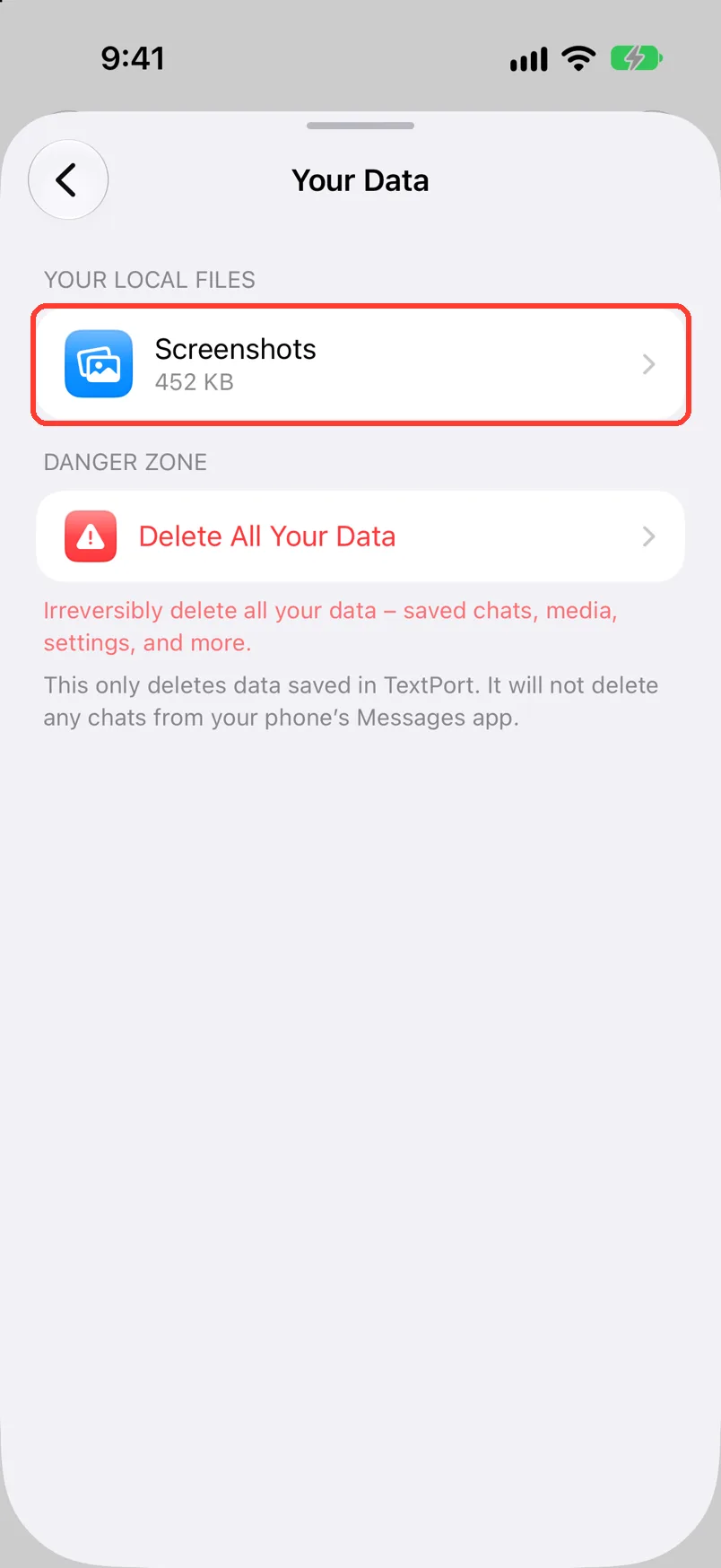
- Tap Screenshots, Screen Recordings, Attachments, or Shared Links.
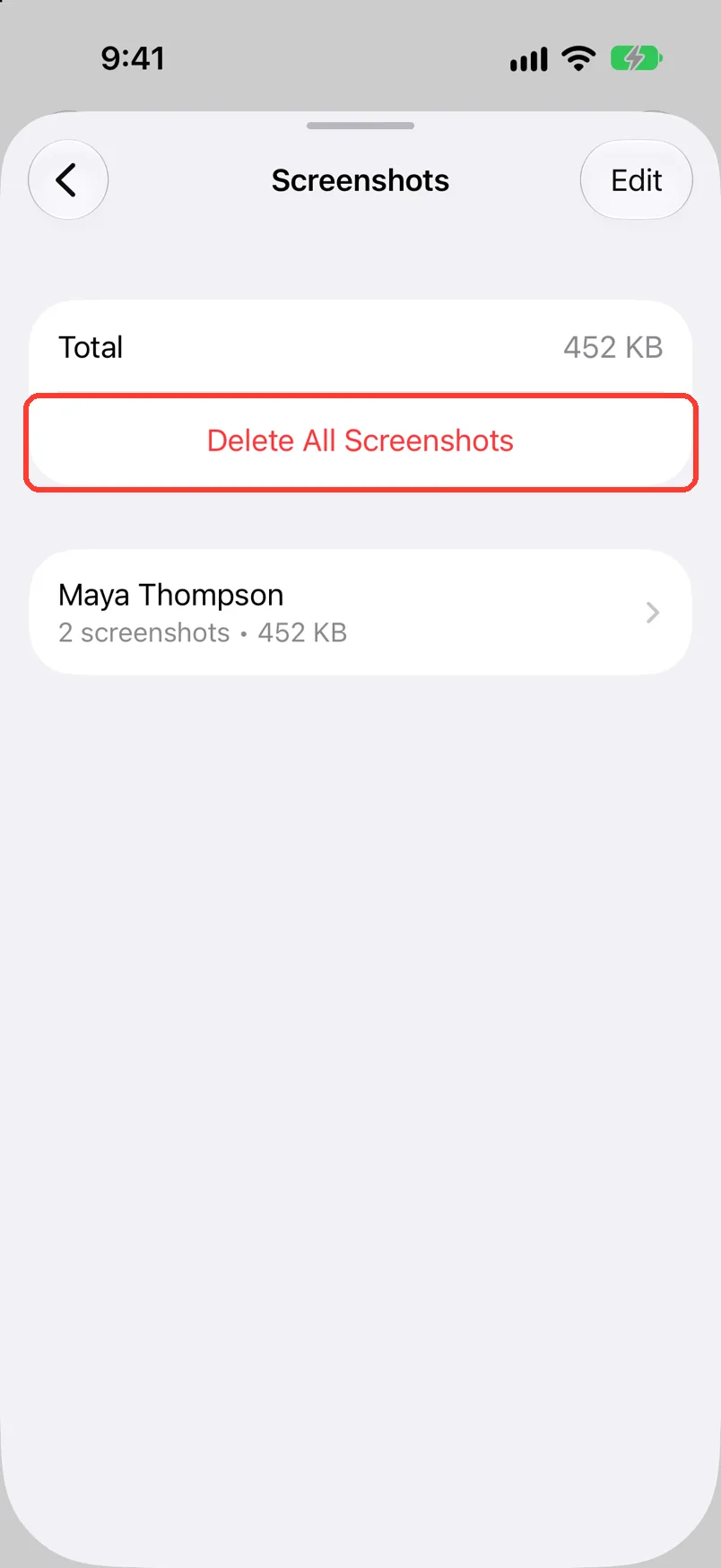
- Tap Delete All Screenshots, or the same button for that kind. Or swipe one row left, then tap Delete. Shared Links has only the swipe.
- Slide Slide to delete to the end.
The files are gone. Your saved chats stay.
What you need
- ✓TextPort on your iPhone
Steps
-
Tap the gear
It is in the top left of Saved Chats (1). Settings opens.
-
Tap Your Data
It is below Privacy & Security. Your Data opens.
-
Tap a kind of file
YOUR LOCAL FILES lists what TextPort keeps on this iPhone and how big it is. Here it is Screenshots.
A row shows only if you have that kind of file.
-
Tap Delete All Screenshots
It is under Total. TextPort asks Delete All Screenshots?
To delete the files of one chat, swipe its row to the left. Tap Delete.
-
Slide Slide to delete
Slide the button all the way to the right. To stop, tap the X.
Done
Those files are deleted from TextPort. Your saved chats are still in Saved Chats.
Problems
There is no YOUR LOCAL FILES.
TextPort has no such files on this iPhone yet. They appear after you import a chat.
You want to delete one chat.
You want to delete everything.
See Delete your account.
None of these match.
Email [email protected]. Say which step you were on. Say what you saw. We usually reply within a day.
Questions
-
Screenshots are the pictures a chat was made from. Screen Recordings are the videos a chat was made from. Attachments are photos and files on your messages. Voice Messages shows how many voice messages have text. Shared Links are links you made when you shared an export.
-
No. Your saved chats stay. Deleting attachments takes the files off your messages.
-
No. TextPort deletes only its own copy.
-
No. TextPort says this cannot be undone.
Next guides




Start exporting your messages
Available for iPhone, Mac, and Windows. No computer required.
