

How to delete your account
Quick answer
In TextPort:
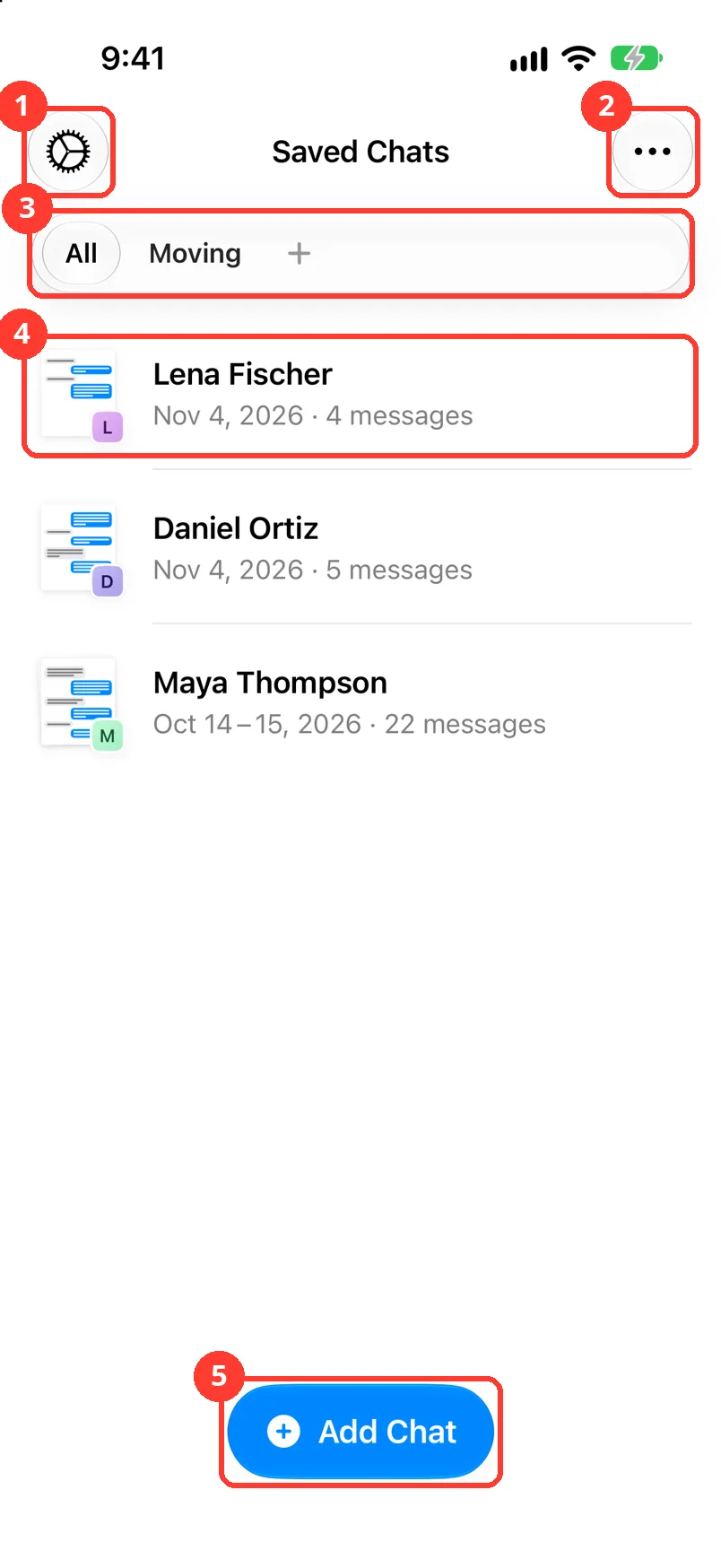
- Tap the gear in the top left of Saved Chats.
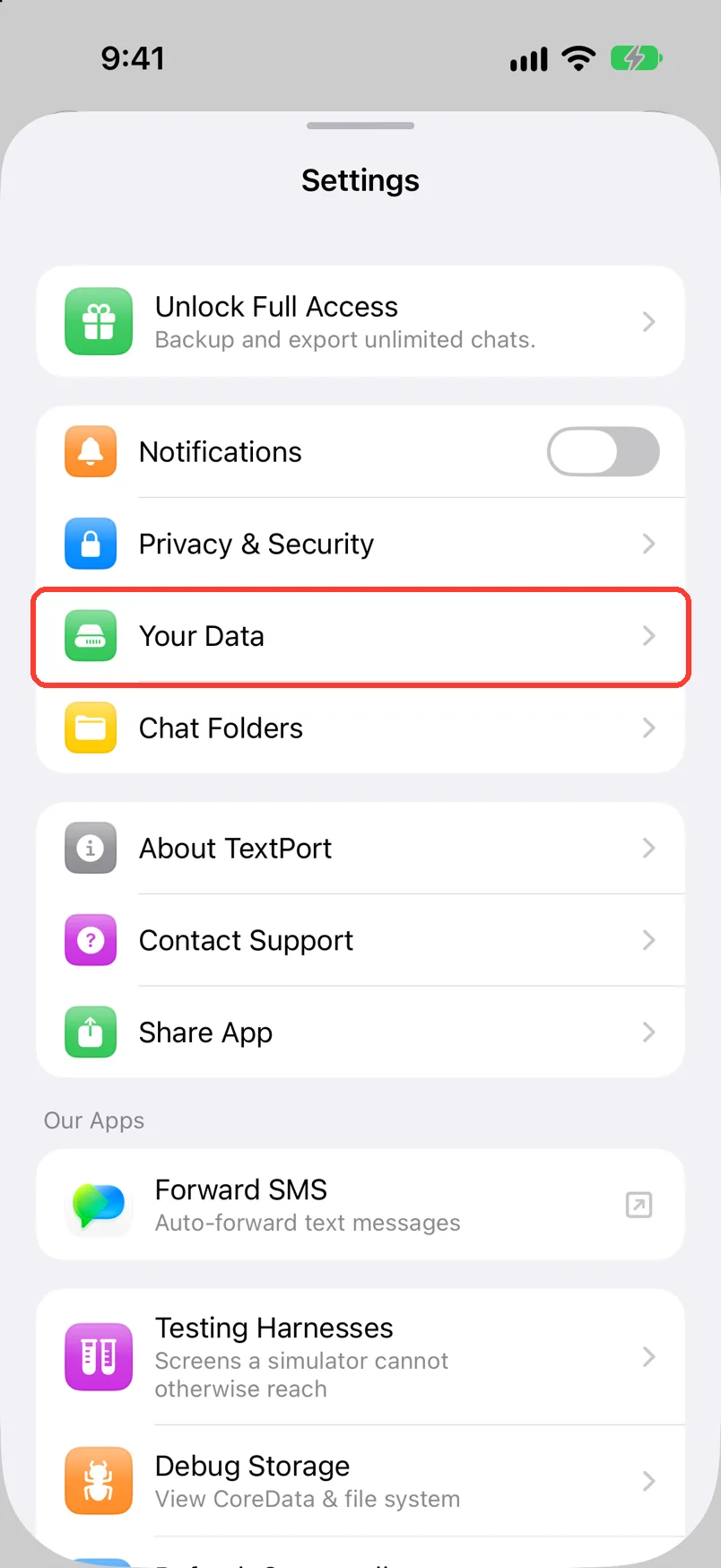
- Tap Your Data.
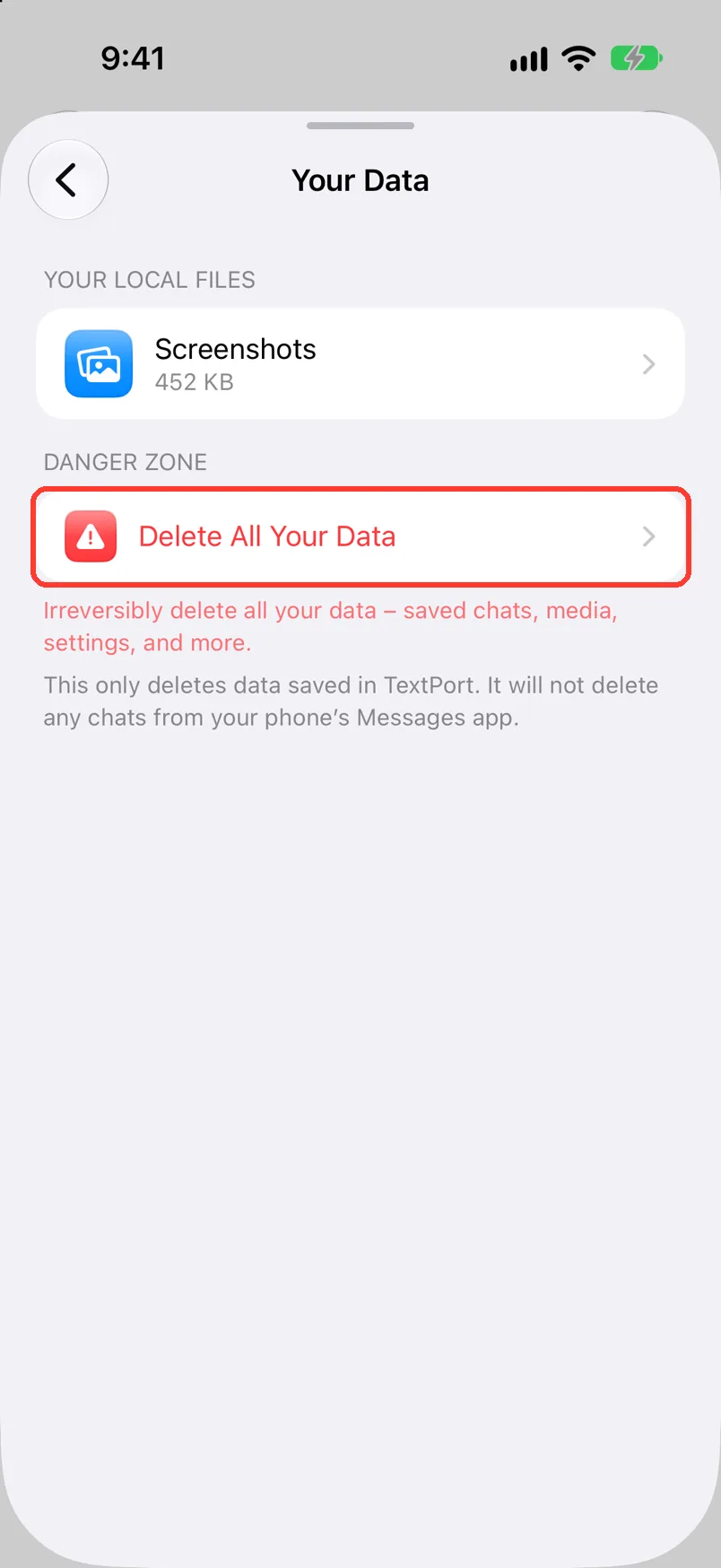
- Tap Delete All Your Data.
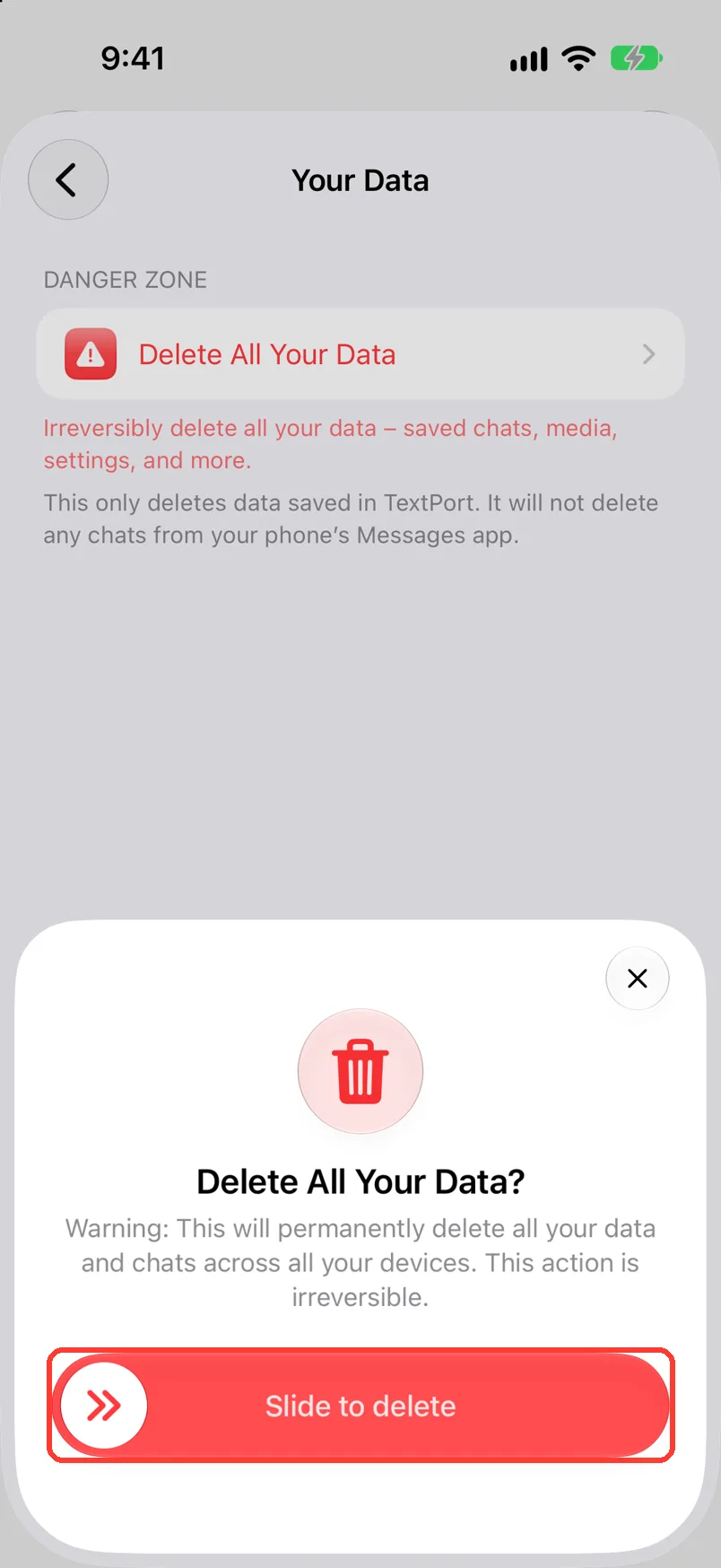
- Slide Slide to delete to the end.
This deletes your account and all your saved chats. You cannot undo it.
What you need
- ✓TextPort on your iPhone
- ✓An internet connection
Steps
-
Tap the gear
It is in the top left of Saved Chats (1). Settings opens.
-
Tap Your Data
It is below Privacy & Security. Your Data opens.
-
Tap Delete All Your Data
It is under DANGER ZONE. TextPort asks Delete All Your Data?
-
Slide Slide to delete
Slide the button all the way to the right. TextPort shows Deleting your data….
To stop, tap the X.
-
Check for the welcome screen
TextPort starts over, like a new app. Your chats are gone.
Done
Your account and all your saved chats are deleted. Your chats in Messages are still on your iPhone.
Problems
Something Went Wrong
Check that your iPhone is online. Tap OK. Do steps 3 and 4 again.
You only want to free up space.
You only want to delete one chat.
None of these match.
Email [email protected]. Say which step you were on. Say what you saw. We usually reply within a day.
Questions
-
No. Delete All Your Data deletes your account too.
-
No. It deletes only what is saved in TextPort. Your chats stay in Messages and WhatsApp.
-
Yes. TextPort deletes your data and chats across all your devices.
-
No. Deleting the app from your iPhone does not delete your account. Do these steps first.
-
No. Export any chat you want to keep first. See Export a chat to PDF.
Next guides
-
 How to see and delete your data
You will see which files TextPort keeps on your iPhone, and you can delete them.
-
 How to export a chat to PDF
You will get a PDF of one chat, with names, dates, and times, ready to share or print.
-
 How to contact support or report a problem
Your question or problem will reach TextPort support, with your email so they can answer.

Start exporting your messages
Available for iPhone, Mac, and Windows. No computer required.
