

How to lock TextPort with Face ID
TextPort will ask for Face ID before anyone can see your chats.
What you need
- ✓TextPort on your iPhone
- ✓Face ID, Touch ID, or a passcode set up on your iPhone
Your chats can be private. Turn on the lock, and TextPort asks for your face before it opens.
Steps
-
1
Open Settings
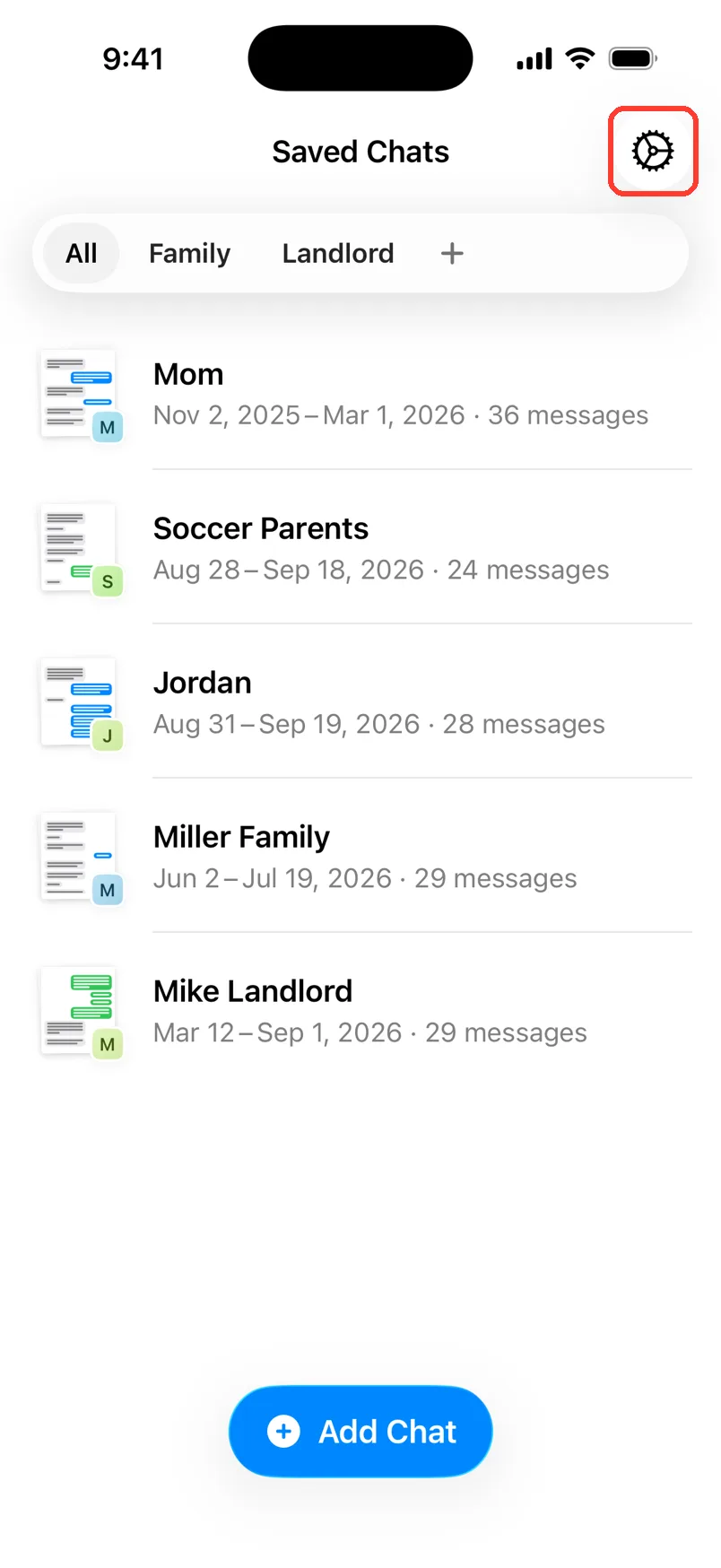
In Saved Chats, tap the gear in the top right.
-
2
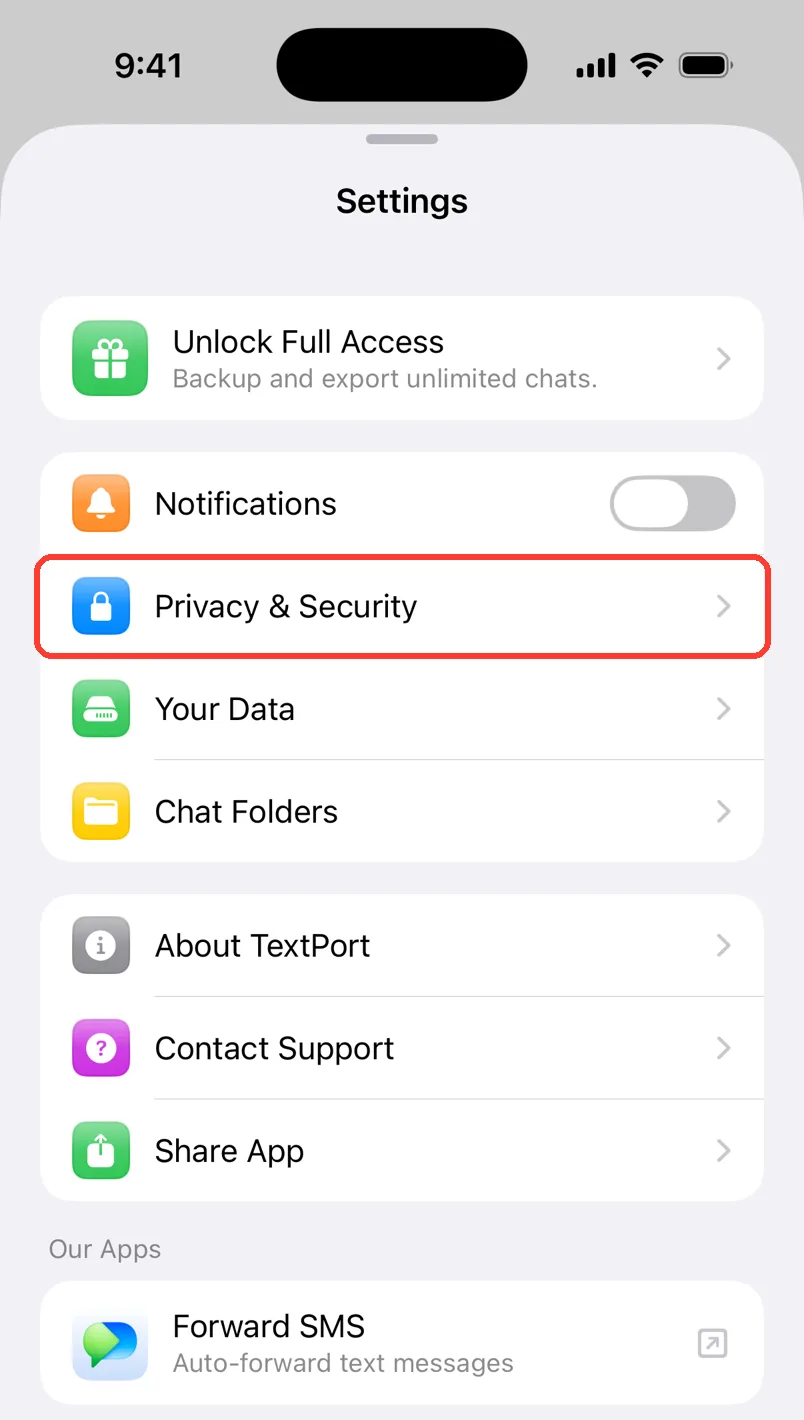
Tap Privacy & Security
Tap Privacy & Security.
-
3
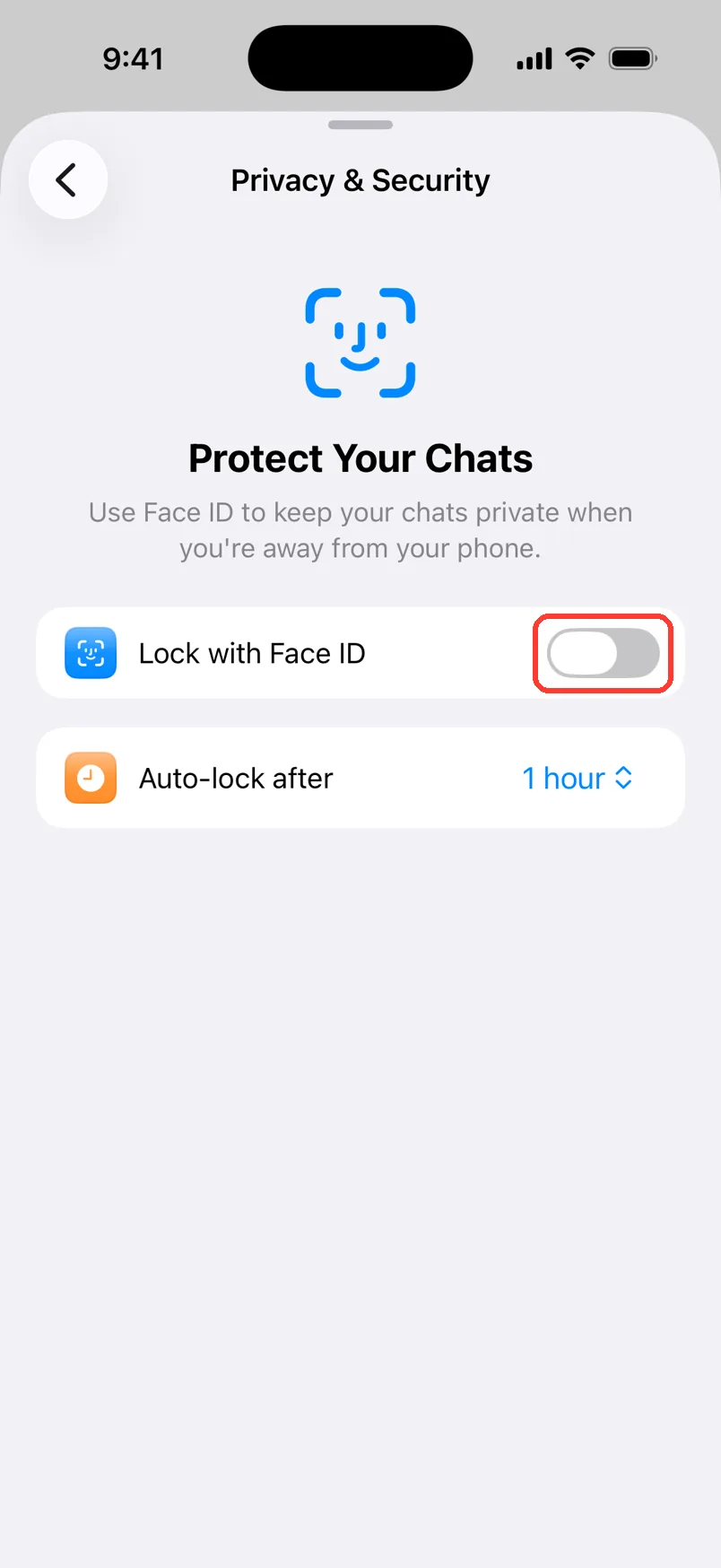
Turn on the lock
Tap the switch next to Lock with Face ID to turn it on.
-
4
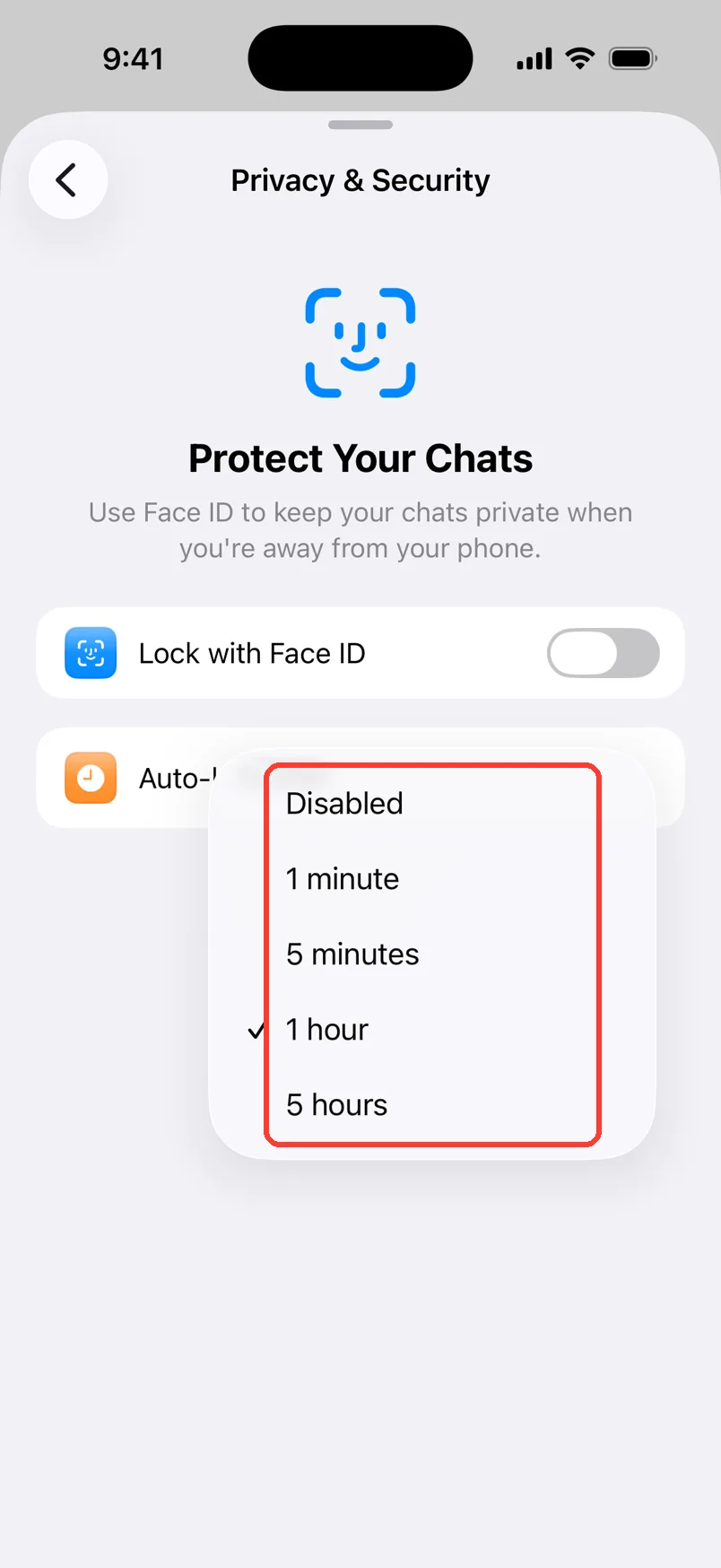
Pick when it locks
Tap Auto-lock after. Pick how long you can be away before it locks. The default is 1 hour.
-
5
Unlock TextPort
When it locks, you see Face ID required to open TextPort. Look at your iPhone. Or tap Unlock.
Done
TextPort locks when you leave it for the time you picked. Only your face or passcode opens it.
Tips
-
Pick 1 minute for the most privacy. Disabled means it never locks.
-
Face ID did not work? Tap Enter Passcode and type your iPhone passcode.
-
On an iPhone with Touch ID, the switch says Lock with Touch ID.
-
The app switcher hides your chats while the lock is on.
Questions
-
There is no lock button. Pick 1 minute. Then leave the app for a minute.
-
Your iPhone has no Face ID, Touch ID, or passcode set up. Set one up in the iPhone Settings app. Then try again.
-
No. The lock is only for TextPort on this iPhone.



Start exporting your messages
Available for iPhone, Mac, and Windows. No computer required.
