

How to import a screen recording from Photos
Quick answer
In TextPort:
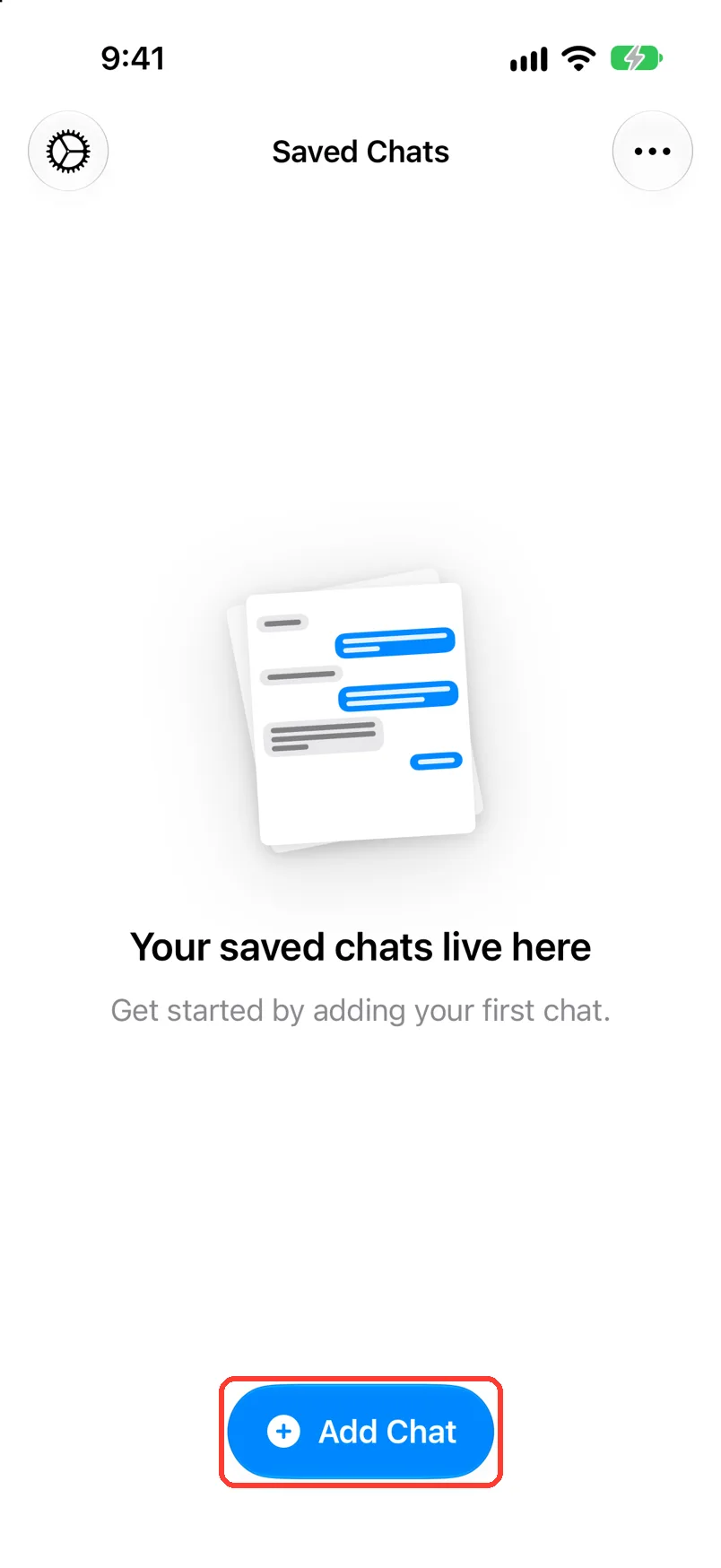
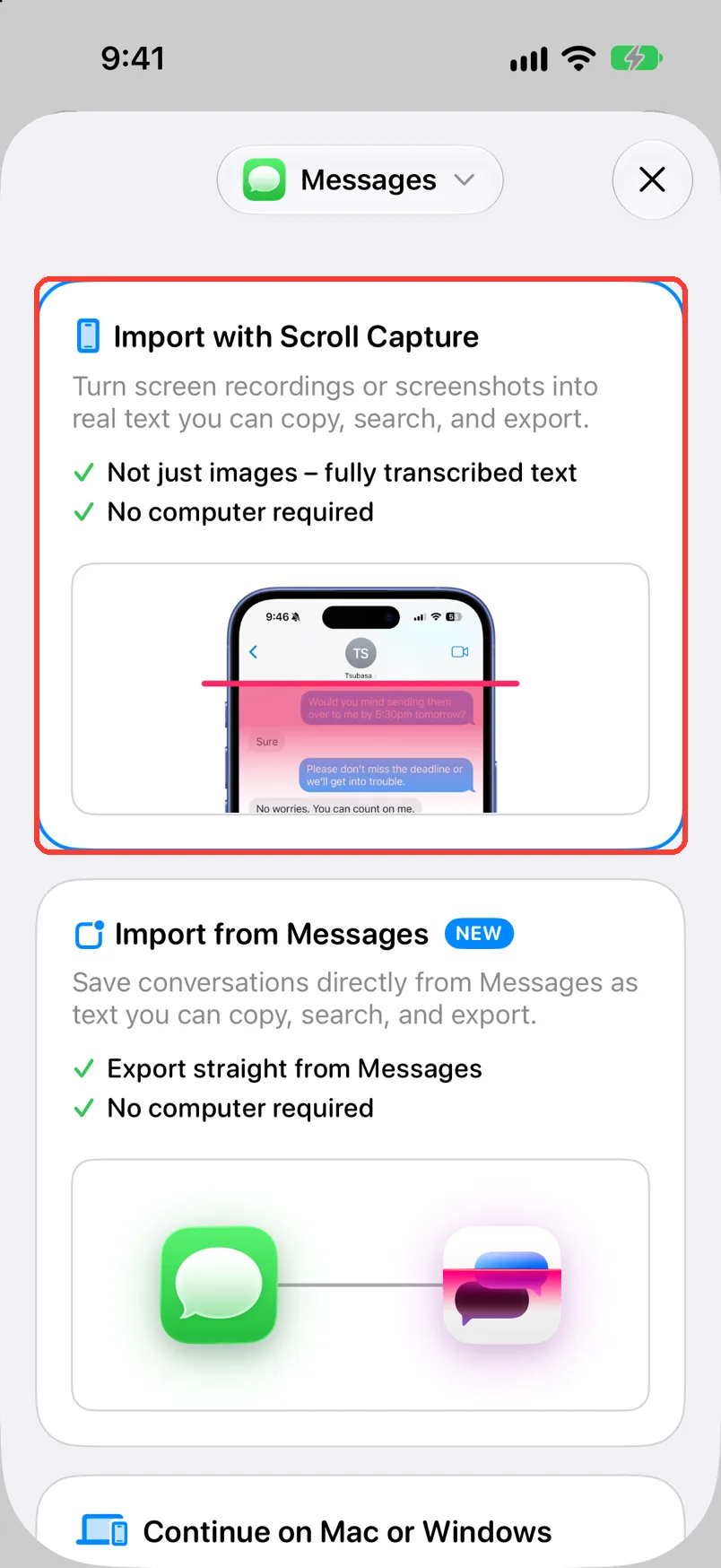
- Tap Add Chat, then Import with Scroll Capture.
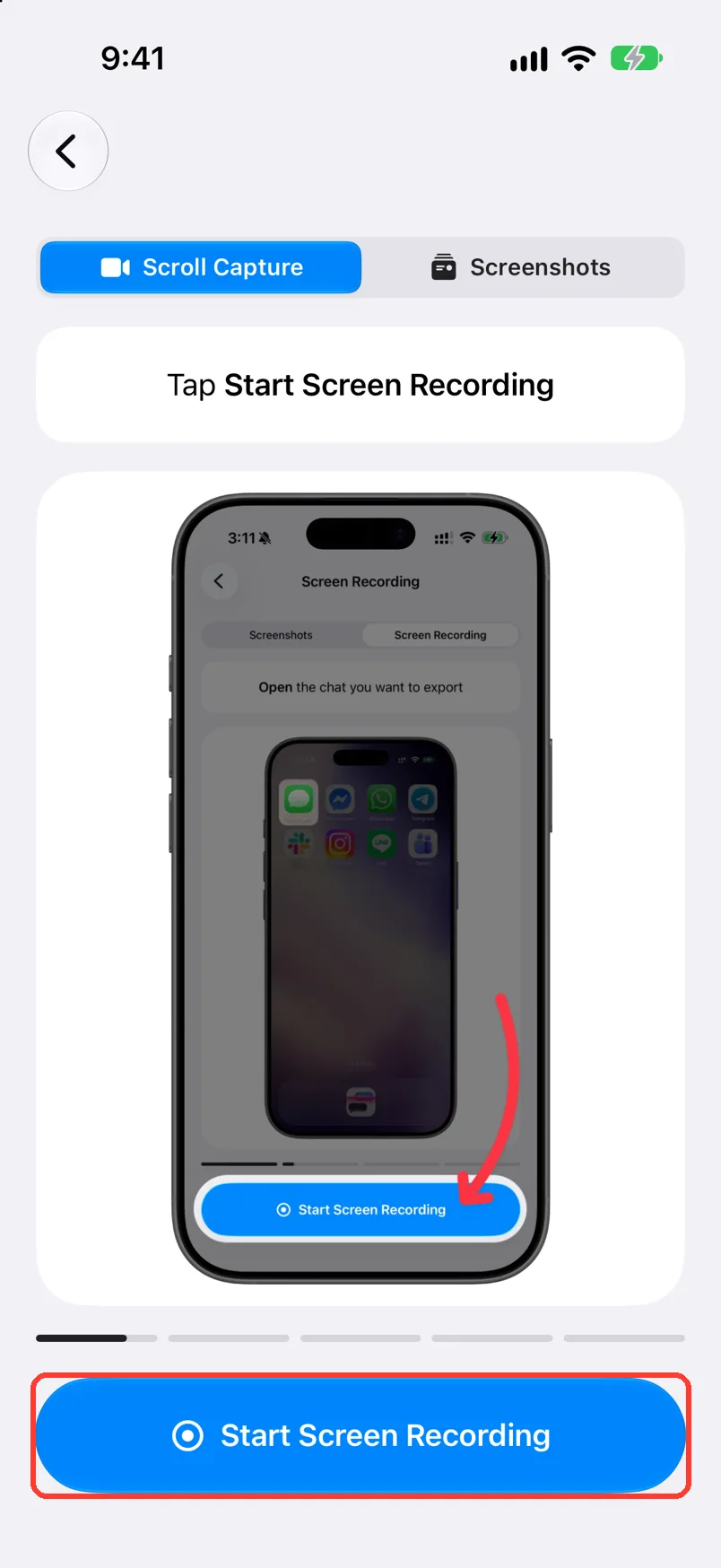
- Press and hold Start Screen Recording. Your videos open.
- Tap the screen recording.
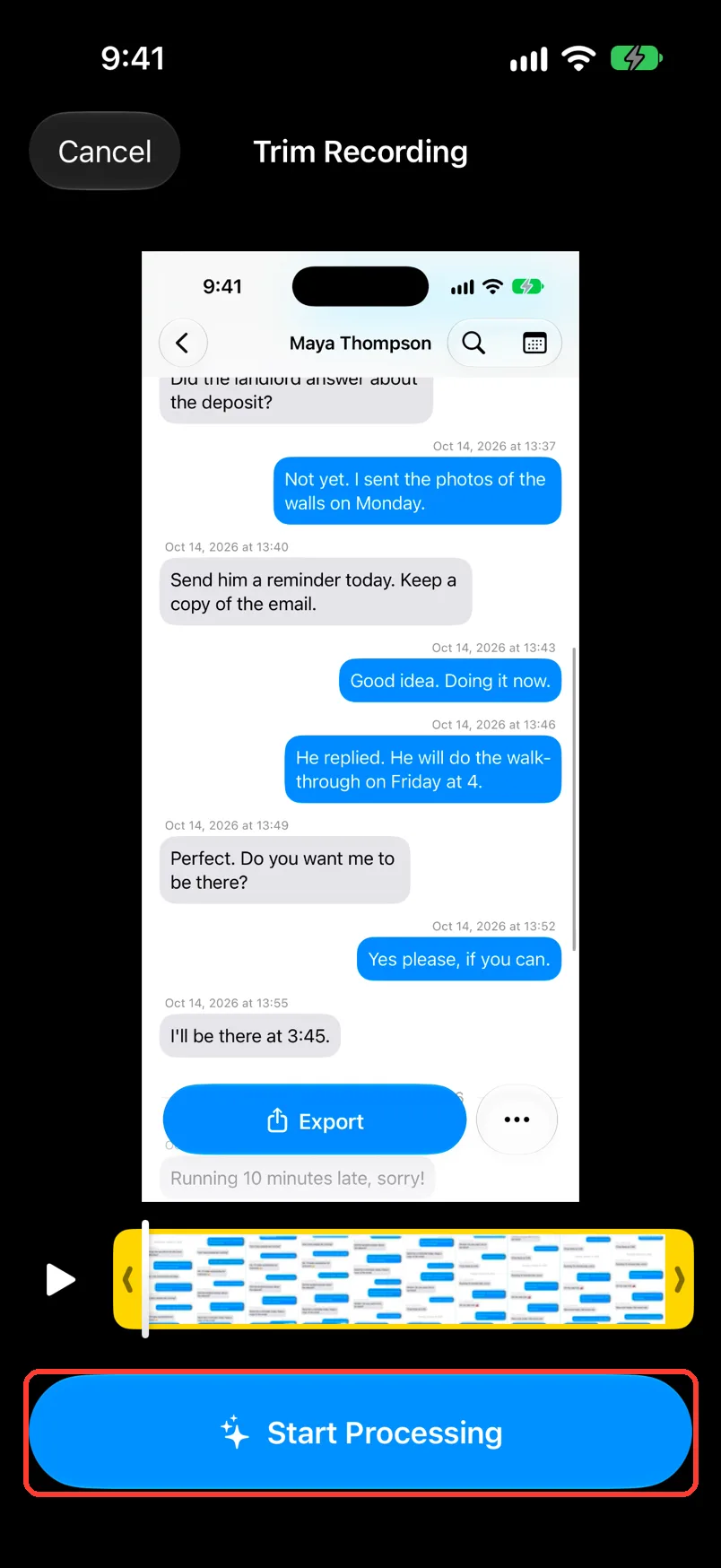
- Tap Start Processing.
The chat then shows in Saved Chats.
What you need
- ✓TextPort on your iPhone, with iOS 17.5 or newer
- ✓A screen recording of the chat, saved in Photos
Steps
-
Tap Add Chat
Open TextPort. It is at the bottom of Saved Chats.
-
Tap Import with Scroll Capture
For apps other than Messages, the card says On Your iPhone. Scroll Capture opens.
-
Press and hold Start Screen Recording
Hold it until your videos open. A quick tap starts a new recording instead.
Before iOS 26, the button says Start Recording.
-
Tap the screen recording
TextPort shows Preparing Recording.... Then Trim Recording opens.
-
Tap Start Processing
It is the blue button at the bottom. TextPort shows Processing screen recording....
To cut off the start or end first, see Trim a recording.
-
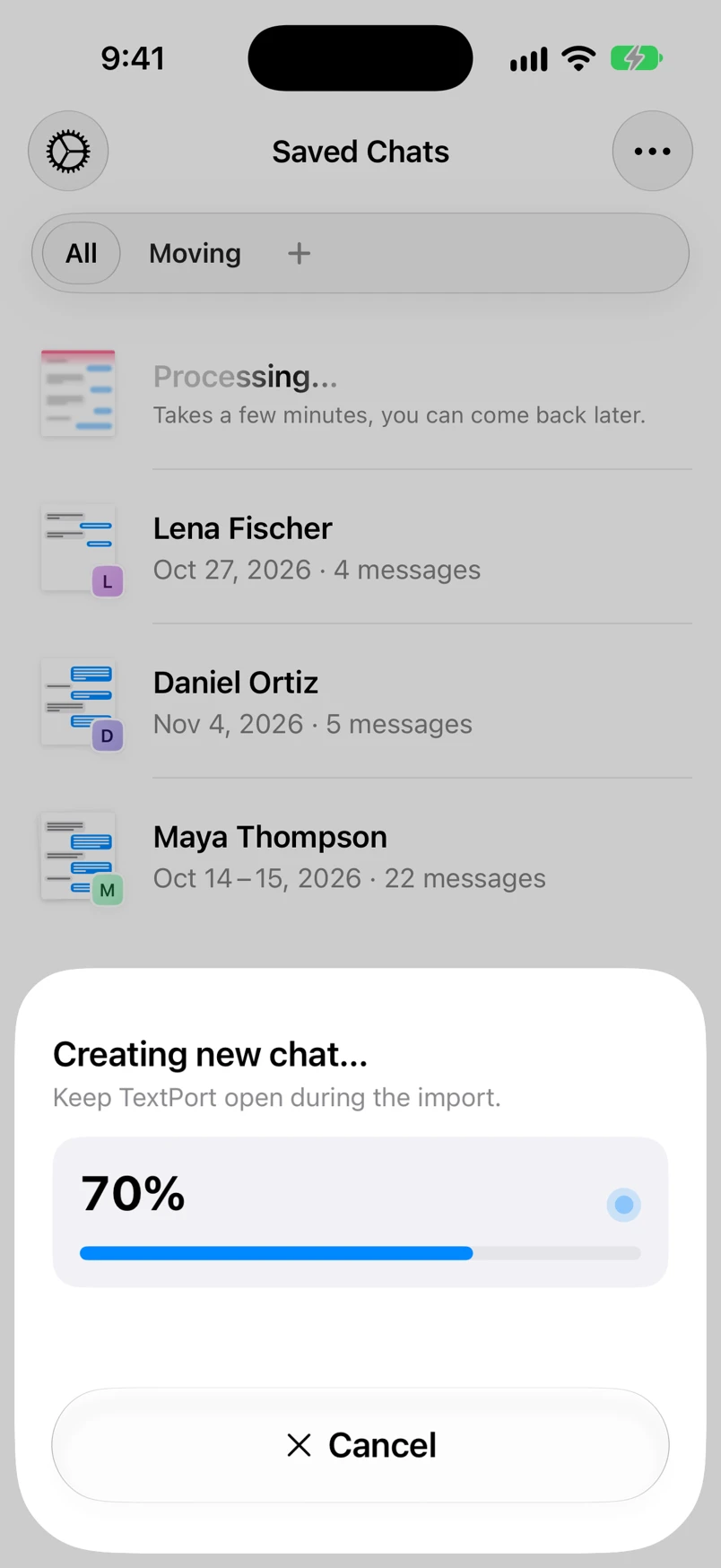
Keep TextPort open
Wait until Creating new chat... is done. Then the chat opens.
-
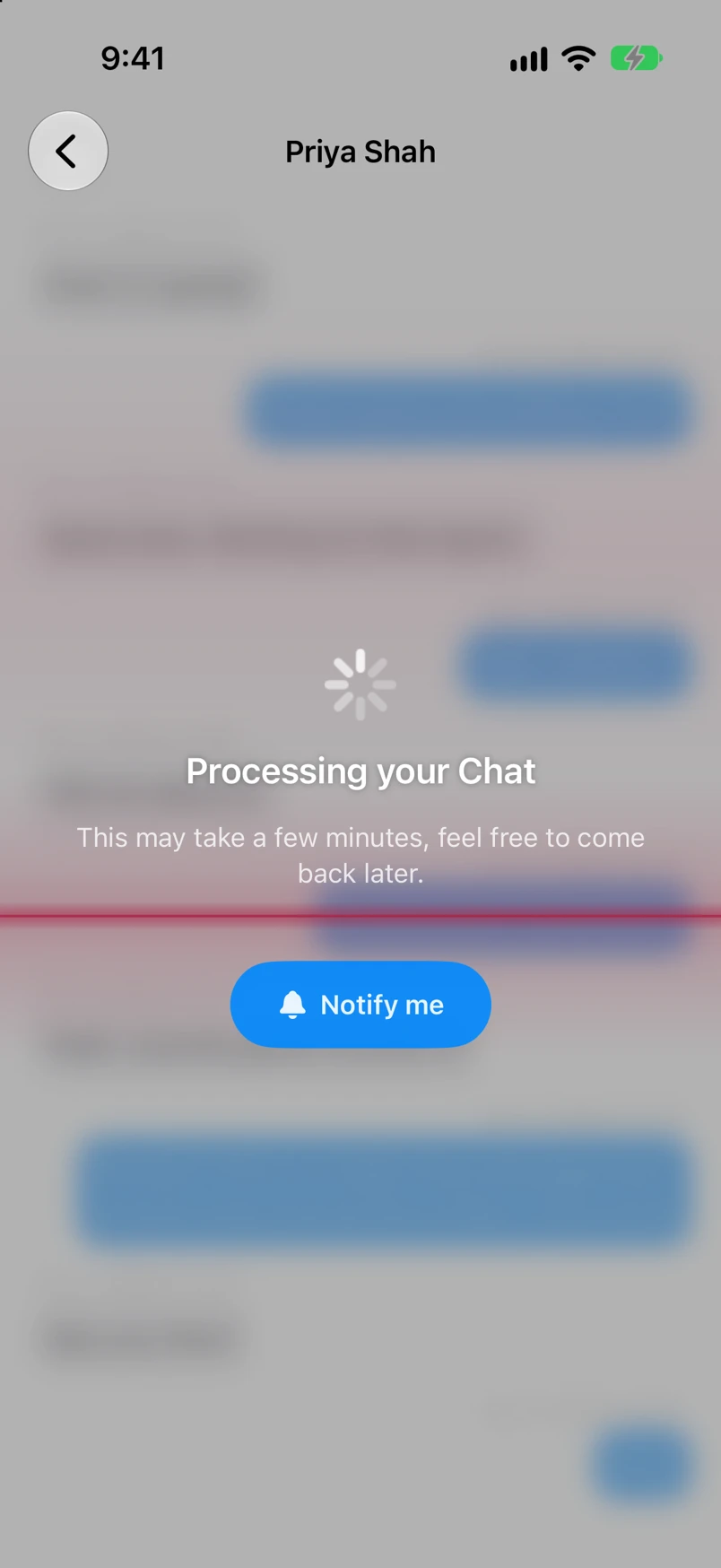
Wait for the text
The chat shows Processing your Chat. You can leave TextPort now.
-
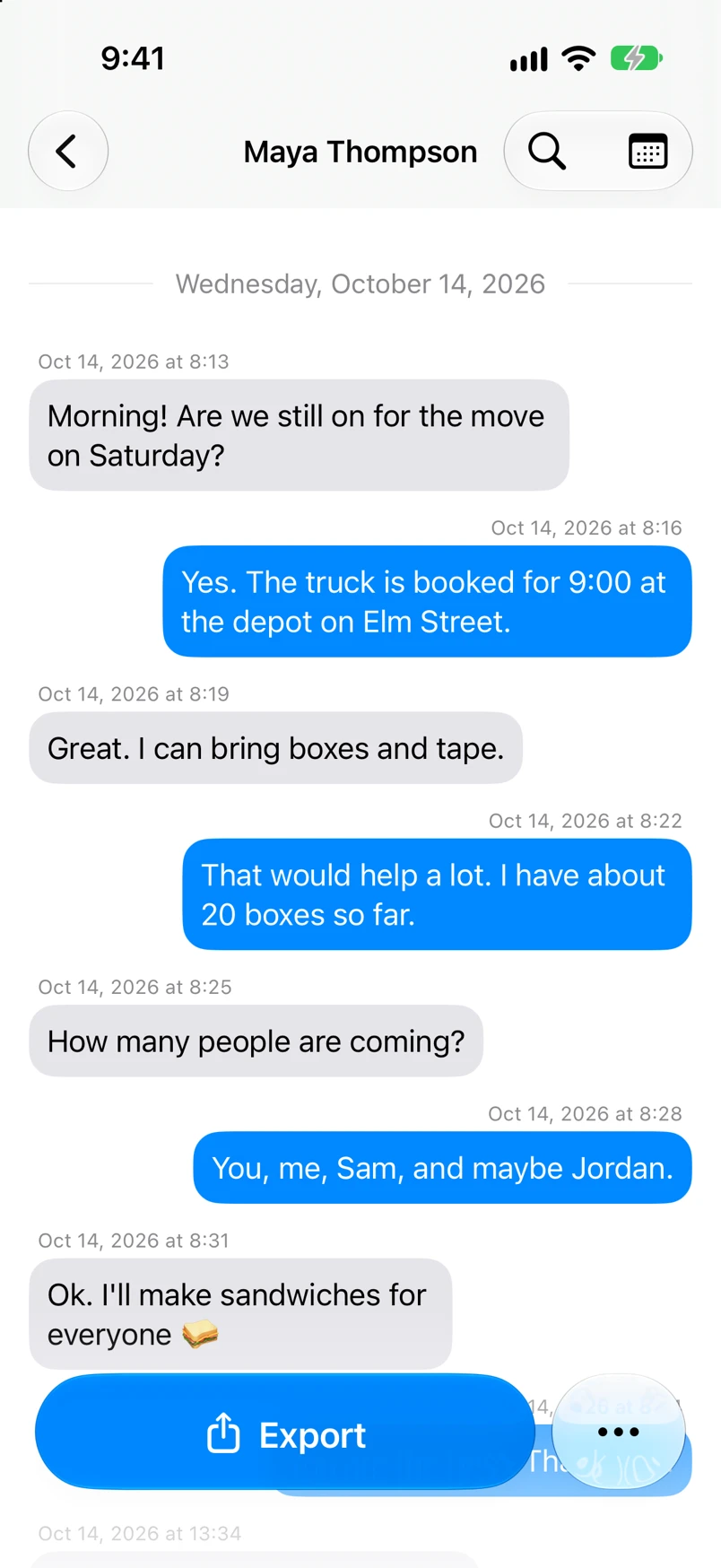
Read the chat
The messages show as text. The chat is in Saved Chats.
Done
The chat is saved in TextPort as real text, made from the recording you already had.
Problems
Recording Error shows on the Scroll Capture screen.
Tap the arrow next to it to read why. Then tap Start Screen Recording to record again.
An iOS sheet for screen recording opens instead of your videos.
You tapped the button. Close the sheet. Press and hold the button until your videos open.
Your recording is not in the list.
The list shows only videos in Photos. If the video is in Files, open it. Tap the share button, then Save Video.
Recording Error: the selected video couldn't be loaded.
TextPort could not play the video. Pick it again. If that fails, record the chat in TextPort.
You picked WhatsApp, and there is no Scroll Capture card.
Tap the app name at the top. Pick Other. Then do steps 2 to 4.
Couldn't import this chat
Check your internet. Tap Retry. If you tap Dismiss, the recording waits in Saved Chats as Unfinished recording.
Processing failed.
Tap Retry. If it fails again, record the chat again. Scroll more slowly.
None of these match.
Email [email protected]. Say which step you were on. Say what you saw. We usually reply within a day.
Questions
-
Any screen recording of a chat. It can come from the iPhone's own screen recorder, or from someone who sent it to you. Save it to Photos first.
-
A quick tap starts a new recording. Press and hold opens your videos instead.
Next guides
-
 How to record your screen with the TextPort recorder
You will have a screen recording of a chat, open in TextPort and ready to process.
How to record your screen with the TextPort recorder
You will have a screen recording of a chat, open in TextPort and ready to process.
-
 How to trim a recording before processing
You will cut your recording so it starts and ends on the chat, then send it to be read.
How to trim a recording before processing
You will cut your recording so it starts and ends on the chat, then send it to be read.
-
 How to import a chat with Scroll Capture
You will get a chat from any app saved in TextPort, made from a screen recording of you scrolling.
How to import a chat with Scroll Capture
You will get a chat from any app saved in TextPort, made from a screen recording of you scrolling.

Start exporting your messages
Available for iPhone, Mac, and Windows. No computer required.
