
How to trim a recording before processing
You will cut your recording so it starts and ends on the chat, then send it to be read.
What you need
- ✓TextPort on your iPhone
- ✓A screen recording made in TextPort or picked from Photos
Most recordings start and end on other screens. Trim those parts off before TextPort reads the video.
Steps
-
1
Wait for Trim Recording
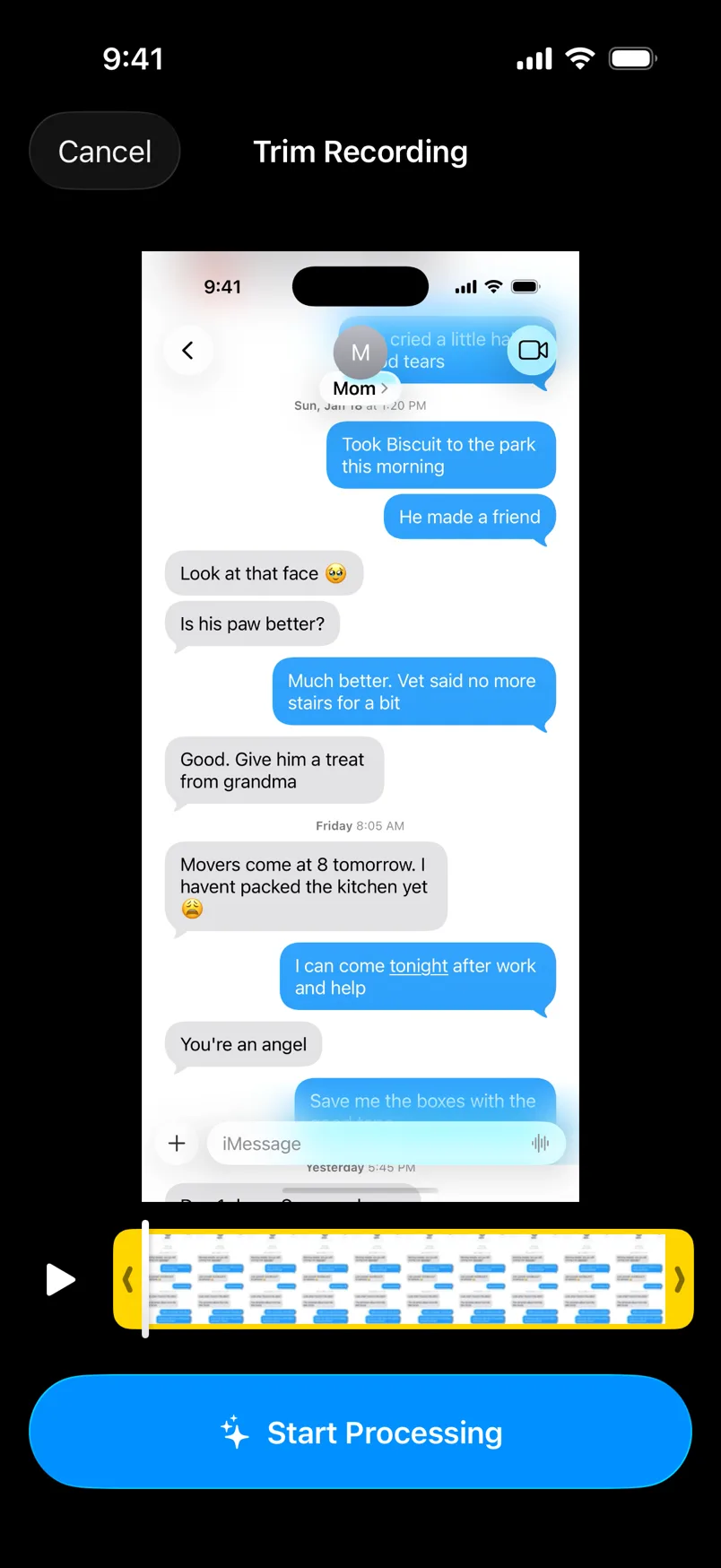
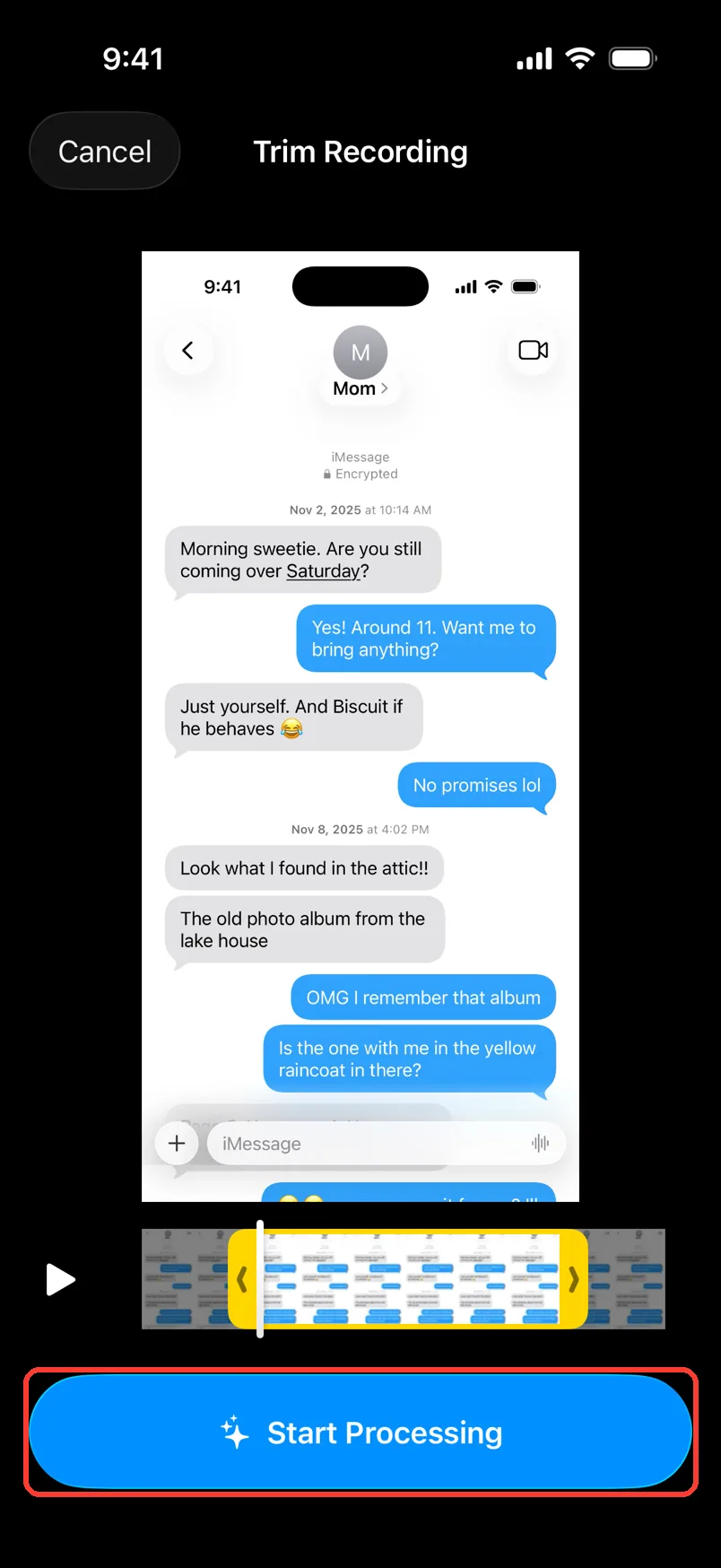
After you stop recording, or pick a video, the Trim Recording screen opens. The yellow bar at the bottom is your whole video.
-
2
Drag the left handle
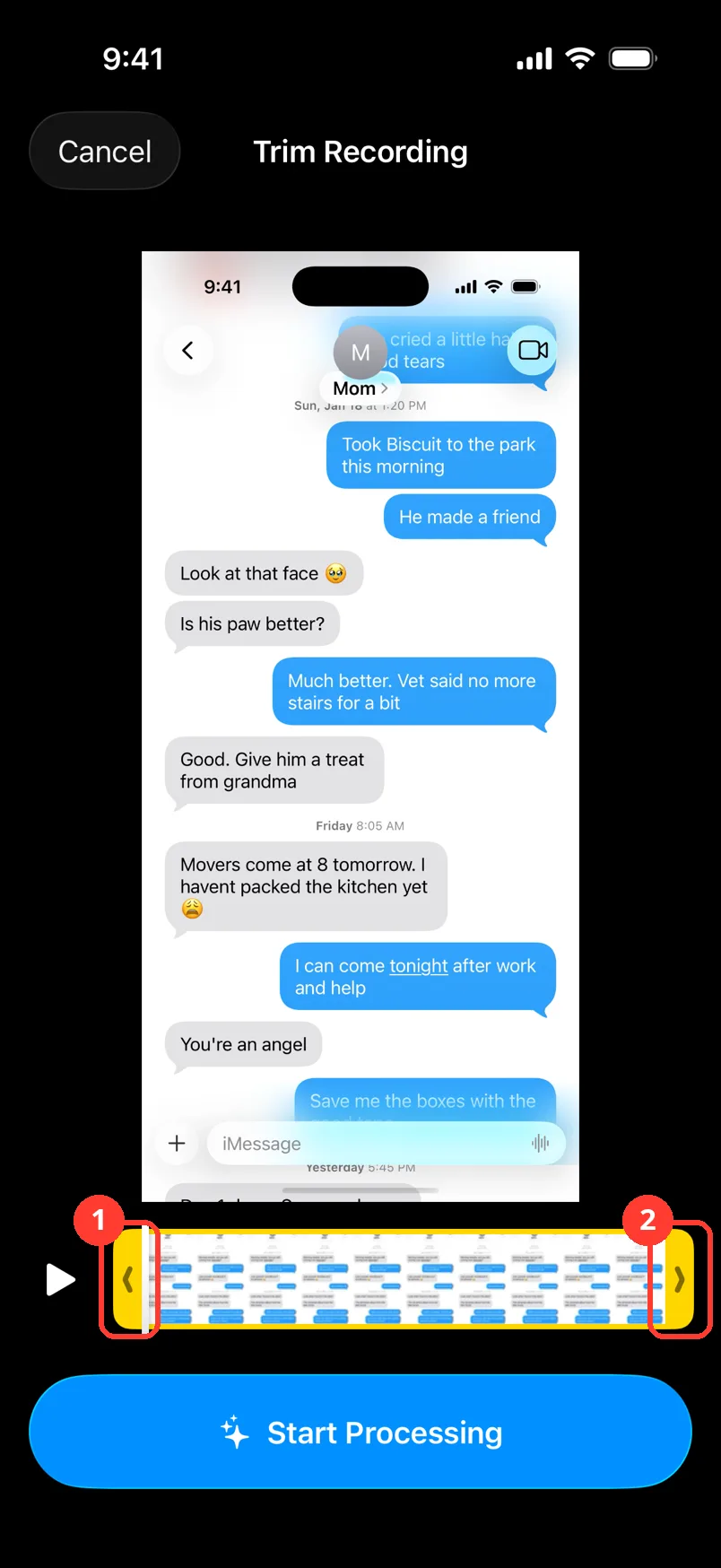
Drag the left handle (1) to the right. Stop where the chat first shows. A yellow bubble shows the new length.
-
3
Drag the right handle
Drag the right handle (2) to the left. Stop where the chat ends.
-
4
Play the clip
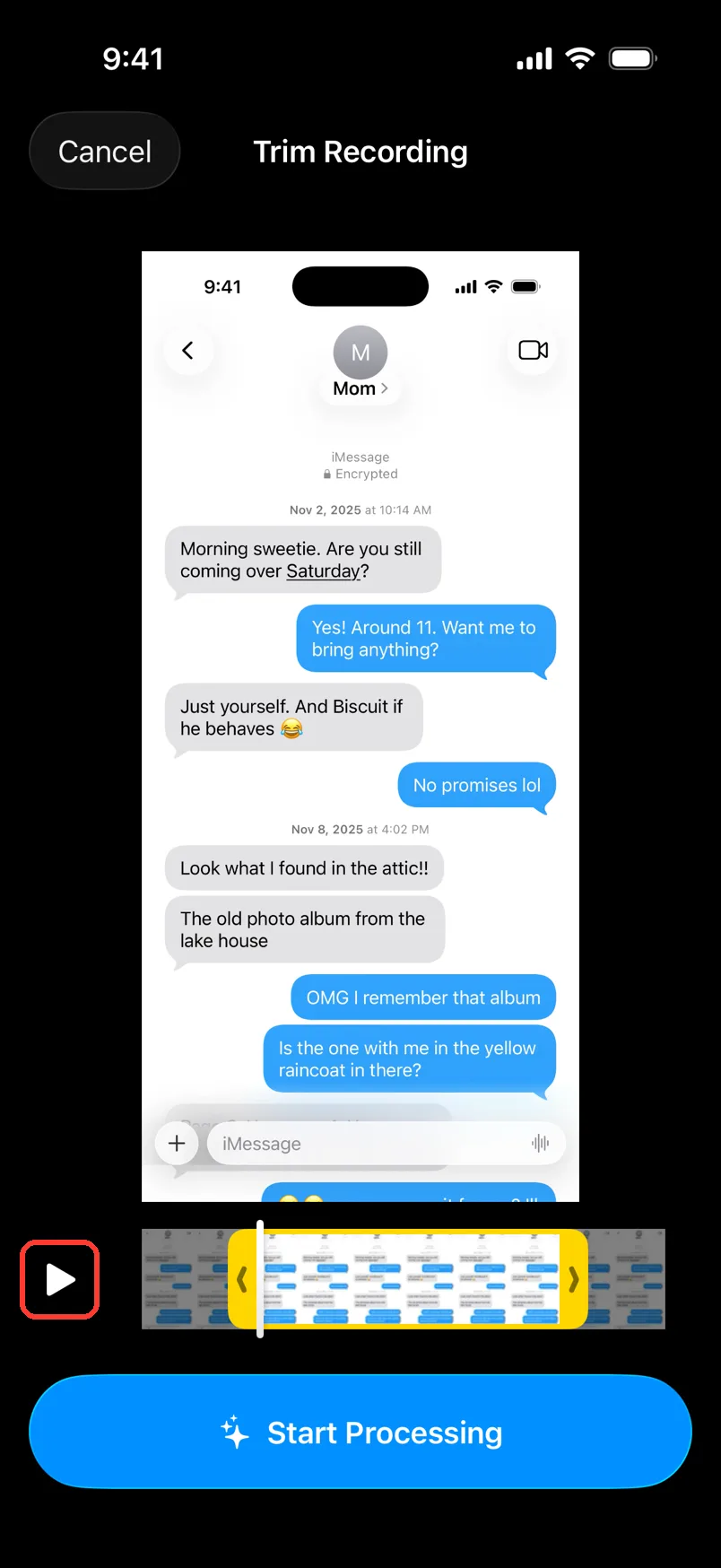
Tap the play button to watch the part you kept. Tap it again to stop.
-
5
Tap Start Processing
Tap Start Processing when the clip looks right.
-
6
Wait
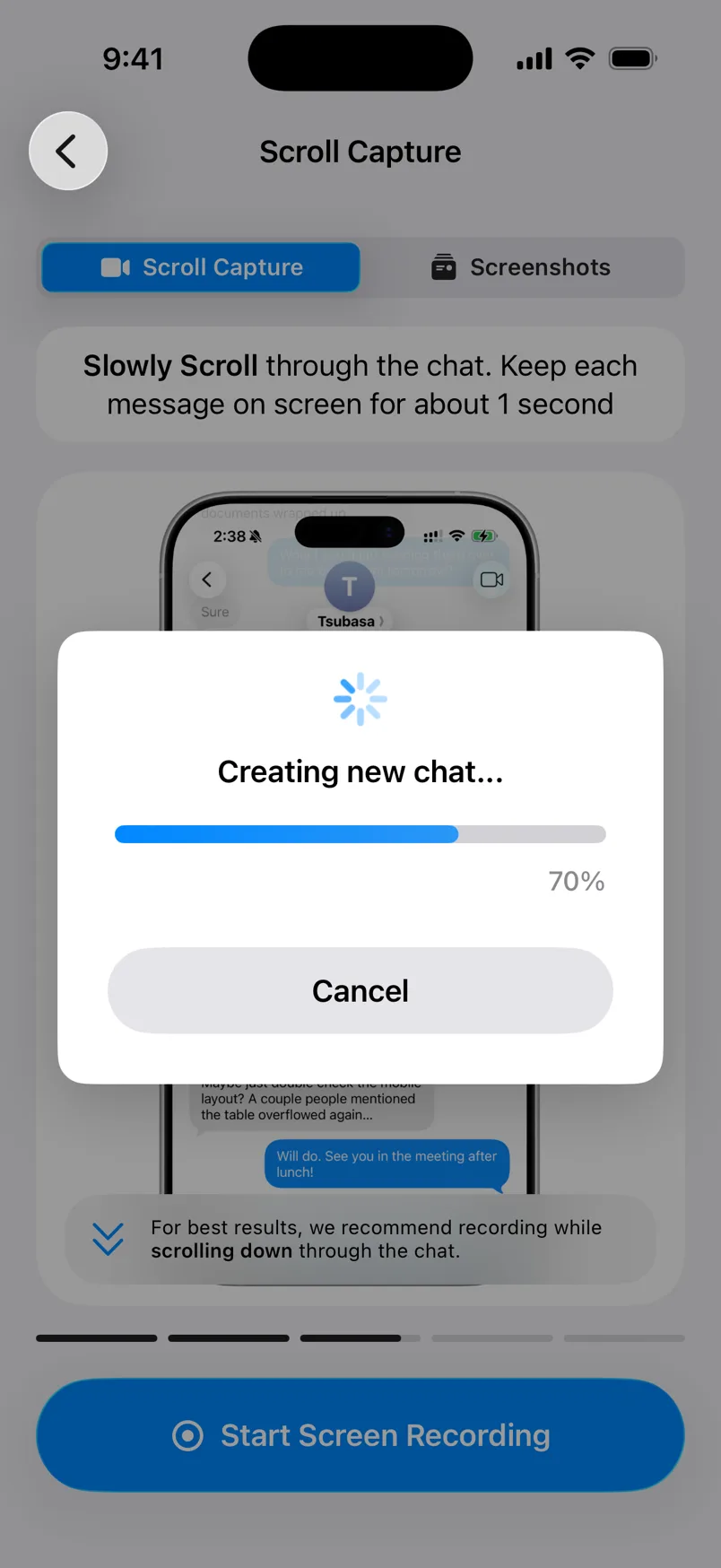
A box says Creating new chat... and shows a percent. Then TextPort reads the text. A long chat takes a few minutes.
Done
Only the part with the chat is read. Your new chat shows up in **Saved Chats**.
Tips
-
Cut off the home screen and other apps at the start and end. They can add junk messages.
-
The clip must be at least 1 second long.
-
Recordings stop on their own after 15 minutes. For a very long chat, record it in parts.
-
Changed your mind? Tap Cancel, then Discard Recording. This deletes the recording.
Questions
-
Yes. Tap Start Processing without moving the handles. TextPort uses the whole video.
-
No. You can only trim the start and the end. Record again if the middle is wrong.
-
Your recording is kept. Look for Unfinished recording at the top of Saved Chats. Tap Continue.
Next guides
-
 How to record your screen with the TextPort recorder
You will have a screen recording of a chat, ready for TextPort to read.
How to record your screen with the TextPort recorder
You will have a screen recording of a chat, ready for TextPort to read.
-
 How to import a screen recording from Photos
You will get a saved chat from a screen recording that is already in your Photos.
How to import a screen recording from Photos
You will get a saved chat from a screen recording that is already in your Photos.
-
 How to import a chat with Scroll Capture
You will get a saved chat in TextPort by recording your screen while you scroll.
How to import a chat with Scroll Capture
You will get a saved chat in TextPort by recording your screen while you scroll.

Start exporting your messages
Available for iPhone, Mac, and Windows. No computer required.
