

How to record your screen with the TextPort recorder
Quick answer
In TextPort's Scroll Capture screen:
- Tap Start Screen Recording, then Start Broadcast.
- Tap Open Messages, or the app you picked.
- Open the chat. Scroll down slowly.
- Go back to TextPort. Tap Stop Recording.
- Tap Stop Broadcast.
Trim Recording then opens.
What you need
- ✓TextPort on your iPhone, with iOS 17.5 or newer
- ✓The chat in its app, ready to scroll
Steps
-
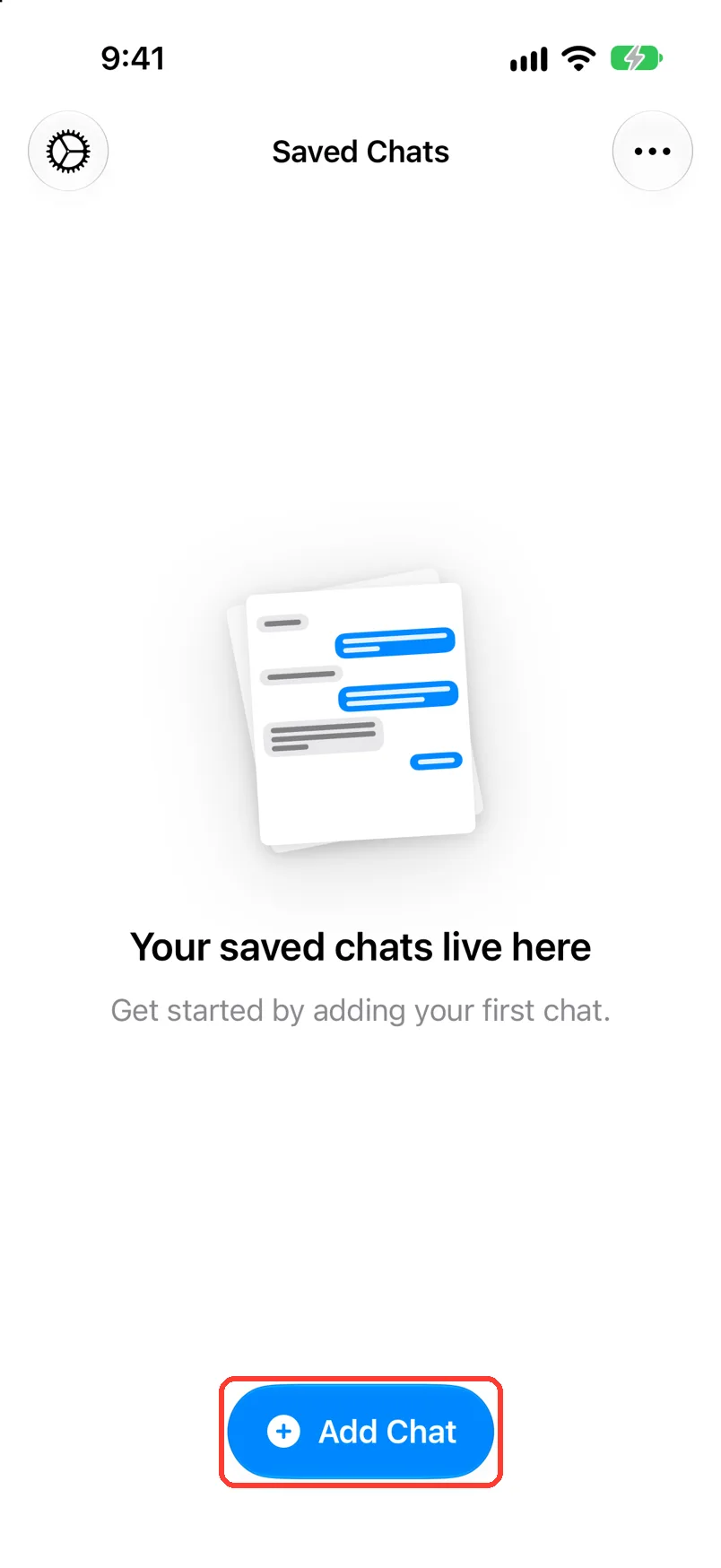
Tap Add Chat
Open TextPort. It is at the bottom of Saved Chats.
-
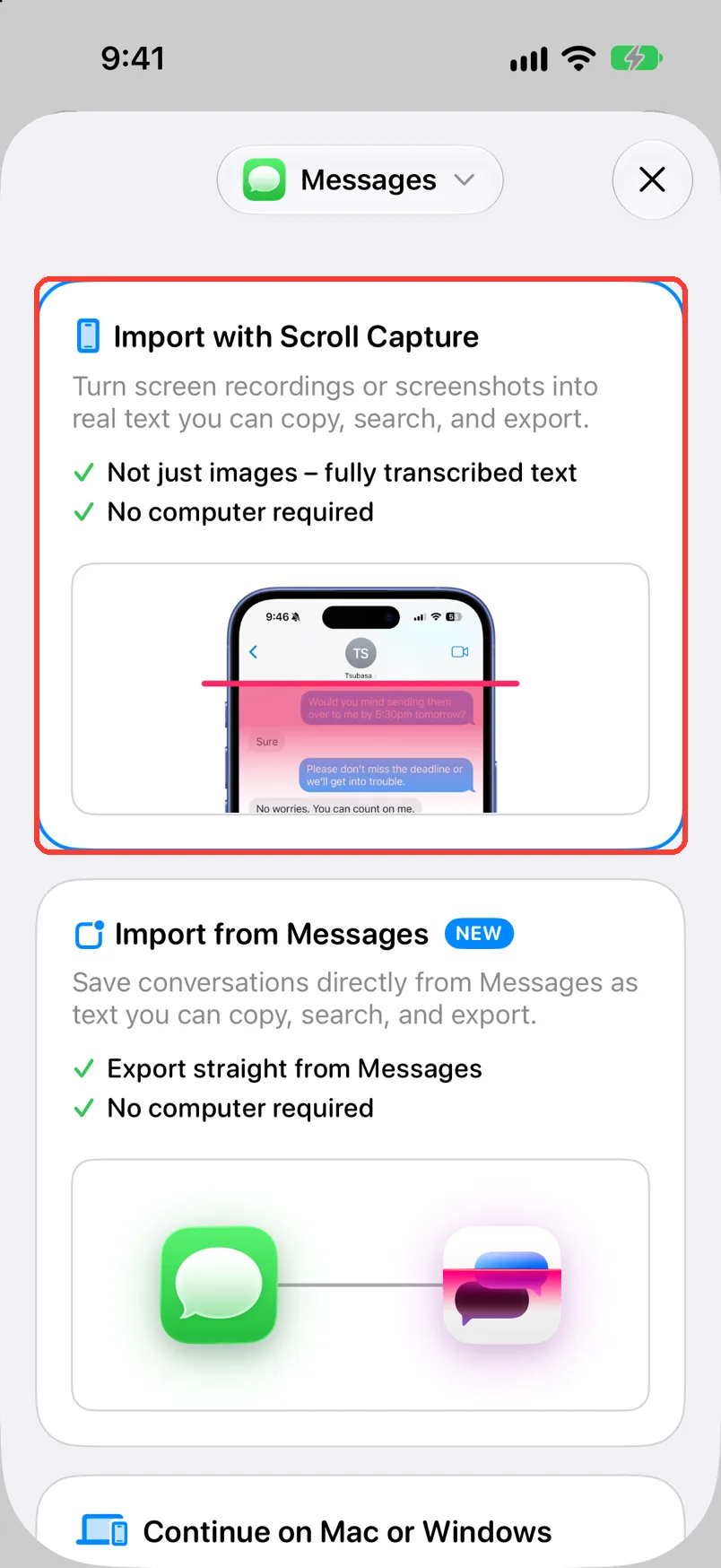
Tap Import with Scroll Capture
For apps other than Messages, the card says On Your iPhone. Scroll Capture opens.
If the sheet shows Import from WhatsApp, tap the app name at the top. Tap Other.
-
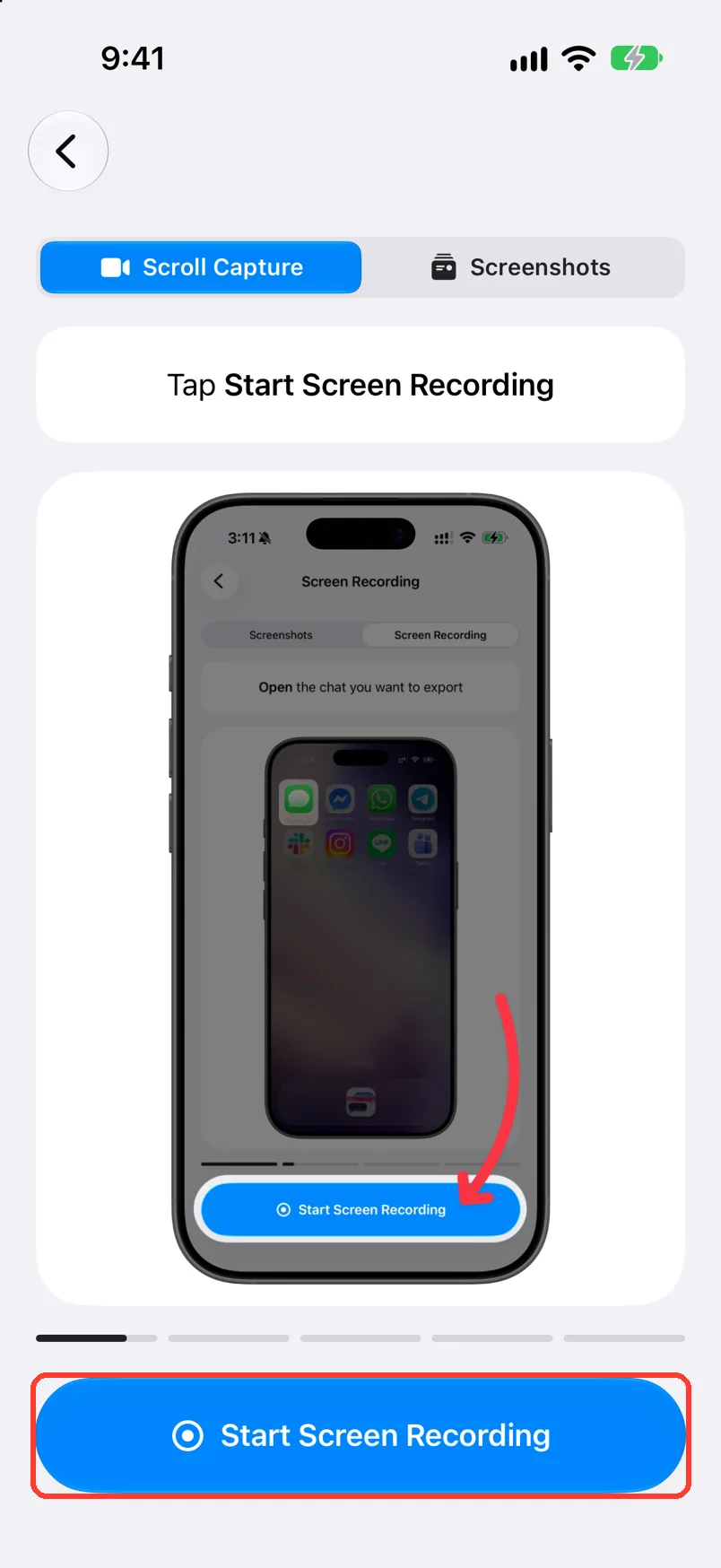
Tap Start Screen Recording
It is the blue button at the bottom. An iOS sheet for screen recording opens.
Before iOS 26, the button says Start Recording.
-
Tap Start Broadcast
A 3-second countdown runs. Then TextPort shows Recording and the time.
-
Tap Open Messages
It names the app you picked, like Open Instagram. The chat app opens.
If you picked Other, it says Open Messages. Open your chat app yourself.
-
Open the chat
Go to the oldest message you need.
-
Scroll down slowly
Keep each message on screen for about 1 second.
-
Tap Stop Recording in TextPort
Go back to TextPort. It is the red button at the bottom.
-
Tap Stop Broadcast
TextPort shows Preparing Recording.... Then Trim Recording opens.
-
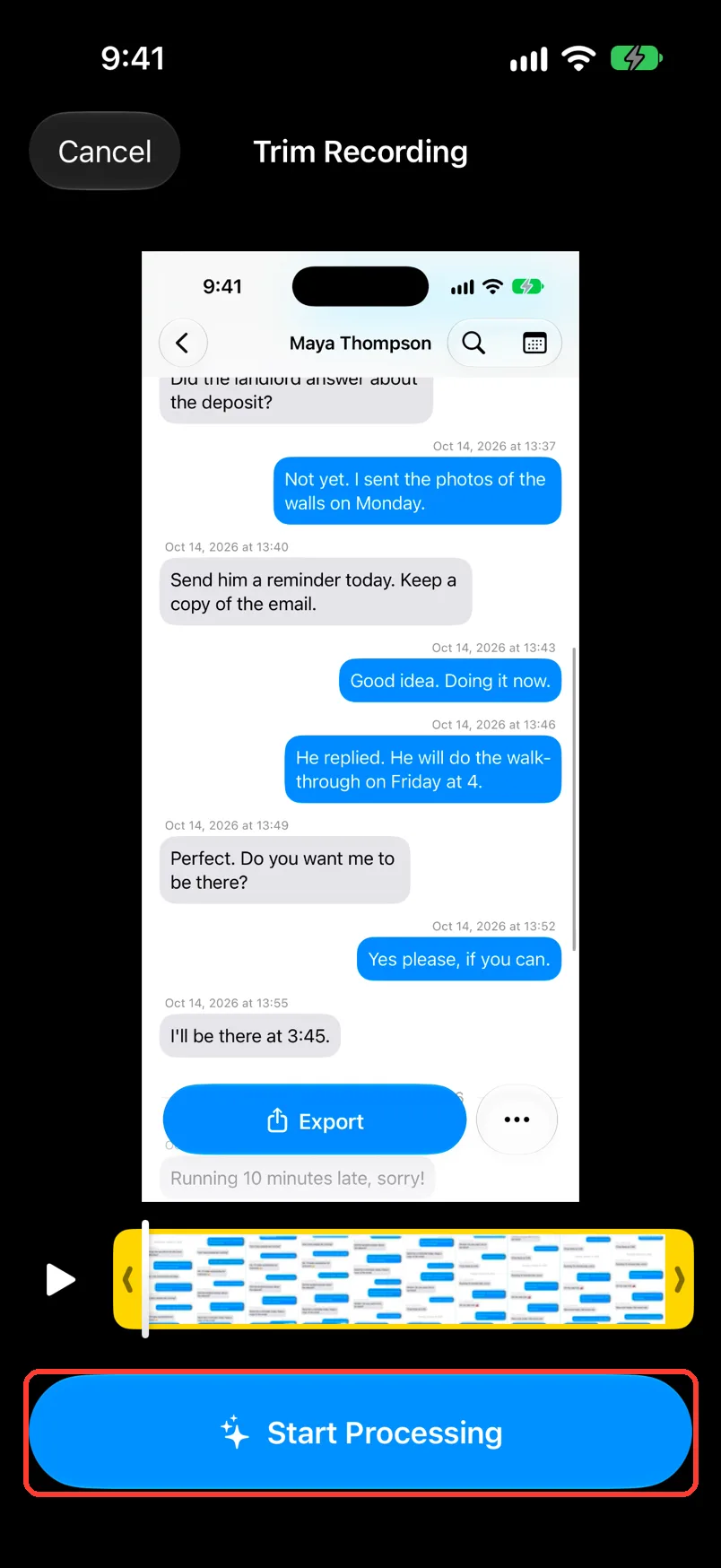
Tap Start Processing
It is the blue button at the bottom. TextPort shows Processing screen recording....
To cut off the start or end first, see Trim a recording.
Done
You have a screen recording of the chat. TextPort reads it and saves the chat in Saved Chats.
Problems
Recording Error shows on the Scroll Capture screen.
Tap the arrow next to it to read why. Then tap Start Screen Recording to record again.
The iOS sheet does not show TextPort.
Close the sheet. Restart your iPhone. Then do step 3 again.
TextPort does not show Recording after the countdown.
The recording did not start. Do steps 3 and 4 again. Tap Start Broadcast, not outside the sheet.
Clip limit reached
The recording stops by itself after 15 minutes. Tap OK. Process this part. Then record the rest of the chat.
Recording Couldn't Be Recovered
The video did not save in full. Tap Discard Recording. Then record the chat again.
You see Unfinished recording in Saved Chats.
TextPort kept a recording that you did not finish. Tap Continue to pick it up.
You picked WhatsApp, and there is no Scroll Capture card.
Tap the app name at the top. Tap Other. Or export the chat from WhatsApp.
There is no Scroll Capture at the top of the screen.
Scroll Capture needs iOS 17.5 or newer. Update iOS. Or import from screenshots.
None of these match.
Email [email protected]. Say which step you were on. Say what you saw. We usually reply within a day.
Questions
-
Yes, while it is on. You start it and you stop it. Close other apps and turn on Do Not Disturb first, so no other messages show.
-
Up to 15 minutes. For a longer chat, make two recordings and process each one.
-
Yes. Save the recording in Photos. Then import it from Photos.
Next guides
-
 How to import a chat with Scroll Capture
You will get a chat from any app saved in TextPort, made from a screen recording of you scrolling.
How to import a chat with Scroll Capture
You will get a chat from any app saved in TextPort, made from a screen recording of you scrolling.
-
 How to trim a recording before processing
You will cut your recording so it starts and ends on the chat, then send it to be read.
How to trim a recording before processing
You will cut your recording so it starts and ends on the chat, then send it to be read.
-
 How to import a screen recording from Photos
You will get a saved chat in TextPort from a screen recording that is already in Photos.
How to import a screen recording from Photos
You will get a saved chat in TextPort from a screen recording that is already in Photos.

Start exporting your messages
Available for iPhone, Mac, and Windows. No computer required.
