

How to see the original screenshots or recording
Quick answer
In the chat:
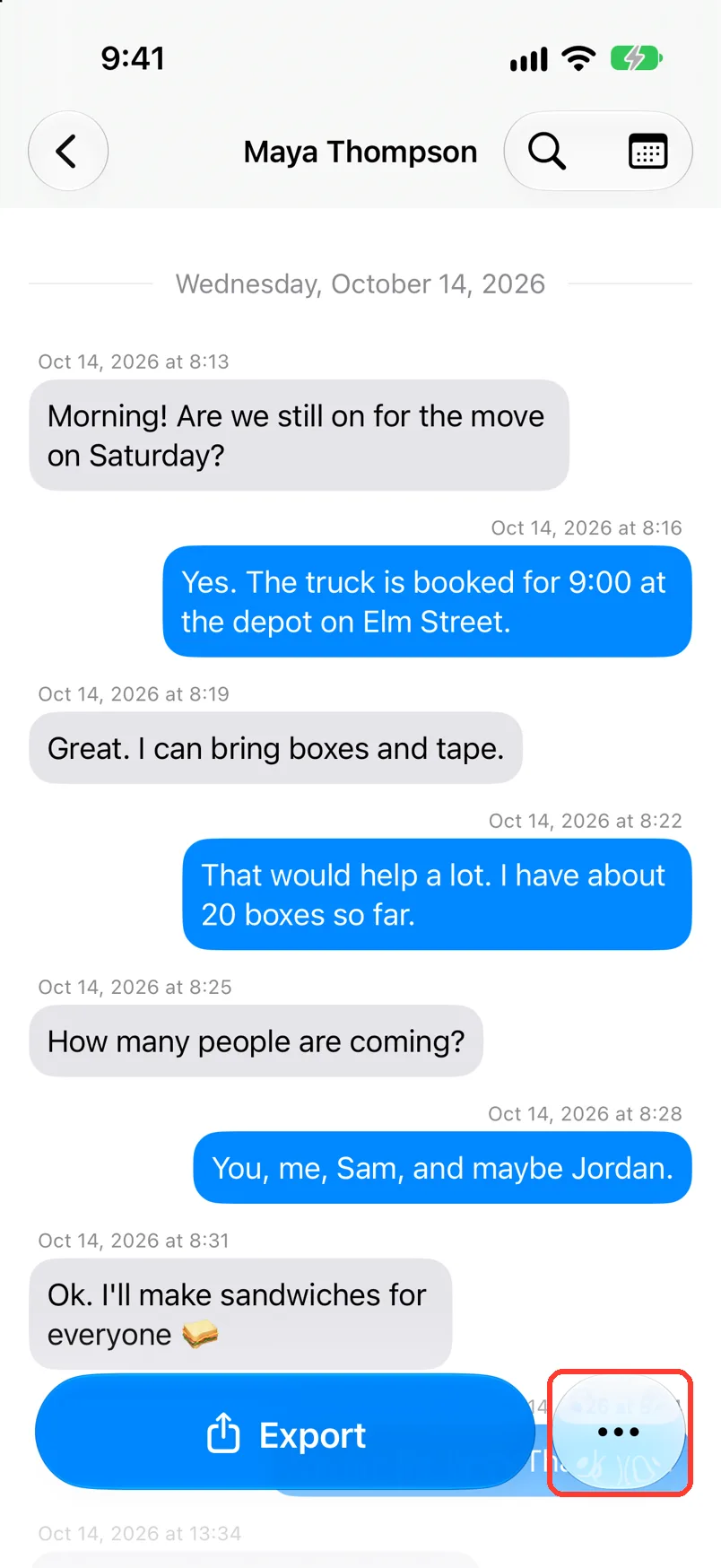
- Tap … next to Export.
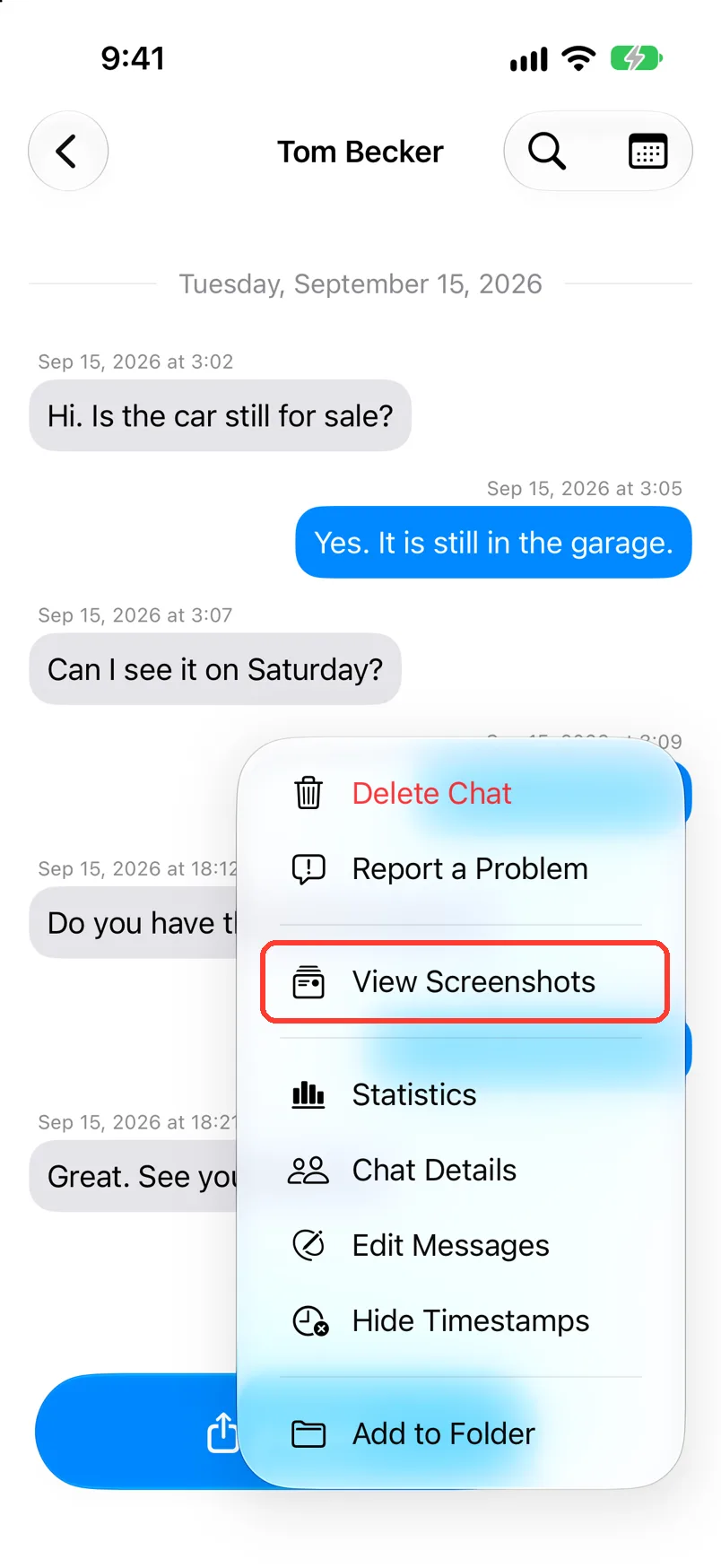
- Tap View Screenshots or View Screen Recording.
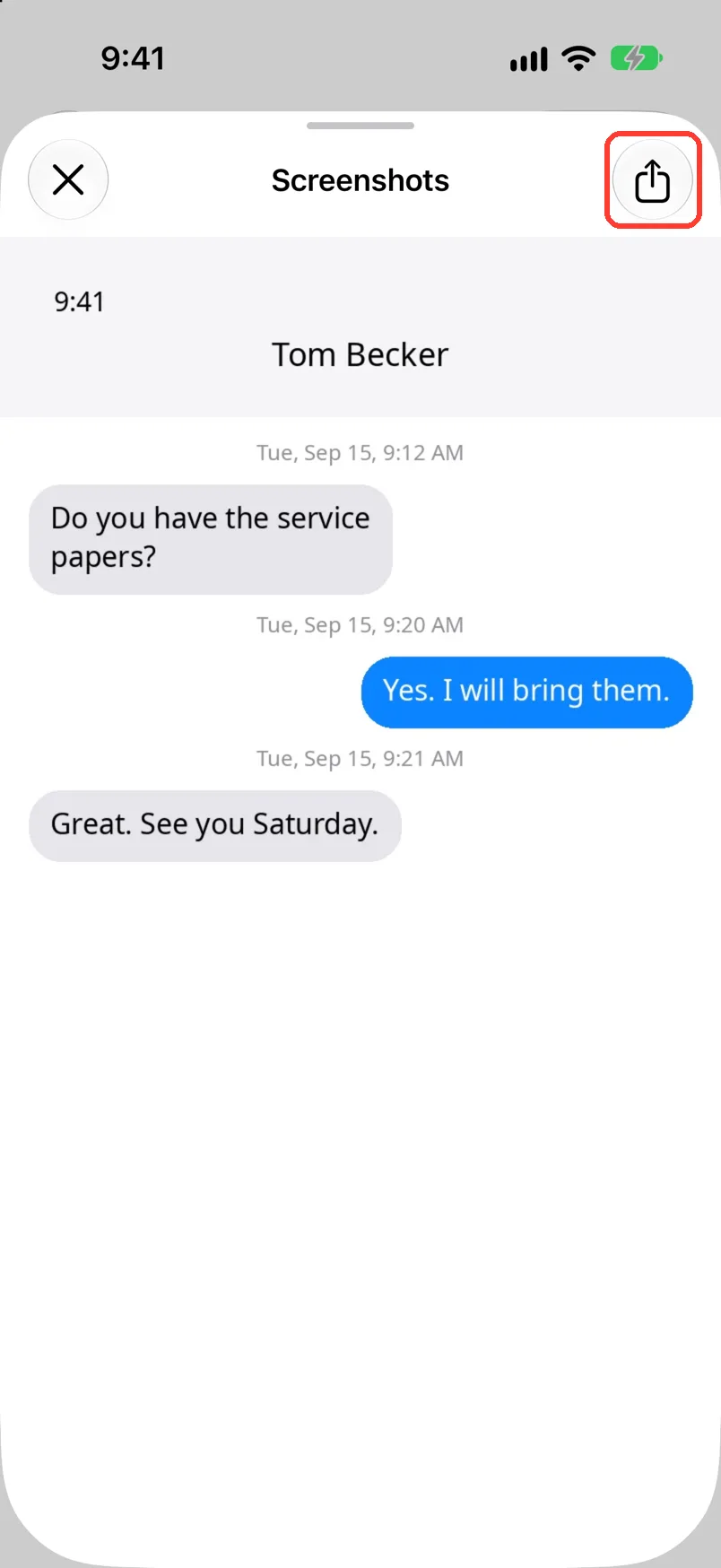
- To save them, tap the share button in the top right.
Tap the X to go back to the chat.
What you need
- ✓TextPort on your iPhone
- ✓A chat from screenshots or Scroll Capture, made on this iPhone
Steps
Screenshots
-
Tap …
Open the chat. It is next to Export at the bottom. A menu opens.
-
Tap View Screenshots
Screenshots opens. Scroll to see them all.
-
Tap the share button
It is in the top right. A menu opens.
-
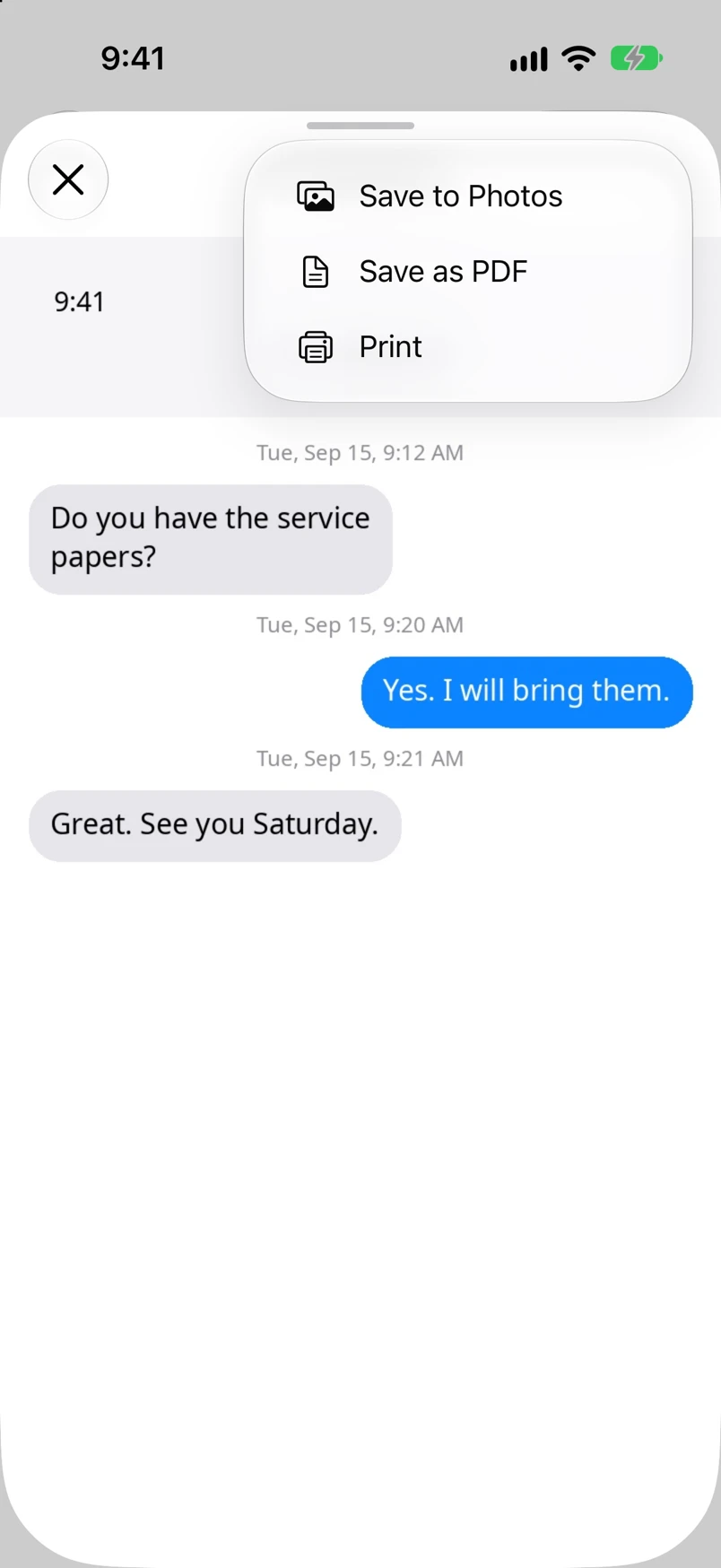
Tap Save to Photos, Save as PDF, or Print
Each one uses all the screenshots of this chat.
Screen recording
-
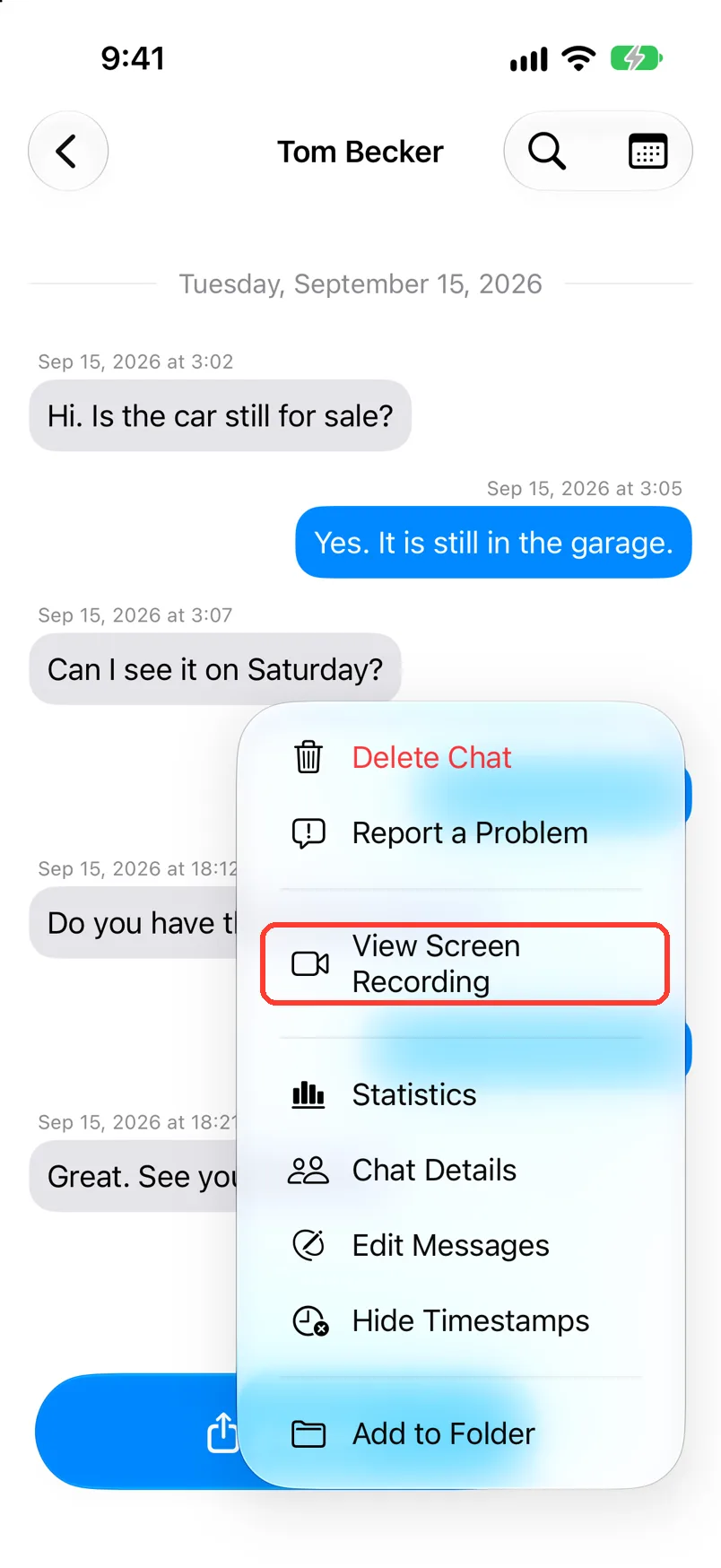
Tap …
Open the chat. It is next to Export at the bottom. A menu opens.
-
Tap View Screen Recording
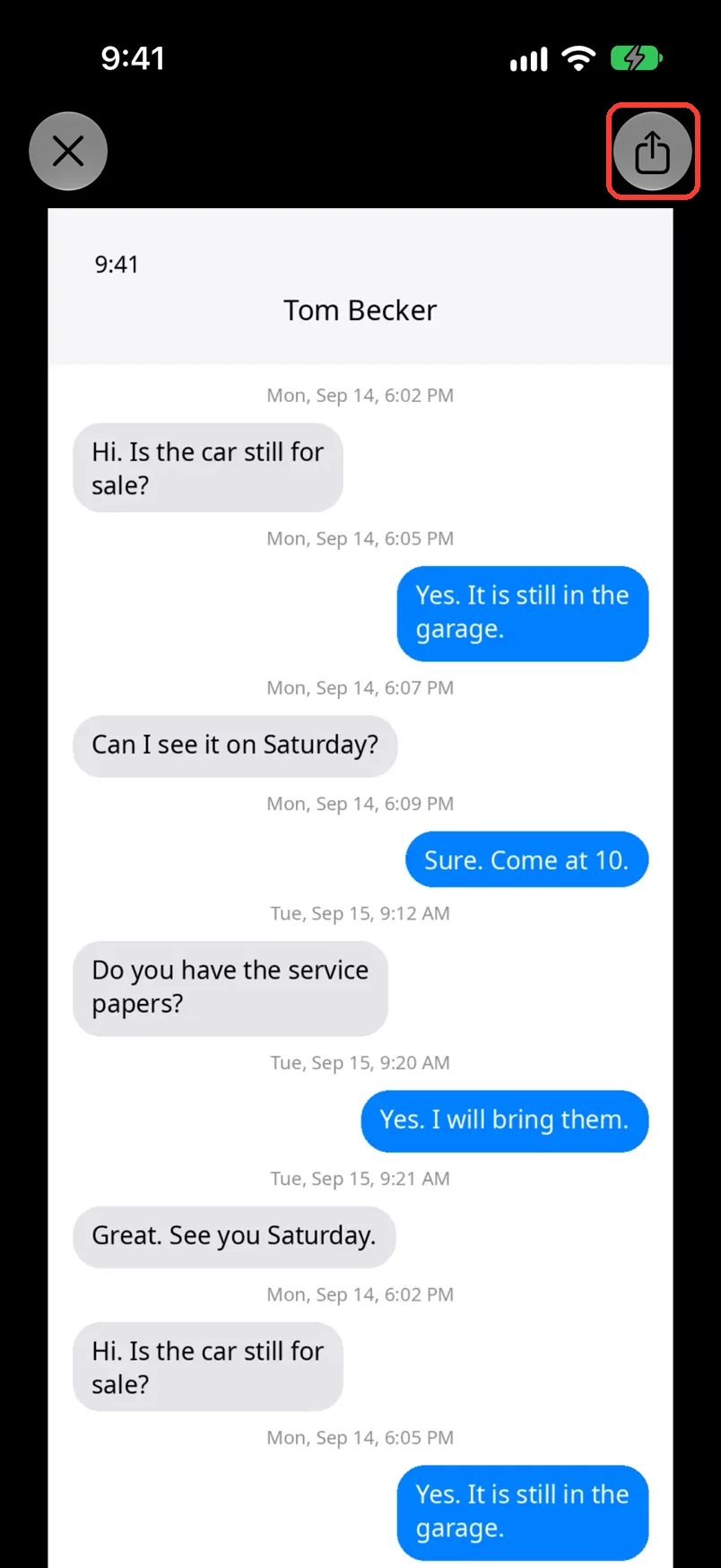
Screen Recording opens and shows the video.
-
Tap the share button
It is in the top right. Tap Share or Save to Photos.
Done
You can see what you imported and check the chat against it.
Problems
No Screenshots or No Recording
The files are gone from this iPhone. The chat itself is still there.
A message does not match the screenshot.
None of these match.
Email [email protected]. Say which step you were on. Say what you saw. We usually reply within a day.
Questions
-
No. The chat PDF has the messages. Use Save as PDF here for a PDF of the screenshots.
Next guides
-
 How to fix wrong text, times, or missing messages
Every message TextPort read wrong from a screenshot or recording will say the right thing.
-
 How to edit a message's text or time
The message will show the right words and the right date and time.
-
 How to see all photos, videos, and files in a chat
You will see every photo, video, and file in one chat, and save the ones you want.

Start exporting your messages
Available for iPhone, Mac, and Windows. No computer required.
