
5 Best Apps to Export SMS from iPhone in 2026
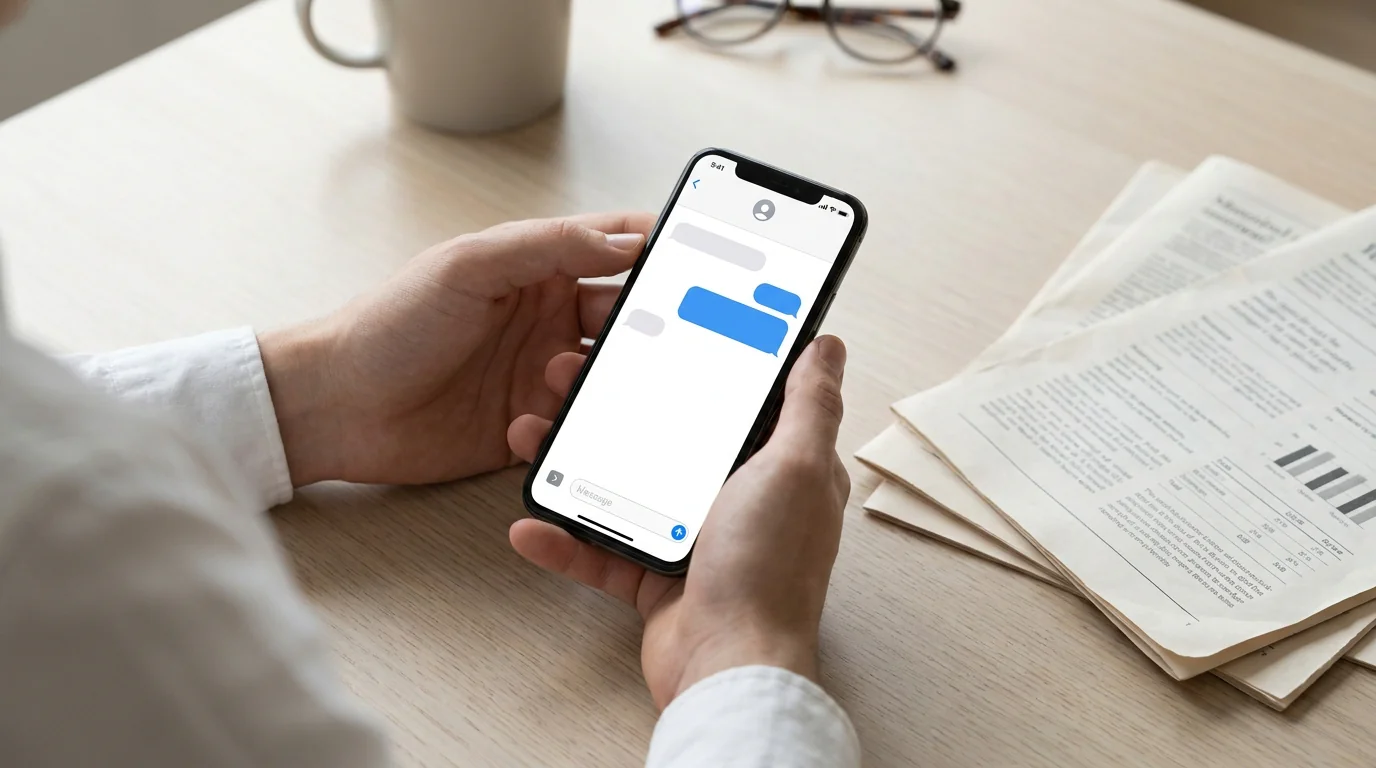
Apple doesn't include a built-in way to save or export SMS conversations as files you can actually use. No PDF, no spreadsheet, no archive — just messages trapped on a glass screen. That gap has led to a range of third-party tools, each with a different approach, price point, and use case.
The five apps below cover the main options available in 2026, from phone-first solutions that require zero hardware to desktop tools built around full iPhone backups.
How to pick the right SMS export app
Before running through the list, two questions narrow things down fast:
- Do you have access to a computer? Desktop tools tend to offer deeper iMessage and SMS access, but they require a Mac or Windows PC and a USB connection or local backup. If you need to export directly from your iPhone — no laptop, no cables — only a couple of options apply.
- What format do you need? PDF works for legal filings, printing, and sharing. CSV works for analysis in Excel or Google Sheets. Plain text (.txt) is the lightest option for quick reference.
With those two filters in mind, here's how the leading tools compare.
1. TextPort — best for iPhone-only, no computer needed
TextPort means you don't need a computer, a USB cable, or an iTunes backup. On iOS 26.4 or later, TextPort's Shortcut brings a conversation in from the Messages app, iMessage and SMS alike, with sender names, timestamps, and message order intact. On older iOS, screenshots or a screen recording work too. The export comes out as a formatted PDF, CSV, or plain text file.
It supports iMessage, SMS, WhatsApp, Instagram DMs, Facebook Messenger, Telegram, Signal, and any other messaging app on your iPhone. There's no limit on the number of messages or conversations you can export.
The output is designed for real-world use: PDF exports are clean enough for legal filings, custody disputes, or HR documentation, while CSV exports work directly in Excel or Google Sheets. Step-by-step guidance makes the process accessible without any technical background.
Best for: Anyone who needs to export text messages from iPhone without a computer, or who needs coverage beyond iMessage and SMS. Formats: PDF, CSV, TXT Platform: iPhone/iPad (iOS app)
Desktop option: if you'd rather export from a computer, TextPort has two desktop apps for iMessage and SMS. TextPort for Mac reads the Messages already on your Mac (turn on Messages in iCloud to get your iPhone's full history), with no cable and no backup. TextPort for Windows backs up your iPhone over USB through Apple's Apple Devices app or iTunes, or opens a backup already on the PC. Both export many conversations at once to PDF, CSV, or TXT with a date range, plus a ZIP of attachments. No account, and nothing is uploaded. Neither reads WhatsApp or other third-party apps.
2. iMazing — best for bulk iMessage/SMS export with a computer
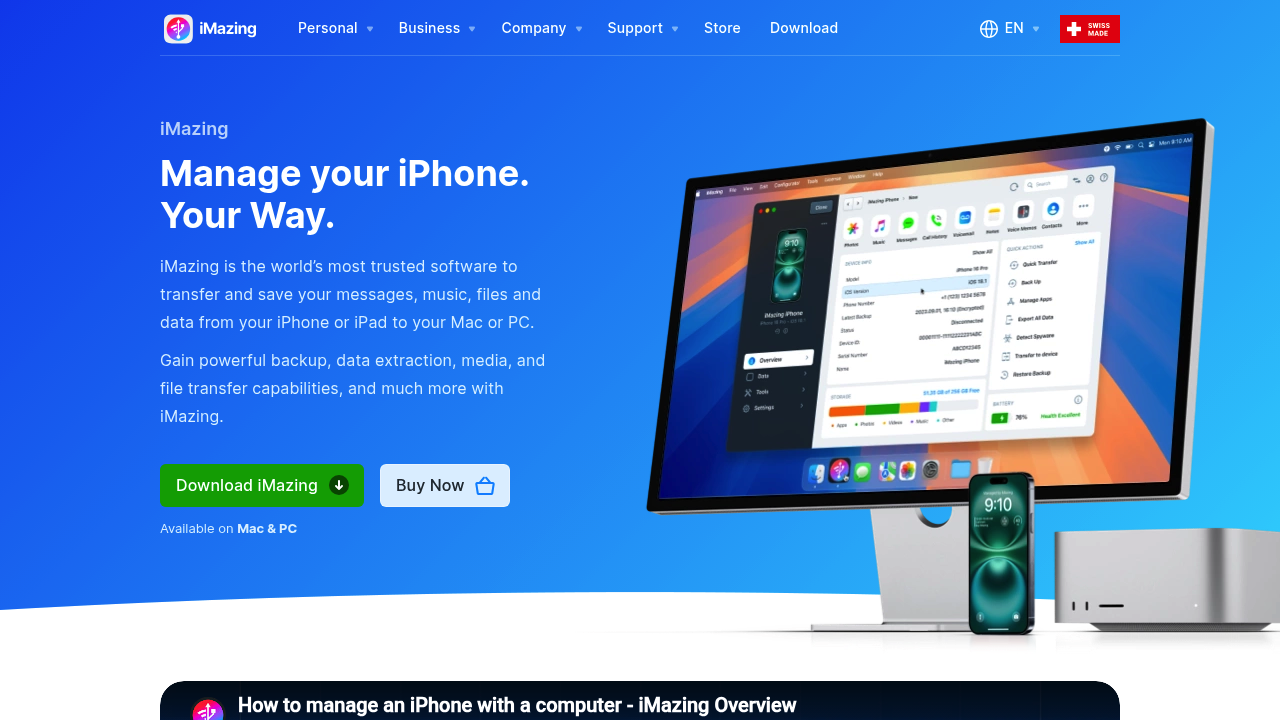
iMazing is a Mac and Windows application that reads directly from your iPhone's local backup or a live USB connection. It exports iMessage and SMS to PDF, Excel/CSV, TXT, HTML, and a forensic format called RSMF. It also handles photos, voicemails, app data, and full device backups — so if you need a complete device manager alongside message exports, it covers that too.
The trade-off is setup time. iMazing requires a computer, a cable or Wi-Fi connection, and an initial backup before you can export anything. The free trial lets you browse messages but paywalls actual export. Pricing moved to a subscription model in 2025.
For WhatsApp or other third-party messengers, coverage is more limited compared to iMessage and SMS. If your conversations live outside Apple's native apps, check compatibility before buying.
Best for: Bulk iMessage and SMS export; users who also want full device management. Formats: PDF, CSV/Excel, TXT, HTML, RSMF Platform: Mac, Windows
See the iMazing alternative comparison for a side-by-side breakdown.
3. Decipher TextMessage — best for clean print-ready PDFs
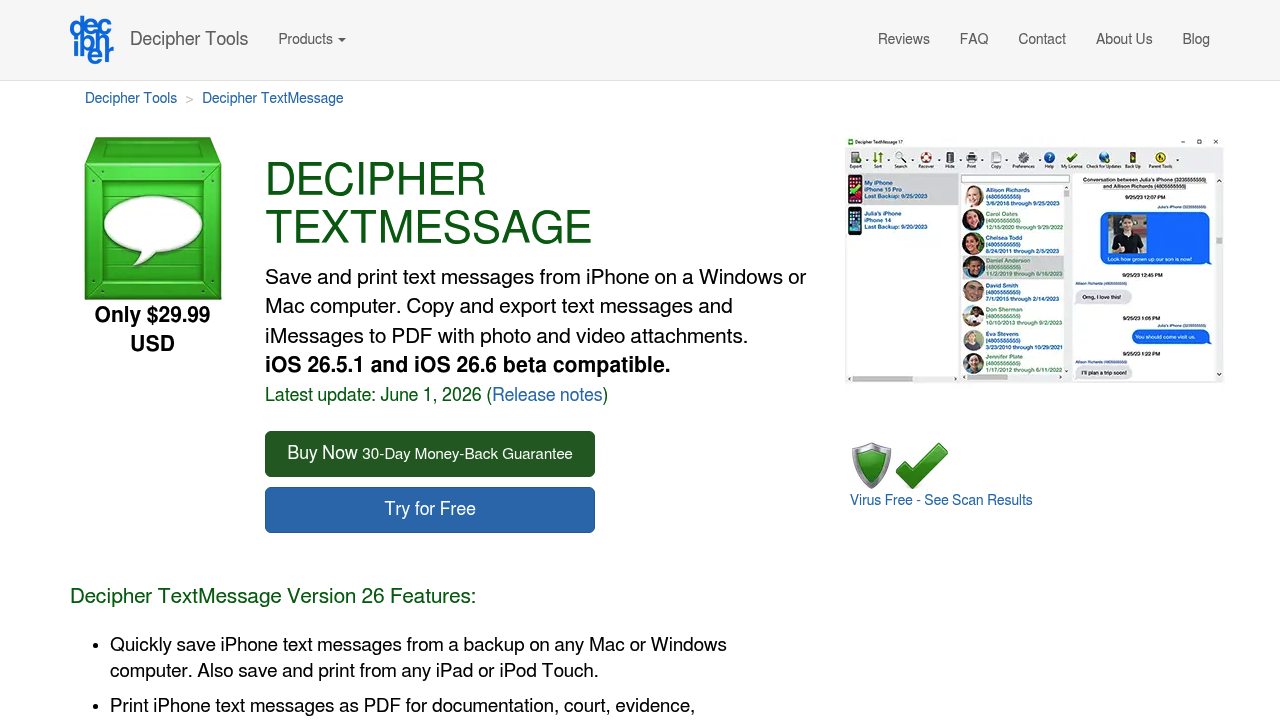
Decipher TextMessage is a desktop-only tool focused entirely on message extraction. It reads from an iPhone backup on Mac or Windows and produces PDFs that replicate the visual layout of iPhone text bubbles — blue for iMessage, green for SMS — with contact names and timestamps on every line. Attorneys frequently cite it for legal documentation, according to Decipher Tools' own published guidance.
The interface is minimal compared to iMazing, which makes it less overwhelming if all you need is messages. It's also typically priced lower than iMazing, though it lacks device management features entirely.
Like all desktop tools, it doesn't support third-party apps like WhatsApp or Instagram DMs — only iMessage and SMS accessible through an Apple backup.
Best for: Court filings, legal evidence, printed transcripts of iMessage/SMS. Formats: PDF, CSV, HTML, TXT Platform: Mac, Windows
For a direct comparison, see Decipher TextMessage vs. TextPort.
4. TouchCopy — best for bulk transfers alongside other media
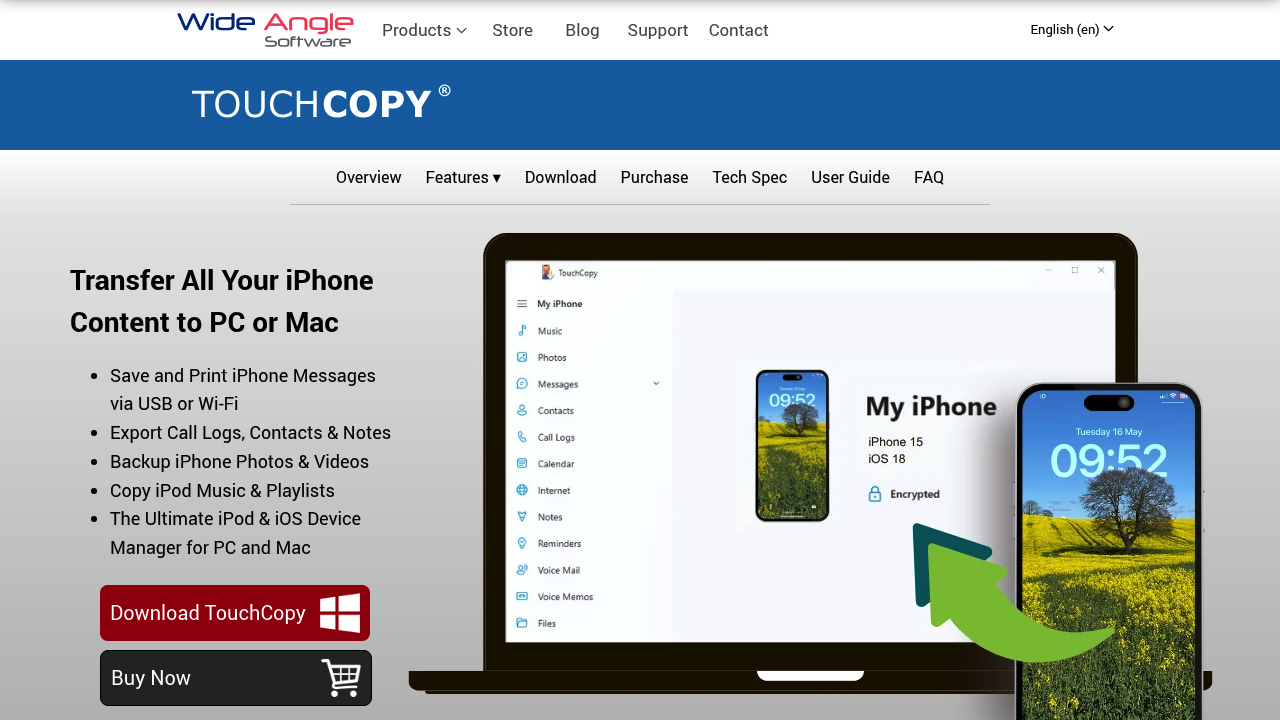
TouchCopy, made by Wide Angle Software, connects to your iPhone over USB or Wi-Fi and lets you export messages, music, photos, and contacts to a Mac or Windows PC. For SMS and iMessage export it produces PDF, HTML, or plain text output, with attachments optionally included.
It's a practical choice for users who want to transfer multiple types of iPhone content in one session rather than installing separate tools for each. Message-only users may find it more than they need. Like other desktop tools, third-party messenger support is limited, and it doesn't work on the iPhone itself.
Best for: Users who need messages plus other iPhone content moved to a computer. Formats: PDF, HTML, TXT Platform: Mac, Windows
See TouchCopy vs. TextPort for a feature comparison.
5. CopyTrans Contacts — best for Windows-only users
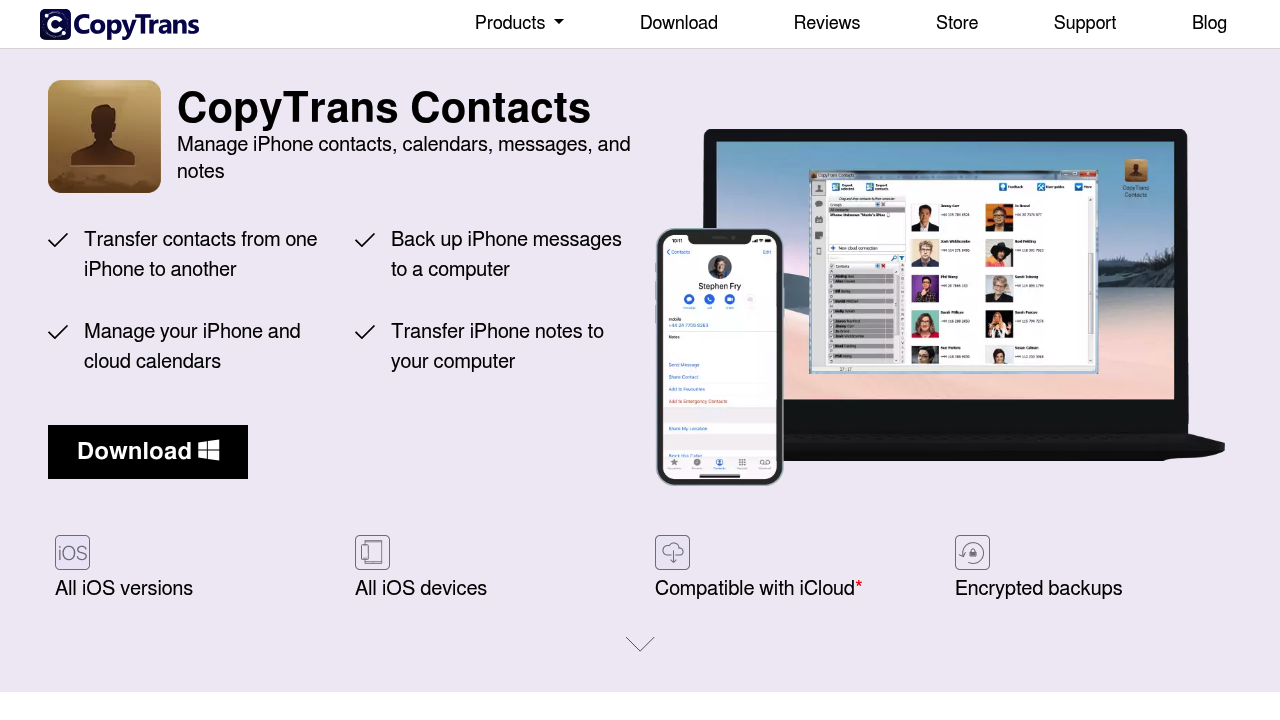
CopyTrans Contacts is a Windows application that manages iPhone contacts, calendars, and messages. For SMS export it reads from a local iPhone backup and can save conversations to PDF or plain text. It's part of the broader CopyTrans suite, so users who already own other CopyTrans tools may find it a natural addition.
The downside is Windows-only availability, which immediately disqualifies it for Mac users. Coverage is also focused on native Apple messaging — WhatsApp and other third-party apps aren't well-supported. If you don't already own CopyTrans, TextPort for Windows is an alternative on Windows 10 and 11 that exports iMessage and SMS to PDF, CSV, or TXT from an iPhone backup.
Best for: Windows users with existing CopyTrans licenses who need basic SMS/iMessage export. Formats: PDF, TXT Platform: Windows only
Quick comparison
| App | Requires computer | Third-party apps | Export formats | Best use case |
|---|---|---|---|---|
| TextPort | No | Yes (any messaging app) | PDF, CSV, TXT | Mobile-first, all messengers |
| TextPort for Mac / Windows (desktop option) | Yes (Mac/Win) | No | PDF, CSV, TXT | Whole iMessage/SMS histories on a computer |
| iMazing | Yes (Mac/Win) | Limited | PDF, CSV, TXT, HTML, RSMF | Bulk iMessage/SMS + device management |
| Decipher TextMessage | Yes (Mac/Win) | No | PDF, CSV, HTML, TXT | Print-ready iMessage/SMS PDFs |
| TouchCopy | Yes (Mac/Win) | No | PDF, HTML, TXT | Mixed media + message export |
| CopyTrans Contacts | Yes (Win only) | No | PDF, TXT | Windows-only basic export |
Which app fits your situation
If you need to export SMS right now from your phone — no laptop nearby, no time for backups — TextPort is the only option on this list that needs no computer and covers third-party messaging apps beyond iMessage and SMS.
For users who have a Mac or PC and need to pull an entire iMessage history in one go, TextPort for Mac and TextPort for Windows export every conversation at once, and iMazing offers the deepest feature set. Decipher TextMessage is the cleaner, more focused choice if the output is headed for court or a legal filing. TouchCopy and CopyTrans Contacts fill gaps for users with specific platform constraints or existing software investments.
For a deeper look at the export process itself, the guide on how to download your text message history from iPhone walks through each method step by step, including free options and when they fall short.

Start exporting your messages
Available for iPhone, Mac, and Windows. No computer required.
