
Can You Use iMessage on Windows? What Works in 2026
Short answer: no, not the way you'd hope. Apple doesn't make iMessage for Windows, and there's no way to sign in to iMessage on a PC the way you can on a Mac. What you can do depends on what you're after:
- Text from your PC while your iPhone is nearby: use Microsoft Phone Link. It works, with real limits.
- Full iMessage on a PC, with photos and group chats: you need a Mac running somewhere, through a tool like BlueBubbles or a remote desktop.
- Read, search, or keep your message history on a PC: that's a different job, and TextPort for Windows exports it to PDF, CSV, or text, attachments included.
Here's what each option actually does in 2026, based on what Microsoft, Apple, and the tool makers say themselves.
Is there an iMessage app for Windows?
No. iMessage is part of Apple's Messages app, which runs on iPhone, iPad, Mac, Apple Watch, and Apple Vision Pro (Apple Support). There is no Windows version, no Microsoft Store app, and no iMessage on the web.
iCloud doesn't fill the gap either. Apple's list of what you can do with iCloud on a Windows device covers Photos, iCloud Drive, Passwords, Mail, Contacts, Calendars, and bookmarks. Messages isn't on it, and Messages in iCloud only syncs to iPhone, iPad, and Mac.
So every way of getting iMessages onto a PC goes through one of your Apple devices: your iPhone (Phone Link, or a backup) or a Mac (bridge apps and remote desktop).
Option 1: Microsoft Phone Link (the official way)
Phone Link is Microsoft's free app for connecting a phone to a Windows PC. With an iPhone, it connects over Bluetooth and shows your texts, calls, and notifications on the PC.
What you need (Microsoft's requirements):
- A PC with Windows 10 (May 2019 Update or later) or Windows 11
- Bluetooth Low Energy on the PC
- An iPhone with iOS 16 or later and the Link to Windows app
How to set it up:
- Open Phone Link on your PC and choose iPhone.
- Follow the prompts to install Link to Windows on your iPhone and pair it with your PC over Bluetooth.
- When asked, allow access to your messages. If you skipped it, go to Settings > Bluetooth on your iPhone, tap the info button next to your PC, and turn on Show Notifications and Sync Contacts.
What works and what doesn't, per Microsoft's messaging guide:
| Feature | Phone Link with iPhone |
|---|---|
| Read and reply to individual texts | Yes |
| Emoji | Yes |
| Send or receive photos, GIFs, Memoji | No |
| Start or reply to group chats | No (you see a notification and reply on your iPhone) |
| Message history | Only messages sent or received while connected; older ones can't be retrieved, and the rest disappears when Bluetooth disconnects |
| Save or export messages | No |
Phone Link is good for answering a quick text without picking up your phone. It isn't iMessage on Windows in the full sense: no media, no group chats, and nothing stays on the PC once the phone disconnects.
Option 2: Mac-based tools (BlueBubbles, Beeper)
The apps that get closest to real iMessage on a PC all have one thing in common: a Mac does the iMessage part.
BlueBubbles is a free, open-source project. You run the BlueBubbles server on a Mac that's signed in to iMessage, and its clients on Windows, Linux, the web, or Android connect to that Mac (GitHub). The project's own docs say the server can't run on Windows or Linux because it relies on the macOS Messages app and its database. The Mac has to stay on and awake for messages to keep flowing.
Beeper combines many chat services in one app, and it has a Windows version, but iMessage isn't part of it there. Beeper's help center says iMessage "can only be connected via Beeper on a Mac" and that it has no plans to support it on other platforms (Beeper Help). If you've read older articles recommending Beeper for iMessage on a PC, that advice is out of date.
Remote desktop is the blunt version of the same idea: leave a Mac running and control it from your PC with a remote desktop app. You get the real Messages app with everything in it, as long as the Mac stays on and reachable.
All three are reasonable if you already own a Mac you can leave running. If you don't, none of them get you iMessage on Windows.
What happened to Intel Unison?
Intel Unison used to be the other common answer. It connected iPhones to Windows PCs for texts and calls, but Intel discontinued it on June 30, 2025. If a guide still recommends it, it's out of date.
Be careful with smaller apps that promise "iMessage on Windows, no Mac needed." iMessage only runs on Apple devices, so any app that offers it has to route your messages through an Apple device somewhere. Before you sign in, find out whose device that is.
How to view your iPhone messages on a PC
A lot of people searching for iMessage on Windows don't need to send messages from their PC. They want to read an old conversation on a bigger screen, search years of texts, or save a chat before switching phones. Phone Link can't help with that, since it keeps no history.
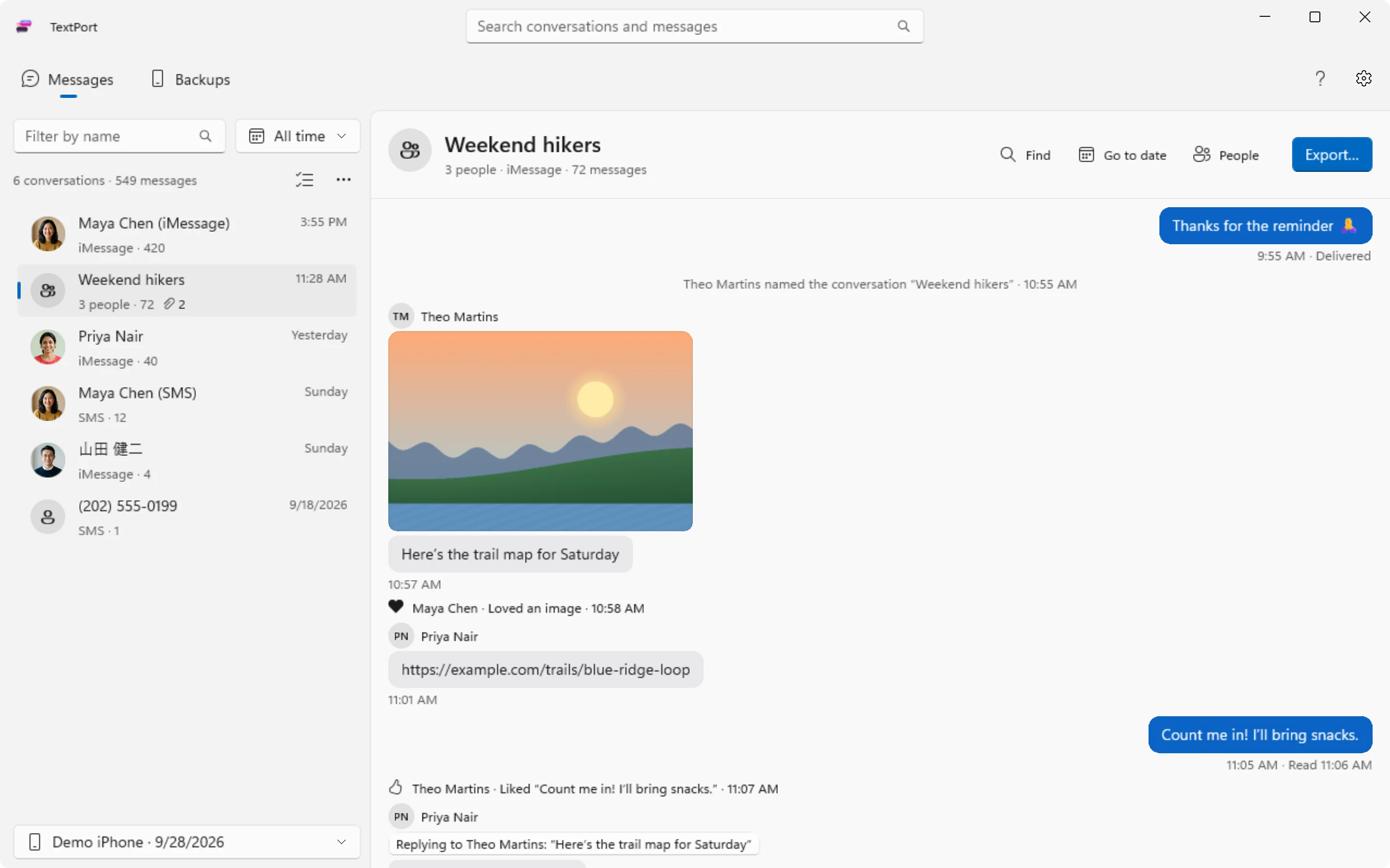
For that, TextPort for Windows lets you read and export your iPhone messages on a PC. It runs on Windows 10 and 11 and exports whole conversations to PDF, CSV, or TXT, with photos and attachments included.
- Install TextPort for Windows and connect your iPhone with its USB cable. TextPort checks that Apple Devices (or iTunes on older versions of Windows 10) is installed and walks you through setup.
- Unlock the iPhone, tap Trust, and start the backup. TextPort backs up the phone to your PC.
- Browse your iMessage and SMS conversations, including group chats, photos, and attachments. Search across all of them or jump to a date.
- Export any chat, or all of them, to PDF, CSV, TXT, or a ZIP of attachments.
If you already have an Apple Devices or iTunes backup on your PC, TextPort can open it too (it reads unencrypted backups and shows you how to turn encryption off if needed). Once the backup is on your PC, you can read your messages without the phone connected. There's no account and nothing is uploaded: your messages stay on your computer.
TextPort for Windows reads your history; it doesn't send messages. Pair it with Phone Link if you want both.
On a Mac, TextPort for Mac does the same job by reading the Messages already synced to the Mac. For chats in WhatsApp, Instagram, or Messenger, use TextPort for iPhone. For a step-by-step comparison of every method, see how to transfer text messages from iPhone to a computer.
Which option should you use?
| What you want | Best option | Needs a Mac? |
|---|---|---|
| Reply to texts from your PC | Phone Link | No |
| Full iMessage with photos and group chats | BlueBubbles or remote desktop | Yes |
| Read and search your message history on a PC | TextPort for Windows | No |
| Save conversations as PDF, CSV, or TXT | TextPort for Windows | No |
Will iMessage ever come to Windows?
Apple hasn't announced any plans for iMessage on Windows, and it hasn't brought Messages to iCloud for Windows or iCloud.com. Apple has opened up texting in other ways, such as RCS support for messaging Android users from an iPhone, but iMessage itself remains on Apple devices. Until that changes, Phone Link and Mac-based bridges are the realistic ways to text from a PC, and a backup is the way to keep your history on one.
Frequently asked questions
-
Not directly. Apple has no iMessage app for Windows and no iMessage on the web. Microsoft Phone Link lets you read and reply to texts from your iPhone on a Windows PC, with limits: no photos, no group replies, and no messages from before you connected or after the phone disconnects. Full iMessage on a PC requires a Mac running as a bridge.
-
Only on a Mac. Apple's Messages app runs on iPhone, iPad, Mac, Apple Watch, and Apple Vision Pro. There is no version for Windows or Linux.
-
No. iCloud.com and iCloud for Windows don't include Messages. Browser-based options like the BlueBubbles web client work only by connecting to a Mac you keep running.
-
No. Phone Link only shows messages sent and received through it while your iPhone is connected. Older messages from before you connected can't be retrieved, and Microsoft says disconnecting Bluetooth removes even that history. It doesn't save or export anything.
-
No. Beeper's help center says iMessage can only be connected through Beeper on a Mac, and that it has no plans to support it on other platforms.
-
Back up the iPhone to your PC first. TextPort for Windows makes that backup over USB and reads your iMessage and SMS conversations from it, so once the backup is on your PC you can read, search, and export your messages without the phone connected.

Start exporting your messages
Available for iPhone, Mac, and Windows. No computer required.
