
7 Best Apps to Export iMessages on Mac in 2026
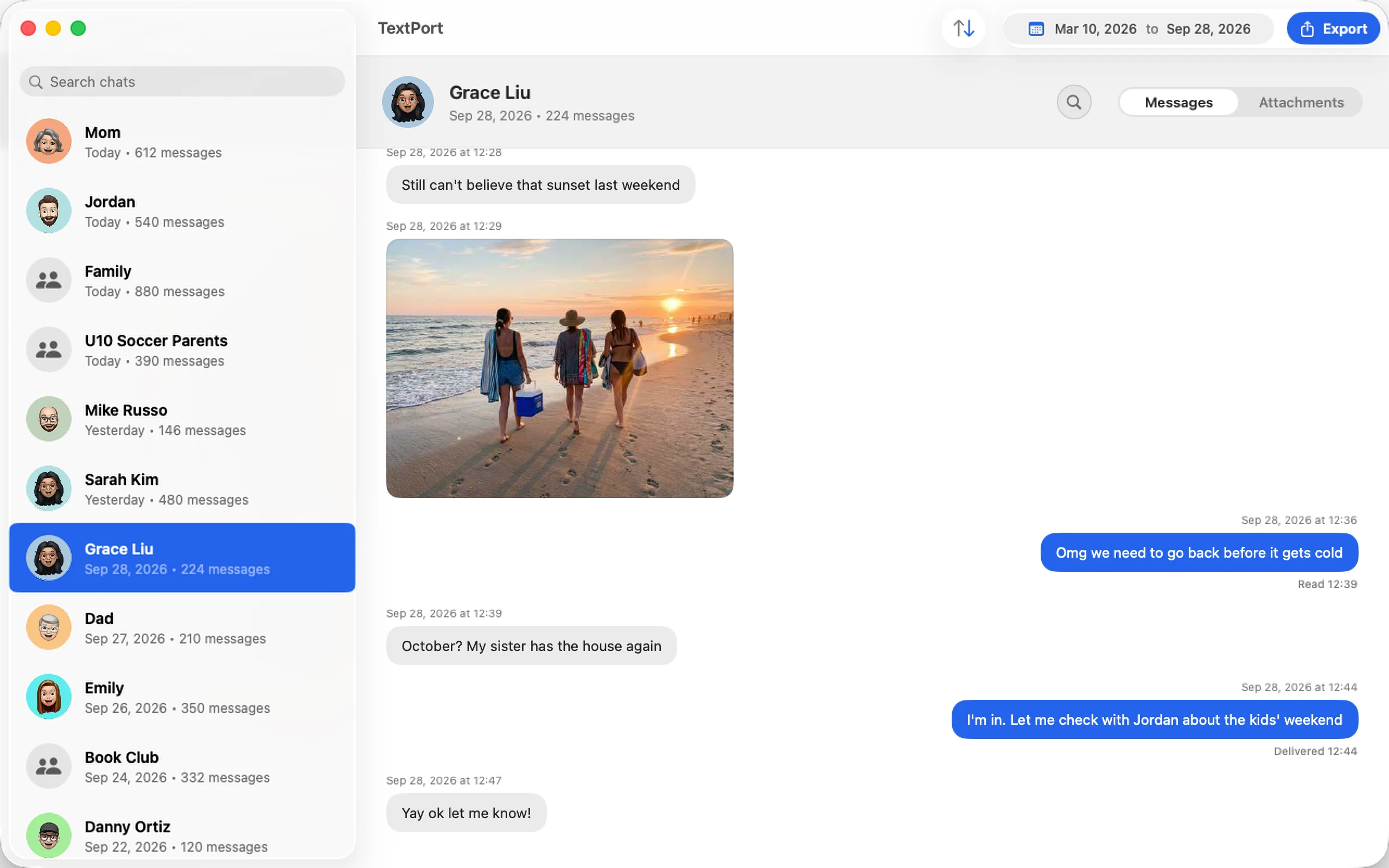
Messages on a Mac holds your whole iMessage and SMS history once Messages in iCloud has synced it, but Apple gives you no Export button. The only built-in option is File > Print, one conversation at a time, and only what has loaded on screen. If you need years of texts as a PDF for a lawyer, a spreadsheet of business messages, or every photo from a group chat, you need an export app.
The short answer: TextPort for Mac is the best app to export iMessages on a Mac in 2026. It is free on the Mac App Store, reads the Messages already on your Mac (no cable, no iPhone backup), and exports whole conversations, or every conversation at once, to PDF, CSV, or TXT with a ZIP of attachments. There is no account and nothing is uploaded. The other six options below earn their places for specific jobs: Apple's File > Print for a short chat, iMazing for full device management, Decipher TextMessage for a one-time license, and imessage-exporter if you are comfortable in Terminal.
The seven Mac options at a glance
| App | Price | How it gets your messages | Apps covered | Export formats |
|---|---|---|---|---|
| TextPort for Mac | Free | Reads Messages on the Mac (synced via iCloud) | iMessage, SMS | PDF, CSV, TXT, attachments ZIP |
| Apple Messages (File > Print) | Free, built in | Messages on the Mac | iMessage, SMS | PDF (via the print dialog) |
| iMazing | Annual subscription | iPhone over USB/Wi-Fi or a backup | iMessage, SMS, RCS, WhatsApp | PDF, Excel/CSV, TXT, RSMF |
| Decipher TextMessage | $29.99 one-time | iPhone backup or the Mac's Messages | iMessage, SMS, MMS, RCS | PDF, CSV, HTML, TXT |
| imessage-exporter | Free, open source | The Mac's Messages database or a backup | iMessage, SMS | HTML, TXT |
| TouchCopy | From $30 | iPhone over USB/Wi-Fi or a backup | iMessage, SMS, RCS, WhatsApp, LINE | PDF, HTML, CSV, TXT |
| AnyTrans | From ~$40/year | iPhone over USB/Wi-Fi | iMessage, SMS, WhatsApp | PDF, TXT, HTML |
Prices are from each vendor's site as of October 2026 and can change.
What to look for in a Mac iMessage export app
- Where it reads from. Some apps read the Messages database on your Mac, which is the fastest route if Messages in iCloud is on. Others need your iPhone plugged in or a full iPhone backup first, which takes time and disk space.
- Whole history, not just what's on screen. Long conversations are where File > Print breaks down. A real export app pulls every message, with a date range if you only need part of it.
- Formats. PDF for printing, court, or a lawyer; CSV for Excel or Numbers; TXT for something small and searchable.
- Attachments. Check whether photos and videos come along, and whether they keep their original quality.
- Price model. Free, one-time license, or annual subscription. Several desktop tools switched to subscriptions in the last two years.
- Privacy. Message history is sensitive. Prefer tools that work locally and don't require an account.
1. TextPort for Mac (best overall, free)
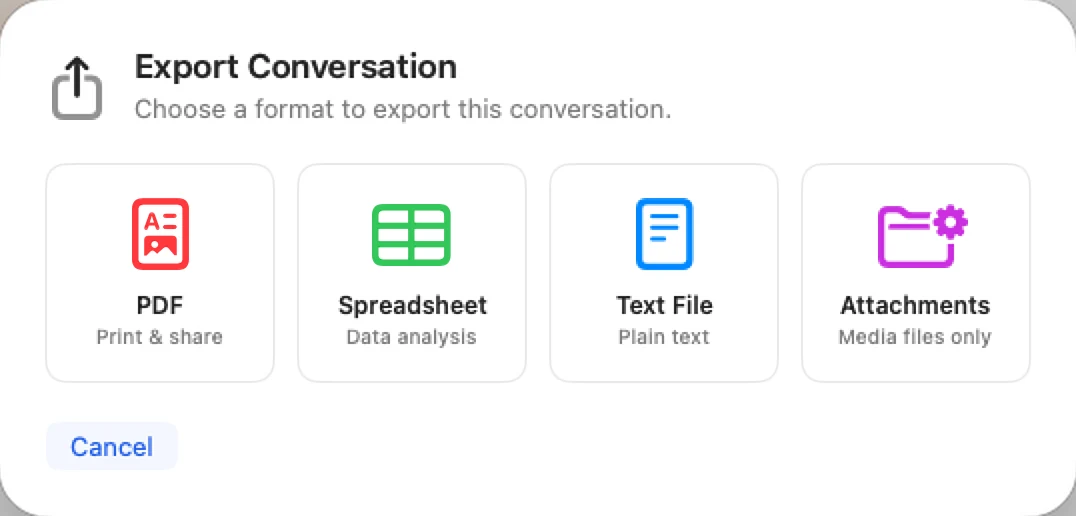
TextPort for Mac is built for one job: getting the iMessages and texts on your Mac out as files. It reads the Messages app's history directly, so with Messages in iCloud turned on it sees your iPhone's full history without a cable, an iPhone backup, or any setup beyond allowing access to the Messages folder when macOS asks.
Every conversation shows up in one list, including group chats. Pick one, several, or all of them, set a date range if you only need certain months, and export:
- PDF with names, dates, and times on every page, ready to print or hand to an attorney
- CSV that opens in Excel, Numbers, or Google Sheets, one message per row
- TXT for plain, searchable text
- A ZIP of every photo, video, and attachment in the conversation, at original quality
You can also print straight from the app, with the oldest or newest message first, and search years of texts for that one address someone sent you. One user turned 32,000 messages into a single 3,266-page PDF in one export.
TextPort for Mac runs on macOS 14.6 or later, on Apple silicon and Intel Macs. It has no account, no export limits, and doesn't upload anything: your messages stay on your Mac. Like every app that reads the Messages database, it covers iMessage and SMS only; for WhatsApp, Instagram, or Signal, use TextPort for iPhone.
Best for: Anyone who wants their whole iMessage history, or one long conversation, as PDF or CSV on a Mac without paying or plugging anything in.
Pricing: Free on the Mac App Store.
2. Apple Messages: File > Print (built in)
The Messages app can print a conversation or save it as a PDF (Apple's instructions): open the conversation, choose File > Print, then pick Save as PDF from the PDF menu at the bottom of the dialog.
It costs nothing and works for a short exchange. For anything longer it gets painful. Messages prints what it has loaded, so you scroll to the start of the thread first, which can take minutes for a conversation that spans years. Timestamps appear only where Messages shows them on screen, attachments other than visible photos are left out, and there is no CSV option or way to export many conversations at once.
Best for: A few days of messages from one conversation, saved as a quick PDF.
Pricing: Free, built into macOS.
3. iMazing
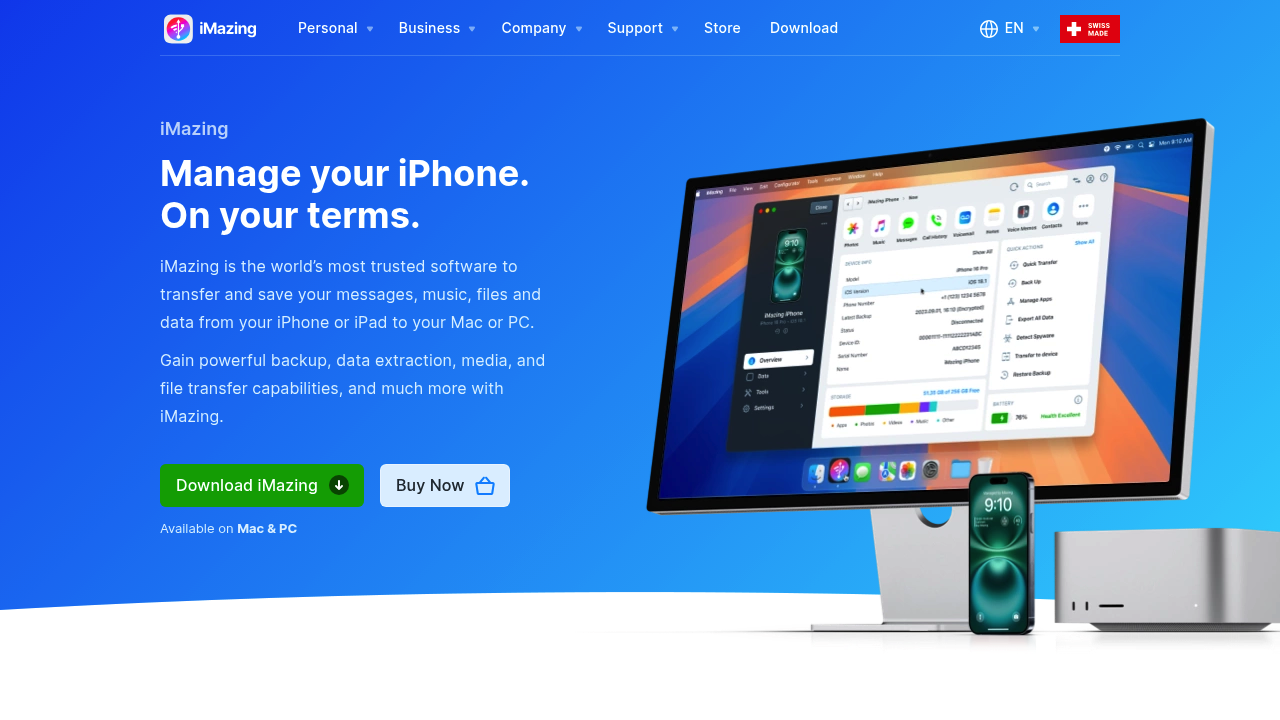
iMazing is a full iPhone manager for Mac and Windows from DigiDNA. For messages, it reads SMS, MMS, iMessage, RCS, and WhatsApp from your iPhone over USB or Wi-Fi, or from a backup, and exports to PDF, Excel/CSV, TXT, or RSMF, a format used in legal review. It also saves attachments (photos, videos, audio, contacts, locations) in bulk (iMazing).
Its strengths are breadth and WhatsApp support from a backup. The trade-offs are the setup (iPhone connected and backed up first) and the price model: iMazing retired its one-time license in mid-2025 and now sells only subscriptions. The Personal plan renews yearly and covers up to 20 devices per year on any number of computers (licensing policy). The free trial exports 25 Messages items (iMazing). Our iMazing pricing FAQ covers the plans in detail.
Best for: People who also want backups, app management, and WhatsApp export in one paid tool.
Pricing: Annual subscription; check iMazing's store for the current price.
4. Decipher TextMessage
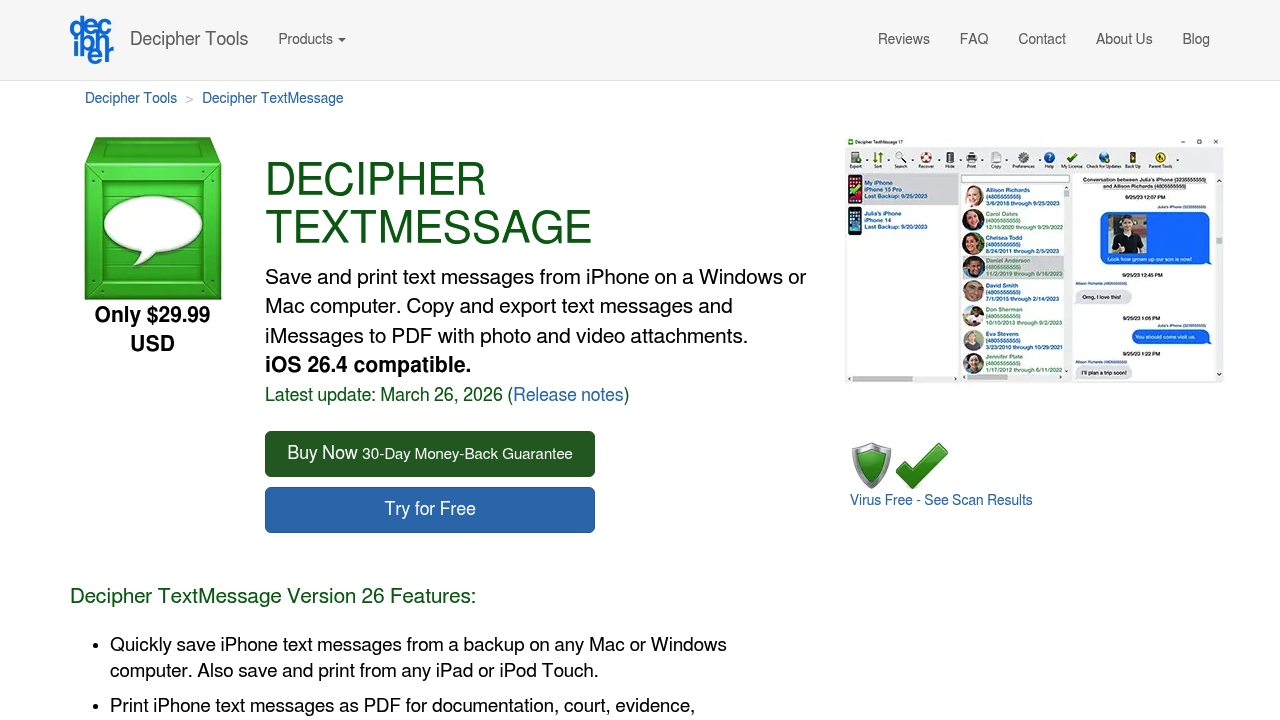
Decipher TextMessage is a message-only desktop app for Mac and Windows. It reads iPhone backups made by Finder or iTunes, and on a Mac it can also export the conversations in the Mac's own Messages app. It covers iMessage, SMS, MMS, and RCS, saves images and videos, and exports PDF, CSV, HTML, or TXT, with PDFs styled like the Messages app's chat bubbles (Decipher Tools).
It is one of the few desktop tools still sold as a one-time license, and it runs on macOS back to 10.12 Sierra. The free trial never expires but shows only a few messages from each contact, so you need the license to export a full conversation. WhatsApp is a separate product, Decipher Chat. Our Decipher TextMessage review goes deeper.
Best for: Mac users who want a one-time purchase and chat-bubble PDFs, especially on older macOS versions.
Pricing: $29.99 one-time for two device activations.
5. imessage-exporter (free, open source)
imessage-exporter is a free, open-source command-line tool (GPL-3.0) that reads the Messages database on your Mac, or an iPhone backup folder, and exports every conversation to HTML or TXT. It can copy attachments alongside the export and convert HEIC photos and MOV videos to more portable formats. Version 4.3.0 shipped in September 2026, so it is actively maintained.
The catch is that it runs in Terminal: you download a binary, grant Full Disk Access, and pass options on the command line. There is no PDF or CSV output, so turning the result into a court-ready document or a spreadsheet takes extra steps.
Best for: Developers and technical users who want a free, scriptable archive of their whole message history in HTML.
Pricing: Free.
6. TouchCopy
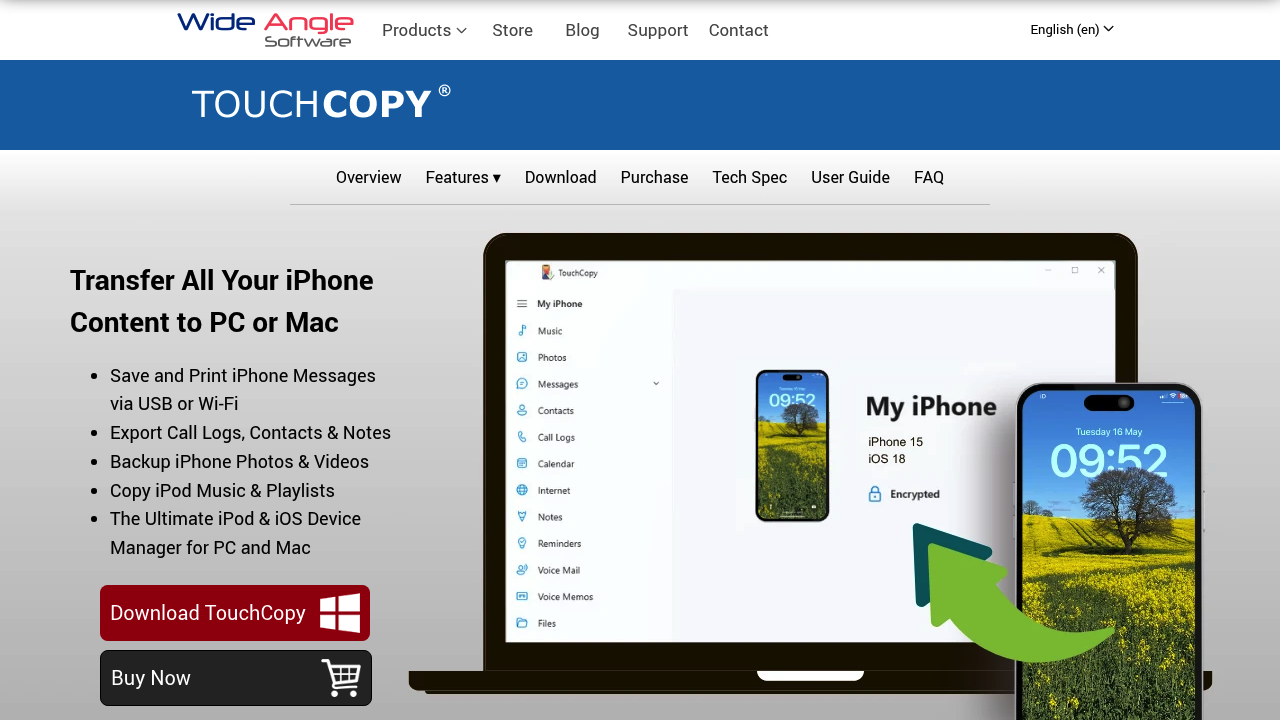
TouchCopy from Wide Angle Software copies messages, music, photos, and other content from an iPhone to a Mac or PC over USB or Wi-Fi, or from a backup. For messages it covers SMS, RCS, iMessage, WhatsApp, and LINE, with photos, videos, and audio messages, and exports to PDF, HTML, CSV, or plain text (Wide Angle Software).
Licenses start at $30 and don't auto-renew: a lifetime license covers two computers, and 6- or 12-month licenses cover one (purchase page). The Mac trial saves only the first 5 messages of each conversation, so you'll need a license for real exports. If you'd rather skip the cable entirely, see our TouchCopy alternative.
Best for: Exporting messages along with music and photos from an iPhone, with a perpetual license.
Pricing: From $30, no auto-renewal.
7. AnyTrans
AnyTrans from iMobie is an iPhone data manager for Mac (macOS 10.13 or later) and Windows. It exports iMessage, SMS, and WhatsApp conversations with photos, videos, and voice messages to PDF, TXT, or HTML, and can print them (iMobie). Its focus is broader: moving data between iPhones, managing iCloud, and transferring music and photos.
iMobie lists a 1-year plan at $39.99 and a lifetime license at $59.99 for one computer at its current sale prices (list prices $59.99 and $79.99) (buy page). If the message PDF is the only thing you need, it's a lot of app for the job; our AnyTrans alternative covers lighter options.
Best for: People switching iPhones or managing lots of iPhone data who also want a message export.
Pricing: From about $40 a year, or about $60 for a lifetime license.
Which Mac app should you choose?
| If you need… | Use |
|---|---|
| Your whole iMessage history as PDF or CSV, free | TextPort for Mac |
| A few messages as a quick PDF | File > Print in Messages |
| Chat-bubble PDFs with a one-time license | Decipher TextMessage |
| WhatsApp from an iPhone backup, plus device management | iMazing or TouchCopy |
| A free, scriptable HTML archive | imessage-exporter |
| WhatsApp, Instagram, Messenger, or Signal without a computer | TextPort for iPhone |
For most people, the decision comes down to whether you want to pay for features beyond messages. If what you need is your conversations as files, TextPort for Mac does it for free and reads straight from Messages, so there's no backup to wait for. If you need a fuller iPhone toolkit, iMazing and TouchCopy are the paid options worth comparing; our Decipher TextMessage vs iMazing comparison covers the two most common picks.
How to export iMessages on a Mac with TextPort
- On your iPhone, open Settings, tap your name, then iCloud, and turn on Messages in iCloud. On your Mac, open Messages > Settings > iMessage and select Enable Messages in iCloud.
- Leave the Mac on until older messages appear. A long history can take a while to sync the first time.
- Download TextPort for Mac from the Mac App Store and allow access to Messages when macOS asks (how to give access).
- Select one or more conversations, choose a date range if you want, and click Export.
- Pick PDF, CSV, TXT, or the attachments ZIP, and save.
Note that Messages in iCloud syncs deletions too: delete a conversation on one device and it disappears from the other. Export first, then clean up.
Exporting iMessages for court
If the export is for a custody case, a harassment claim, or another legal matter, use PDF and keep names, dates, and times on every page. Keep the original messages on your devices, check the export against them, and ask your attorney how your court wants them presented. Our guide to whether text messages can be used in court covers authentication, and TextPort for court shows the PDF format.
Don't have a Mac?
On a Windows PC, TextPort for Windows backs up your iPhone over USB and exports the same PDF, CSV, and TXT files; see the best apps to export iPhone text messages to a PC. With no computer at all, TextPort for iPhone exports conversations directly on your phone, including WhatsApp, Instagram DMs, Messenger, Telegram, and Signal.
Frequently asked questions
-
TextPort for Mac is the best pick for most people in 2026. It is a free Mac App Store app that reads the Messages already on your Mac and exports whole conversations, or many at once, to PDF, CSV, or TXT with a ZIP of attachments. It needs no cable, no iPhone backup, and no account, and nothing is uploaded.
-
Yes. Turn on Messages in iCloud on your iPhone and your Mac so the full history syncs to the Mac, then use a desktop export app. TextPort for Mac can select every conversation and export them in one pass, with an optional date range.
-
Yes. TextPort for Mac is free, with no export limits and no account. Apple's own File > Print in Messages is also free but only prints what is loaded on screen. The open-source imessage-exporter is free too, but it runs in Terminal and exports HTML or TXT only.
-
Yes. TextPort for Mac, iMazing, and Decipher TextMessage all export CSV files that open in Excel, Numbers, or Google Sheets, one message per row with sender, date, and time.
-
Not with TextPort for Mac. It reads the Messages app on the Mac, so Messages in iCloud brings over your iPhone's history without a cable. Backup-based tools like iMazing, Decipher TextMessage, and TouchCopy can also work from a USB connection or an iPhone backup.
-
Mac message-export apps that read the Messages database only see iMessage and SMS. iMazing and TouchCopy can read WhatsApp from an iPhone backup. TextPort for iPhone exports WhatsApp, Instagram, Messenger, Telegram, and Signal chats directly on the phone.

Start exporting your messages
Available for iPhone, Mac, and Windows. No computer required.
