
What is TextPort? The iPhone message export app explained
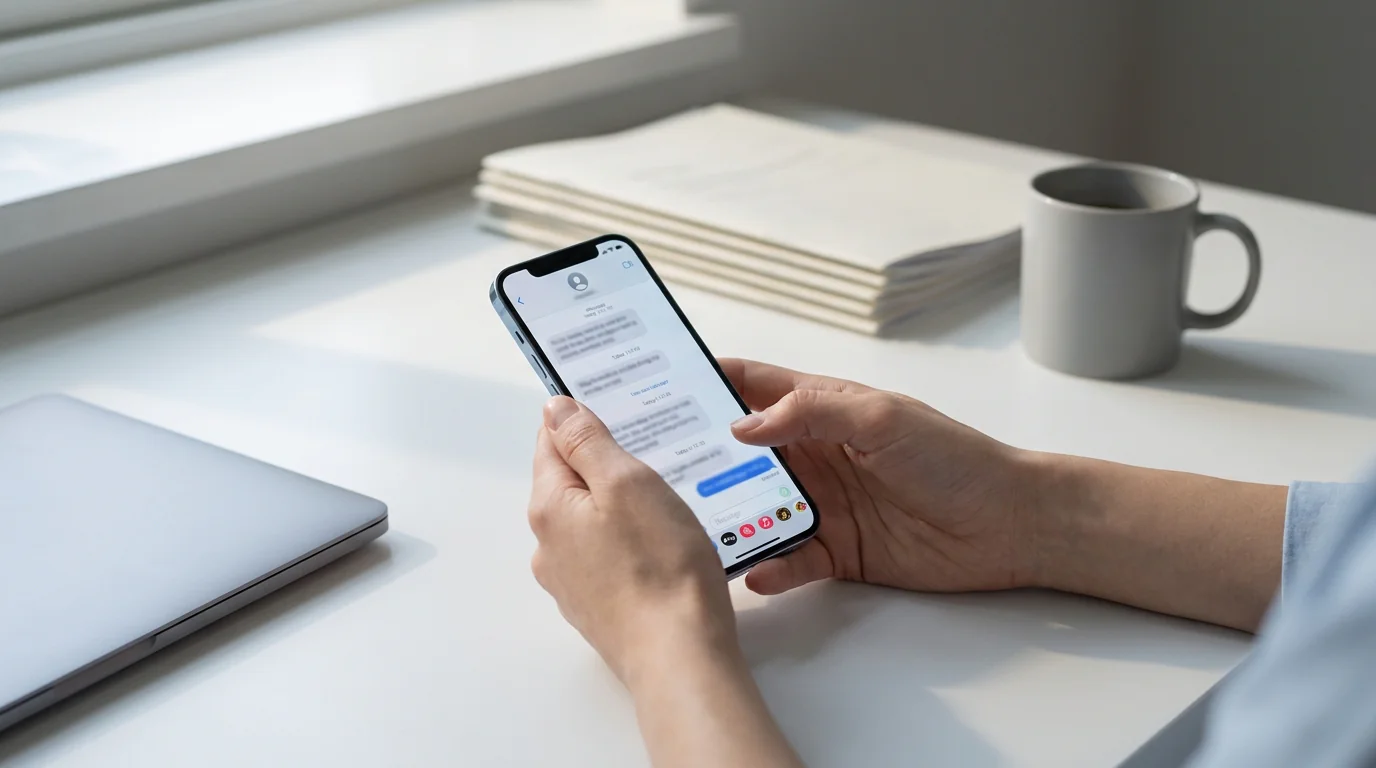
TextPort is an iPhone app that converts your text message conversations into downloadable files (PDFs, spreadsheets, or plain text) directly from your phone. No computer, no USB cable, no technical setup required. As of June 2026, the app holds a 4.3 out of 5 average across more than 1,000 ratings in 41 App Store storefronts worldwide.
Messaging apps like iMessage, WhatsApp, and Instagram DMs don't give you an easy way to save or export conversations. TextPort fills that gap by pulling your conversations straight out of iMessage and turning them into clean, structured exports you can store, share, search, or present as documentation.
How TextPort actually works
For iMessage, TextPort imports the conversation directly, right on your iPhone. Open the app, tap Import, choose the conversation, and pick a date range. TextPort pulls in every message, preserving sender names, timestamps, and the original order. No screenshots, no computer, no message limit.
For other messaging apps, TextPort works just as well. It supports WhatsApp, Instagram DMs, Facebook Messenger, Telegram, Signal, and more.
Once the conversation is imported, you choose your export format and download the file.
What formats does TextPort export to?
TextPort supports three export formats:
- PDF: formatted, print-ready output that preserves the visual layout of the conversation, including sender names and timestamps. This is the most common format for legal use, sharing with an attorney, or printing.
- CSV: a spreadsheet-compatible format (opens in Excel or Google Sheets). Useful when you need to sort, filter, or analyze message data, or when you're building a record of client correspondence.
- Plain text (.txt): a simple, lightweight file that's easy to copy, paste, or import into other tools.
There are no limits on the number of messages or conversations you can export.
Which apps does TextPort support?
TextPort handles virtually any messaging app on your iPhone or iPad. Officially supported apps include:
- iMessage and SMS
- Facebook Messenger
- Instagram DMs
- Telegram
- Signal
Desktop tools like iMazing or TouchCopy connect directly to your iPhone's backup and work well for iMessage and SMS but often have limited or no support for third-party apps like Instagram DMs or Telegram.
Who uses TextPort?
TextPort is built for a range of situations where having a saved, structured copy of a conversation matters.
Legal and court proceedings. People involved in custody disputes, harassment claims, workplace investigations, or civil litigation often need to present message histories as evidence. In TextPort's survey of 1,081 U.S. adults, 38% said texts or DMs had been used in a legal, workplace, or other formal proceeding they were personally involved in. TextPort's PDF exports include timestamps and sender names, so they read cleanly for attorneys or court submission. For a deeper look at preparing exports for legal use, see the guide on how to export iPhone messages to PDF.
Business and professional records. Client conversations, contractor agreements made over text, or compliance-related communications can all be documented and archived. The CSV format is particularly useful here for building searchable records.
Personal archiving. Some users want to preserve meaningful conversations (family messages, old relationships, milestone exchanges) before switching phones or in case something happens to their device. TextPort's iPhone message archiving guide covers this use case in detail.
Harassment and dispute documentation. When someone needs to document threatening or abusive messages from a neighbor, landlord, coworker, or ex-partner, having a clean export can be more effective than a pile of screenshots.
The Mac and Windows desktop apps
For users who need to export an entire message history at once, rather than one conversation at a time, TextPort also offers desktop apps for iMessage and SMS. TextPort for Mac reads the Messages already on your Mac; with Messages in iCloud turned on, that's your iPhone's full history, with no cable and no backup. TextPort for Windows backs up your iPhone over USB through Apple's Apple Devices app or iTunes and reads the messages from that backup. Both let you export many conversations at once, which is faster when you're dealing with years of conversations or dozens of threads.
The phone app and desktop apps cover different use cases. The phone-based workflow is quicker for specific conversations and covers apps like WhatsApp and Instagram; the desktop apps are better for exporting a whole iMessage and SMS history.
How TextPort compares to alternatives
Several tools exist for exporting iPhone messages, and each has trade-offs.
iMazing and TouchCopy are desktop-first tools that read directly from your iPhone's backup. They're reliable for iMessage and SMS, but both require a computer and a USB connection, and support for third-party apps (WhatsApp, Instagram, Signal) varies. A March 2026 update to iMazing's export guide confirms it supports iMessage, SMS, and WhatsApp, but not Instagram DMs or most other apps.
Decipher TextMessage is a Mac/Windows desktop program specifically built for creating PDF exports of iPhone text messages. It's well-regarded for iMessage and SMS, but it shares the same computer-dependency limitation.
Manual screenshots work for short conversations but become impractical for anything longer than a few exchanges. They also don't produce a clean, timestamped document; you end up with a folder of image files rather than a structured record.
TextPort's position is as a mobile-first option that works across all apps without requiring a computer. iMessage conversations import directly, one chat at a time, and you get coverage across every messaging app on your phone.
For a broader comparison, the best apps to export text messages from iPhone in 2026 covers the full landscape.
Getting started
TextPort is available on the Apple App Store. The process for a first export typically takes a few minutes:
- Download TextPort on your iPhone, open it, and tap Import.
- Choose the Messages conversation you want to export.
- Pick the date range you need.
- TextPort imports every message with sender and timestamp, and lets you export as PDF, CSV, or plain text.
Step-by-step guidance is built into the app, so you don't need prior experience with data export tools.
The bottom line
iPhones make it difficult to get your conversations out in a usable format, and most solutions either require a computer or only work with certain apps. TextPort works across apps, runs on the phone, and exports to multiple formats, which covers most of what individuals and professionals need, whether that's a print-ready PDF, a spreadsheet for business records, or a simple archive of important messages.

Start exporting your messages
Available for iPhone, Mac, and Windows. No computer required.
