
How to Export iPhone Messages to PDF: 5 Easy Methods
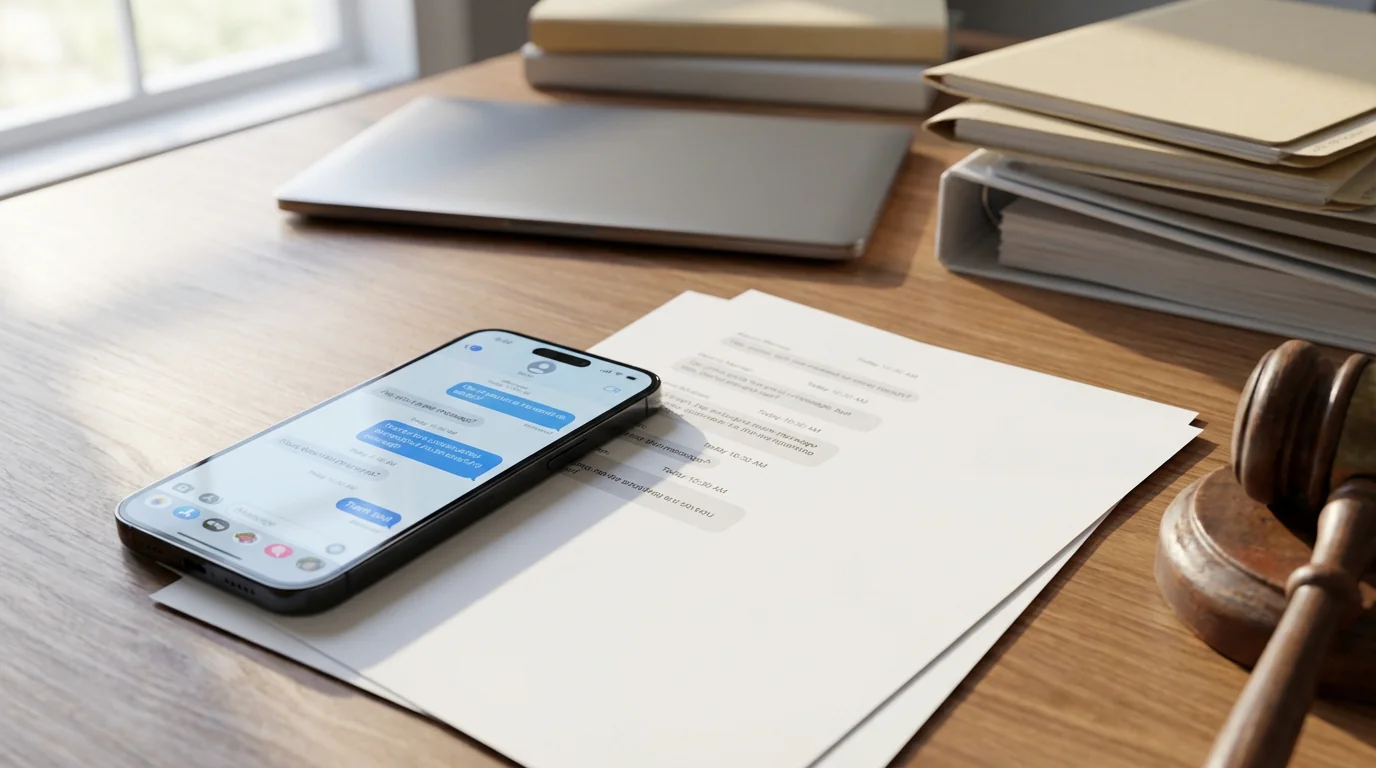
Whether you need to preserve important conversations for legal evidence, keep a personal record of meaningful chats, or share message history with clients, exporting iPhone messages to PDF is an essential skill. Text messages, iMessages, and conversations from third-party apps like WhatsApp or Instagram can all serve as vital documentation, but iOS doesn't offer a simple, built-in export button.
Fortunately, you have several options, from free manual methods to dedicated apps. Below are five reliable ways to export your iPhone messages to PDF, each tailored to different needs, technical skill levels, and time constraints.
1. Use the Built-In Screenshot & Print-to-PDF Method (Free)
This is the most accessible approach and requires no additional software, everything happens on your iPhone.
Step-by-Step:
- Open the Messages app and locate the conversation you want to export.
- Take screenshots of the conversation by pressing the Side button + Volume Up (Face ID iPhones) or Side button + Home button (Touch ID iPhones) simultaneously.
- Scroll down and repeat until you've captured the entire conversation.
- Go to the Photos app and select all the screenshots you just took.
- Tap the Share button (square with upward arrow) and choose Print.
- In the print preview, pinch outward with two fingers on the preview image. This converts the preview into a PDF.
- Tap the Share button again and select Save to Files or Mail to email it.
Best for: Short conversations, quick exports, and users who prefer not to install additional apps.
Limitations: Time-consuming for long threads, may produce many pages, and lacks automatic timestamps or sender labels on each message.
2. Export with TextPort (Fast & Universal)
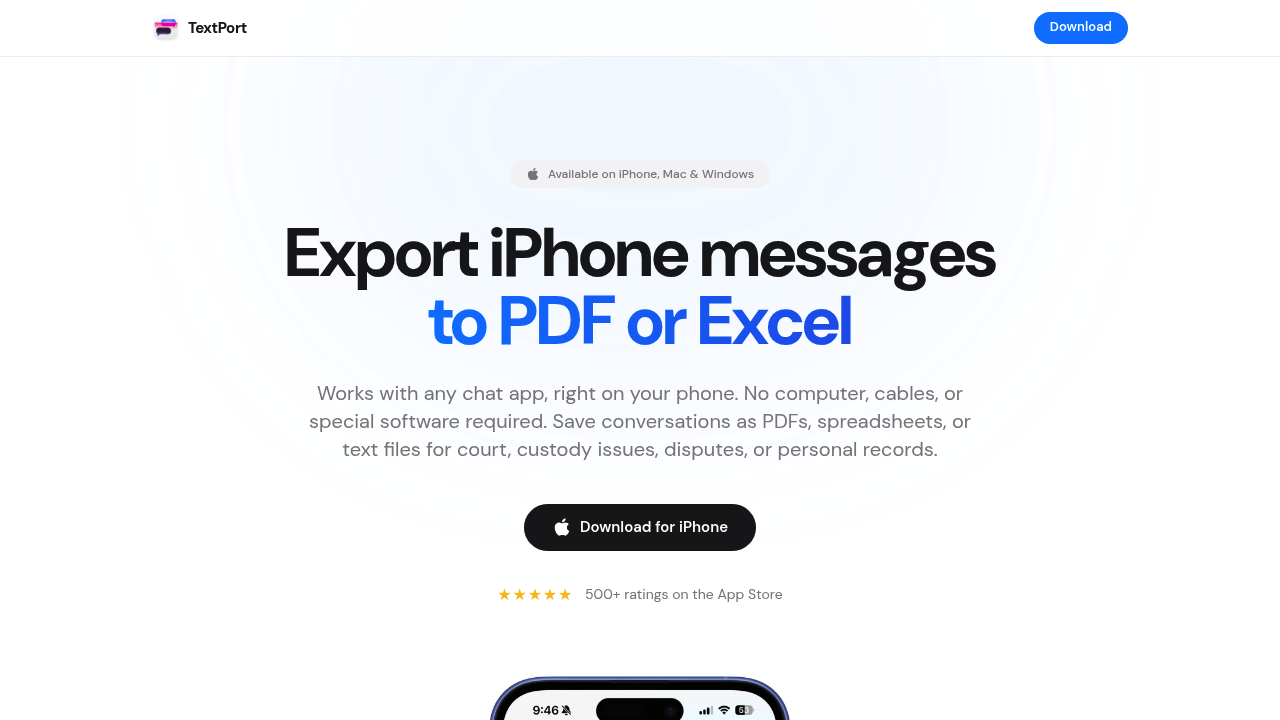
For users who need to export messages from any messaging app including iMessage, WhatsApp, Telegram, Instagram DMs, Signal, Facebook Messenger, and more, TextPort is a streamlined solution.
How it works:
- TextPort lets you capture conversations via screenshots or screen recordings directly on your iPhone or iPad.
- The app automatically transcribes conversations from screenshots or screen recordings.
- Export to PDF, CSV (Excel), or plain text (
.txt) with full timestamps and conversation structure intact. - A companion desktop app is also available to export all messages at once from your device backup.
Step-by-Step:
- Download TextPort from the App Store.
- Open the messaging app (iMessage, WhatsApp, Instagram, etc.) and navigate to the conversation.
- Use screen recording or take a series of screenshots while scrolling through the chat.
- Import the screenshots or video into TextPort.
- The app will automatically organize and reconstruct the conversation.
- Choose your export format (PDF for printing and legal use, CSV for analysis, or
.txtfor archiving). - Share, print, or save to Files.
Best for: Users who need exports from multiple messaging apps, legal documentation requiring professional formatting, and bulk conversation exports without limits.
Why choose TextPort: Unlike platform-specific tools, TextPort works with any app you can screenshot or record, ensuring you never lose access to important conversations, no matter which service you use.
3. Use Desktop Software (Mac Messages App)
If you have a Mac and use iMessage or SMS through iCloud sync, you can export conversations directly from the macOS Messages app.
Step-by-Step:
- Enable iCloud Messages on your iPhone: Go to Settings > [Your Name] > iCloud > Show All > Messages and toggle it on.
- Open the Messages app on your Mac and wait for conversations to sync.
- Select the conversation you want to export.
- Click File > Print in the menu bar.
- In the print dialog, choose Save as PDF from the PDF dropdown menu at the bottom left.
- Name your file and choose a save location.
Best for: Mac users who primarily work with iMessage or SMS and want a simple desktop workflow.
Limitations: Only works for iMessage and SMS (not WhatsApp, Instagram, Telegram, etc.), may not load full conversation history if it's very long, lacks sender labels and per-message timestamps in the printed format, and can crash or truncate very long threads.
4. Third-Party Desktop Tools (iMazing, Decipher TextMessage, CopyTrans)
Several paid desktop applications offer advanced message export capabilities with professional formatting, metadata, and legal-ready output.
Popular options:
- iMazing: Exports iPhone messages (SMS, iMessage) to PDF, Excel/CSV, text, and RSMF. Includes search, filtering, date-range export, and optional PDF signing for legal use. Available for Mac and Windows.
- Decipher TextMessage: Exports messages with inline photo attachments, per-message timestamps, and sender labels. Designed for court and legal documentation. Windows and Mac.
- CopyTrans: Windows-only suite for exporting iPhone messages, photos, and contacts to a PC.
General workflow:
- Install the desktop app on your Mac or Windows PC.
- Connect your iPhone via USB cable.
- Create a backup of your iPhone using the app (or iTunes/Finder).
- Select the contact or conversation you want to export.
- Choose export format (PDF, CSV, text) and configure options (date range, metadata, attachments).
- Export and save the file.
Best for: Users who need detailed, print-ready exports of iMessage and SMS with full metadata, professionals handling legal or compliance documentation, and those who prefer a desktop-based workflow.
Limitations: These tools typically require a paid license, work primarily with iMessage and SMS (some support WhatsApp), and require a computer and USB connection.
5. Use In-App Export Features (WhatsApp, Telegram)
Some messaging apps include their own built-in export options, allowing you to send conversation history via email or save it as a text file.
WhatsApp:
- Open the chat you want to export in WhatsApp.
- Tap the contact or group name at the top.
- Scroll down and select Export Chat.
- Choose Without Media or Attach Media (up to 10,000 messages).
- Select a destination: Mail, Save to Files, or share to another app.
- The conversation is exported as a
.txtfile. You can then convert this to PDF using the screenshot + print method or upload to a computer.
Telegram:
- Telegram does not support chat export on iPhone. You must use the Telegram Desktop app on a computer, go to Settings > Advanced > Export Telegram Data, and select the chats and formats to export.
Instagram DMs:
- Open Instagram and go to Settings.
- Tap Your Activity > Download Your Information.
- Request a download of your data (including messages).
- Instagram will email you a link to download a JSON or HTML file containing your message history.
Signal:
- Signal for iPhone does not support chat export or local backups. The only option is to take screenshots or use a third-party app like TextPort.
Best for: Users who primarily need to export WhatsApp conversations and prefer native app functionality.
Limitations: Export formats are typically plain text (not formatted PDFs), lacks visual chat bubbles and rich formatting, and Instagram and Telegram exports require desktop tools or are cumbersome.
Choosing the Right Method for Your Needs
| Method | Cost | Best For | Formats | Supports Multiple Apps? |
|---|---|---|---|---|
| Screenshot + Print-to-PDF | Free | Quick, short conversations | Any app (manual) | |
| TextPort | Paid | Universal exports, legal docs, any app | PDF, CSV, .txt |
Yes (all apps) |
| Mac Messages App | Free | Mac users, iMessage/SMS only | iMessage/SMS only | |
| Desktop tools (iMazing, etc.) | Paid | Print-ready iMessage/SMS exports, metadata | PDF, CSV, text, RSMF | iMessage/SMS (some: WhatsApp) |
| In-app export (WhatsApp, etc.) | Free | WhatsApp users who want native functionality | .txt (WhatsApp) |
App-specific |
Tips for Legal and Court Use
If you're exporting messages as evidence for court, family law, employment disputes, or other legal matters, follow these best practices:
- Include full context: Export the entire conversation, not just selected messages. Courts may view partial exports as manipulated evidence.
- Preserve metadata: Ensure your PDF includes timestamps, sender names, and phone numbers. Tools like TextPort, iMazing, and Decipher TextMessage add this automatically.
- Avoid heavy editing: Screenshots can be edited or cropped, which reduces their credibility. Professional export tools produce more trustworthy documentation.
- Keep originals: Do not delete messages from your phone. Deleting evidence can be considered spoliation and harm your case.
- Consult your attorney: Ask your lawyer which format and level of detail they prefer for submission.
Final Thoughts
Exporting iPhone messages to PDF doesn't have to be complicated. Whether you choose the free screenshot method for a quick personal archive, leverage TextPort for fast, universal exports across all your messaging apps, or invest in desktop software for print-ready legal documentation, each approach has its strengths.
For most users, especially those who need to export from multiple apps like WhatsApp, Instagram, Telegram, and iMessage, TextPort offers the best combination of ease, speed, and professional output. No matter which method you choose, you'll have peace of mind knowing your important conversations are safely archived and ready to share when you need them most.

Start exporting your messages
Available for iPhone, Mac, and Windows. No computer required.
