

How to bookmark a message with TextPort
Quick answer
In the chat:
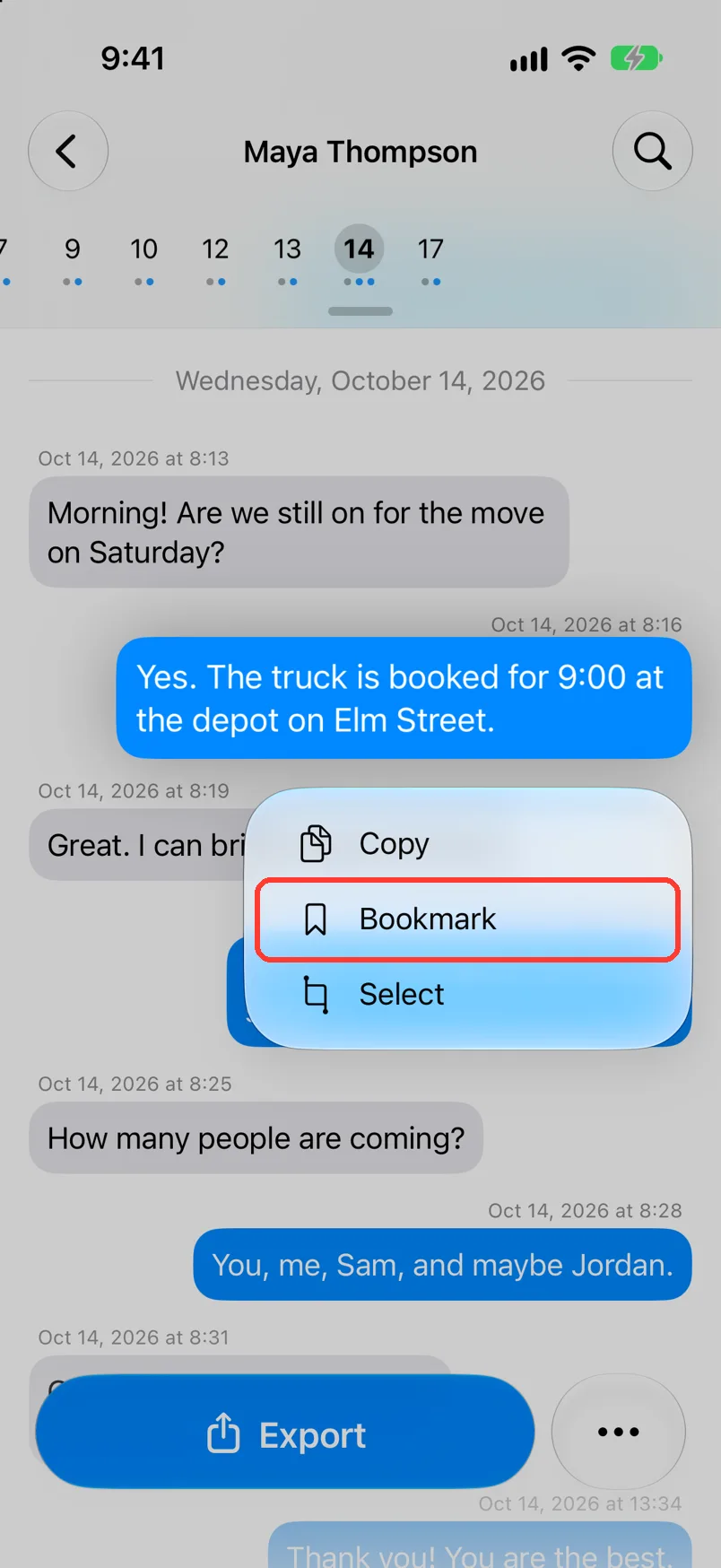
- Long press the message.
- Tap Bookmark. A red mark shows on the bubble.
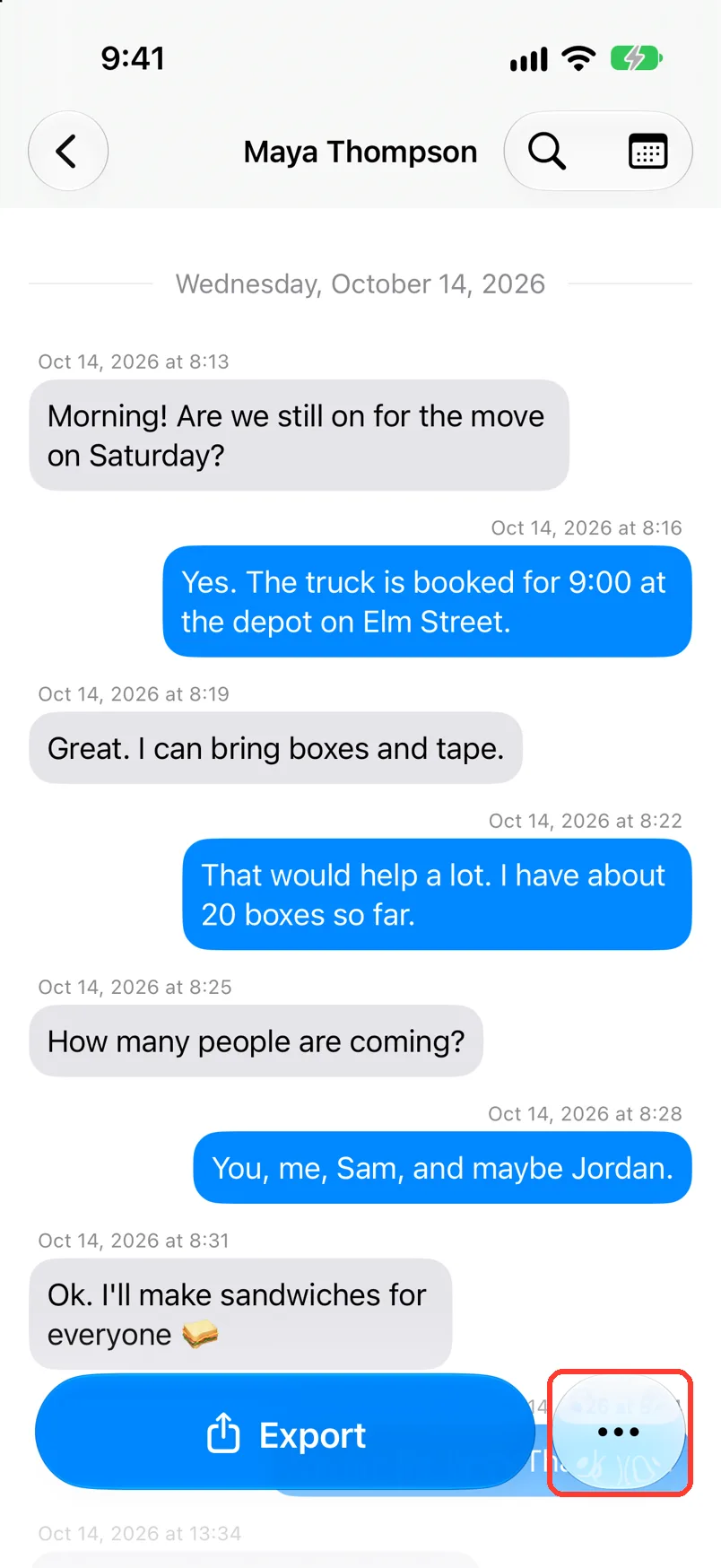
- To find it later, tap … next to Export.
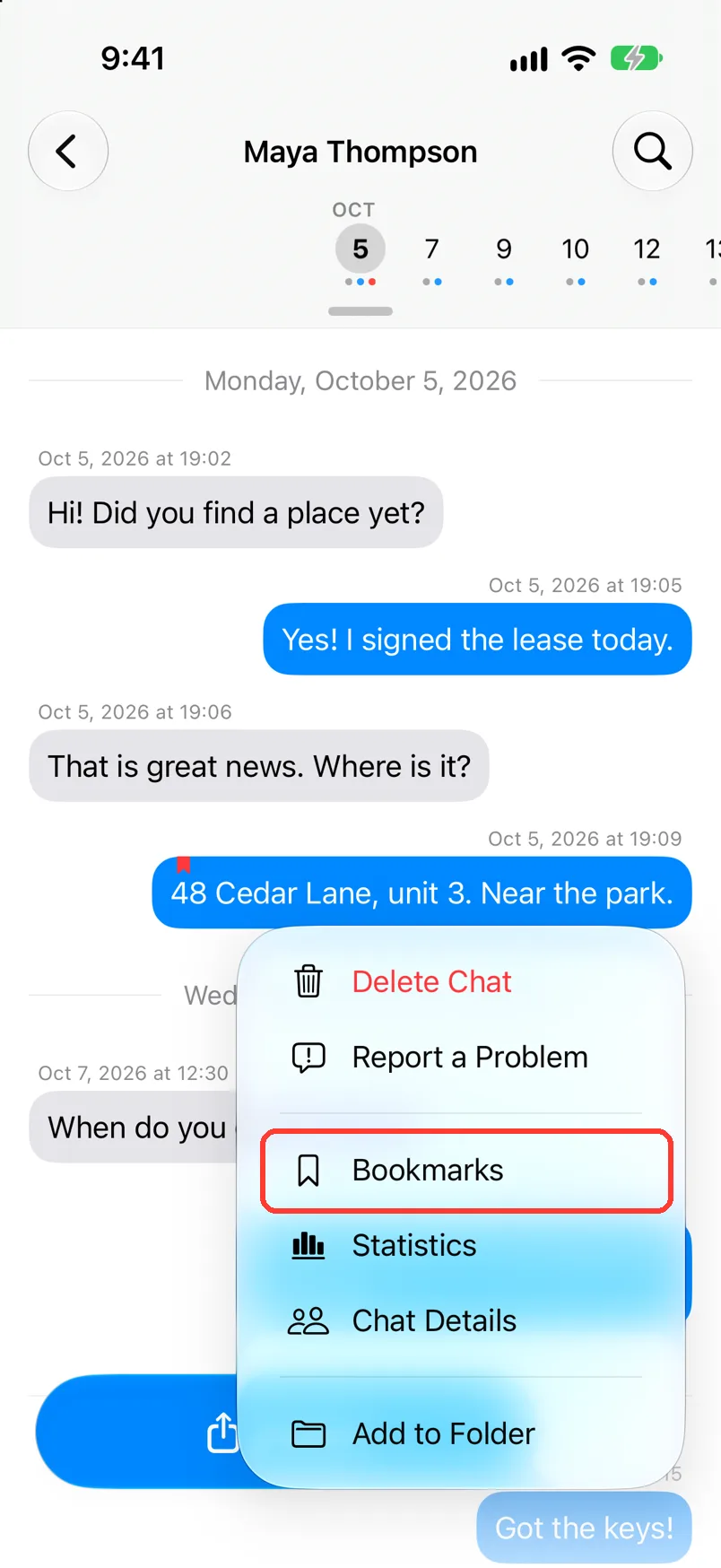
- Tap Bookmarks.
- Tap a bookmark to go to that message.
- To remove one, long press it, then tap Remove Bookmark.
What you need
- ✓TextPort 3.100 or newer on your iPhone
- ✓A chat saved in TextPort
Steps
-
Long press the message
Open the chat. Press and hold the bubble. A menu opens.
-
Tap Bookmark
It is under Copy. A red mark shows on the bubble.
-
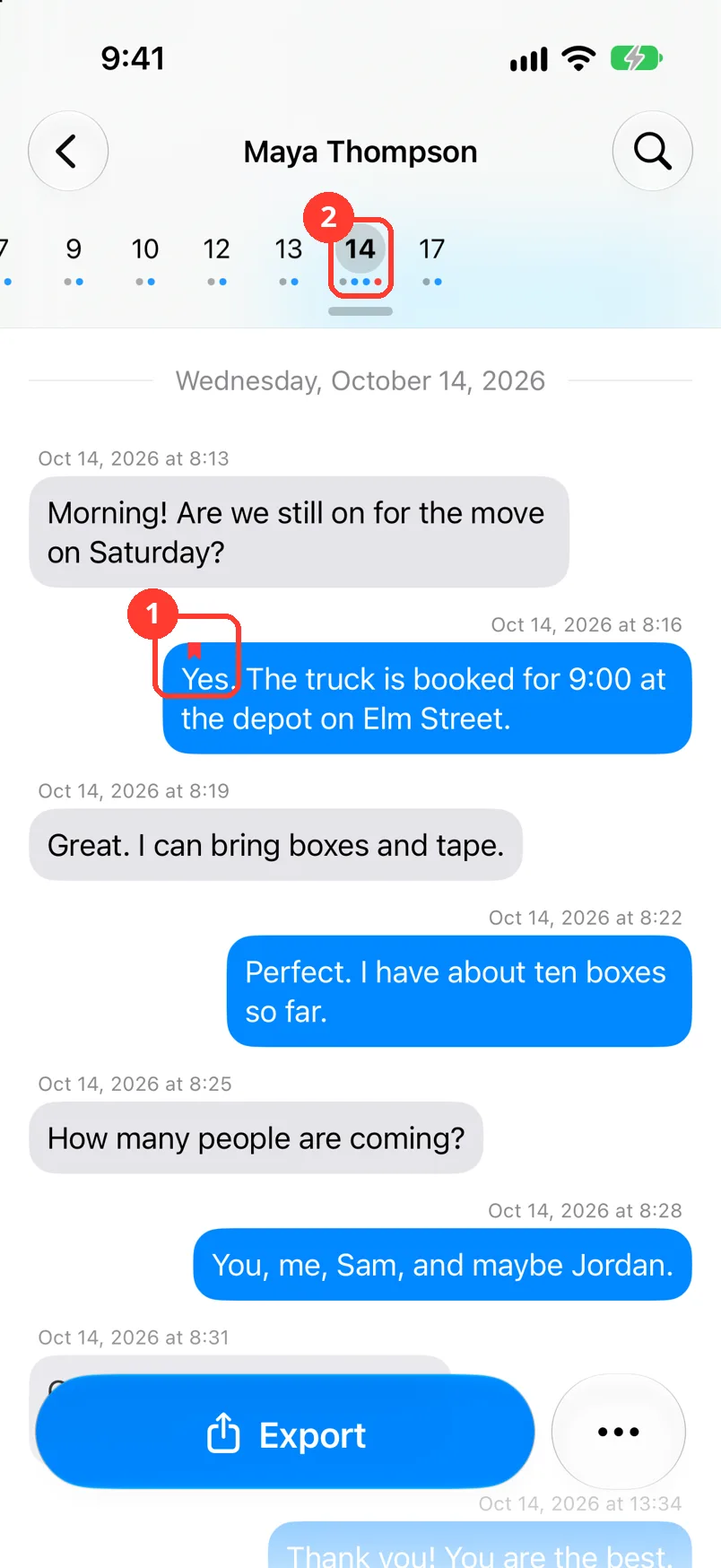
Find the red mark
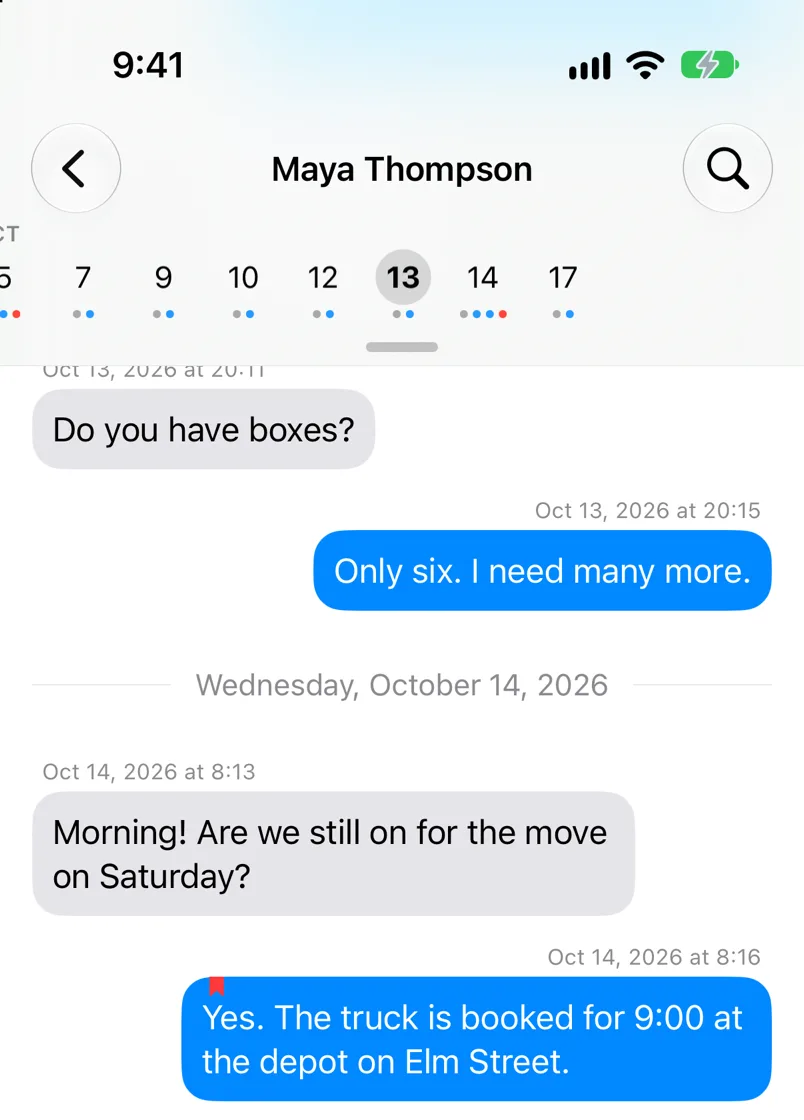
It sits at the top of the bubble (1). In the row of days, the day gets a red dot (2).
-
Tap …
It is next to Export at the bottom. A menu opens.
-
Tap Bookmarks
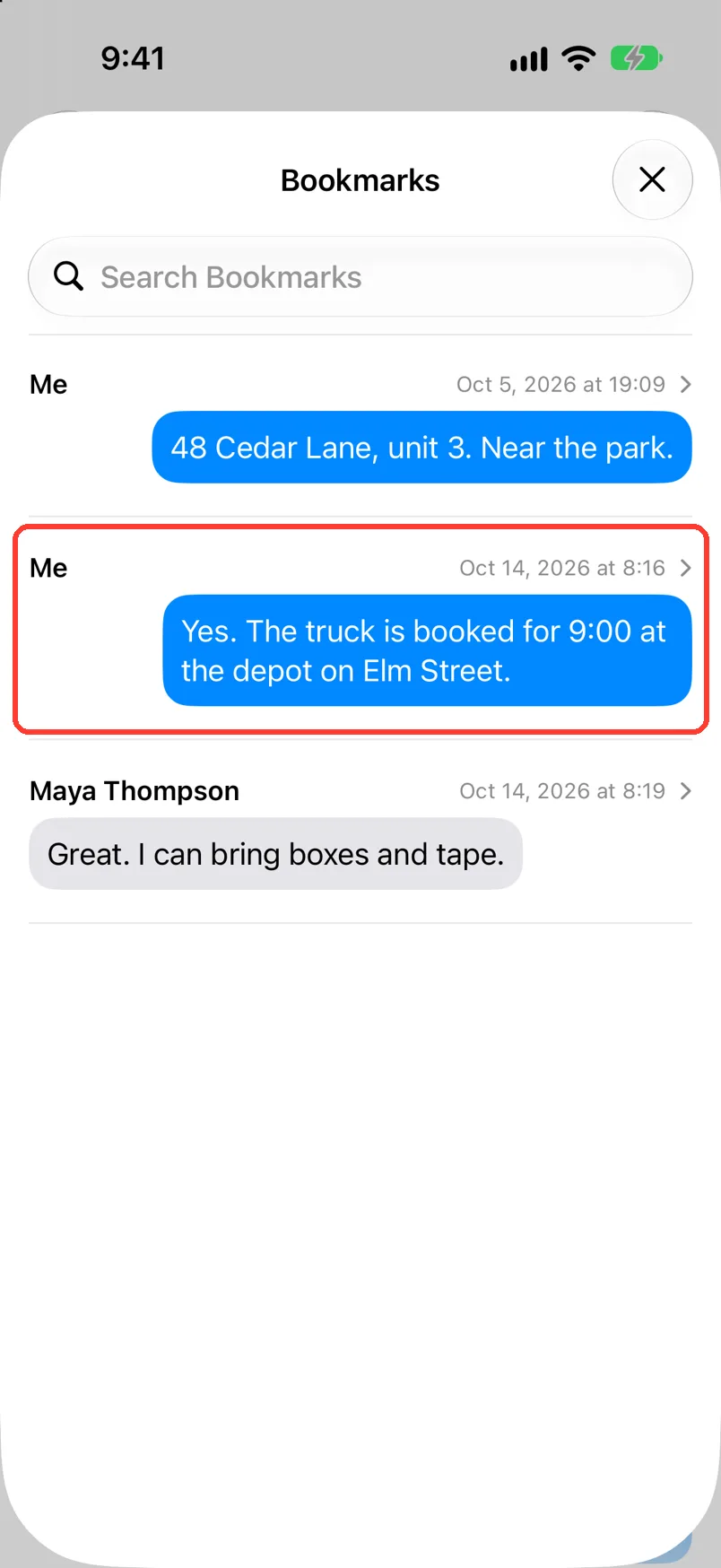
Bookmarks opens. It lists every bookmark in this chat.
-
Tap a bookmark
Each one shows who sent it and when. Bookmarks closes.
Too many to scroll? Type a word or a name in Search Bookmarks.
-
Read the message
The chat moves to that message. It still has its red mark.
Done
The message has a red mark. You can go back to it from Bookmarks at any time.
Problems
There is no Bookmark in the menu.
If you see Remove Bookmark, the message has a bookmark already. If not, update TextPort in the App Store.
No Bookmarks
This chat has no bookmarks yet. Each chat has its own list. Do steps 1 and 2.
No Results
No bookmark in this chat has that word. Check the spelling. Or clear the box to see them all.
The red mark goes away by itself.
TextPort could not save the bookmark. Check your internet. Then do steps 1 and 2 again.
You want to remove a bookmark.
Long press the message. Tap Remove Bookmark. Or swipe it left in Bookmarks and tap Remove.
The bookmark is in another chat.
In Saved Chats, tap the magnifying glass. Type a word. Tap More, then Bookmarked Only. See Search all your chats.
None of these match.
Email [email protected]. Say which step you were on. Say what you saw. We usually reply within a day.
Tips
-
A red dot under a day means that day has a bookmark. See Jump to a date in a chat.
Questions
-
No. The words, the time, and the sender stay the same. A bookmark is only a mark for you.
-
No. A PDF, a CSV file, a text file, and a printed page do not show them.
-
Yes. Long press it and tap Bookmark. A photo shows as a small picture in Bookmarks.
-
Yes. They work in every chat saved in TextPort.
-
No. Bookmarks are in TextPort on iPhone only.
Next guides
-
 How to search all your chats with TextPort
You will find a message in any saved chat and open it in its chat.
-
 How to copy a message in TextPort
You will have the words of a message ready to paste in another app.
-
 How to jump to a date in a TextPort chat
You will go straight to the day you want in a long chat.
-
 How to read a chat in TextPort
You will know who sent each message and when, and how to hide or show the times.

Start exporting your messages
Available for iPhone, Mac, and Windows. No computer required.