

How to go to the message a reply quotes in TextPort for Mac
Quick answer
In a chat in TextPort for Mac:
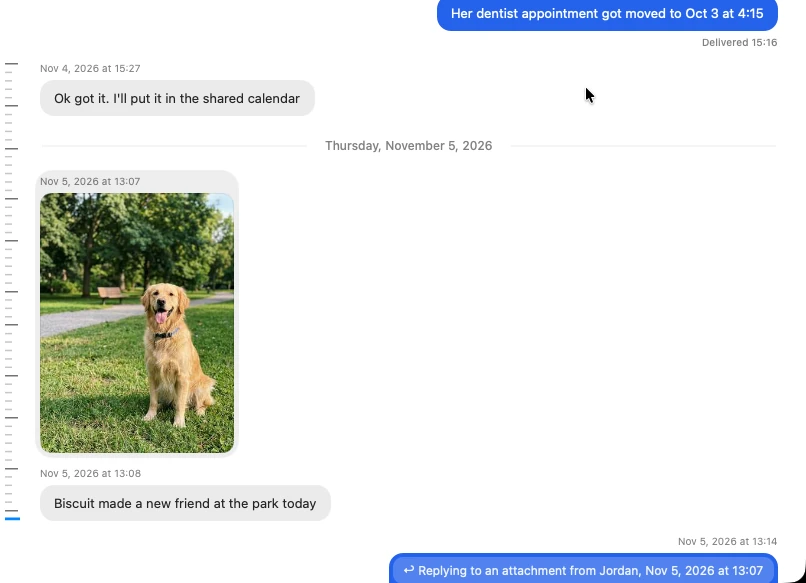
- Find the reply. It has a line that starts with Replying to.
- Click that line.
The chat moves to the original message. It glows for a moment.
What you need
- ✓TextPort for Mac, set up with Messages access
Steps
-
Click the Replying to line
It is at the top of the reply. It names who sent the original and when.

-
Read the original message
The chat moves to it. It glows for a moment.
Done
You are at the message the reply answers.
Problems
The date range in the toolbar changed after you clicked a quote.
The original was outside your dates, so the range opened up. TextPort also went back to Messages. Pick your dates again.
A reply has no Replying to line.
TextPort shows the line only for iMessage replies. The original must be in this chat on this Mac.
None of these match.
Email [email protected]. Say which step you were on. Say what you saw. We usually reply within a day.
Questions
-
Yes. A reply in the PDF starts with the same Replying to line.
-
Use the date strip. See how to jump to a date.
Next guides
-
 How to jump to a date in TextPort for Mac
You will move right to a date in a long chat.
-
 How to filter a chat by date in TextPort for Mac
You will see, export, or print only the messages from the days you pick.
-
 How to search inside a chat in TextPort for Mac
You will find a word in a chat and go to each place it shows.

Start exporting your messages
Available for iPhone, Mac, and Windows. No computer required.