

How to see statistics for a chat
Quick answer
In the chat:
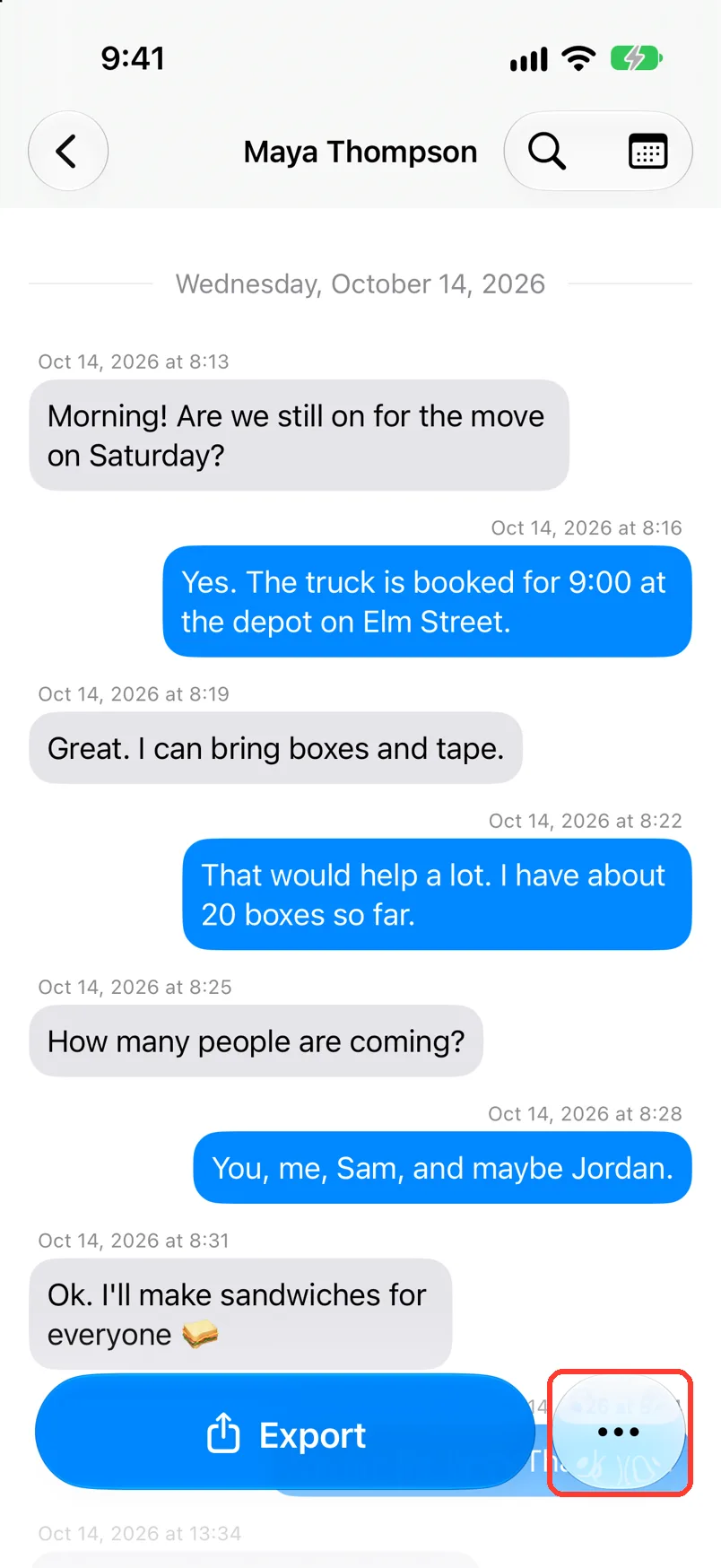
- Tap … next to Export.
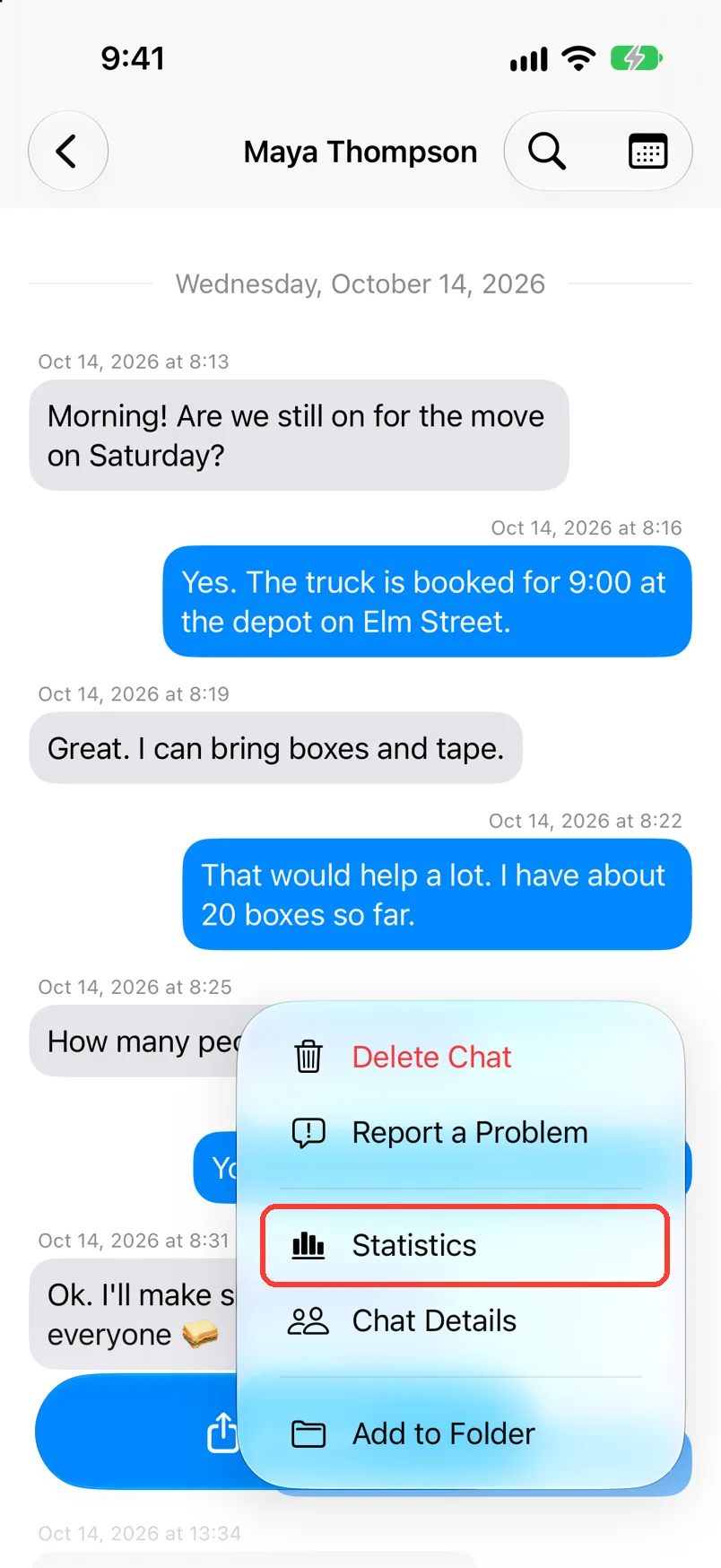
- Tap Statistics.
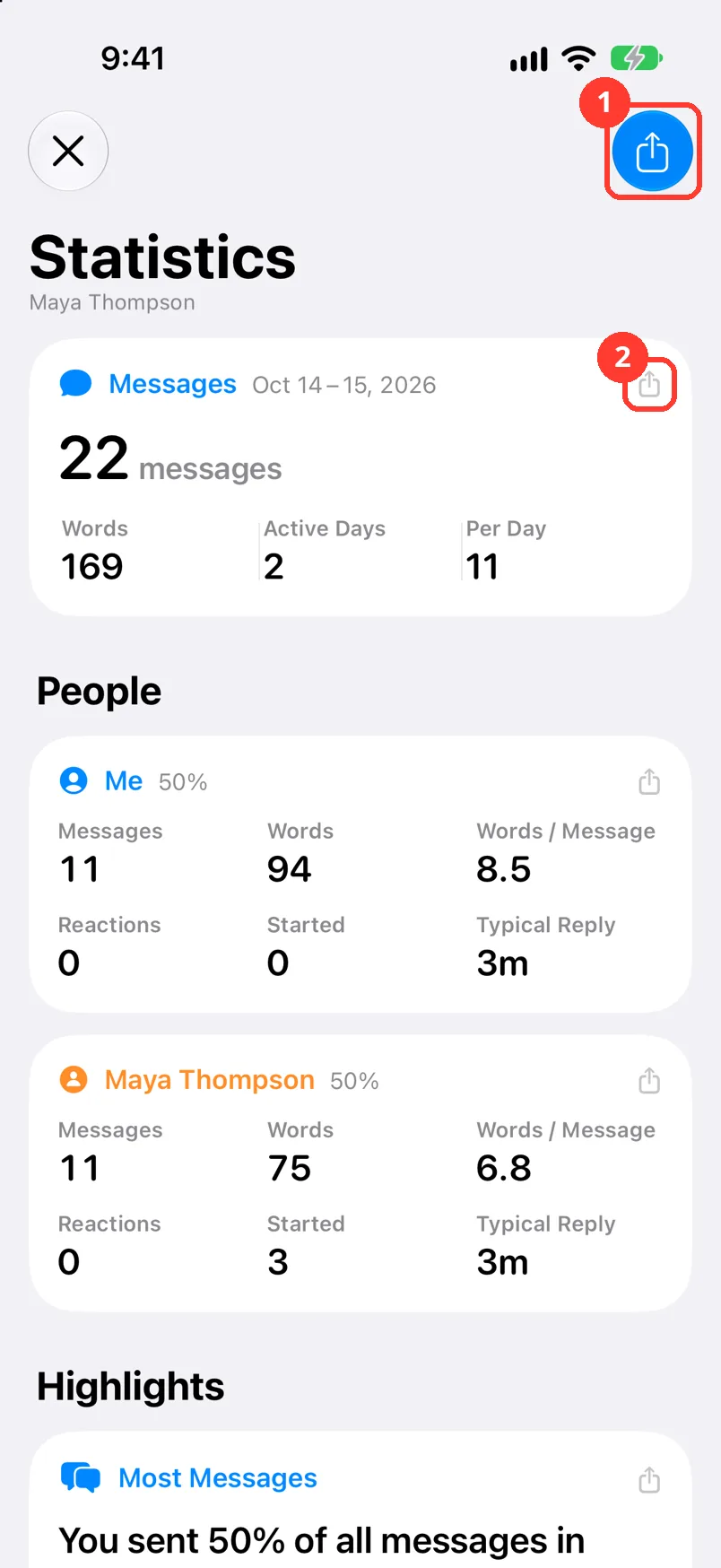
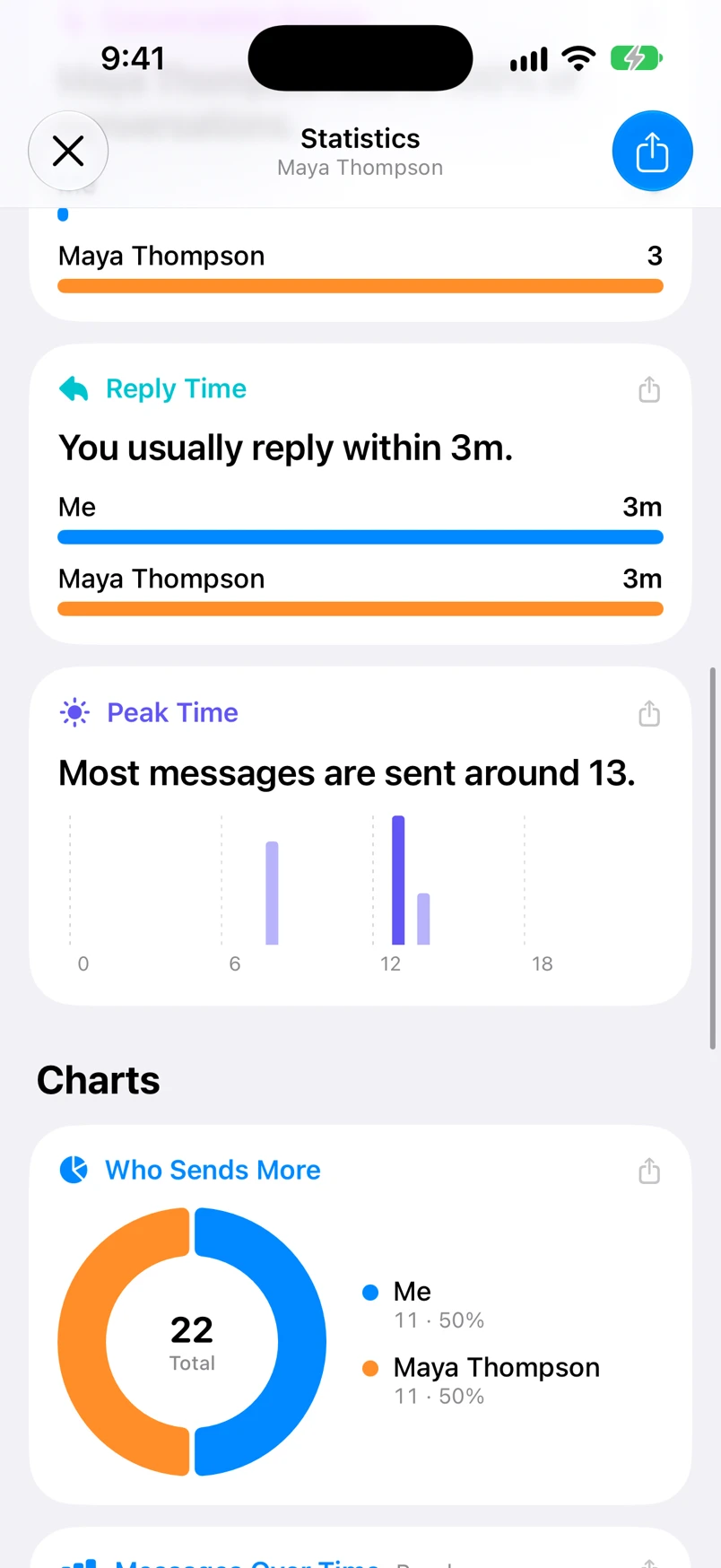
- Scroll to see People, Highlights, and Charts.
- To share one card, tap the share button on it.
Tap the X to go back to the chat.
What you need
- ✓TextPort on your iPhone, with iOS 17 or newer
- ✓A chat saved in TextPort
Steps
-
Tap …
Open the chat. It is next to Export at the bottom. A menu opens.
-
Tap Statistics
Statistics opens.
-
Read the top cards
Messages shows the totals. People shows each person's counts.
To share all of it as a PDF, tap the blue button (1) in the top right.
-
Scroll down
Highlights has the busiest day and reply times. Charts has the graphs.
-
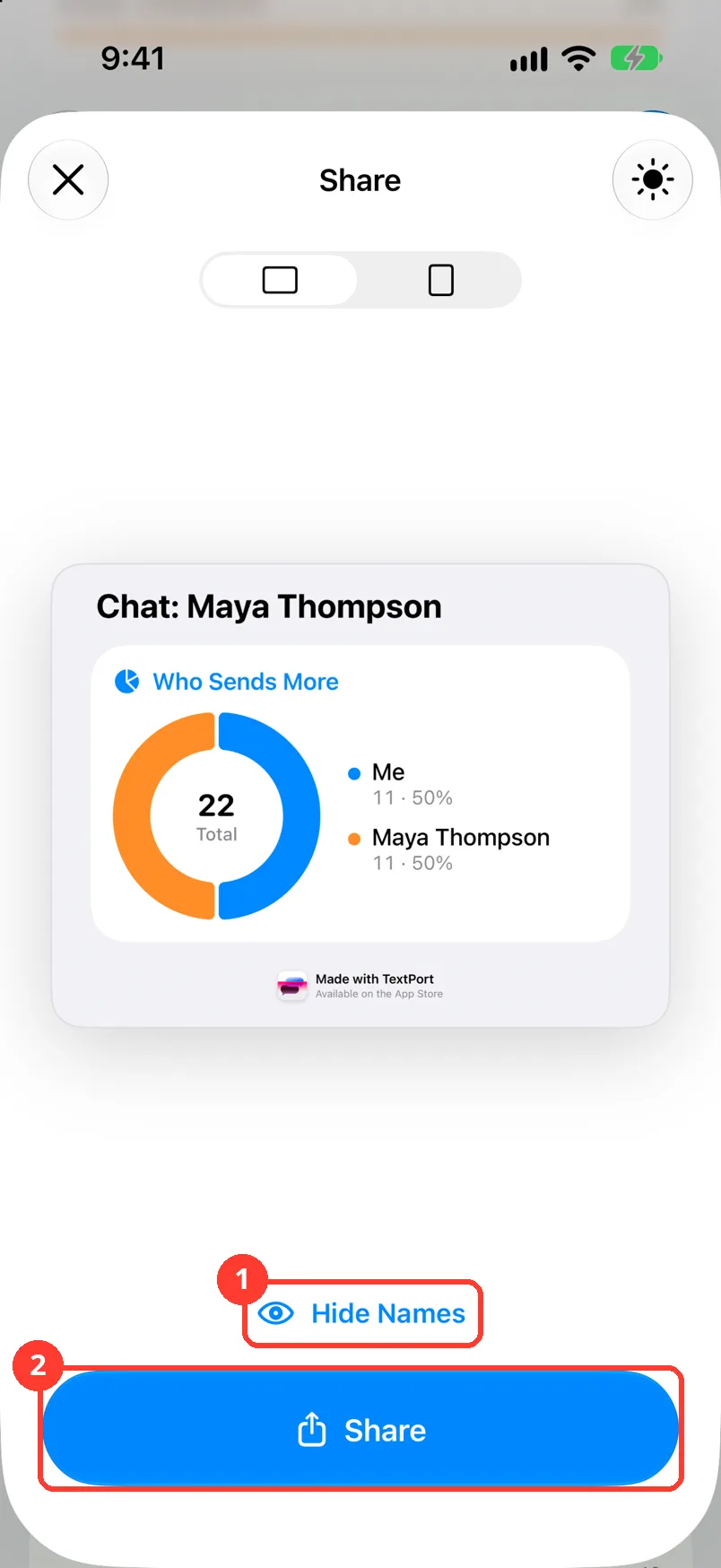
Tap the share button on a card
It is the small gray button (2) on each card. Share opens.
-
Tap Share
Tap Hide Names (1) first if you want. Then tap Share (2) and pick an app.
Done
You know who wrote more, when the chat was busy, and how fast people replied.
Problems
There is no Statistics in the menu.
Your iPhone may run an iOS older than 17. Update iOS.
No messages yet
The chat has no messages to count yet. Wait for the import to finish.
Some messages have no date and are left out of the charts.
Charts over time use only messages with a date. To add one, see Edit a message's text or time.
The names are wrong.
None of these match.
Email [email protected]. Say which step you were on. Say what you saw. We usually reply within a day.
Questions
-
No. TextPort works out the statistics on your iPhone, from this chat's messages.
Next guides
-
 How to read a chat in TextPort
You will know who sent each message and when, and how to hide or show the times.
-
 How to edit the chat name and people's names
You will have the right chat name and the right name for each person in the chat.
-
 How to export a chat to PDF
You will get a PDF of one chat, with names, dates, and times, ready to share or print.

Start exporting your messages
Available for iPhone, Mac, and Windows. No computer required.
