
How to Export or Share a Claude Chat on iPhone
Claude has no button to save one chat as a file. To get one on your iPhone, make a PDF with TextPort: you record your screen while you scroll the chat. You can share a link instead, but anyone with a public link can read the chat, and in July 2026 shared Claude chats turned up in Google.
A public link is fine for a recipe or a packing list. Keep a chat that names people or holds health or money details off it. If your reader uses Claude, invite them by email. If they need a copy to keep, send the PDF.
Who can read a Claude chat you share
Claude gives you three ways to share a chat. Here they are next to a PDF you make yourself:
| Way | Who can read it | What they get |
|---|---|---|
| Public link, made with the Share button on claude.ai (Free, Pro, Max) | Anyone who has the link. No Claude account needed | A web page that stops working when you turn the link off |
| Invite by email, on claude.ai on the web. Anthropic says "Not yet" for the mobile app | Only the people you invite. Each needs a Claude account, and a free one is enough | A view-only page. They can't download files from it |
| Team or Enterprise share, made with the Share button on claude.ai | Members of your organization | A view-only page |
| PDF, made in TextPort on your iPhone | Whoever you send the file to | A file they keep |
The public link is the one to be careful with. The Next Web reported on the shared chats Google showed one weekend in July: "Some held medical records. Some held company files and children's phone numbers." By Monday afternoon, July 27, the same search returned nothing.
Anthropic says every shared chat page carries a "noindex" instruction, which asks search engines to leave it out. Even so, it puts the rule plainly on its public links page: "treat a public link as public." Anyone who can open the page can copy it, screenshot it or post it somewhere else, and turning the link off later "can't remove copies, screenshots, or archives someone else already made."
The link is also a snapshot, a frozen copy of the messages sent before you shared. Anything you send afterward stays private until you tap Update shared chat in the share dialog, or unshare the chat and share it again. Files you attached never go along, so if Claude was answering about a document, send your reader that file too.
Inviting people by email is Anthropic's default way to share, and it's the better pick when the reader already uses Claude. Anthropic's page on sharing with specific people says the people you invite "can view a snapshot of the chat but can't reply, copy it into their own account, or continue the conversation." An invite nobody opens expires after 30 days. On Team and Enterprise, you can only invite people in your organization, and admins can see shared chats and turn them off. For anyone outside it, send a file.
When they need a file, make a PDF of the chat on your iPhone
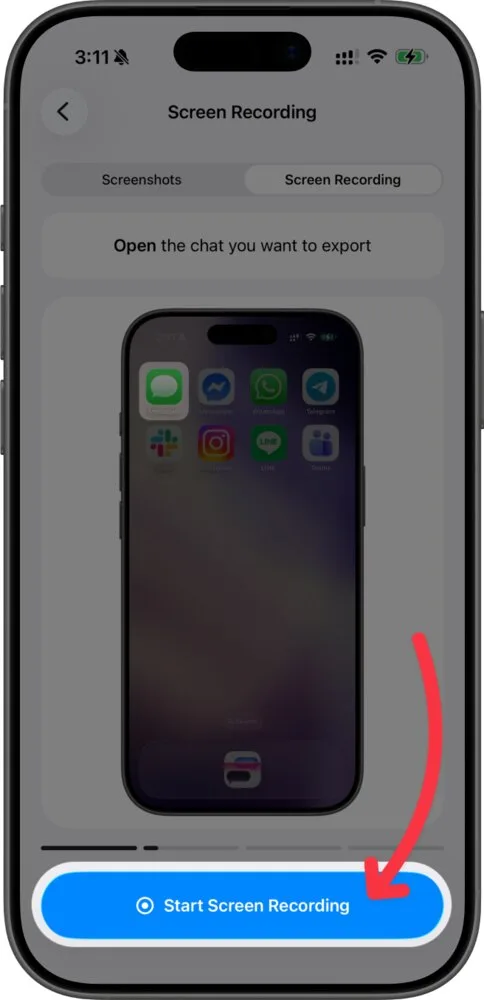
HR, a lawyer, a landlord or a family member usually doesn't want a Claude login or a link that can change. They want a file. TextPort makes one on the phone itself, with no computer or cable. You record your screen while you scroll the chat, and TextPort turns the video into a chat you can check, fix and export.
Claude isn't on TextPort's app list, so it goes through Other. Here's the Scroll Capture guide shortened for a Claude chat:
- In TextPort, tap Add Chat, then the app name at the top. Scroll to the end of the app list and tap Other.
- Tap On Your iPhone, then Start Screen Recording, then Start Broadcast in the iOS sheet.
- Skip the Open Messages button: it opens Messages, not Claude. Switch to Claude yourself and open the chat.
- Scroll down from the oldest message to the newest, keeping each one on screen for about a second. Claude's replies run long, so scroll through those slowly. Then go back to TextPort, tap Stop Recording, trim the video to the chat and tap Start Processing.
The recorder stops after 15 minutes, so a very long chat takes two recordings. If you'd rather work from screenshots, the screenshots guide shows how to overlap them so nothing's missed. They're quicker when the part that matters is a single answer. The same recording works for a ChatGPT conversation, but ChatGPT is on the app list, so pick it there instead of Other.
Check two things before you export
Sides. Check that your messages and Claude's replies landed on the right sides. If one didn't, long press it and tap Mark as Outgoing or Mark as Incoming. The guide to reading a chat shows which side is which.
Dates. A message whose time didn't show in your recording reads No date, in the chat and in the PDF. TextPort doesn't make one up. Where you know when a message was sent, long press it and tap Edit Timestamp. Leave the rest as No date rather than guess. If the whole chat has no times, tap … and then Hide Timestamps, and the PDF leaves the times out too.
Then tap Export and pick PDF. The text in it is real text you can search, and every message shows who wrote it. From the PDF preview, send it with Share (AirDrop, Mail or any app), save it to Files, or print it on any AirPrint printer on the same Wi-Fi as your iPhone. You can import your first three conversations for free.
Two ways to lose a Claude chat before you have a copy
Closing an incognito chat. Incognito chats aren't saved to your history, and once you close one, it can't be reopened or turned into a regular chat. Make your recording or copy what you need while it's still open.
Deleting the chat first. A deleted chat leaves your history right away and Anthropic's systems within 30 days, and its share link stops working. Make your PDF, check that nothing's missing, and only then delete the chat: in the Claude iPhone app, touch and hold it in your chat list and tap Delete.
Claude's own export gets your whole account, but not from the iPhone app
Anthropic's export page says you run Claude's data export from Settings > Privacy on the web app or Claude Desktop. The Claude iPhone app can't run it. You tap Export data, wait through what Anthropic calls "a small delay," and get a download link by email.
That link goes to your account's email address, needs you to be signed in, and "will expire 24 hours after delivery." If it runs out, you request a new one. The export covers Free, Pro and Max accounts. On Team or Enterprise, you can export your own chats once an owner turns on "Allow members to export their own data." Primary Owners don't see that button in their personal settings: they export the whole organization from Organization settings > Data and privacy.
What comes out is your conversation data and account data. Anthropic's Education page calls the conversation data "JSON format," a file built for software to read. It's good for backing up everything. It's a poor way to show one chat to another person, who'd have to dig it out of a data file.
Only want one chat for yourself? For an answer or two, copying them into Notes is enough. For the whole chat as a file, use the TextPort steps above. And if nothing in the chat is personal, you can open its share link in Safari, save the page as a PDF with Apple's steps (Share, Markup, then Save File To), and turn the link off once you have the file.
Frequently asked questions
-
Use claude.ai in Safari instead. Asked about sharing from the mobile app, Anthropic says "Not yet" for inviting people by email, and its steps for public links don't mention the phone app. A chat someone shares with you opens on any device.
-
Open the chat's Share menu and switch it from Public to Private. On Free, Pro or Max, you can also go to Settings > Privacy and tap Manage next to Shared chats. That list shows each shared chat with the date you shared it, and Unshare takes it down.
-
Yes. Anthropic says the shared snapshot is removed and the link stops working.

Start exporting your messages
Available for iPhone, Mac, and Windows. No computer required.
