

How to change the language of TextPort
Quick answer
In TextPort:
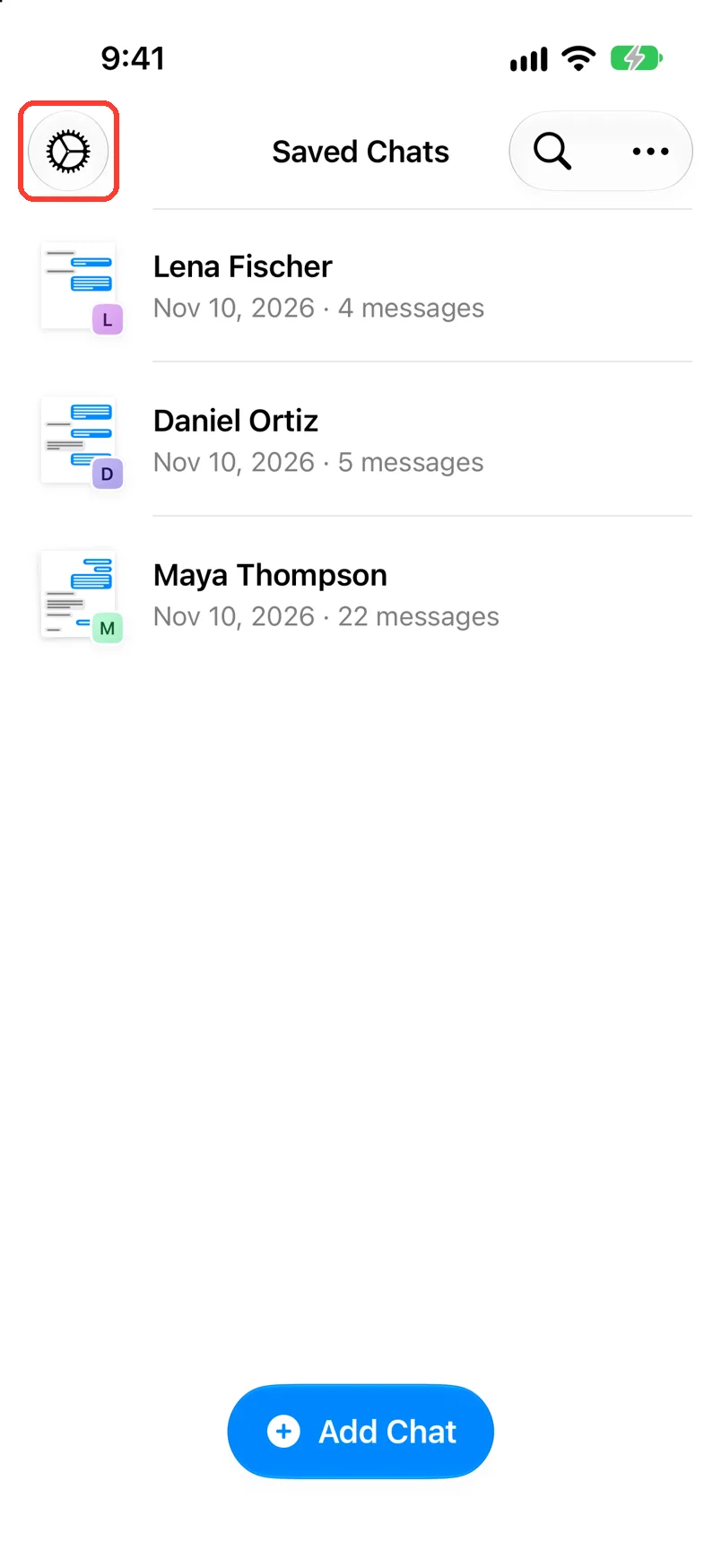
- Tap the gear in the top left of Saved Chats.
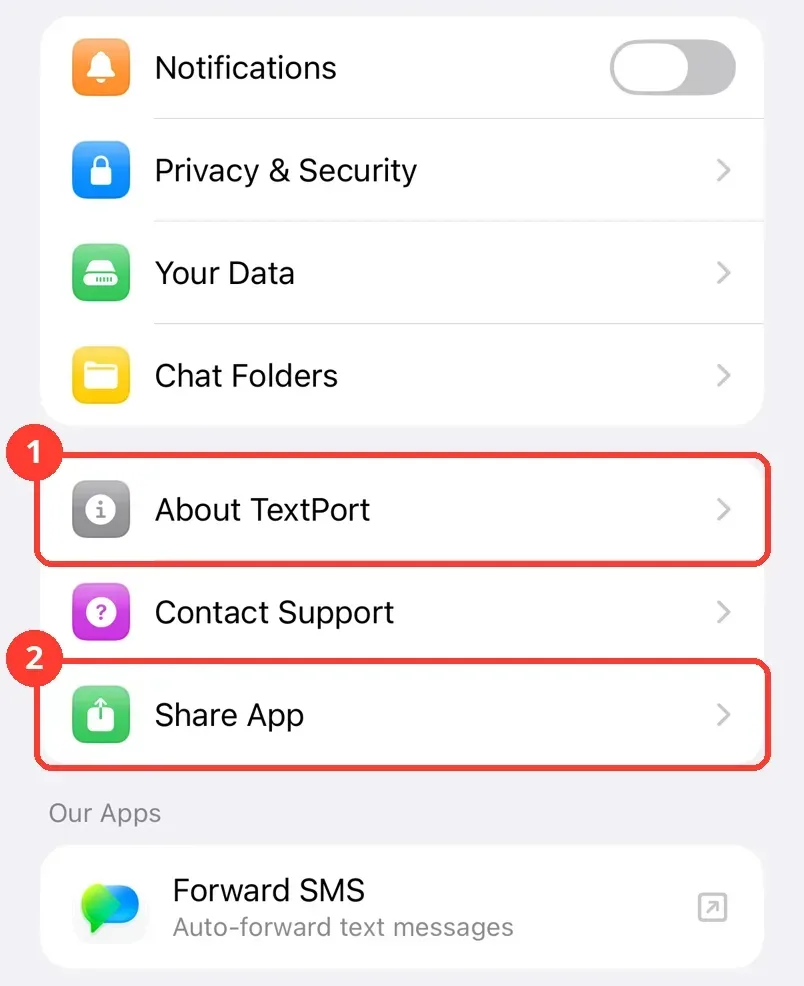
- Tap About TextPort.
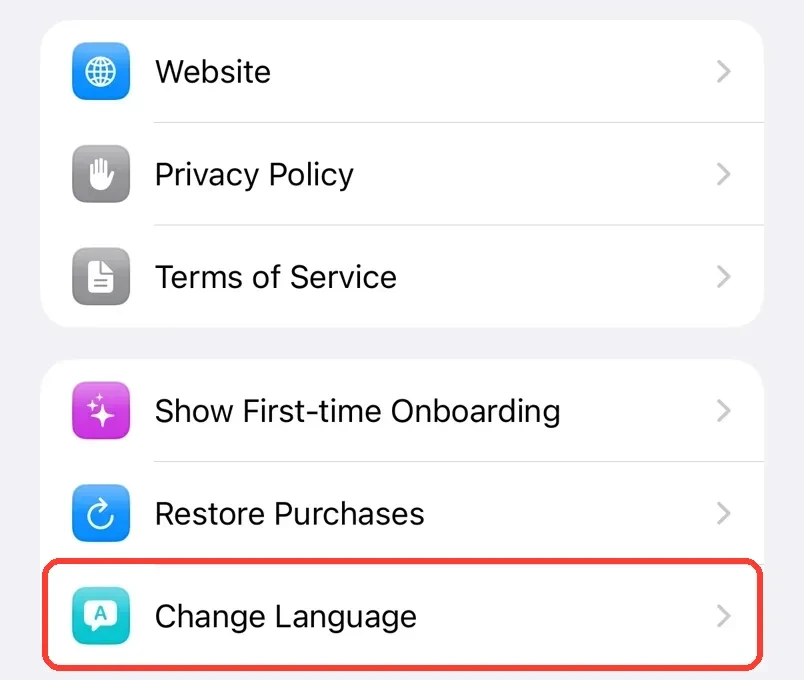
- Tap Change Language. iOS Settings opens.
- Tap Language. Pick one.
Your chats keep the words they had.
What you need
- ✓TextPort on your iPhone
Steps
-
Tap the gear
It is in the top left of Saved Chats. Settings opens.
-
Tap About TextPort
It is marked (1). About TextPort opens.
-
Tap Change Language
It is under Restore Purchases. iOS Settings opens on TextPort.
-
Tap Language
A list of languages opens.
If Settings opens on its first page, tap Apps, then TextPort first.
-
Pick a language
Go back to TextPort. It now uses that language.
Done
TextPort shows in the language you picked. Your other apps did not change.
Problems
There is no Language in iOS Settings.
Your iPhone knows only one language. In Settings, tap General, then Language & Region, then Add Language…. Add one. Then do steps 3 to 5 again.
Your language is not in the list.
TextPort does not have that language yet. Pick another one.
The words in a chat did not change.
This is normal. TextPort changes its own buttons and screens. It never changes what people wrote.
None of these match.
Email [email protected]. Say which step you were on. Say what you saw. We usually reply within a day.
Questions
-
No. Only TextPort changes. Your iPhone and your other apps stay the same.
-
Yes. Do the steps again and pick the first language.



Start exporting your messages
Available for iPhone, Mac, and Windows. No computer required.