

How to change the paper size of a PDF with TextPort
Quick answer
In TextPort:
- Open the chat. Tap Export, then PDF or Print.
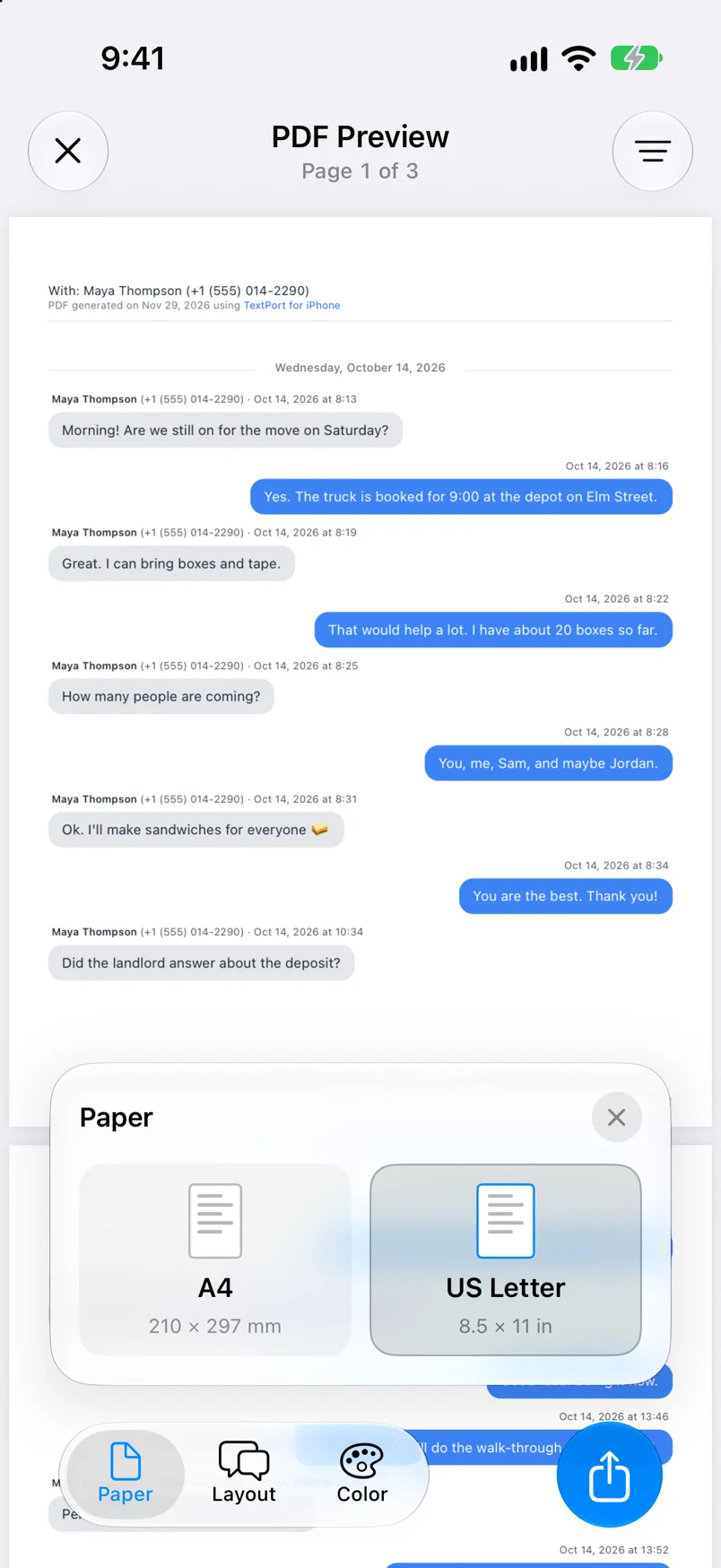
- Tap Paper at the bottom left.
- Tap A4 or US Letter.
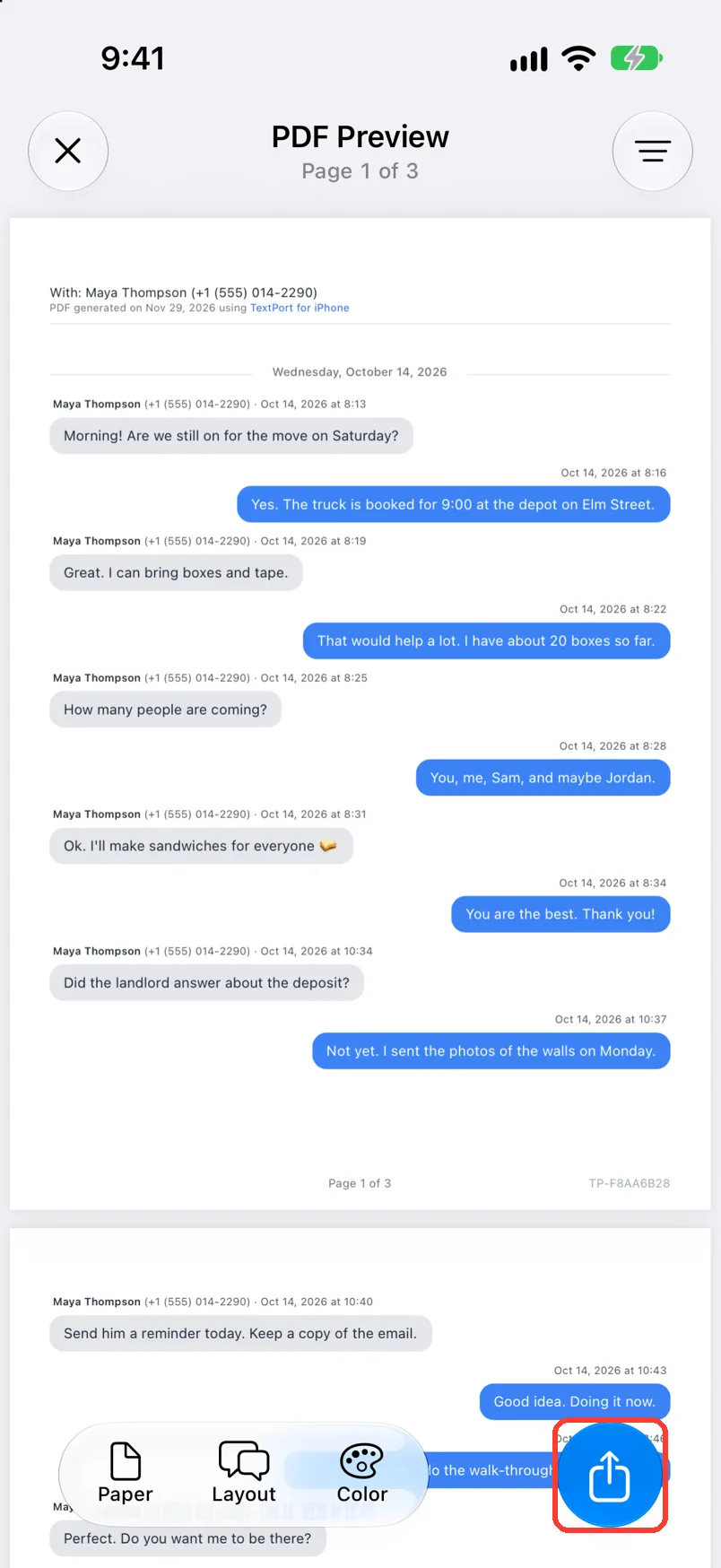
- Tap the share button, or the printer button, at the bottom right.
The pages change as soon as you tap a size.
What you need
- ✓TextPort on your iPhone
- ✓A chat saved in TextPort
Steps
-
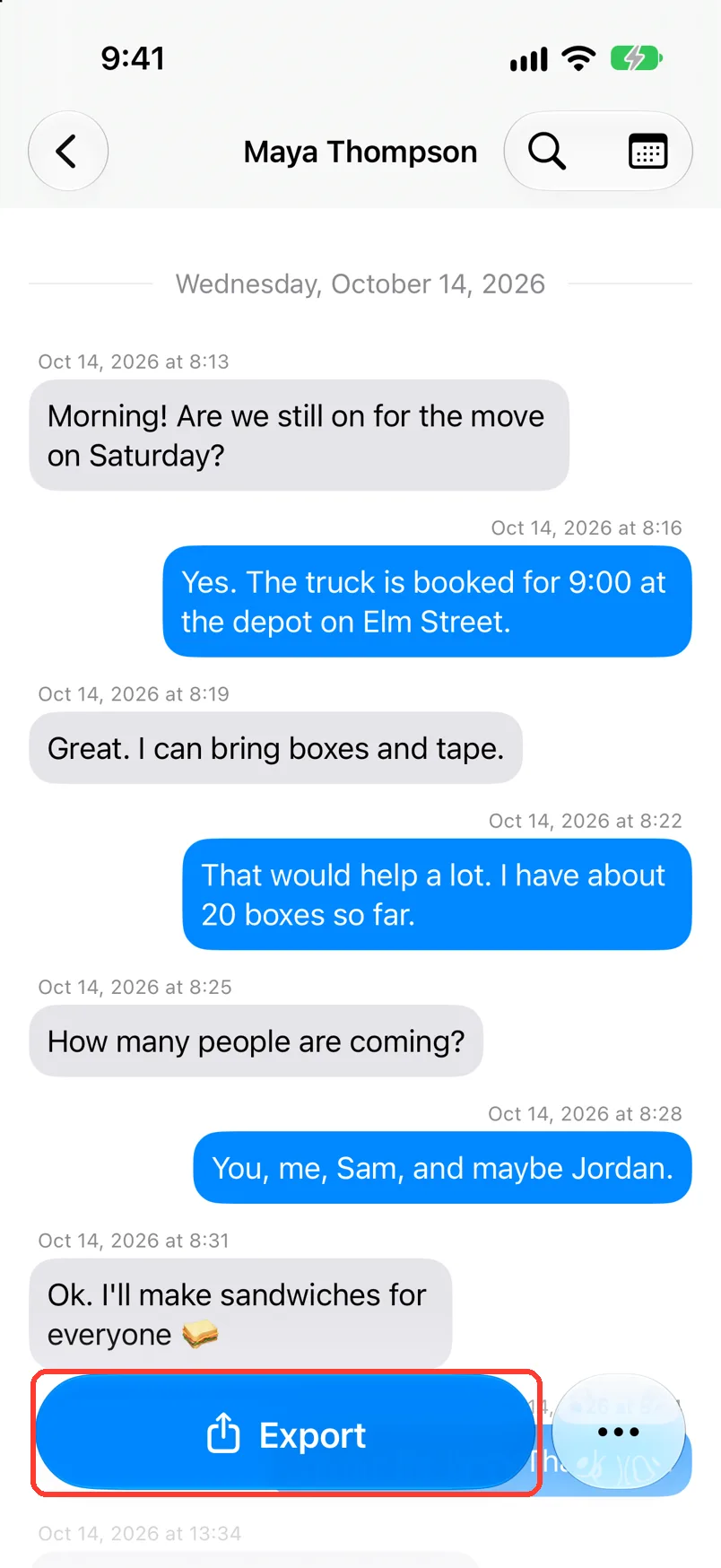
Tap Export
Open the chat. It is the blue button at the bottom. Export Chat opens.
-
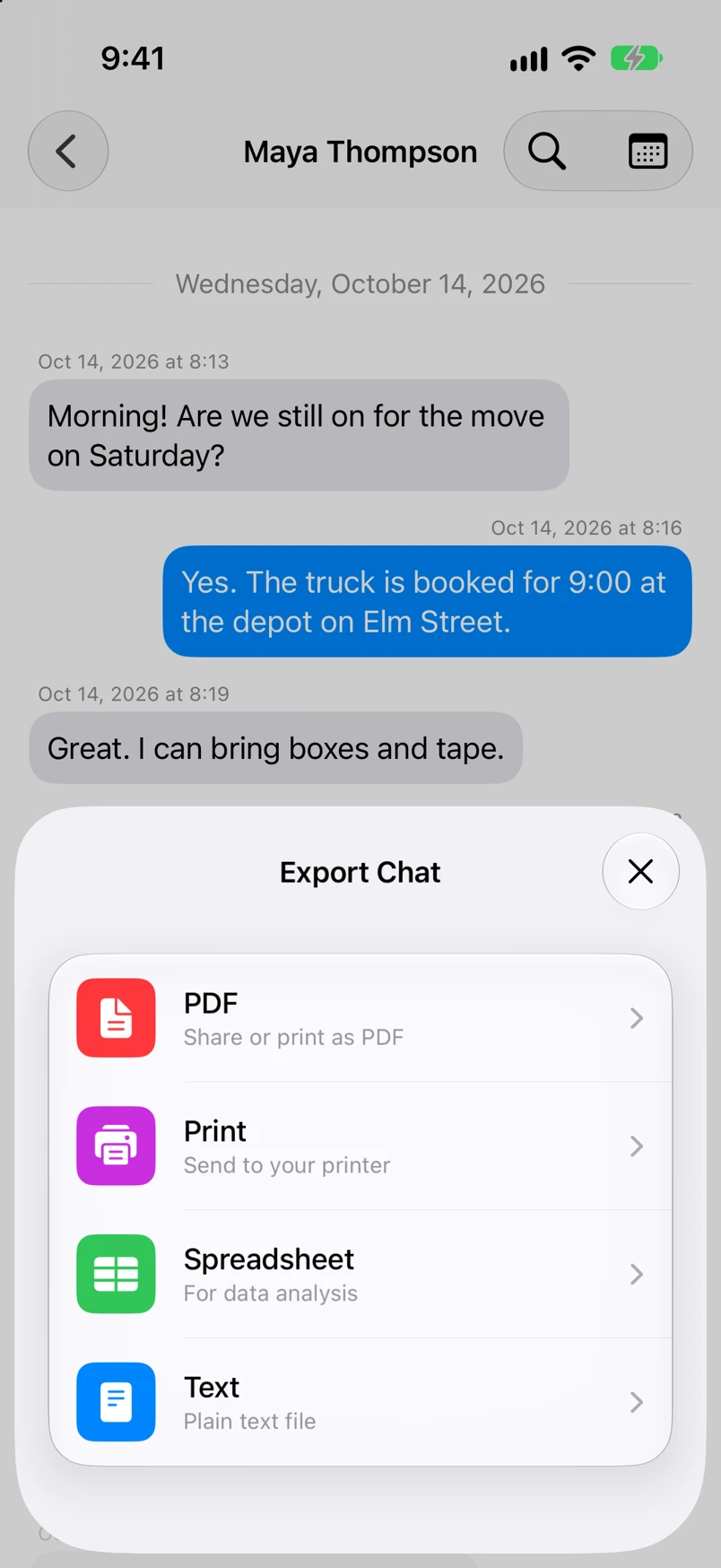
Tap PDF or Print
TextPort builds the pages. PDF Preview or Print Preview opens.
TextPort may ask you to unlock this.
-
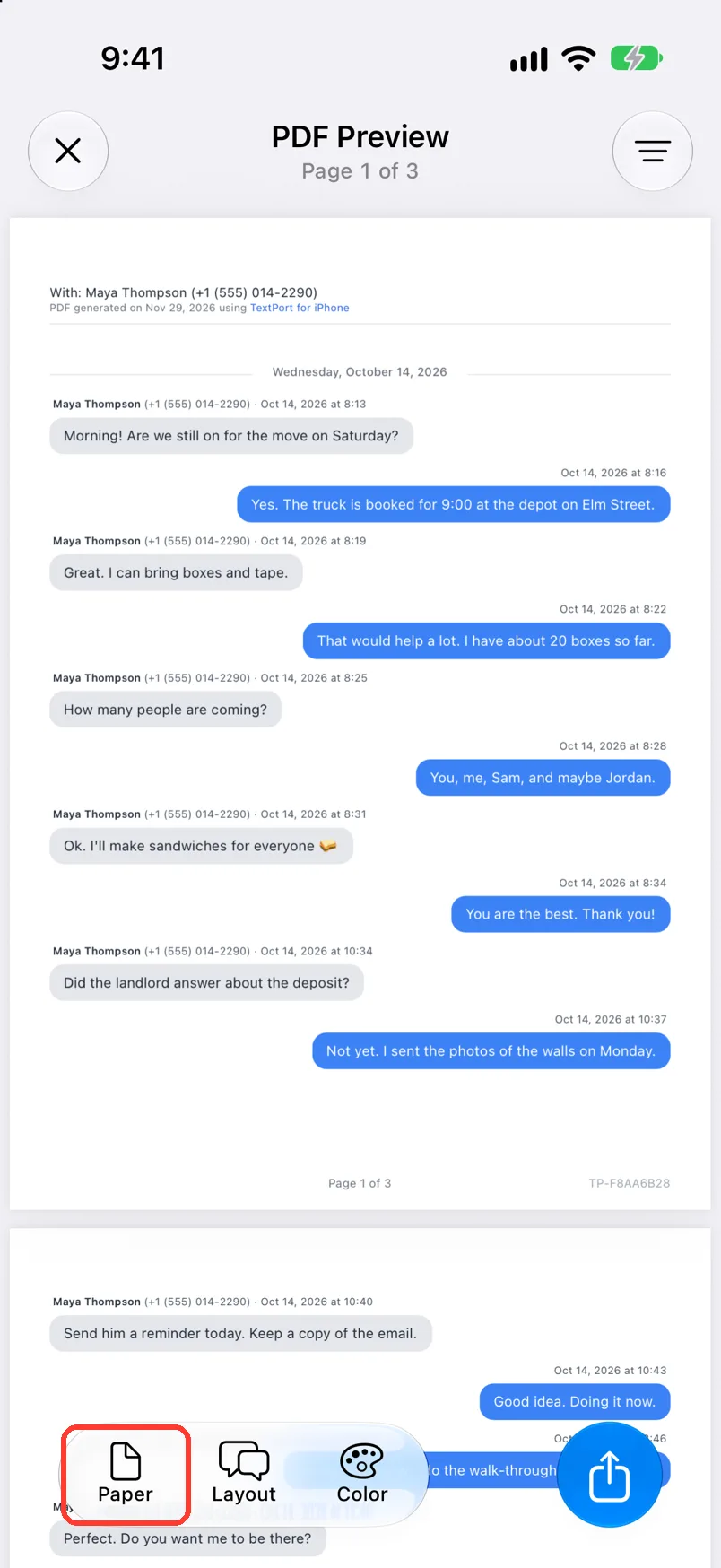
Tap Paper
It is at the bottom left, next to Layout and Color. A card named Paper opens.
-
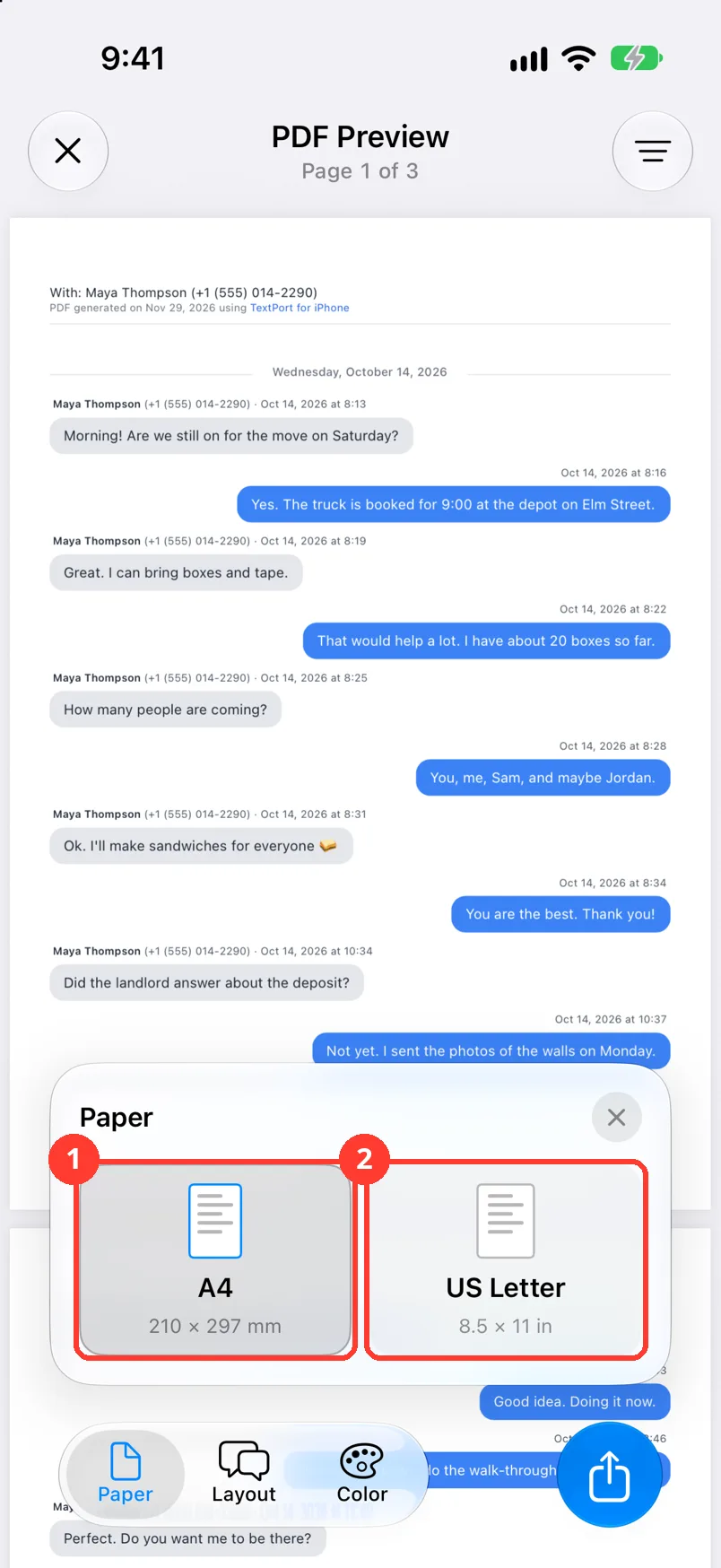
Tap A4 or US Letter
A4 (1) is 210 × 297 mm. US Letter (2) is 8.5 × 11 in. The pages change right away.
-
Check the pages
The size you picked is darker on the card. The page count under the title can change.
-
Tap the share button or the printer button
It is the blue button at the bottom right. Share, save, or print as usual.
Done
Your PDF or printout uses the paper size you picked.
Problems
The size is back to the old one the next time.
TextPort does not keep your pick. Each new preview starts with the size for your iPhone's region. Tap Paper again.
The printer still uses another size.
After you tap the printer button, Options opens. Tap Paper Size there. Pick the same size.
None of these match.
Email [email protected]. Say which step you were on. Say what you saw. We usually reply within a day.
Questions
-
It follows the region your iPhone is set to. It is US Letter in the United States, Canada, Mexico, the Philippines, Chile, Colombia, and Venezuela. It is A4 everywhere else.
-
Pick the paper your printer holds. US Letter is common in the United States and Canada. A4 is common in most other countries.
-
No. An export of many chats uses the size for your iPhone's region. To pick a size, export one chat at a time.
-
No. TextPort makes A4 and US Letter pages.
Next guides
-
 How to export a chat to PDF with TextPort
You will get a PDF of one chat, with names, dates, and times, ready to share or print.
-
 How to print a chat from your iPhone with TextPort
You will have a paper copy of one chat, with names, dates, and times.
-
 How to export a chat as a numbered transcript with TextPort
You will get a PDF where every message is one numbered line with its time and sender.
-
 How to print a chat in black and white with TextPort
Your PDF or printout will have no color, with bubbles drawn as outlines.

Start exporting your messages
Available for iPhone, Mac, and Windows. No computer required.