

How to clear temporary files in TextPort for Windows
Quick answer
In TextPort:
- Click the gear at the top right.
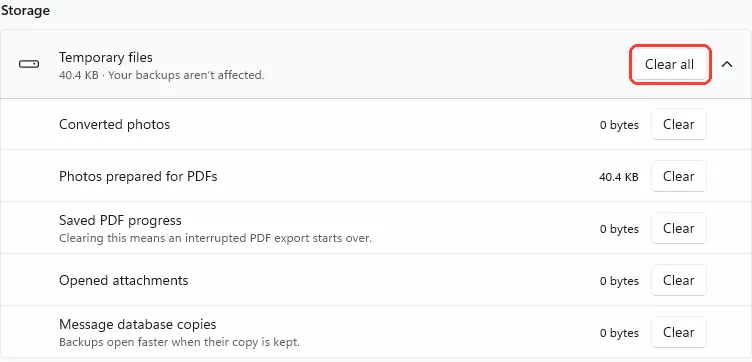
- Find Temporary files under Storage.
- Click Clear all.
Your backups aren't affected.
What you need
- ✓TextPort for Windows
Steps
-
Click the gear
It is at the top right. Settings opens.
You can also press Ctrl comma .
-
Click Clear all
It is under Storage, next to Temporary files. The line shows how much space they use.
Click the arrow to see each kind. Click Clear to clear only that one.
Done
The temporary files are gone. Your backups and messages are still there.
Problems
Couldn’t clear these files
Close apps that might be using them. Then try again.
Some files weren’t cleared
An export or an opening backup is using them. Try again when it is done.
You need much more space.
Old backups use the most space. See Delete old backups.
The drive is still too full for a backup.
Save new backups on another drive. See Change the backup folder.
None of these match.
Email [email protected]. Say which step you were on. Say what you saw. We usually reply within a day.
Questions
-
No messages. Clearing Saved PDF progress means an interrupted PDF export starts over. Clearing Message database copies makes backups open slower the next time.
-
Converted photos, Photos prepared for PDFs, Saved PDF progress, Opened attachments, and Message database copies. TextPort makes them again when it needs them.
-
No. TextPort says Your backups aren’t affected.
Next guides
-
 How to delete old backups in TextPort for Windows
You will have more free space, with the backups you still need kept.
-
 How to change the backup folder in TextPort for Windows
New backups will save in the folder or drive you pick.
-
 How to find your iPhone backups in TextPort for Windows
You will see the folder of an iPhone backup in File Explorer.

Start exporting your messages
Available for iPhone, Mac, and Windows. No computer required.