

How to import a chat from KakaoTalk with TextPort
Quick answer
- In KakaoTalk, open the chat. Tap ≡, then the gear.
- Tap Export Messages, then Save All Messages to Documents.
- Open Files. Tap On My iPhone, then KakaoTalk.
- Touch and hold the ZIP file. Tap Share.
- Tap TextPort in the share sheet.
- In TextPort, tap Import … Messages.
The chat then opens in TextPort.
What you need
- ✓TextPort on your iPhone
- ✓KakaoTalk on the same iPhone
Steps
-
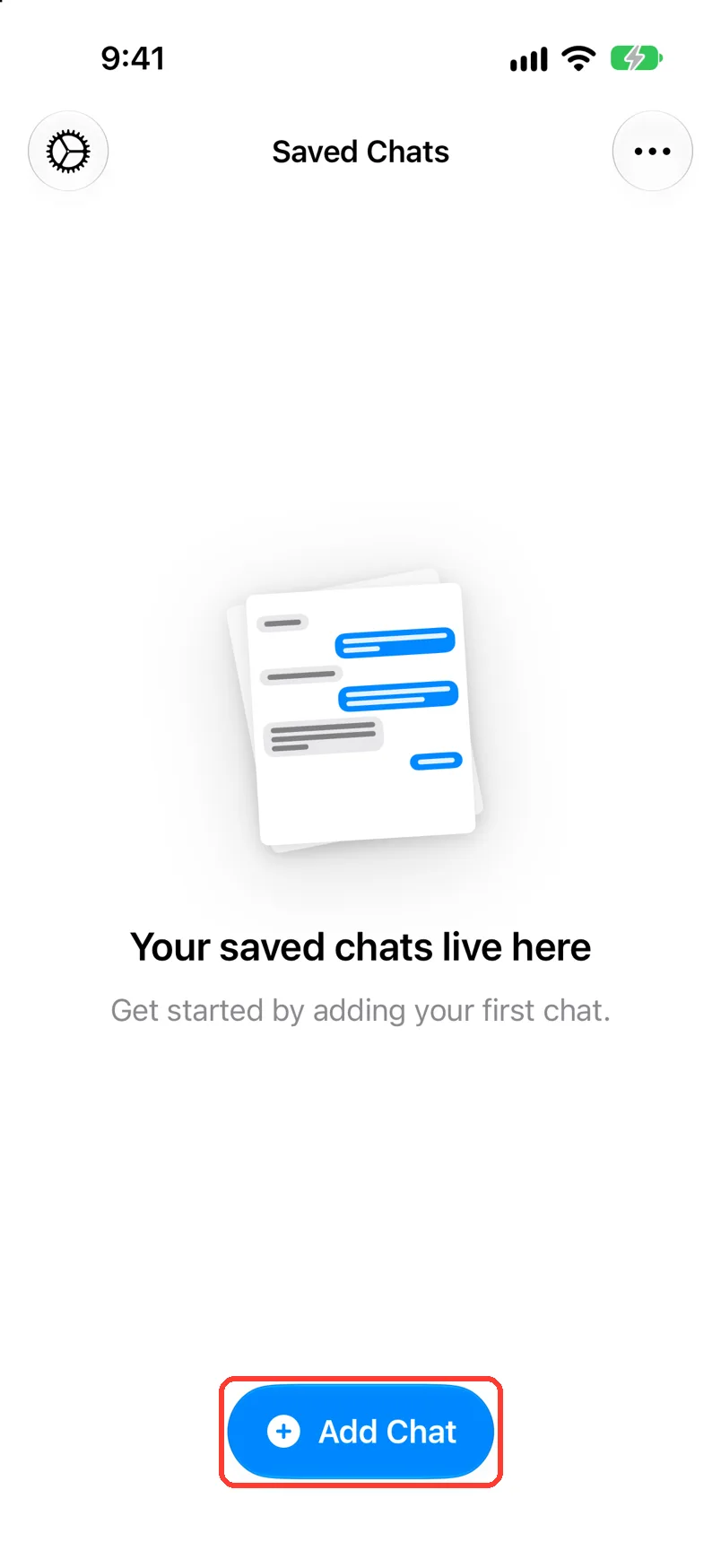
Tap Add Chat
Open TextPort. It is at the bottom of Saved Chats.
-
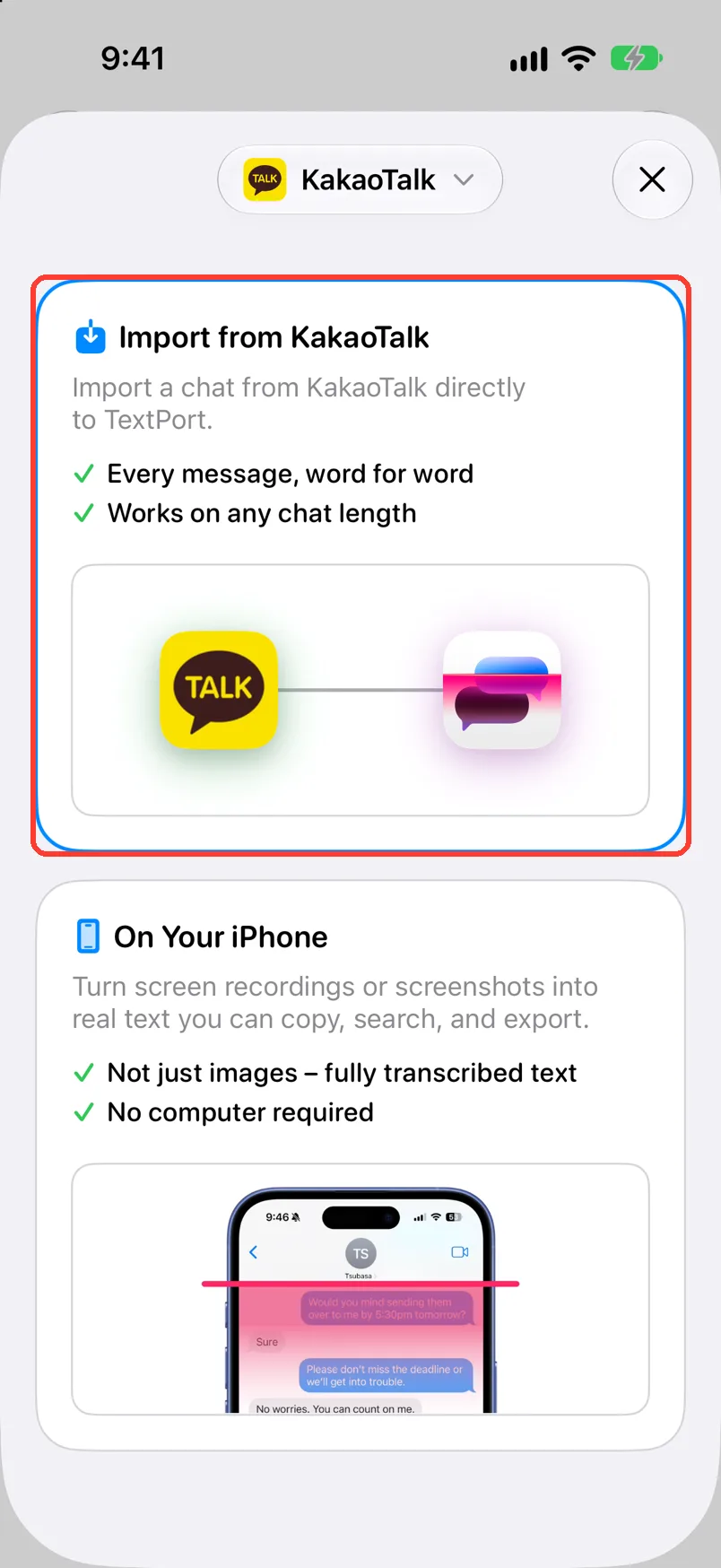
Tap Import from KakaoTalk
If it is not there, tap the app name at the top and pick KakaoTalk. Import from KakaoTalk opens.
-
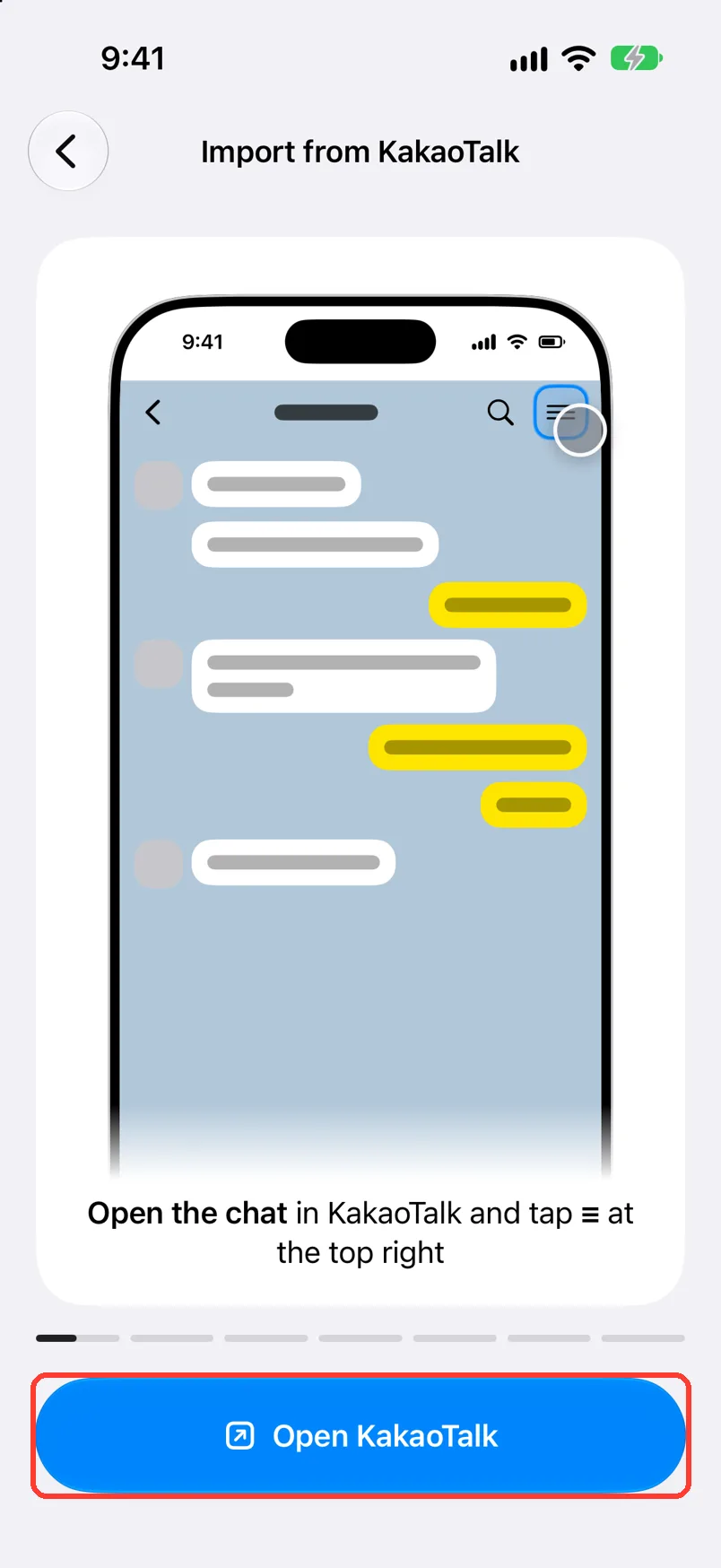
Tap Open KakaoTalk
It is the blue button at the bottom. KakaoTalk opens.
-
Open the chat, then tap ≡
It is at the top right of the chat in KakaoTalk. A menu opens.
-
Tap the gear
It is at the bottom of the menu. The chat's settings open.
-
Tap Export Messages
It is in the list of settings. KakaoTalk asks how to export.
-
Tap Save All Messages to Documents
Wait until KakaoTalk is done. It saves a ZIP file in the Files app.
The other choice sends the text by email. It does not make the ZIP file.
-
Open the Files app
It is Apple's app with a blue folder icon.
-
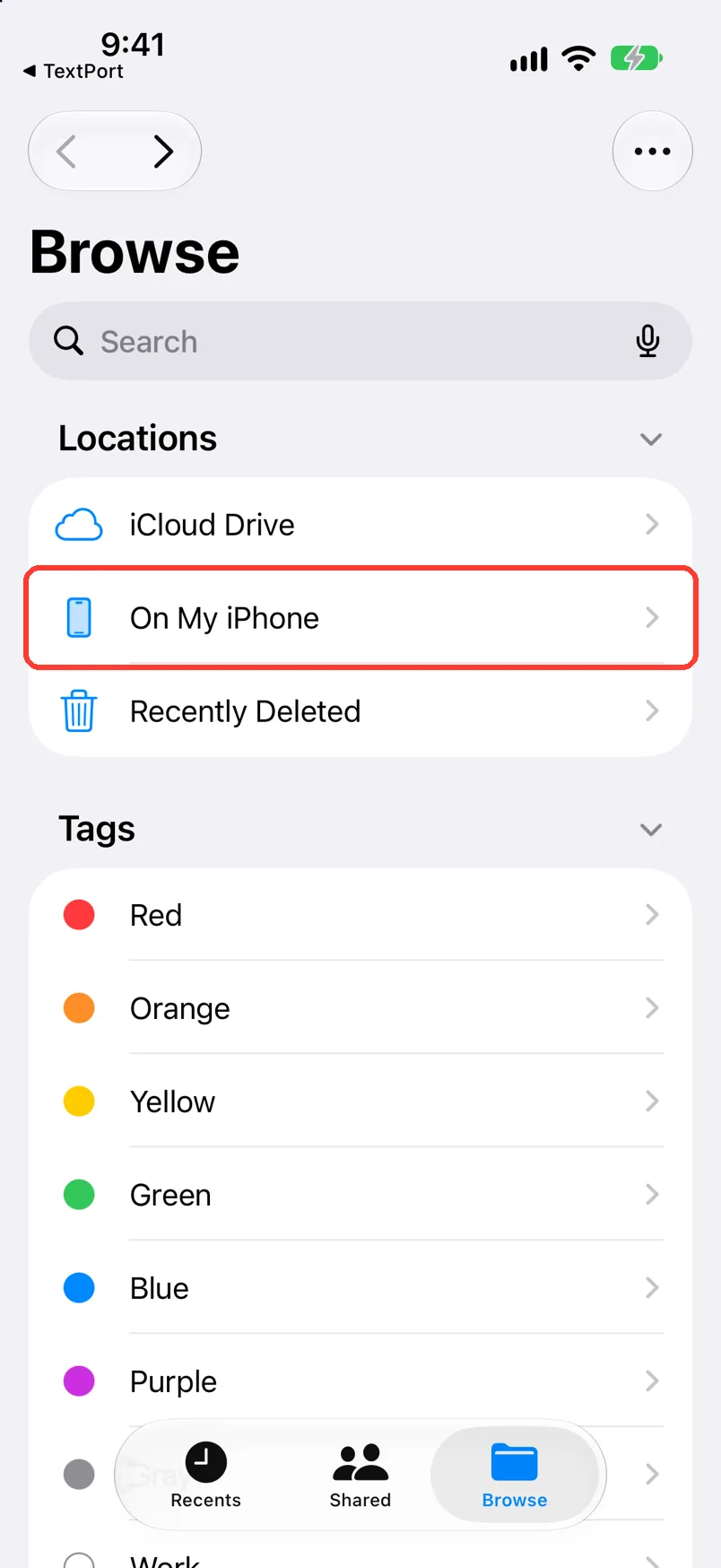
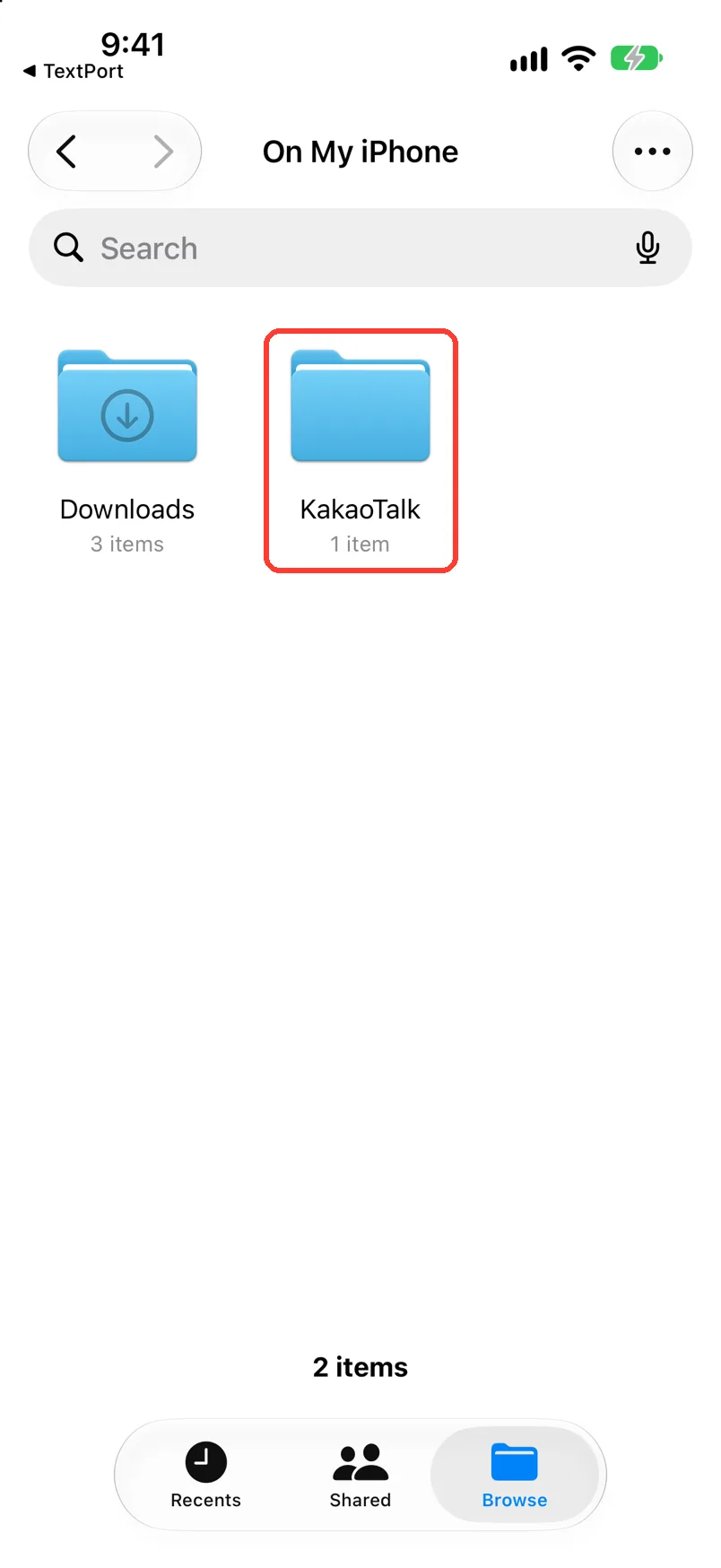
Tap On My iPhone
It is under Locations. Your folders show.
If you do not see Locations, tap Browse at the bottom.
-
Tap KakaoTalk
It is a folder. The ZIP file is in it.
-
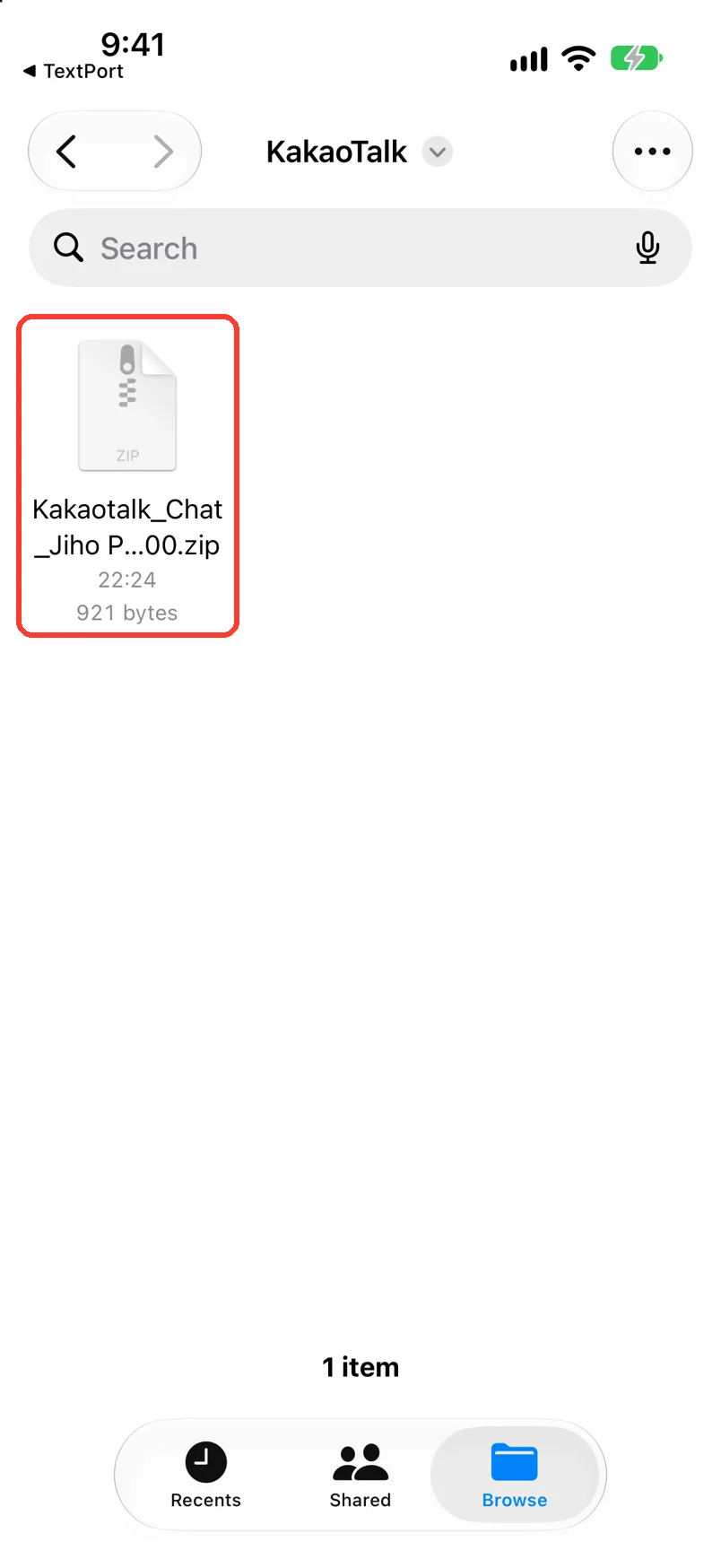
Touch and hold the ZIP file
Its name starts with Kakaotalk_Chat. A menu opens.
-
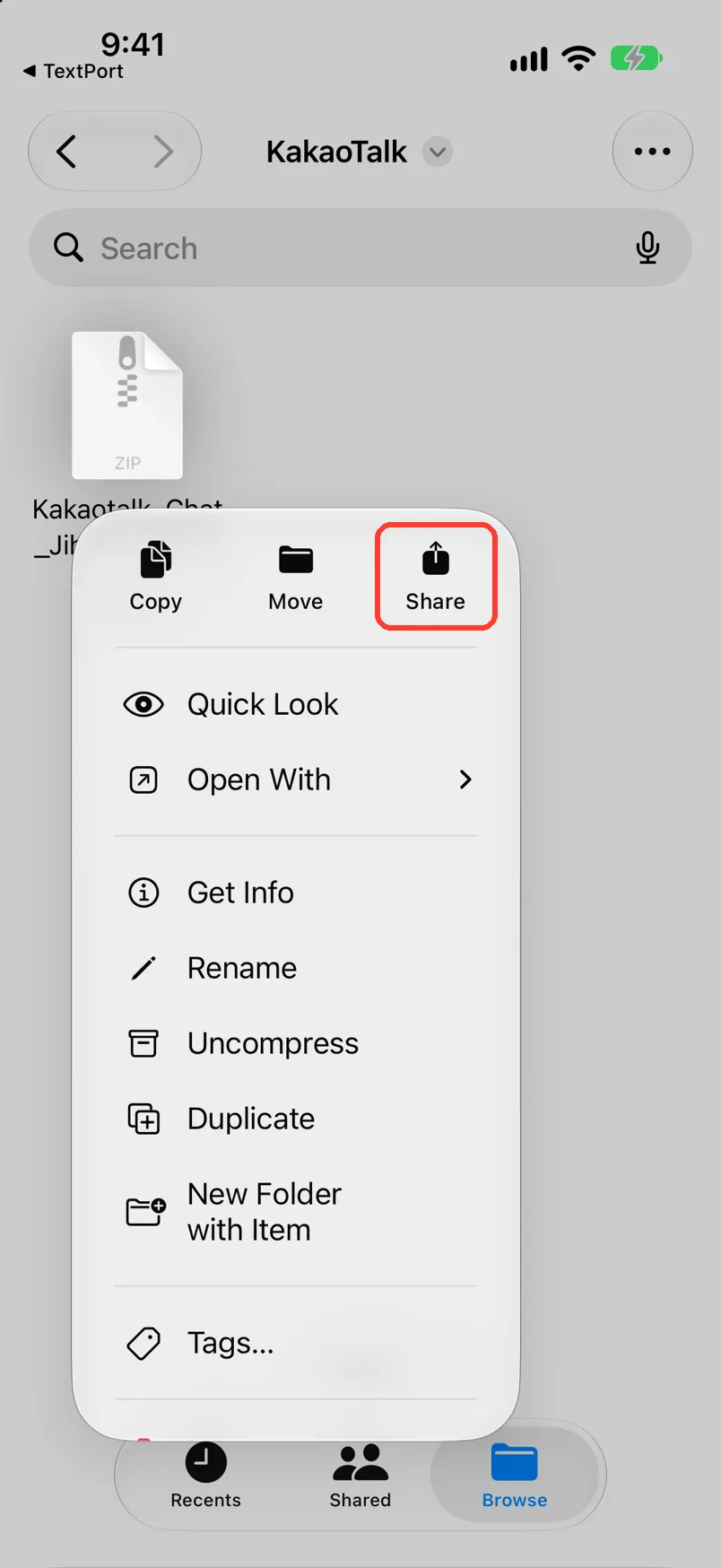
Tap Share
It is at the top of the menu. The share sheet opens.
-
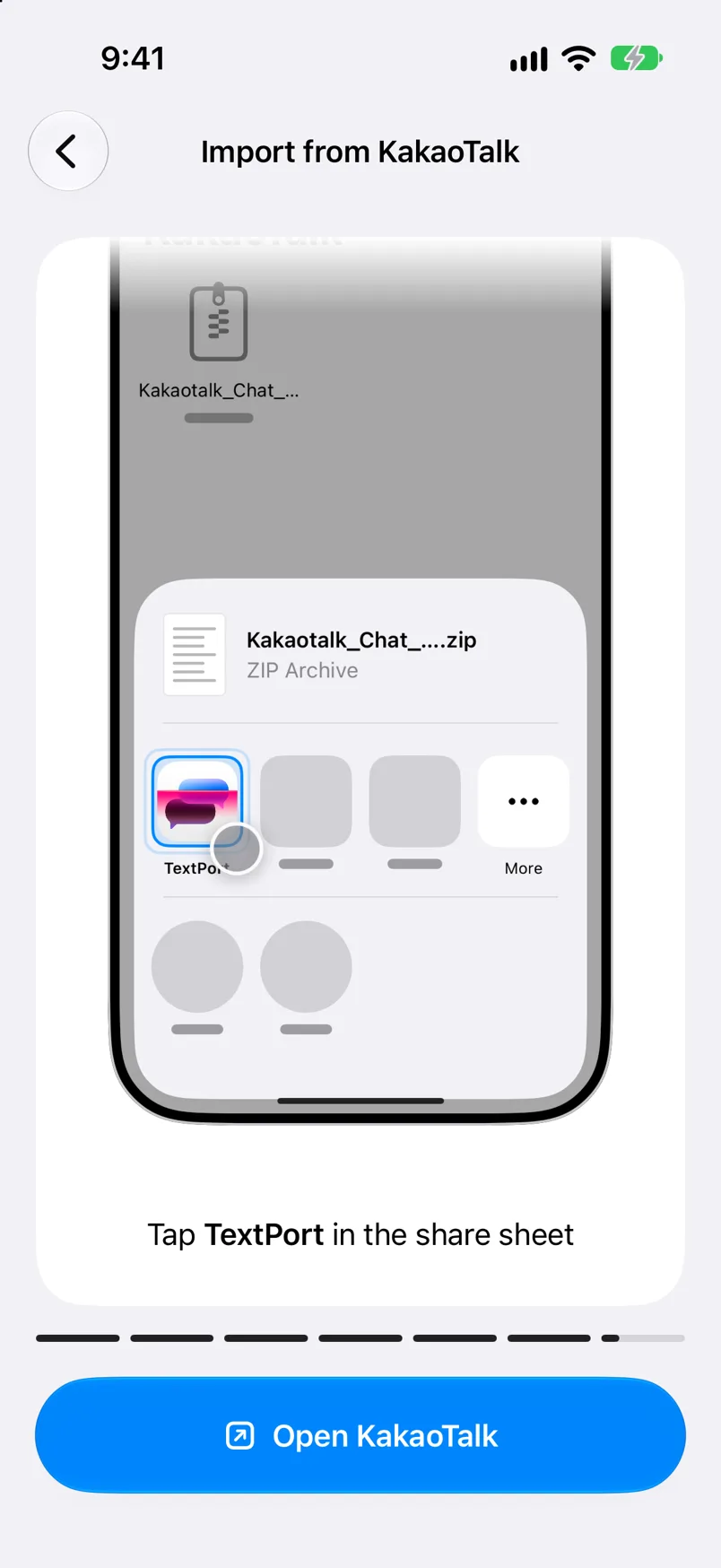
Tap TextPort
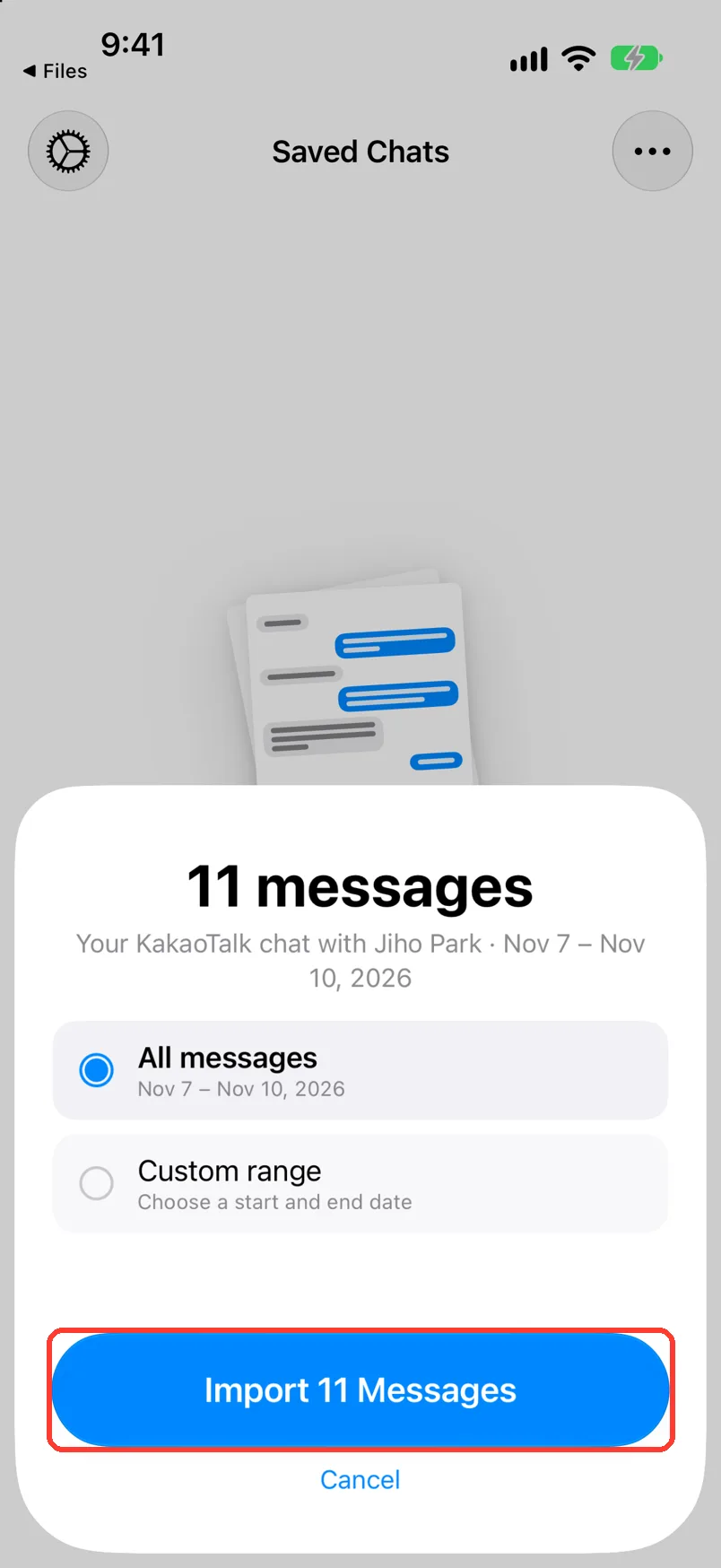
Find it in the row of apps. TextPort opens and shows how many messages it found.
-
Tap Import … Messages
The button shows the number of messages. The chat then opens.
To save fewer days, tap Custom range first. It shows only if the chat spans more than one day.
-
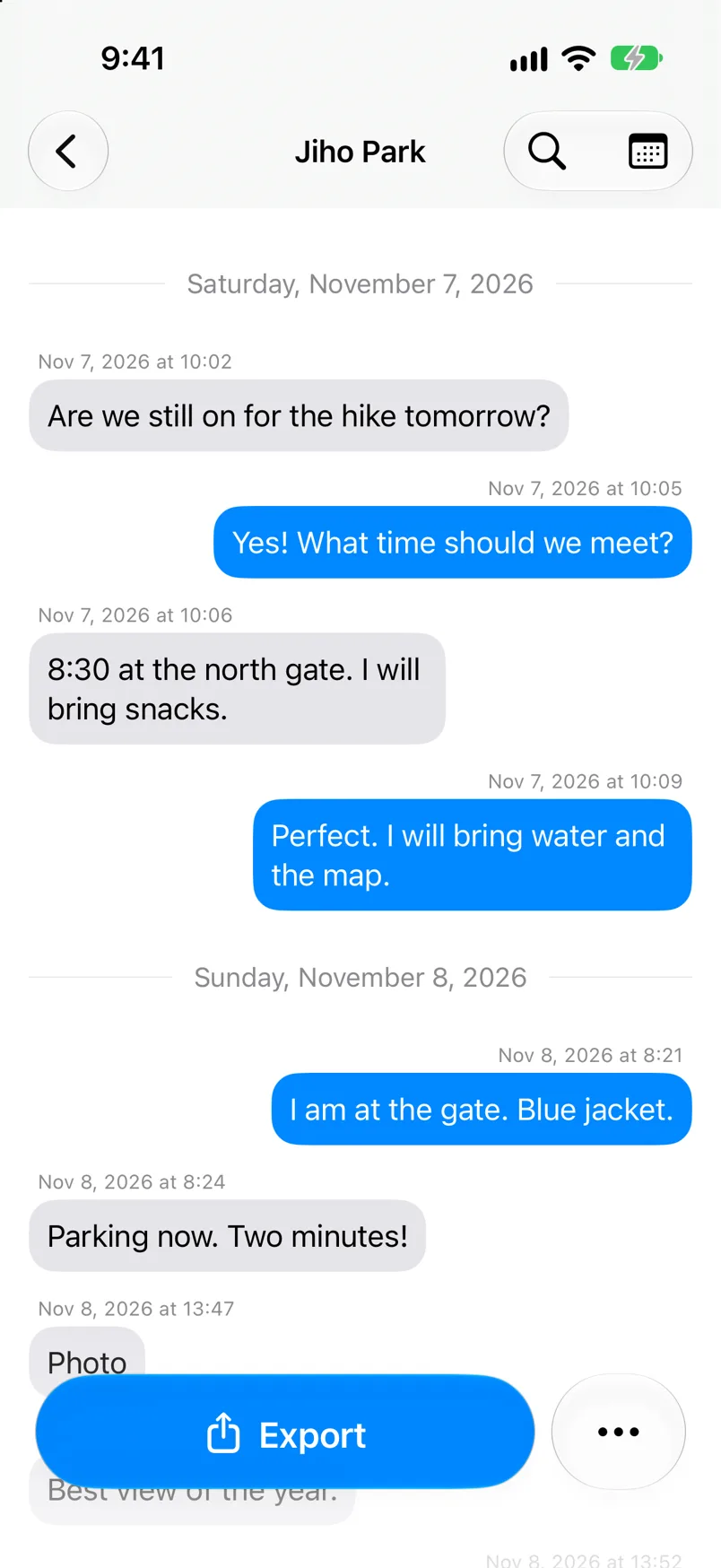
Read the chat
A photo shows as a word, like Photo. The chat is in Saved Chats.
Done
Your KakaoTalk chat is saved in TextPort, word for word. You can export it.
Problems
Which one is you?
You see this for a group chat. Tap the name you use in this chat. Then tap Import … Messages.
You need the photos too.
The import has only text. Tap On Your iPhone on the Add Chat sheet. See Import a chat with Scroll Capture.
There is no KakaoTalk folder in Files, or it has no ZIP file.
The export did not finish. In KakaoTalk, do steps 6 and 7 again. Wait until KakaoTalk is done.
Couldn't import this chat
Tap Retry. If it fails again, tap Dismiss. Export the chat from KakaoTalk again.
The Import … Messages button is gray.
The dates you picked have no messages. Pick other dates. Or tap All messages.
Processing failed.
TextPort could not read the file. Export the chat from KakaoTalk again. Share the new ZIP file with TextPort. If it fails again, contact support.
The chat says Import failed in Saved Chats.
TextPort could not read the file. The chat is empty. Export the chat from KakaoTalk again and share the new ZIP file. If it fails again, contact support.
You picked the wrong name.
Tap the chat name at the top. Chat Details opens. Tap the person who is you. Turn on This is me. Tap the back button, then the X.
TextPort asks you to unlock this.
Follow the steps on the screen. Then share the ZIP file from Files again.
None of these match.
Email [email protected]. Say which step you were on. Say what you saw. We usually reply within a day.
Questions
-
No. A KakaoTalk import is an exact copy of the export.
-
Yes. TextPort asks which person is you.
-
KakaoTalk puts them in the ZIP file. They stay there. TextPort imports the text of the chat.
-
No. TextPort reads the ZIP file that KakaoTalk for iPhone makes.
-
No. KakaoTalk keeps the chat as it is.
Next guides
-
 How to pick a way to import a chat with TextPort
You will know which way to import your chat, and where to tap to start it.
-
 How to import a chat with Scroll Capture in TextPort
You will get a chat from any app saved in TextPort, made from a screen recording of you scrolling.
-
 How to export a chat to PDF with TextPort
You will get a PDF of one chat, with names, dates, and times, ready to share or print.

Start exporting your messages
Available for iPhone, Mac, and Windows. No computer required.