

How to install TextPort and open it for the first time
Quick answer
On your iPhone:
- Open the App Store. Search for TextPort. Tap Get.
- Open TextPort.
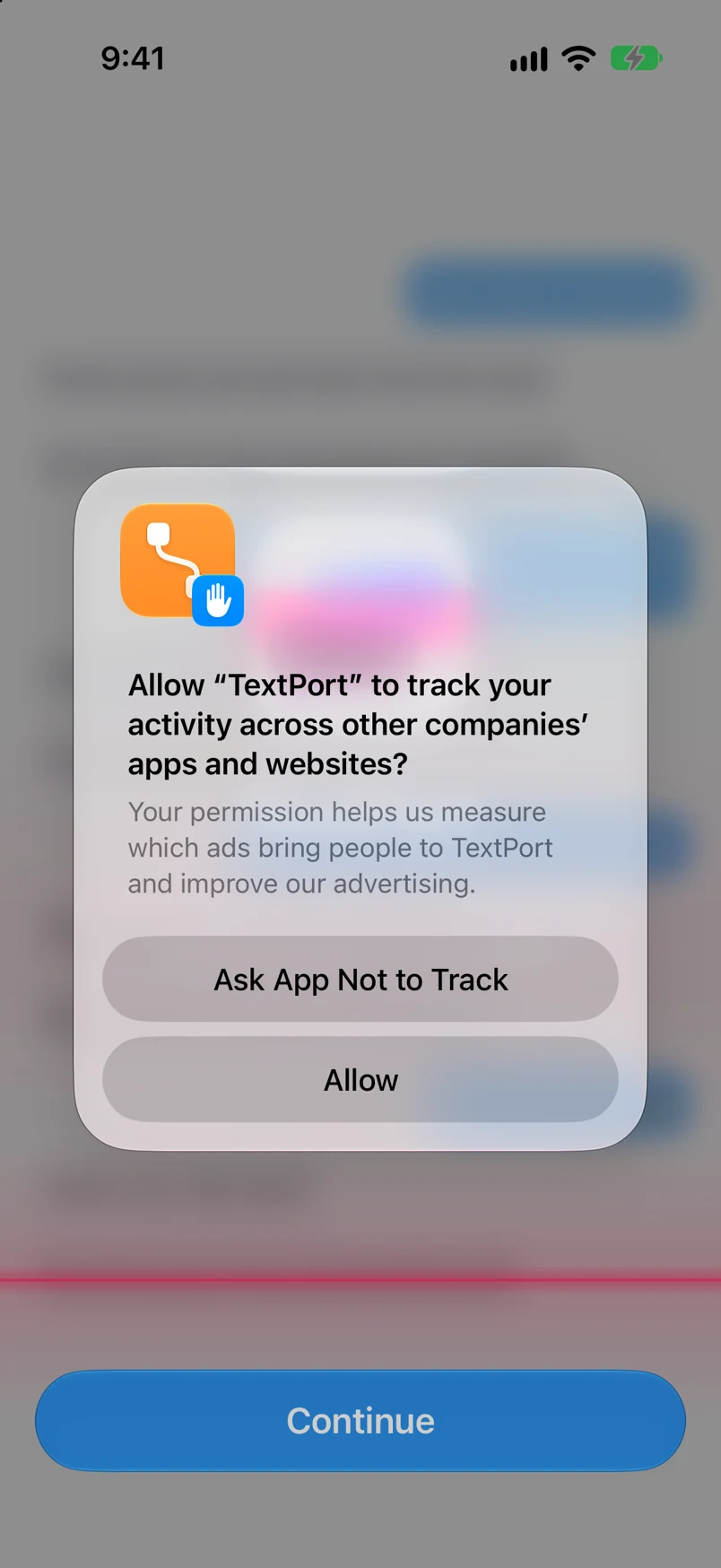
- If iOS asks about tracking, tap Ask App Not to Track or Allow.
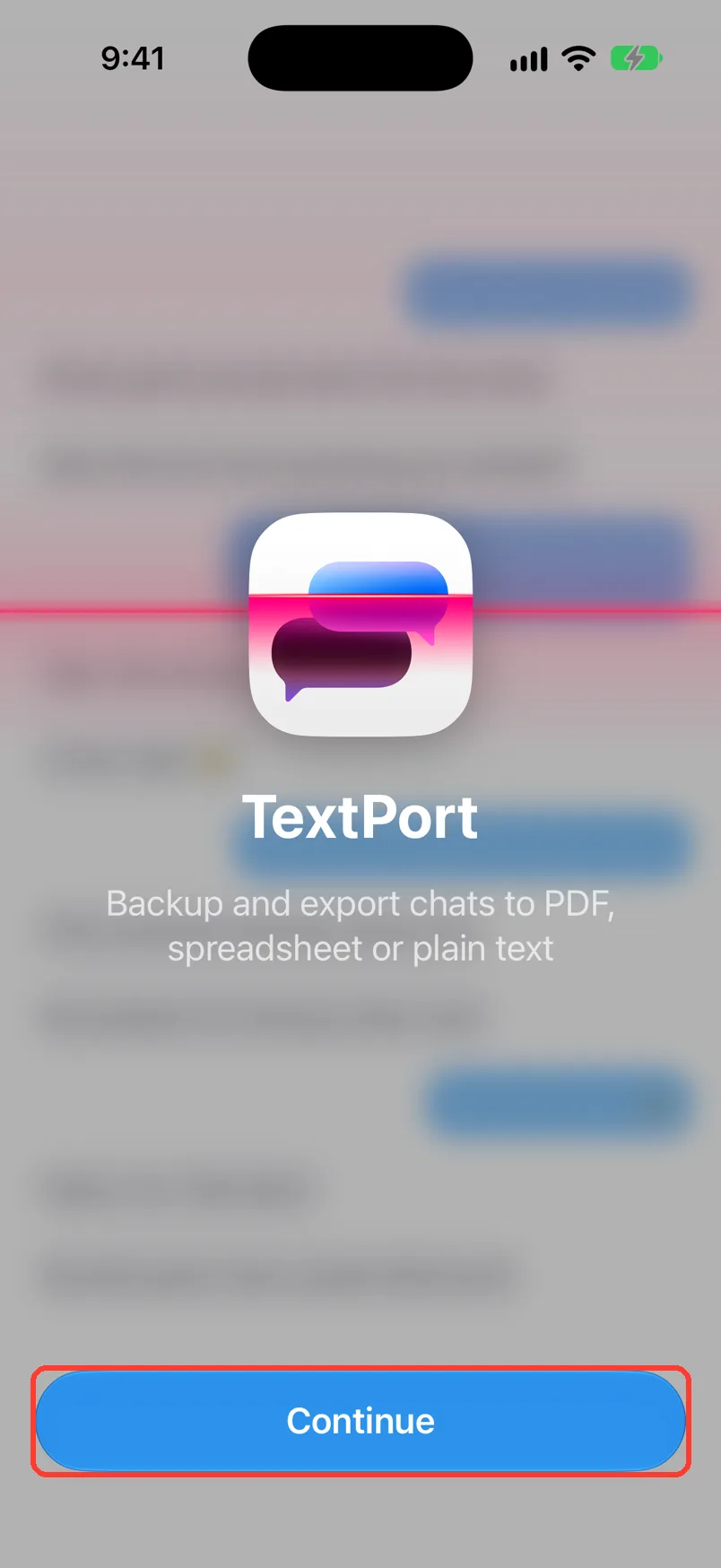
- Tap Continue. Go through the pages that follow.
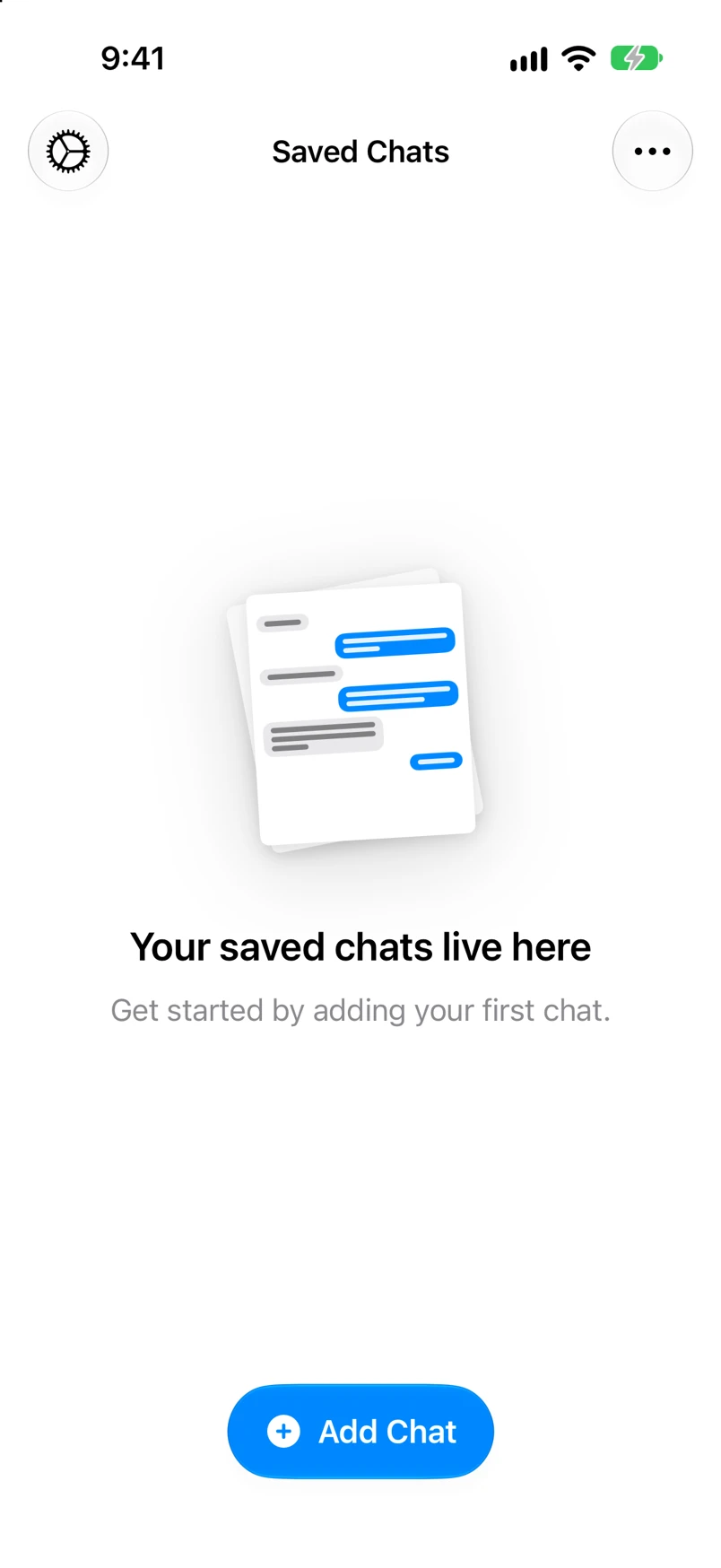
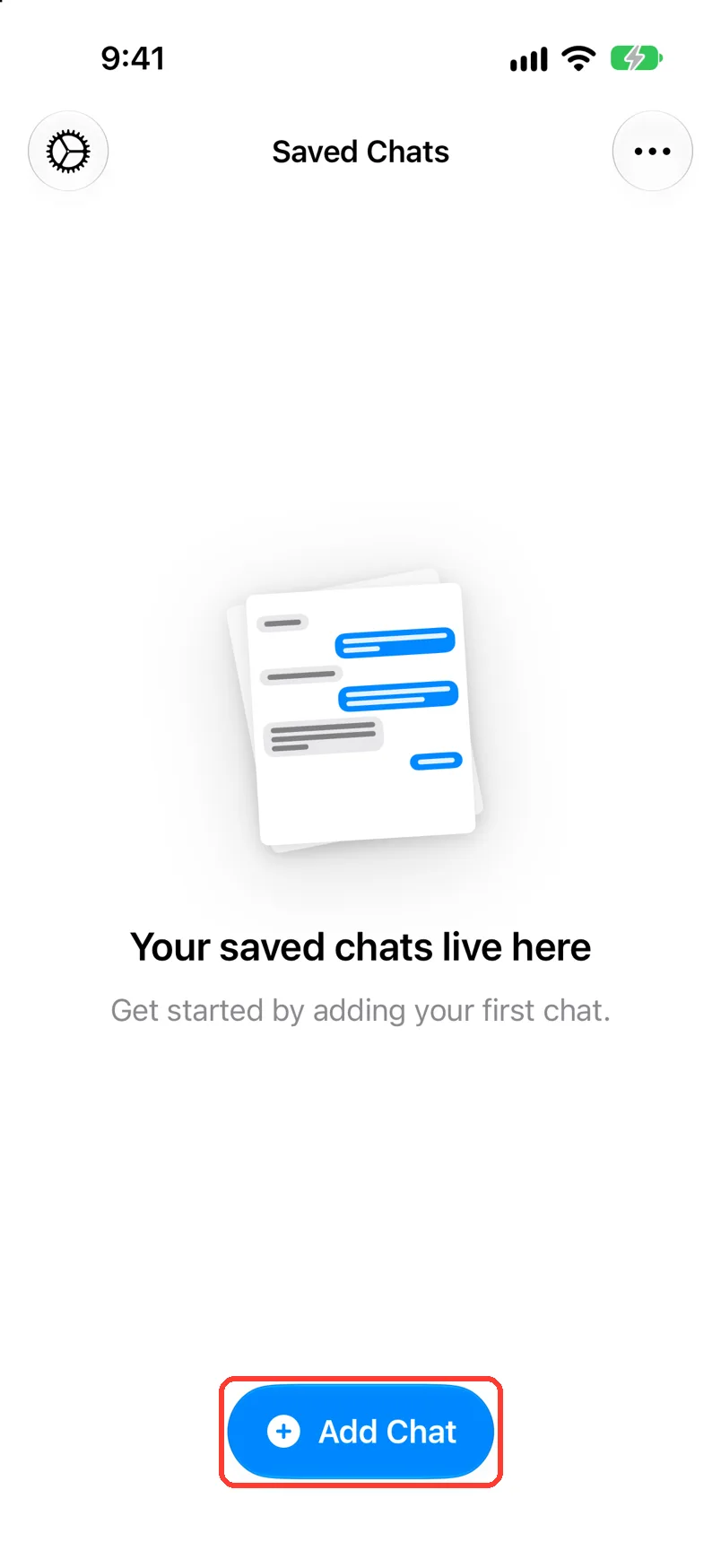
Saved Chats then opens. Tap Add Chat to import your first chat.
- On Mac: How to install TextPort for Mac and give it Messages access
- On Windows: How to install TextPort for Windows
What you need
- ✓An iPhone
- ✓An internet connection
Steps
-
Tap Get in the App Store
Open the App Store. Search for TextPort. Tap Get. The app downloads.
-
Open TextPort
Tap Open in the App Store, or tap the TextPort icon. TextPort opens.
-
Tap Ask App Not to Track or Allow
iOS may ask this once. TextPort works with either one. The welcome screen opens next.
-
Tap Continue
It is at the bottom of the welcome screen. It may say Loading… for a moment.
-
Go through the pages
TextPort shows a few pages. Tap Continue or Skip on each one.
TextPort may ask you to unlock this.
-
Check for Saved Chats
Saved Chats opens. It says Your saved chats live here.
-
Done
TextPort is on your iPhone and open on Saved Chats. You can import your first chat.
Problems
The button stays on Loading…
Check that your iPhone is online. Close TextPort. Open it again.
You're offline
Check that your iPhone is online. Tap Try Again.
You tapped the wrong answer about tracking.
In iOS Settings, tap Privacy & Security, then Tracking. Change the switch for TextPort.
None of these match.
Email [email protected]. Say which step you were on. Say what you saw. We usually reply within a day.
Questions
-
No. TextPort signs you in by itself. You do not type a name or a password.
-
No. Next time, TextPort opens on Saved Chats.
-
No. TextPort makes its own copy of a chat when you import it. Your chats in Messages stay as they are.
Next guides
-
 How to pick a way to import a chat
You will know which way to import your chat, and where to tap to start it.
-
 What the Saved Chats screen shows
You will know what each part of the Saved Chats screen means and what you can tap.
-
 How to import iMessage and SMS with the TextPort Shortcut
You will get a chat from Apple Messages saved in TextPort, with every message word for word.

Start exporting your messages
Available for iPhone, Mac, and Windows. No computer required.
