

How to use Siri with TextPort
Quick answer
Say one of these to Siri:
- Open TextPort to open the app.
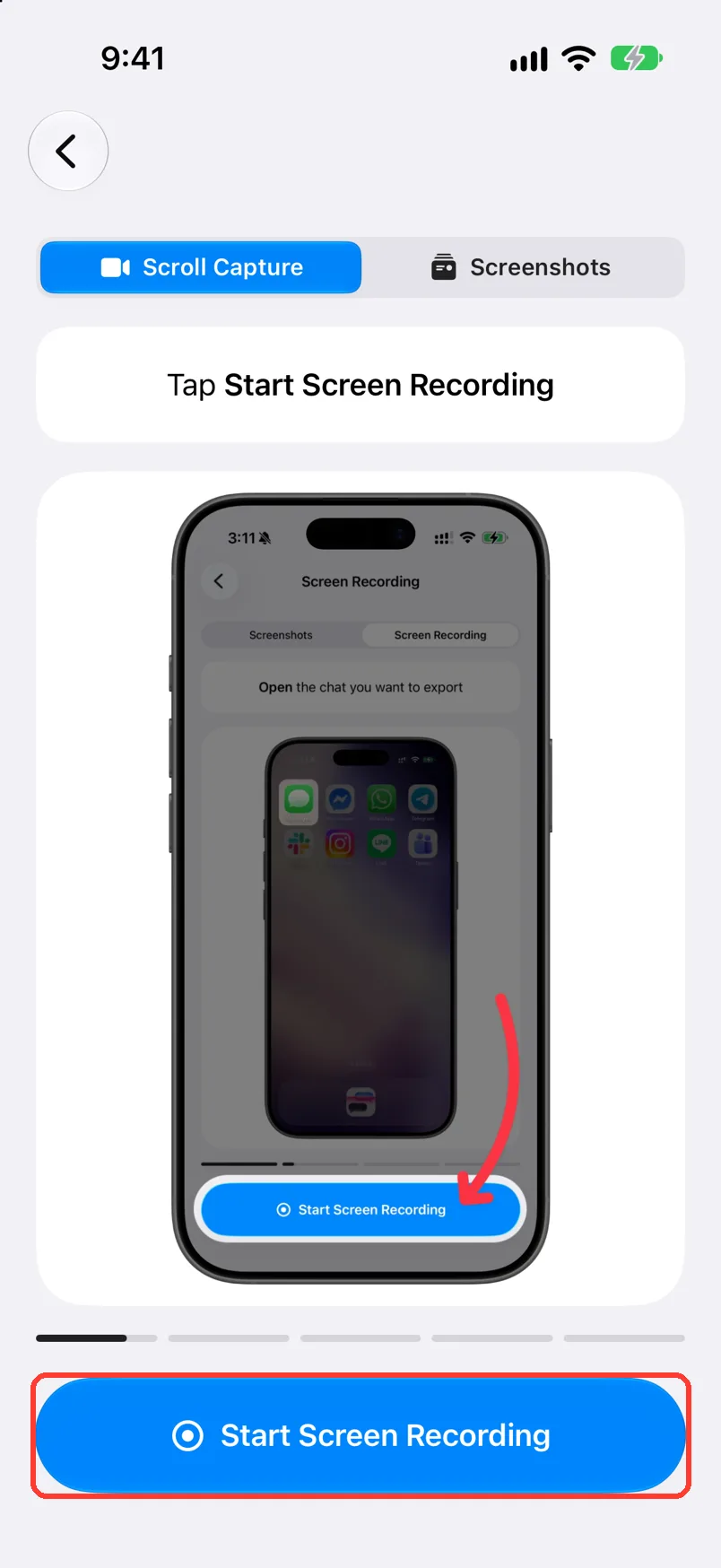
- Record with TextPort to open Scroll Capture.
- Import screenshots in TextPort to open Screenshots.
Siri only opens the screen. You tap the rest.
What you need
- ✓TextPort on your iPhone
- ✓Siri turned on in iOS Settings
Steps
-
Say a phrase to Siri
Say Hey Siri, or hold the side button. Then say Record with TextPort.
Screen recording in TextPort and Import recording in TextPort do the same thing.
-
Done
Siri opens TextPort on the screen you asked for.
Problems
Siri does not know the phrase.
Say the name of the app. Say Import screenshots in TextPort, not only Import screenshots.
TextPort asks for Face ID first.
TextPort is locked. Look at your iPhone, then ask again. See Lock TextPort with Face ID.
Siri does nothing.
Check that Siri is on in iOS Settings. Then tap Apps, then TextPort, then Siri. Turn on Learn from this App. Try again.
None of these match.
Email [email protected]. Say which step you were on. Say what you saw. We usually reply within a day.
Questions
-
No. These phrases only open a screen in TextPort.
-
Open TextPort, Launch TextPort, Record with TextPort, Screen recording in TextPort, Import recording in TextPort, Import screenshots in TextPort, and Upload screenshots to TextPort.
-
No. Start that in TextPort. See the Messages import guide.
Next guides
-
 How to import a chat with Scroll Capture
You will get a chat from any app saved in TextPort, made from a screen recording of you scrolling.
-
 How to import a chat from screenshots
You will get a saved chat in TextPort, made from screenshots you already took.
-
 How to install the TextPort Shortcut
You will have the TextPort shortcut on your iPhone, ready to find your chats.

Start exporting your messages
Available for iPhone, Mac, and Windows. No computer required.
