
How to Back Up Text Messages on iPhone (4 Ways)
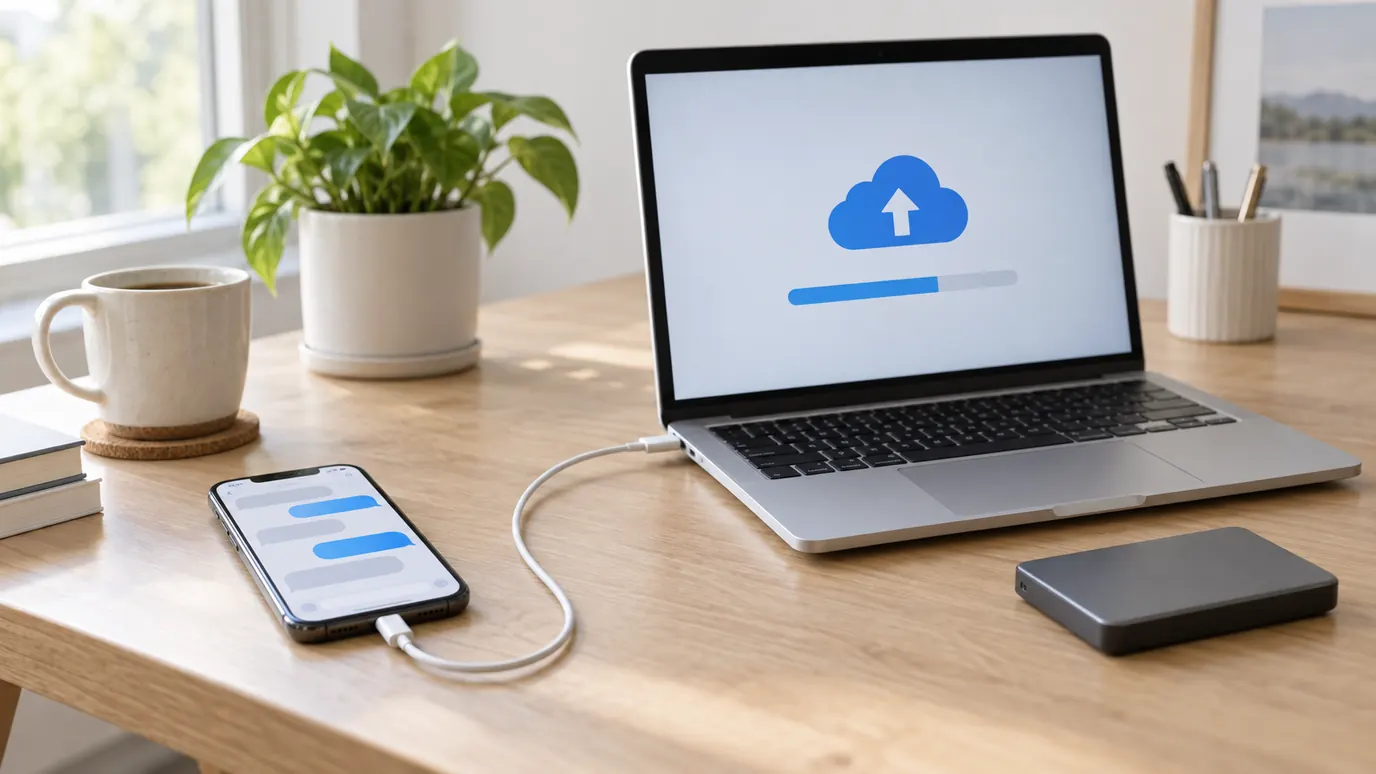
Your iPhone backs up your text messages in iCloud, or on a Mac or PC if you plug it in. Neither gives you a file you can open: a backup only puts your messages back on an iPhone. So back up the phone, check your messages are really in that backup, and save a readable copy of the conversations you can't lose.
Quick answer: If Messages in iCloud is on, your texts are already stored in iCloud and come back when you sign in on a new iPhone. If it's off, turn on iCloud Backup so your texts go into the nightly backup. To keep a copy on your own computer, back up with the Finder on a Mac or the Apple Devices app on a PC. To back up only your messages on a PC and read them, use TextPort for Windows, which is free. To keep a conversation as a PDF you can open anywhere, export it with TextPort for Mac or the TextPort iPhone app.
Are my text messages already backed up?
Check two settings. Together they decide where your texts are kept.
- Open Settings, tap your name, tap iCloud, tap See All, then tap Messages in iCloud. If Use on this iPhone is on, your messages sync to iCloud.
- Go back to iCloud and tap iCloud Backup. Back Up This iPhone shows whether your iPhone backs up to iCloud, and when it last did.
What the two answers mean:
| Messages in iCloud | iCloud Backup | Where your texts are |
|---|---|---|
| On | On or off | In iCloud, kept in sync with your other devices |
| Off | On | In your iCloud Backup |
| Off | Off | Only on the iPhone, unless you back it up to a computer |
While you're in Settings, open Apps, then Messages, and check that Keep Messages is set to Forever. Any other choice deletes older conversations, attachments included, from the phone and from the backups that follow. Can you archive text messages on iPhone? covers that setting and the others that sound like an archive and aren't.
Which backup should you use?
| Method | Where the copy is kept | Can you open and read it? | Puts texts back on an iPhone? | Cost |
|---|---|---|---|---|
| Messages in iCloud or iCloud Backup | iCloud | No, only in Messages on your devices | Yes | 5 GB of iCloud free, then iCloud+ |
| Finder or Apple Devices backup | Your Mac or PC | No | Yes, by restoring the whole iPhone | Free |
| TextPort for Windows | Your PC | Yes: read, search, export | No | Free |
| PDF export with TextPort | Anywhere you save a file | Yes, as a PDF, spreadsheet or text file | No | Free on Mac and Windows |
Most people need two of these: an Apple backup that can restore the phone, and a readable copy of the conversations that matter.
Method 1: Back up text messages to iCloud
iCloud keeps your texts in one of two ways. Messages in iCloud syncs every conversation across your iPhone, iPad and Mac. iCloud Backup copies your whole iPhone to iCloud. Apple says your messages are in iCloud Backup only if Messages in iCloud is off. Turn it on and they sync to iCloud instead, outside the backup.
To turn on Messages in iCloud: open Settings, tap your name, tap iCloud, tap See All, tap Messages in iCloud, then turn on Use on this iPhone. The first sync can take a while on a big message history. Keep the iPhone on Wi-Fi and charging.
To back up with iCloud Backup:
- Connect to Wi-Fi.
- Open Settings, tap your name, then tap iCloud.
- Tap iCloud Backup, and turn on Back Up This iPhone.
- Tap Back Up Now to make the first backup straight away.
From then on, the iPhone backs up by itself when it's charging, locked and on Wi-Fi. iCloud comes with 5 GB free, and a backup won't finish once that's full.
The catch with Messages in iCloud: it's a sync, not a separate copy. Apple says that deleting a message or conversation on one device then deletes it from every device where Messages in iCloud is on. A conversation you delete by mistake is gone everywhere once it leaves Recently Deleted.
Method 2: Back up text messages to a Mac or PC
A computer backup keeps a copy of your iPhone on your own drive, with no iCloud storage needed.
- Connect your iPhone to the computer with a cable, unlock it, and tap Trust if it asks.
- On a Mac, open the Finder and select your iPhone in the sidebar. On a Windows PC, open the Apple Devices app and click General. On a PC that can't run Apple Devices, use iTunes and click Summary.
- Choose to back up all the data on your iPhone to the computer.
- Click Back Up Now, and keep the iPhone plugged in until it finishes.
You can tick Encrypt local backup and set a password. Apple says an encrypted backup can include saved passwords, Wi-Fi settings, website history, Health data and call history, which an unencrypted one leaves out. Write the password down: there's no way into an encrypted backup without it.
Two things to know:
- You can't open it. Apple's backups are for restoring a phone that's replaced, lost or damaged. The Finder and Apple Devices don't show you the messages inside.
- Messages in iCloud changes what's in it. Apple's list of what a computer backup leaves out includes data already stored in iCloud, and it names iMessages and SMS and MMS messages. If Messages in iCloud is on, check that your conversations are really in the backup before you count on it. On a PC, Method 3 shows them to you.
Method 3: Back up only your text messages to a PC with TextPort for Windows
TextPort for Windows backs up your iPhone over a USB cable and keeps only what it needs: your messages, your contacts and their attachments. Your conversations open on the PC as soon as their messages are copied, so you can check that your chats are there, then read, search and export them. It's free, from the Microsoft Store, for Windows 10 and 11. No account. No uploads.
- Install TextPort from the Microsoft Store and open it. If it asks, install Apple's Apple Devices app too.
- Plug in your iPhone, unlock it and tap Trust.
- Click Back up now.
- When Messages opens, pick a conversation to read it, or click Export to save it as a PDF, spreadsheet (CSV) or text file, with photos and files in a ZIP.
Later backups copy only what changed since the last one. If backup encryption is on for your iPhone, TextPort asks for the backup password once and turns encryption off, because it can't read an encrypted backup. To keep the extra data Apple's encrypted backups hold, turn Encrypt local backup back on in Apple Devices once you've exported what you need. The full walkthrough, with pictures, is in back up your iPhone to your PC with TextPort.
Already have a backup made with Apple Devices or iTunes? TextPort can open it instead, as long as it isn't encrypted.
What it doesn't do: TextPort's backup can't restore an iPhone. Keep an iCloud or Apple Devices backup as well, for the day you replace your phone.
Method 4: Save a copy you can read, as a PDF
A backup puts messages back on a phone. A PDF is a copy you can open without one: on a computer, in an email to your lawyer, or years from now after the phone is gone. For the conversations that matter, keep both.
On a Mac: TextPort for Mac reads the Messages already on your Mac. Turn on Messages in iCloud on your iPhone and your Mac so your whole history comes over, then export one conversation or all of them to PDF, CSV or TXT, with attachments in a ZIP. It's free from the Mac App Store. No account. No uploads.
On your iPhone, with no computer:
- Open the TextPort iPhone app and tap Add Chat. Pick the app the chat is in.
- Bring the chat in. Messages and SMS come in word for word through the TextPort Shortcut, which needs iOS 26.4 or later. WhatsApp chats come in from WhatsApp's own Export Chat. For other apps, record your screen while you scroll, or use screenshots.
- Open the chat, tap Export, then PDF.
- Tap Share, tap Files, pick iCloud Drive or another folder, and tap Save.
This works the same way for chats in WhatsApp, Instagram, Messenger, Signal and other apps.
If the texts could matter later, in a custody case, a dispute with a landlord or an insurance claim, the PDF shows the sender, date and time on every message, ready to hand over.
How to back up text messages without iCloud
Use a computer. Method 2 backs up the whole iPhone to a Mac or PC with Apple's free software, and Method 3 backs up just your messages to a PC and shows them to you. If you don't have a computer, save the conversations you need as PDF files with the TextPort iPhone app and keep them in the Files app or another cloud service.
How to restore text messages from a backup
- Deleted in the last 30 days? You don't need a backup. Open Messages, tap the button at the top of the conversation list, tap Recently Deleted, select the conversations, tap Recover, then Recover Messages.
- Using Messages in iCloud? Sign in with the same Apple Account on the new iPhone and turn on Messages in iCloud. Your conversations download.
- From iCloud Backup or a computer backup: restore the whole iPhone from a backup made before the messages were lost. You can't restore just one conversation, and restoring replaces everything on the phone with what's in the backup. Back up the phone as it is now first.
- From a PDF export: the messages don't go back into Messages, but you can open, read, print and share every one of them.
Frequently asked questions
-
Yes, one way or the other. Apple says that if Messages in iCloud is off, your messages are included in iCloud Backup. If it's on, your messages sync to iCloud instead and are left out of the daily backup. Either way they come back when you sign in on a new iPhone, or restore it from the backup.
-
Back up your iPhone to a computer with a cable: the Finder on a Mac, or the Apple Devices app on a Windows PC. TextPort for Windows makes a backup of just your messages on a PC, for free, and lets you read and export them. You can also save the conversations that matter as PDF files.
-
Not with Apple's tools: iCloud Backup and a computer backup copy the whole iPhone. TextPort for Windows backs up only your messages, contacts and their attachments, then opens your conversations. It can't put messages back on an iPhone, so keep an Apple backup too.
-
Not with Apple's tools. The only way to get messages out of an iCloud or computer backup is to restore a whole iPhone from it. TextPort for Windows reads an unencrypted backup made by Apple Devices or iTunes and shows your conversations, so you can read, search and export them without restoring anything.
-
The ones stored on your iPhone, yes. Photos and videos kept only in iCloud aren't on the phone, so a computer backup can't copy them. Open the conversation in Messages so they download, then back up again.
-
If you deleted them in the last 30 days, open Messages, tap the button at the top of the conversation list, tap Recently Deleted, select the conversations and tap Recover. Older messages come back only by restoring the whole iPhone from a backup made before you deleted them.

Start exporting your messages
Available for iPhone, Mac, and Windows. No computer required.